How to Add a Favorite in Safari: A Comprehensive Guide for 2026
Adding a favorite in Safari allows you to create a personalized shortcut to your most-visited websites, appearing directly on your Start Page for instant access. You can accomplish this by tapping the Share icon or using the sidebar on...
Adding a favorite in Safari allows you to create a personalized shortcut to your most-visited websites, appearing directly on your Start Page for instant access. You can accomplish this by tapping the Share icon or using the sidebar on macOS, iOS, and iPadOS devices. By organizing these favorites, you streamline your browsing workflow and reduce navigation time across all synced Apple devices.
Contents
Understanding the Role of Favorites in the Apple Ecosystem
In the context of the Safari web browser, "Favorites" serve as a curated collection of URLs that maintain a prominent position within the user interface. Unlike standard bookmarks, which are filed away in folders, favorites are designed for high-frequency access.
When you add a site to your Favorites folder, Safari displays these items on the Start Page—the screen that appears when you open a new tab. In 2026, with the ongoing synchronization across iCloud, these favorites remain consistent whether you are browsing on an iPhone 17, a Mac running the latest macOS version, or an iPad Pro. This functionality relies on iCloud Safari syncing, which ensures that your digital workspace remains uniform across your entire hardware ecosystem.
Prerequisites for Synchronizing Favorites Across Devices
Before adding favorites, it is essential to ensure that your iCloud settings are correctly configured. Without these settings enabled, your favorites will remain localized to a single device rather than propagating across your Apple hardware.
- Navigate to the System Settings on your Mac or the Settings app on your iPhone or iPad.
- Select your Apple ID profile at the top of the menu.
- Tap or click on iCloud, then select "Show All" under "Apps using iCloud."
- Ensure the toggle for Safari is set to the ON position.
By maintaining this connection, any site you designate as a favorite will be pushed to your other devices via end-to-end encrypted transit, keeping your Start Page organized regardless of which device you pick up.
Step-by-Step Guide to Adding Favorites in Safari
Depending on the hardware interface you are using, the process for designating a webpage as a favorite involves slightly different UI interactions. Follow these instructions tailored for the 2026 interface standards.
Adding Favorites on macOS
On a Mac, the desktop interface provides more screen real estate, allowing for drag-and-drop organization.
- Open the website you wish to save in Safari.
- Click the Share button located in the toolbar (the rectangle with an upward arrow).
- Select "Add Bookmark."
- In the dropdown menu that appears, ensure the "Add this page to" field is set to "Favorites."
- Click "Add."
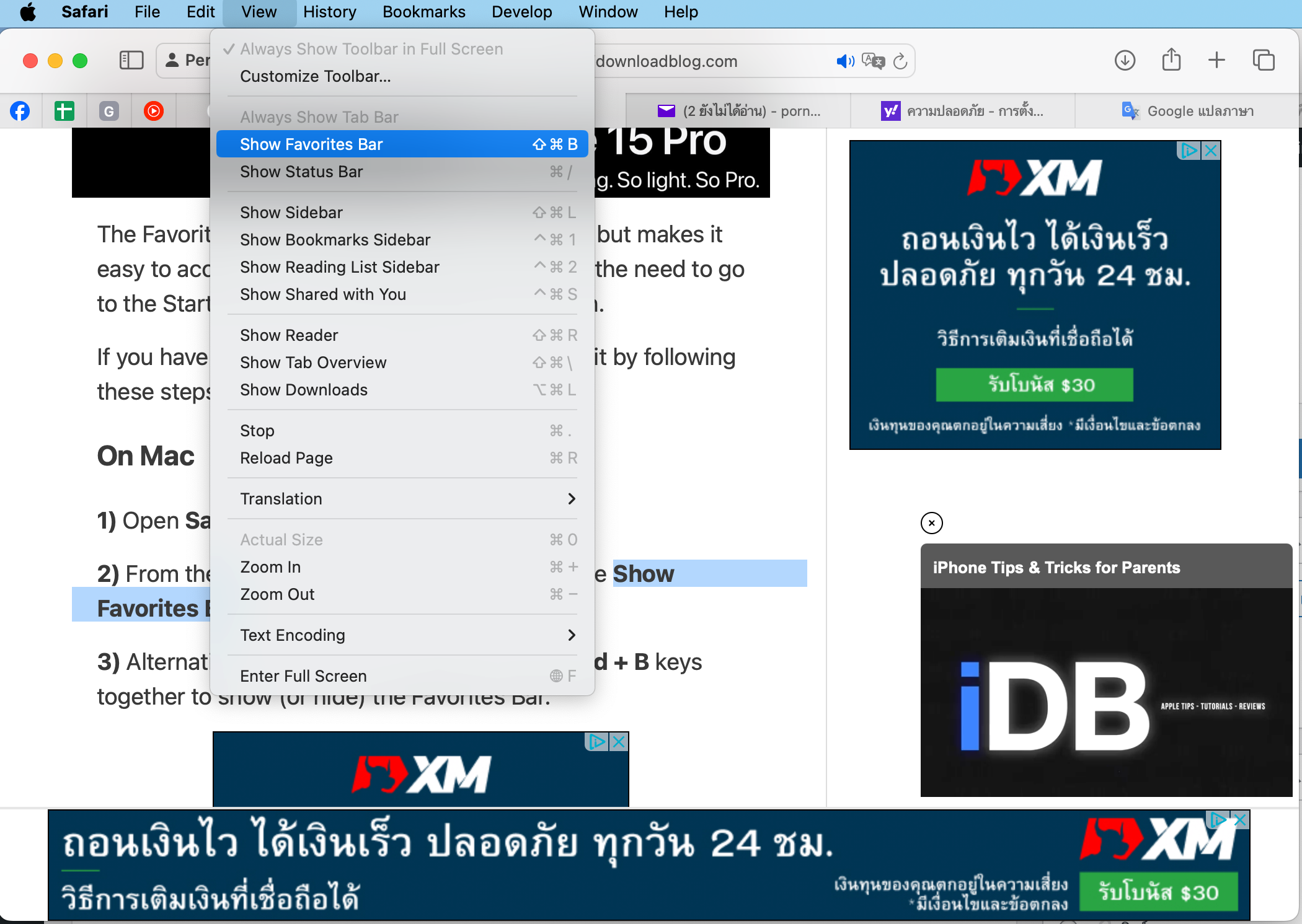
- Alternatively, you can click and hold the plus (+) button in the tab bar to quickly add the page to your favorites folder.
Adding Favorites on iPhone and iPad
Mobile devices utilize gesture-based controls and context menus to manage site shortcuts.
- Launch Safari and navigate to the desired website.
- Tap the Share icon located in the bottom center of the screen (on iPhone) or the top toolbar (on iPad).
- Scroll through the share sheet and tap "Add to Favorites."
- If you have multiple folders within your bookmarks, a prompt may appear to confirm the destination folder; select "Favorites" to ensure it appears on your Start Page.
Managing and Organizing Your Favorites
Once you have established a collection of favorites, managing their layout is critical for efficiency. You can rearrange or remove favorites at any time.
| Method | Action Description |
|---|---|
| Rearranging | Long-press or click-and-drag an icon on the Start Page to move it to a different position in the grid. |
| Deleting | Right-click (Mac) or long-press (iOS) on the favorite icon and select "Delete" to remove the shortcut. |
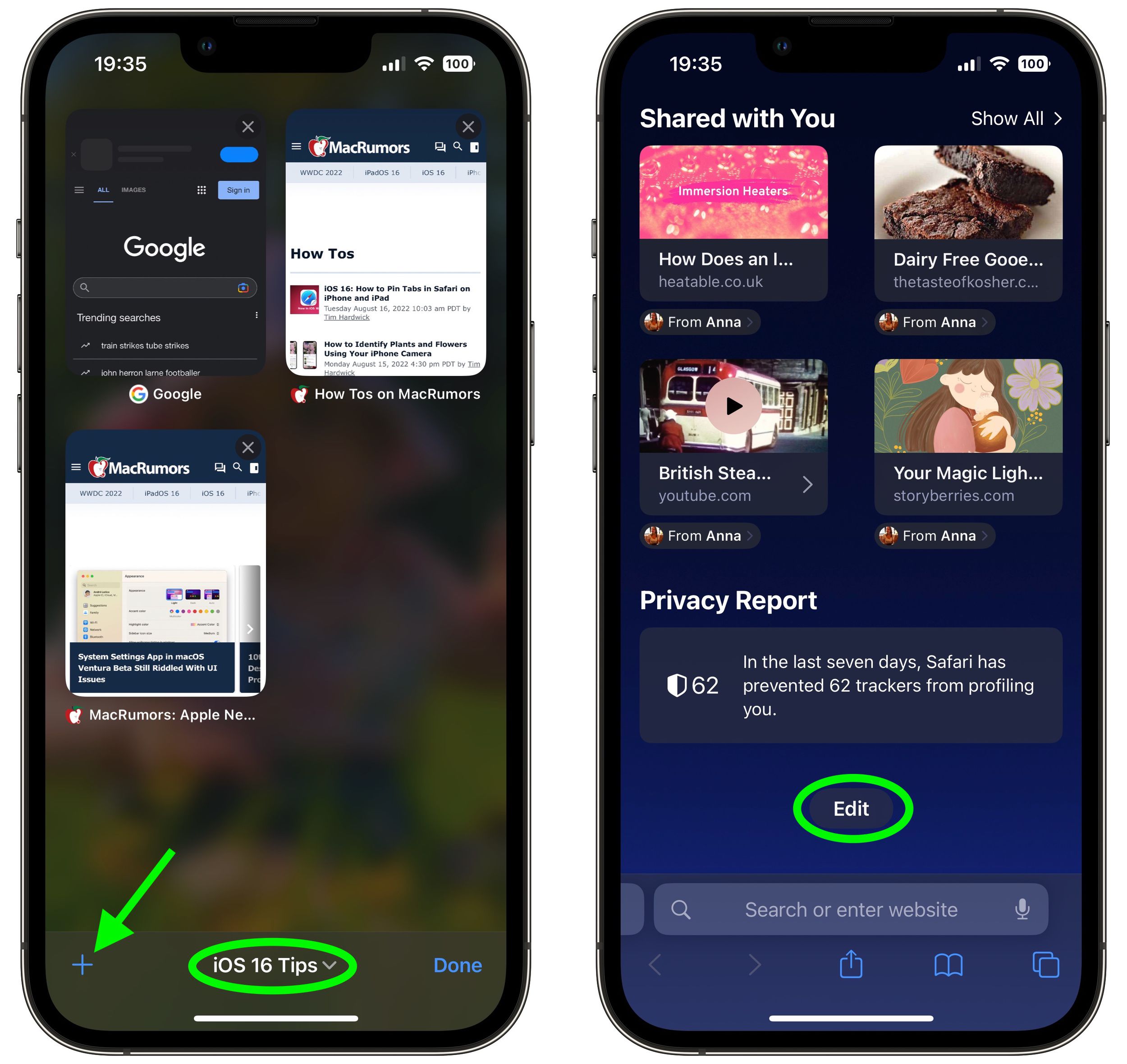
| Editing | Use the "Edit" button at the bottom of the Start Page to toggle the visibility of the Favorites section entirely. |
| Folders | Right-click the Favorites folder in the Sidebar to create sub-folders for better categorization of specialized sites. |
Troubleshooting Common Favorites Issues
Even with seamless integration, users may occasionally encounter synchronization delays or missing icons.
Synchronization Lag
If a favorite added on your iPhone does not appear on your Mac, verify that both devices are signed into the same Apple ID. Navigate to the iCloud settings and toggle the Safari sync switch off and on. This forces a re-index of the bookmark database.
The Missing Start Page
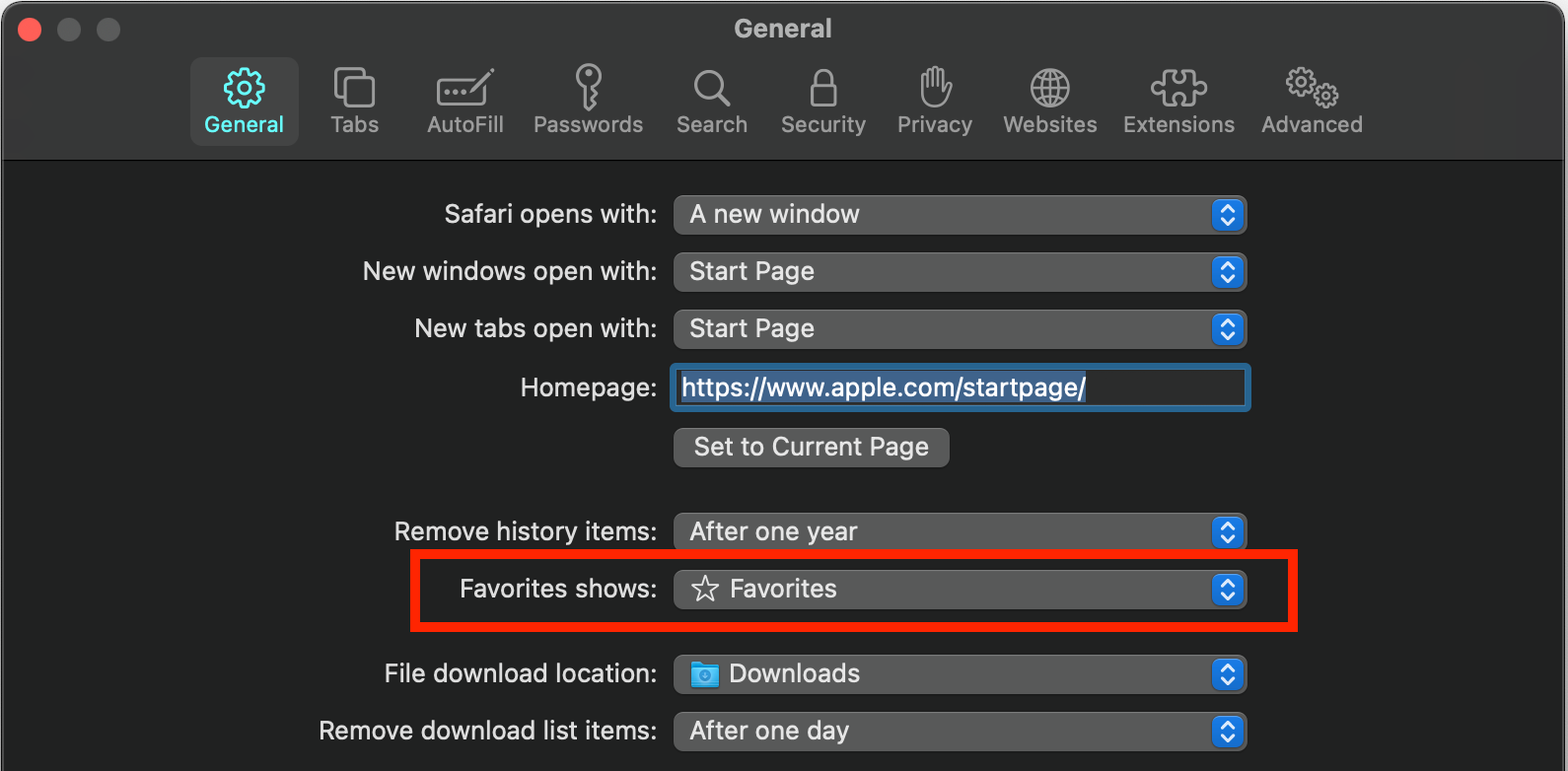
If your favorites are not visible when you open a new tab, ensure that the "Favorites" option is enabled in your Start Page settings. Scroll to the bottom of the Start Page, tap the "Edit" button, and confirm that the "Favorites" checkbox is selected.
Icon Display Problems
Sometimes, Safari may fail to retrieve the "favicon" (the small icon associated with a website). This is typically a server-side issue with the website itself. To resolve this, delete the favorite and re-add it once the website has finished loading its metadata in the browser cache.
Comparison of Bookmark Types in Safari
To better understand why you would choose Favorites over standard Bookmarks or the Reading List, consider the following distinctions.
- Favorites: Designed for daily access. These occupy the most visible real estate on the Start Page.
- Bookmarks: Used for archiving and deep categorization. These are better suited for long-term storage of information you do not need to access every hour.
- Reading List: A temporary queue for articles you intend to read later. These do not require permanent categorization and can be cleared once the content is consumed.
Frequently Asked Questions
Can I change the order of my Safari Favorites?
Yes, you can easily rearrange them by clicking and dragging the icons on the Start Page. On mobile devices, simply long-press an icon until it enters "jiggle mode" and slide it to your preferred location.
How many favorites can I have on the Start Page?
While there is no hard technical limit to the number of bookmarks you can save in the Favorites folder, the Start Page grid is designed to show a specific number of items. Excessive entries may be hidden behind a "Show More" expansion link to maintain a clean interface.
Will deleting a favorite remove the website from my history?
No, deleting a shortcut from your Favorites does not delete your browsing history. It only removes the quick-access icon from your Start Page, leaving the actual site data intact in your history and bookmarks library.
Is it possible to share my Favorites folder with others?
Safari does not currently support direct collaborative sharing of the Favorites folder. Each user must curate their own list of favorites based on their individual browsing habits and needs.
Does adding a favorite impact browser performance?
Adding a favorite is a lightweight operation that stores a small metadata link in your iCloud Safari database. It has a negligible impact on the performance or memory usage of the Safari browser on any modern device.
Optimizing Your Browsing Workflow
By thoughtfully curating your Safari Favorites, you reduce the cognitive load required to navigate the web. Prioritize sites that serve your professional or personal productivity goals for 2026. Regularly prune the list to ensure that outdated or rarely visited pages do not clutter your primary dashboard, allowing for a faster and more focused start to every browsing session.
Image Gallery