How to Change Font Size on iPhone Notes: A Comprehensive Guide
Changing the font size within the Apple Notes app on an iPhone allows for a more personalized and accessible reading or writing experience. While iOS does not offer a slider for granular, per-character font sizing within a single note,...
Changing the font size within the Apple Notes app on an iPhone allows for a more personalized and accessible reading or writing experience. While iOS does not offer a slider for granular, per-character font sizing within a single note, it provides robust formatting tools—such as text styles—and system-wide accessibility settings that allow you to adjust the text size to meet your specific needs.
Contents
Understanding the Two Approaches to Font Adjustment
To adjust text size in Apple Notes, you must distinguish between two different methods. The first is Formatting Styles, which allows you to change the hierarchy of text (e.g., Title, Heading, Subheading, Body) within an individual note to create visual structure. The second is System-Wide Dynamic Type, which changes the baseline font size for the Notes app and other system applications to enhance readability. Depending on whether you want to emphasize specific information or improve overall visibility, one or both of these methods will be necessary.
Using Built-in Formatting Styles
Apple Notes uses a hierarchical approach to typography. Instead of selecting an arbitrary point size, you apply predefined styles that scale consistently across your devices.
- Open the Notes app on your iPhone.
- Select or create a note.
- Tap anywhere in the body of the note to bring up the keyboard.
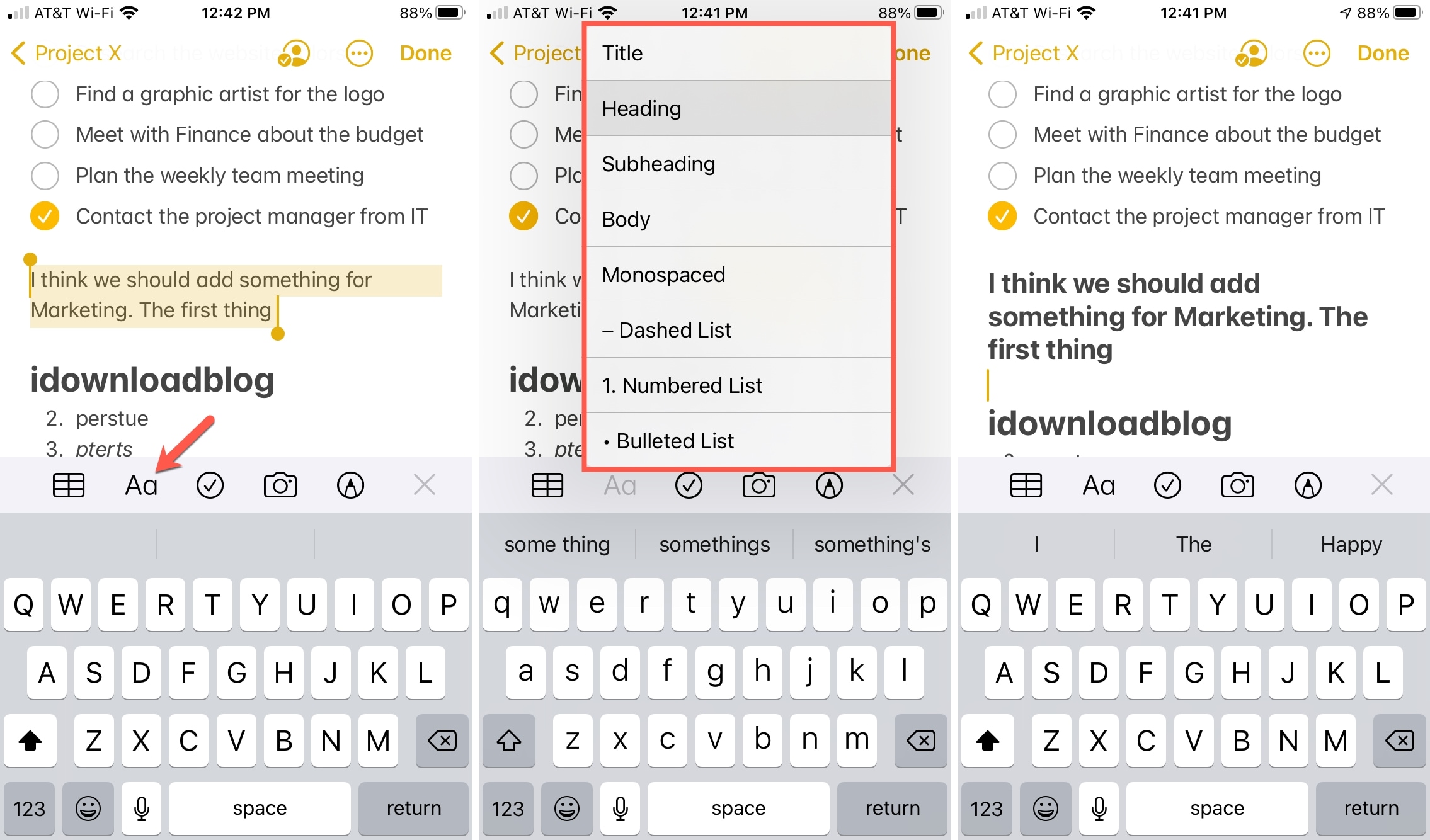
- Locate the Aa icon in the toolbar above the keyboard. If the toolbar is hidden, tap the plus (+) icon or the "Aa" icon if visible.
- In the menu that appears, you will see options for Title, Heading, Subheading, Monospaced, and Body.
- Selecting Title or Heading will automatically increase the font size and apply bold weight to the text. Selecting Body returns the text to the standard, smaller size.
This method is ideal for organizing notes with clear structures. Because these styles are linked to your iCloud account, a title formatted on your iPhone will maintain its larger, bolded size when viewed on an iPad or Mac.
Adjusting System-Wide Font Size (Dynamic Type)
If you find that the standard text size in Notes is too small to read comfortably, you can increase the system-wide font size. This setting influences how Apple Notes and many third-party apps display text, making it a powerful tool for accessibility.
- Open the Settings app on your iPhone.
- Scroll down and tap on Accessibility.
- Select Display & Text Size.
- Tap on Larger Text.
- Toggle the Larger Accessibility Sizes switch to "On" if you require very large text.
- Use the slider at the bottom of the screen to increase or decrease the text size globally.
Once this is adjusted, navigate back to the Notes app. You will notice that the text within your notes has scaled up to match your preference. This adjustment is non-destructive; it does not change the actual data in your note, only how it is rendered on your screen.
Comparison of Font Adjustment Methods
| Feature | Formatting Styles (Aa Menu) | System-Wide Dynamic Type |
|---|---|---|
| Primary Purpose | Visual hierarchy and structure | Accessibility and readability |
| Scope | Per-note, specific text blocks | Global (all compatible apps) |
| Customization | Preset styles only | Granular slider adjustment |
| Persistance | Syncs via iCloud to all devices | Device-specific setting |
| Impact | Changes formatting tags | Changes rendering scale |
Troubleshooting Common Issues
When adjusting font sizes, you may encounter scenarios where the text does not appear to change as expected. Below are the most common factors to investigate.
Text Formatting Conflicts
If you have manually applied a font style (like "Heading") to a paragraph, simply changing your system-wide text size may not override that specific style in the way you expect. If you want a uniform look, ensure all text is set to "Body" style first, then adjust your system-wide accessibility settings.
Third-Party App Limitations
While the system-wide "Larger Text" setting applies to Apple Notes, it may not apply to all third-party note-taking apps. If you use alternative apps like Obsidian, Notion, or Evernote, you may need to check the settings within those specific applications to adjust the font size, as they often use custom rendering engines that do not always defer to iOS system-wide font settings.
iCloud Syncing Delays
If you apply a change to a Note's "Heading" style on an iPhone, there may be a momentary delay before the change reflects on your other devices. Ensure both devices are signed into the same iCloud account and connected to the internet. If the formatting does not sync, force-close the Notes app on both devices and relaunch it to refresh the data stream.
Advanced Tips for Note Organization
Beyond merely changing the font size, you can improve readability by using other formatting tools available in the "Aa" menu.
- Bold, Italic, Underline: Use these to emphasize specific keywords within your body text without changing the font size.
- Lists: Bulleted and numbered lists often help break up large blocks of text, making the content feel less dense even if you are using a larger font size.
- Monospaced Font: This is particularly useful if you are pasting code snippets or data that requires uniform character spacing. While it does not change the size, it changes the weight and spacing, which can assist in scanning technical information.
Frequently Asked Questions
Can I change the font style (e.g., from San Francisco to Arial) in iPhone Notes?
No. Apple Notes is designed to use the system default font (currently San Francisco) to ensure cross-device compatibility and performance. You cannot select custom fonts from the App Store or system library within the Notes app.
Will changing the font size affect the print layout of my notes?
Yes. If you choose to share or print a note, the system often interprets the formatting styles (Title, Heading) as larger elements. Increasing the system-wide text size may also affect the layout of the exported PDF or printed document, potentially causing text to wrap differently.
Why does my text jump to a different size when I hit "Return"?
When you hit "Return" at the end of a line, Apple Notes sometimes carries over the formatting style of the previous line. If you were typing in a "Heading" style, the new line will also start as a "Heading." Tap the "Aa" menu to switch back to "Body" if you want the new line to use the standard, smaller size.
Does Apple Notes support "Large Text" for everyone?
Yes, the accessibility features in iOS are available on all current iPhone models. These features are designed to comply with standard accessibility guidelines, ensuring that users with visual impairments can adjust the interface to suit their specific requirements.
Can I change the font size for only one specific paragraph?
You cannot set a custom point size (like 14pt or 16pt) for a single paragraph. You are limited to the hierarchy of "Title," "Heading," "Subheading," and "Body." If you need precise control over font size, you might consider using a dedicated word processing app like Apple Pages, which allows for granular control over font attributes.
Final Recommendation
For most users, the optimal way to manage font size in iPhone Notes is to use Formatting Styles for logical organization—reserving "Heading" for titles and "Body" for details—and to use the System-Wide Accessibility slider in Settings to establish a comfortable baseline for your eyes. By combining these two methods, you maintain clean, organized notes that are easy to read across your entire Apple ecosystem. If you find the lack of granular font control limiting, ensure your most important documents are stored in a format or application designed for professional typesetting.
Image Gallery