Accessing Your Map Reading Fluency Student Portal: A 2026 Comprehensive Guide
Students needing to access their Map Reading Fluency assessment platform can log in by navigating directly to their institution’s designated URL or the official provider’s portal using their unique student ID and password. Ensure your...
Students needing to access their Map Reading Fluency assessment platform can log in by navigating directly to their institution’s designated URL or the official provider’s portal using their unique student ID and password. Ensure your browser is updated to the 2026 standards to maintain compatibility with the platform’s interactive mapping components and data security protocols.
Contents
Understanding the Map Reading Fluency Platform Architecture
Map Reading Fluency serves as a specialized digital environment designed to assess and improve a student's ability to interpret cartographic data, scale, legends, and spatial orientation. In the 2026 academic landscape, these platforms utilize browser-based rendering engines that require consistent connectivity to track real-time progress.
The platform functions as a diagnostic and learning tool. By logging in, students gain access to:
- Progressive learning modules that scale in difficulty based on previous performance.
- Interactive geographic interfaces that allow for the manipulation of map layers.
- Data visualization dashboards that track fluency milestones over the course of the semester.
- Secure messaging channels for communication with instructors regarding assessment feedback.
Essential Prerequisites for Seamless Login Access
Before attempting to sign in, students must ensure their local environment meets the minimum technical requirements for the 2026 version of the software. Failure to meet these criteria often results in "Session Timeout" errors or partial rendering of geographic assets.
- Browser Compatibility: Use the latest stable versions of Chrome, Edge, or Firefox. Safari users should ensure "Prevent Cross-Site Tracking" is managed if the login fails to persist.
- Network Authentication: Many institutional portals require a VPN or a specific IP range if the student is attempting to access the platform from off-campus.
- Credential Verification: Ensure you are using your institution-issued credentials (Single Sign-On or SSO) rather than a secondary account created during trial phases.
- Hardware Acceleration: Verify that your system’s graphics hardware acceleration is enabled, as high-resolution map rendering relies on local GPU processing.
Troubleshooting Common Login Barriers
If you are unable to access your dashboard, the issue is typically linked to either cache corruption or authentication mismatches. The following table outlines the most common error states and their respective resolutions.
| Error Symptom | Likely Cause | Recommended 2026 Resolution |
|---|---|---|
| 403 Forbidden Access | Expired Session or IP Mismatch | Clear browser cookies and re-authenticate via the institutional portal. |
| Endless Loading Spinner | JavaScript Conflict | Disable third-party browser extensions like ad-blockers for this domain. |
| Incorrect Credentials | Sync Latency | Wait 15 minutes for credential sync or reset your institutional password. |
| Blank Map Canvas | WebGL Support Disabled | Update your graphics drivers or switch to a high-performance power plan. |
Authentication Best Practices
Security Protocol: Always utilize Multi-Factor Authentication (MFA) when logging into your student portal. As of 2026, most educational institutions mandate MFA to protect student performance records and personal data from unauthorized access. Never store your credentials in shared devices or public computer labs.
Navigating the Student Dashboard After Login
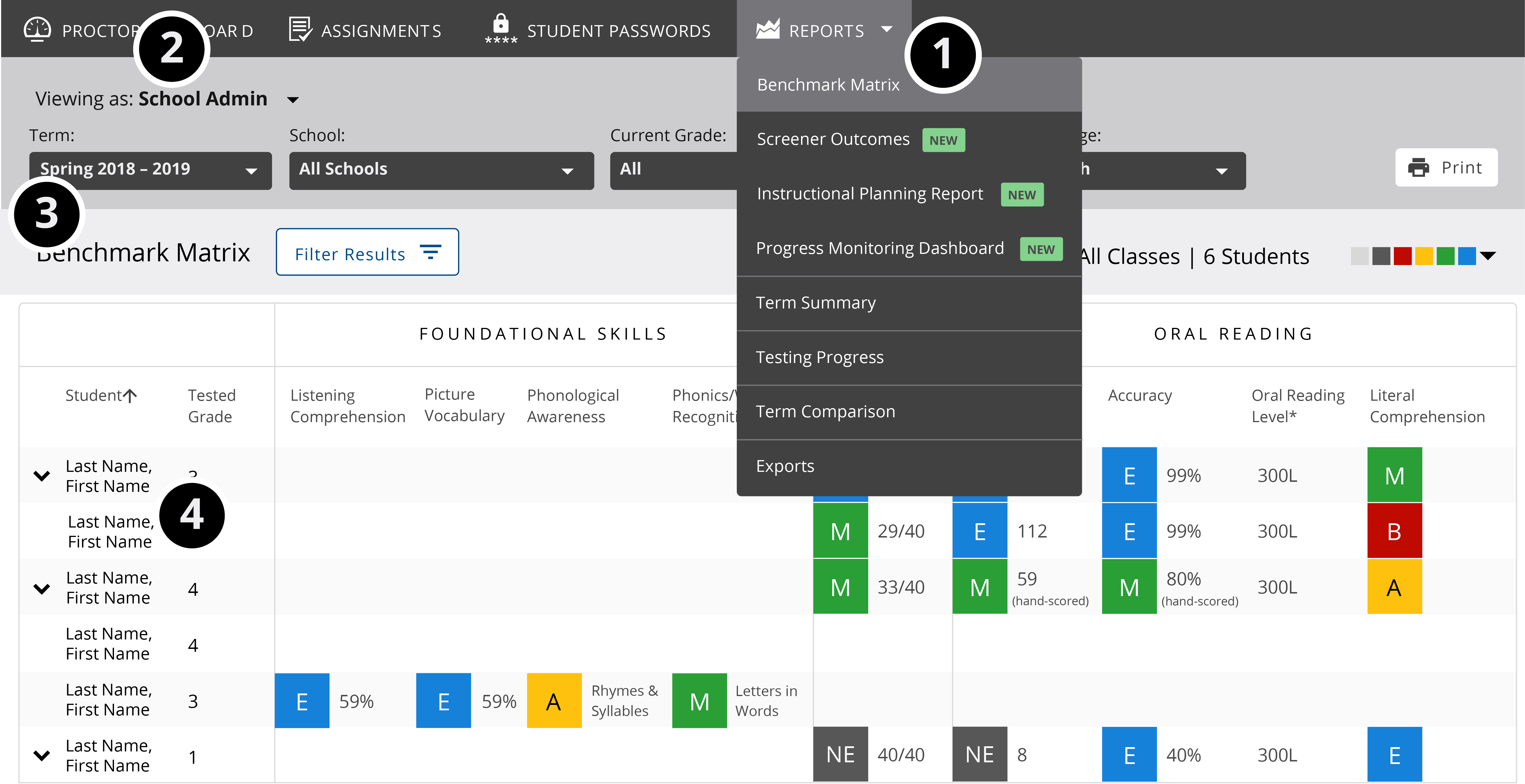
Upon successfully entering your credentials, the primary interface will categorize your tasks based on your current curriculum progress. The dashboard is designed for high-density information display, prioritizing "Pending Assessments" and "Skill Gaps" identified by the platform’s algorithm.
If you are a student utilizing the platform for Geography 101 or advanced cartography courses, your view will be segmented into:
- Active Modules: Current lessons that are unlocked and ready for completion.
- Proficiency Metrics: A visual representation of your speed and accuracy in interpreting topographic and thematic maps.
- Historical Reports: Archived assessments that show your growth in map reading fluency since the start of the term.
Integrating Map Reading Fluency with Learning Management Systems
In 2026, most Map Reading Fluency tools are integrated directly into Learning Management Systems (LMS) such as Canvas, Blackboard, or Moodle. If your instructor has integrated these systems, you may not need a separate login. Instead, look for the "External Tools" or "Modules" tab within your primary course page.
If you find that your grades are not syncing between the Map Reading platform and your main course gradebook, check the following:
- Assignment Link: Ensure you launched the Map Reading tool from within the specific assignment link in your LMS, which passes the necessary LTI (Learning Tools Interoperability) launch data.
- Popup Blockers: Ensure your browser is not blocking the new window that the LTI tool requires to communicate your completion status back to the course server.
Frequently Asked Questions Regarding Student Access
What should I do if I have forgotten my password for the portal?
If your platform uses SSO, you must reset your password through your institution's central IT department or password recovery portal. The Map Reading platform itself does not typically hold the authority to reset credentials synced with university-wide directories.
Can I access the platform on a mobile device?
While many modern Map Reading interfaces are responsive, the complex nature of map interaction is optimized for desktop or tablet devices. For 2026, it is highly recommended to use a device with a screen resolution of at least 1080p for the best experience.
Why does my fluency score not update immediately after a lesson?
Data synchronization often occurs in batches to reduce server load. Allow up to 24 hours for the platform to process your session data and update your aggregate fluency score.
Is the platform compatible with assistive technology?
Yes, the 2026 iteration of the software includes improved ARIA labels and keyboard navigation support to ensure compliance with digital accessibility standards, allowing students who use screen readers to interact with mapping data more effectively.
Where can I find my instructor's contact information?
Most platforms feature a "Help" or "Instructor Support" tab located in the top navigation bar of your student dashboard, which provides direct email or messaging access to your professor.
Enhancing Your Cartographic Skills
Achieving mastery in map reading requires consistent practice. Once logged in, focus on the "Practice Mode" before attempting high-stakes assessments. This mode allows you to toggle map elements—such as contour lines, scale bars, and legends—to observe how each component alters your perception of the terrain. By utilizing these tools regularly, you will find that your speed in decoding complex cartographic information significantly increases over the 2026 academic year.
If you continue to face technical obstacles, document the specific error code displayed on your screen and contact your institution’s technical support desk with a screenshot of the incident. Ensuring that your system is fully patched will resolve the vast majority of access issues you may encounter.
Image Gallery