Comprehensive Guide to Using Hola Metro by T-Mobile Self-Serve in 2026
Hola Metro is the integrated self-service system for Metro by T-Mobile customers, allowing for comprehensive account management via the mobile app or web portal. You can pay bills, track data usage, and modify service plans without vis...
Hola Metro is the integrated self-service system for Metro by T-Mobile customers, allowing for comprehensive account management via the mobile app or web portal. You can pay bills, track data usage, and modify service plans without visiting a retail store by logging in with your Metro phone number and account PIN.
Contents
The evolution of prepaid wireless service has reached a point where physical retail visits are rarely necessary. As of 2026, Metro by T-Mobile has streamlined its digital ecosystem under the "Hola Metro" branding—a nod to its significant Spanish-speaking user base and a broader commitment to accessible, user-friendly self-service. Whether you are using the mobile application or the desktop MyAccount portal, understanding the nuances of these tools can save you time and money.
Understanding the Hola Metro Self-Serve Ecosystem
The term "Hola Metro" is often used interchangeably with the Metro by T-Mobile App and the MyAccount digital portal. It serves as a centralized hub for every administrative task associated with your wireless service. In the 2026 service landscape, self-serve is no longer just an alternative; it is the primary method for managing prepaid accounts, offering real-time updates that are often more accurate than what a retail representative can provide over the phone.
The ecosystem is divided into three primary touchpoints:
- The Metro by T-Mobile App: The most popular method, designed for on-the-go adjustments and quick payments.
- MyAccount Web Portal: A more detailed interface suitable for viewing long-term usage history and managing multiple lines on a family plan.
- Short Codes (USSD): A text-based system for those without consistent data access or who prefer a low-tech solution for checking balances.
By utilizing these tools, customers gain autonomy over their wireless experience, avoiding the convenience fees sometimes associated with in-store or phone-assisted payments.
Prerequisites for Accessing Self-Serve
Before you can effectively use the Hola Metro self-serve features, you must meet specific technical and security requirements. Because these platforms handle sensitive information, including payment methods and call logs, Metro by T-Mobile implements multi-factor authentication (MFA).
Required Information
- Active Metro Phone Number: This serves as your primary user ID.
- 8-Digit Account PIN: Created during the initial activation. This is different from your phone's screen lock PIN.
- Updated Mobile Application: Ensure you are running the latest version from the Google Play Store or Apple App Store to maintain security patches.
- Verified Email Address: Necessary for password recovery and receiving digital receipts.
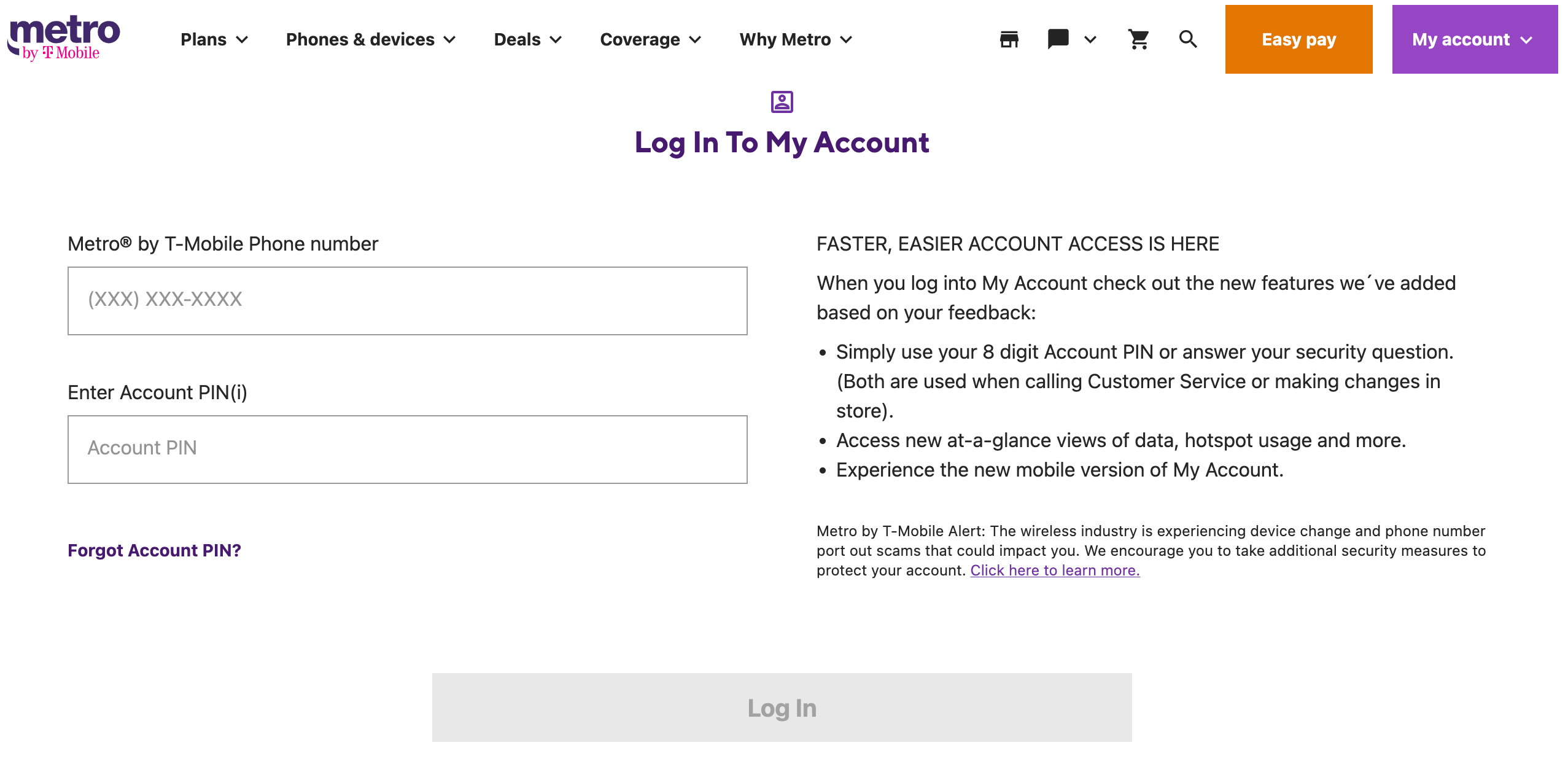
If you have forgotten your 8-digit PIN, you can usually reset it via the "Forgot PIN" link on the login screen, provided you have access to the device to receive a verification SMS.
Step-by-Step: Setting Up Your Digital Account
For new customers in 2026, the registration process has been simplified to encourage digital adoption. Follow these steps to initialize your Hola Metro experience:
- Download the App: Navigate to your respective app store and search for "Metro by T-Mobile." Look for the official app published by T-Mobile USA.
- Initial Launch: Open the app while connected to the Metro cellular network (turn off Wi-Fi briefly). This allows the system to automatically recognize your phone number.
- Authentication: Enter your 8-digit PIN when prompted.
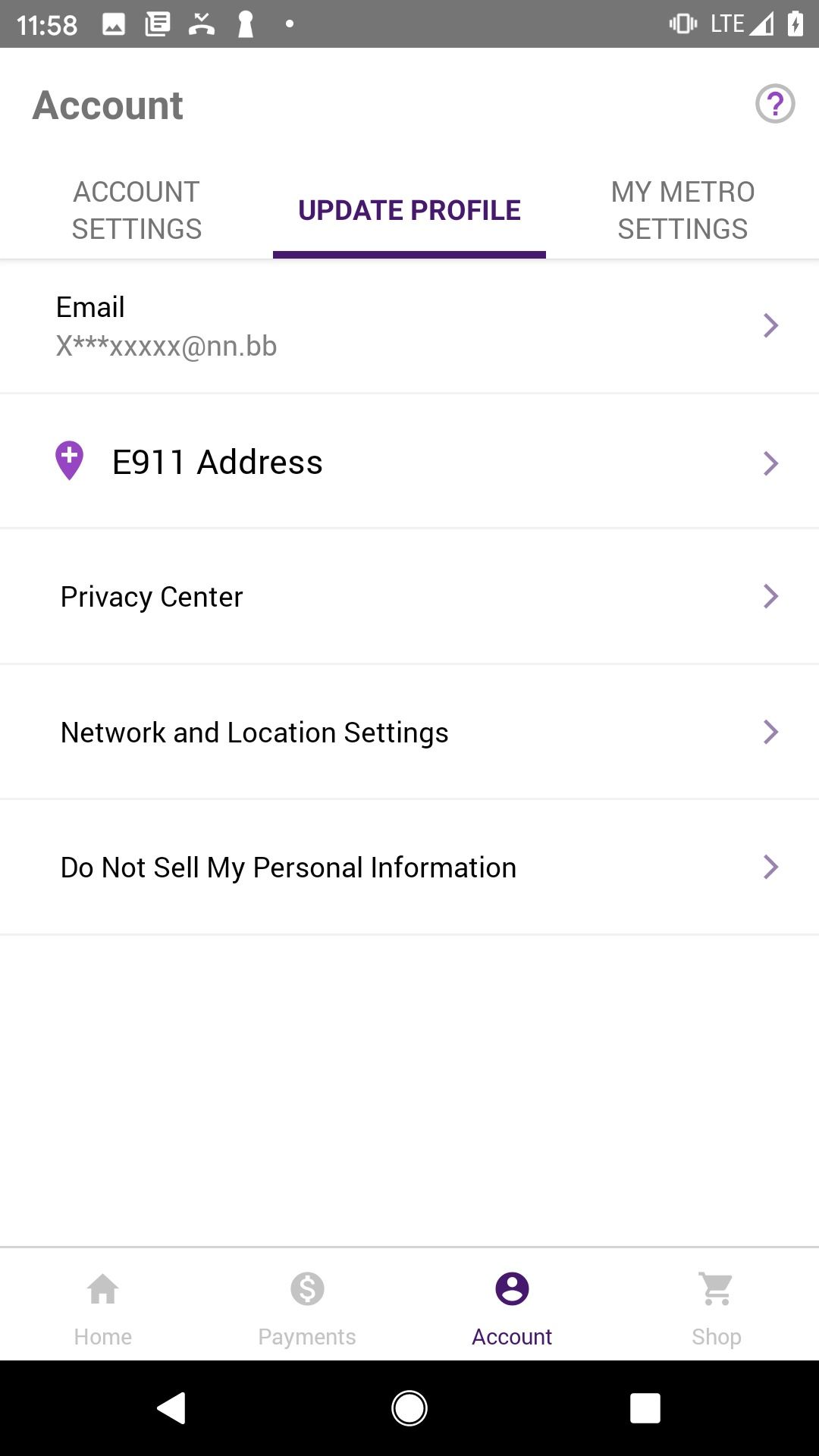
- Profile Completion: Verify your email address and set up biometric login (FaceID or Fingerprint) for faster future access.
- Permissions: Grant the app permission to send notifications. This is crucial for receiving "low balance" alerts or data cap warnings.
Navigating the Interface and Key Features
Once logged in, the interface is organized into logical modules. The 2026 version of the app prioritizes the most common tasks—payment and data tracking—on the home screen.
Real-Time Usage Monitoring
One of the most powerful features of the self-serve portal is the usage meter. Unlike older systems that might lag by several hours, the current system provides near-instantaneous feedback on:
- High-Speed Data Consumption: See how many gigabytes remain before potential speed prioritization occurs.
- Hotspot Usage: Specifically track how much of your data is being used for tethering.
- International Minutes: If you have an "Hola Mexico" or "Global Calling" add-on, you can track your remaining minutes to specific zones.
Plan and Feature Management
The self-serve platform allows you to upgrade or downgrade your plan without calling customer service. This is particularly useful if you find you are consistently hitting data limits. You can also toggle "Add-ons" such as:
- Scam Shield Premium: Enhanced caller ID and spam blocking.
- Device Protection: Manage your insurance coverage via Assurant.
- Streaming Bundles: Activate or manage subscriptions like Netflix or Google One that may be included in your plan.
Detailed Payment Procedures
Managing your finances is a core component of the Hola Metro self-serve experience. Metro by T-Mobile offers several ways to keep your service active without the need for physical "top-up" cards.
One-Time Payments
If you prefer to pay manually each month, you can navigate to the "Payment" tab. The system accepts credit cards, debit cards, and prepaid Visa/Mastercard gift cards. By 2026, many regional digital wallets are also supported, including Apple Pay and Google Pay.
Configuring AutoPay
To avoid service interruptions, Metro highly recommends AutoPay. In most 2026 plans, enrolling in AutoPay provides a $5 monthly discount per line.
- Navigate to Account Settings.
- Select Payment Options and then AutoPay.
- Link a recurring payment source.
- The system will automatically withdraw the balance 2–3 days before your "Cycle Date."
| Feature | MyAccount (Web) | Metro App | Short Codes (*611) |
|---|---|---|---|
| Check Balance | Yes | Yes | Yes |
| Make Payment | Yes | Yes | Yes (Debit/Credit) |
| Change Plan | Yes | Yes | No |
| View Usage History | Full (90 Days) | Basic (30 Days) | Current Only |
| Update Personal Info | Yes | Yes | No |
| Add/Remove Lines | Yes | No (Directs to Store) | No |
Advanced Troubleshooting for Self-Serve Users
Despite the robust nature of the Hola Metro system, technical hurdles can occur. Most issues are related to synchronization or authentication.
Resolving Connection Errors
If the app displays a "Connection Timed Out" or "Service Unavailable" message, it is often due to a conflict between Wi-Fi and the Metro network. The app performs better when it can verify your identity through the SIM card's cellular data. Try disabling Wi-Fi and restarting the app.
Authentication Failures
If you are locked out of your account, wait 30 minutes before attempting to log in again. Repeated failed attempts can trigger a security freeze. If the "Forgot PIN" SMS does not arrive, ensure that your device has not reached its text message storage limit or that you haven't blocked the official Metro short codes (usually 611 or 1511).
Clearing Cache and Data
On Android devices, if the app becomes sluggish or fails to update your balance, navigate to Settings > Apps > Metro > Storage and select Clear Cache. This refreshes the local data without deleting your account information.
Security Best Practices
Since your self-serve account contains your billing address and payment details, maintaining security is paramount.
- Avoid Public Wi-Fi: Never make payments or change account settings while connected to unsecured public Wi-Fi networks.
- Unique PINs: Do not use easily guessable PINs like "12345678" or your birth year.
- Regular Audits: Check your "Logged-in Devices" list within the app settings once a month to ensure no unauthorized access has occurred.
Frequently Asked Questions
Can I change my phone number using Hola Metro self-serve?
Yes, the MyAccount web portal allows for one phone number change per year in most regions. However, there may be a fee associated with this, and you must select from available area codes based on your current billing address. Note that once a number is changed, the old number cannot be recovered.
How do I add a second line to my account via the app?
While you can view all lines on an existing family plan via the app, adding a brand-new line usually requires a visit to a Metro by T-Mobile retail store or a call to specialized sales support. This is to verify device compatibility and identity for the new SIM/eSIM activation.
Why is my usage data different in the app versus my phone's settings?
The "Hola Metro" app displays data as it is recorded by the network towers, which is the official count for billing purposes. Your phone's internal settings may track data differently (e.g., including Wi-Fi usage or calculating bytes differently). Always rely on the Metro app's meter for your remaining high-speed balance.
Is there a fee for using the self-serve payment system?
No. Using the app or web portal to pay your bill is free. In fact, it is often cheaper than paying in-store, where a "convenience fee" (typically $5) may be applied for processing payments through a retail representative.
Can I manage my eSIM through the self-serve portal?
In 2026, Metro supports eSIM management for most modern smartphones. You can initiate an "eSIM Swap" through the MyAccount portal if you upgrade your device. This allows you to transfer your service to a new phone without needing a physical SIM card.
Recommended Next Steps
To maximize the benefits of the Hola Metro self-serve system, your first action should be to download the app and enroll in AutoPay. This ensures your service remains active and that you receive the $5 monthly discount available to most customers. Once your account is secured with biometrics, spend five minutes navigating the "Usage" and "Add-ons" sections to ensure you are not paying for features you don't use, and that your data plan aligns with your actual consumption habits.
Image Gallery