How to Cancel PS4 Plus Subscription: A Complete Step-by-Step Guide
To cancel your PS4 Plus subscription, navigate to Settings > Account Management > Account Information > PlayStation Subscriptions on your console. Alternatively, sign into your account on the PlayStation website and turn off Auto-Renew...
To cancel your PS4 Plus subscription, navigate to Settings > Account Management > Account Information > PlayStation Subscriptions on your console. Alternatively, sign into your account on the PlayStation website and turn off Auto-Renew. Canceling ensures you are not billed again while retaining service access until the current billing period expires.
Contents
Managing a PlayStation Plus subscription (often referred to by users as "PS4 Plus") is a straightforward process, yet many users find the interface confusing due to various service rebranding efforts and menu updates. As of 2026, Sony has streamlined the interface, but the fundamental mechanics of disabling "Auto-Renew" remain the primary method for ending a subscription. Whether you are looking to save money, take a break from gaming, or switch to a different platform, understanding the nuances of the cancellation process is vital to avoiding unwanted charges.
Prerequisites for Canceling Your Subscription
Before initiating the cancellation process, you must ensure you have the necessary credentials and understand the timing of your billing cycle. PlayStation Plus is a recurring service, meaning that unless manual intervention occurs, the system will automatically charge your saved payment method—be it a credit card, PayPal, or PSN wallet funds—at the start of every new period.
1. Account Credentials
You must have access to the primary account that holds the subscription. If you are using a "secondary" or "child" account, you may need the family manager to perform the cancellation through their own dashboard. If you have forgotten your password, use the "Forgot Your Password?" link on the PlayStation Network login page before attempting to cancel.
2. Identifying Your Subscription Tier
By 2026, the PlayStation Plus service is divided into three distinct tiers: Essential, Extra, and Premium. While the cancellation steps are identical for all three, the consequences of losing access differ significantly between them. For instance, canceling a Premium subscription results in the loss of cloud streaming and the "Classics Catalog," which may impact how you choose to time your departure.
3. Reviewing the Billing Cycle
Sony does not offer pro-rated refunds for the remaining days of a subscription if you cancel midway through a month or year. Consequently, it is often best to cancel a few days before the renewal date to ensure you maximize the value of the time you have already paid for.
Method 1: Canceling via the PS4 Console Interface
For most users, the console itself is the most convenient place to manage a subscription. The PS4 interface, while legacy compared to the PS5 and newer iterations, remains functional and efficient for account management.
- Turn on your PS4 and log into the primary user profile associated with the subscription.
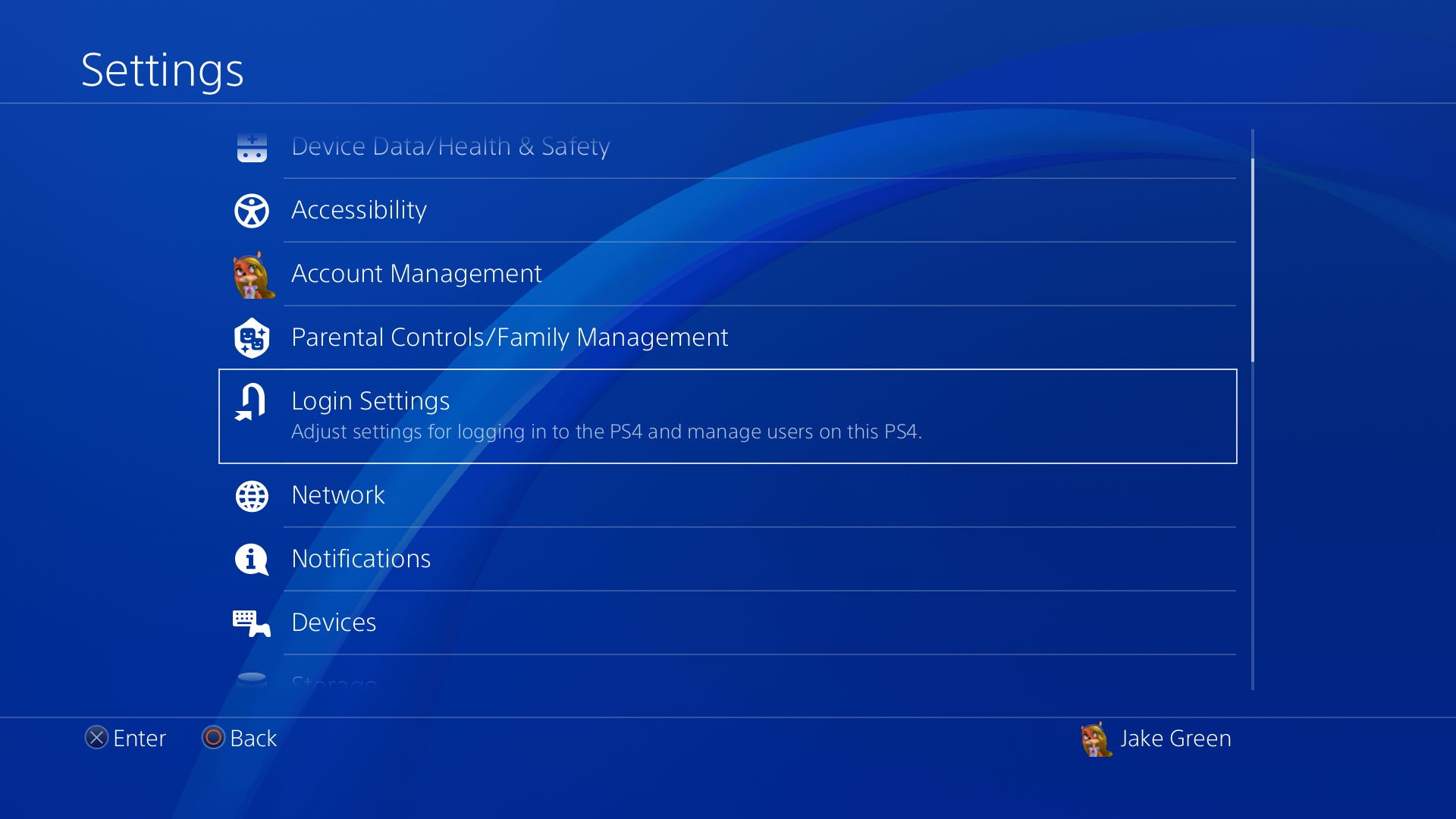
- Navigate to Settings: From the home screen, press "Up" on the D-pad to access the top-level menu and scroll to the right to find the briefcase-shaped Settings icon.
- Access Account Management: Select Account Management from the list. This section contains all your sensitive data, including privacy settings and linkable services.
- Open Account Information: Within this sub-menu, select Account Information. You may be prompted to re-enter your password for security purposes.
- Locate PlayStation Subscriptions: Scroll down the list until you find the PlayStation Subscriptions tab. This folder contains a history of every active and expired service linked to your account.
- Select PlayStation Plus: Click on the active PlayStation Plus membership.
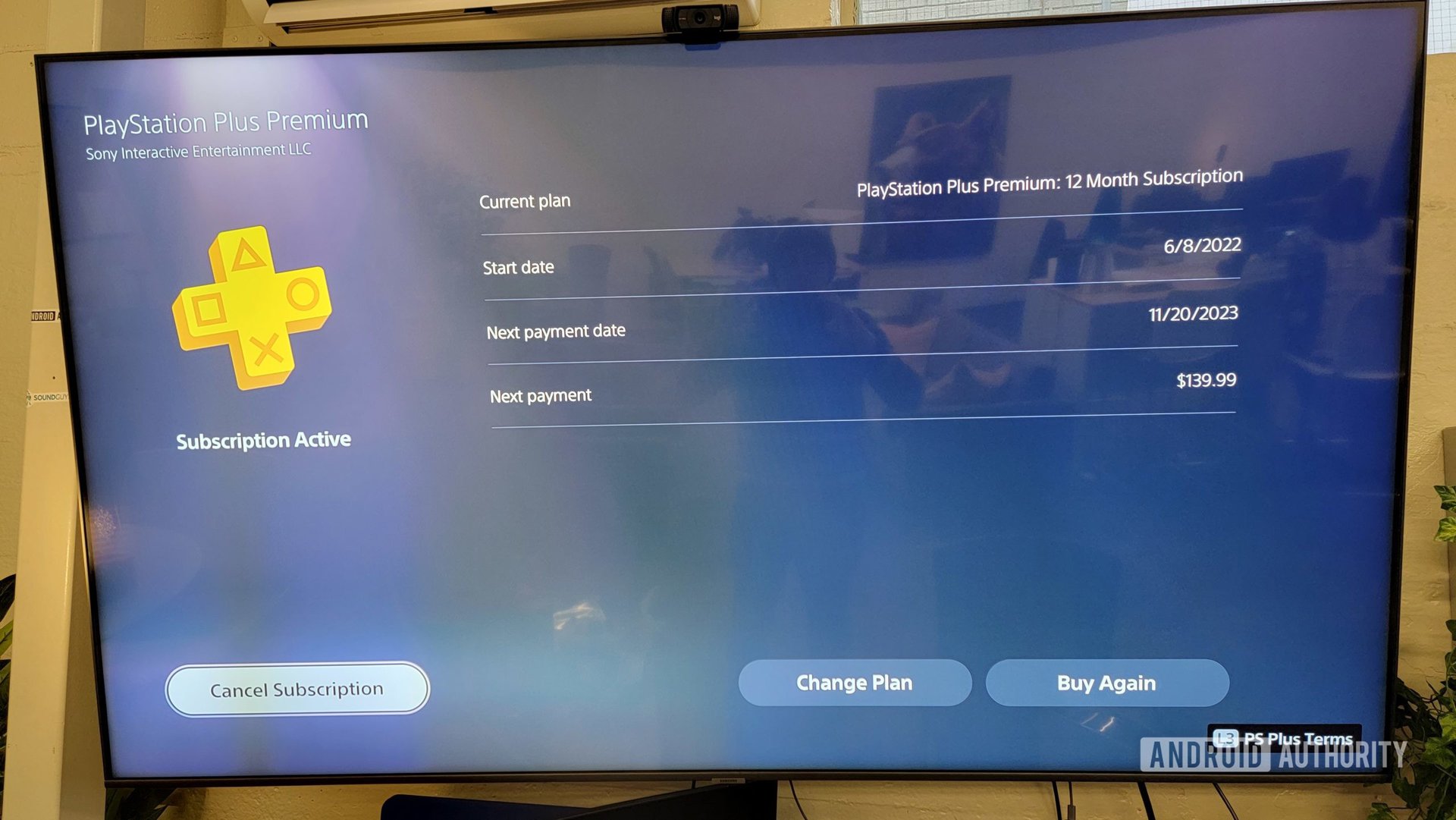
- Turn Off Auto-Renew: On the bottom of the screen, you will see an option labeled Turn Off Auto-Renew. Confirm your choice when prompted. Sony may offer a "survey" asking why you are leaving; you can skip this or provide feedback before the final confirmation.
Once completed, the status of your subscription will change from "Active" to "Expiring [Date]." This indicates that you will not be charged again, but your benefits will remain active until that specific date.
Method 2: Canceling via a Web Browser (PC or Mobile)
If you do not have physical access to your console—perhaps you have already sold it or it is in for repairs—you can cancel the subscription using any modern web browser.
- Visit the official Sony website: Go to the PlayStation Account Management portal.
- Log in: Enter your PSN ID (email address) and password. If you have Two-Factor Authentication (2FA) enabled, have your mobile device ready to receive the code.
- Navigate to the Subscription Tab: On the left-hand sidebar, click on Subscription.
- Manage Membership: You will see your current PlayStation Plus tier listed here. Click the Turn Off Auto-Renew button next to the service.
- Finalize: A confirmation pop-up will appear. Ensure you click "Confirm" to finalize the request. You should receive a confirmation email shortly after; keep this for your records in case of a billing dispute.
Method 3: Using the PlayStation App
The PlayStation App (available on iOS and Android) is often the fastest way to manage your account settings on the go.
- Open the App: Ensure you are signed in to your account.
- Access the Store: Tap the PlayStation Store icon (the shopping bag) at the bottom center of the screen.
- Open the Menu: Tap the three horizontal lines (hamburger menu) in the top right corner.
- Subscription Management: Select Subscription Management. This will redirect you to a mobile-optimized web view of your active services.
- Turn Off Auto-Renew: Select PlayStation Plus and confirm the cancellation of the auto-renewal feature.
What Happens After You Cancel?
Canceling your subscription is not immediate in terms of service loss. It is important to distinguish between "canceling" and "requesting a refund."
Retention of Benefits
Your benefits (online multiplayer, monthly games, and cloud storage) will continue until the very last second of your current paid period. For example, if you paid for a yearly subscription in January 2026 and cancel in February 2026, you will still have access until January 2027.
Loss of Monthly Games
One of the most common questions involves the "Monthly Games" claimed via the Essential tier. Once your subscription officially expires, these games will become locked. They will remain in your library, but a "padlock" icon will appear over the title. To play them again, you must renew your subscription.
The Game Catalog (Extra and Premium Tiers)
For users on the higher tiers, the "Game Catalog" works like a rental service. Once your subscription ends, these games are removed from your access immediately upon the expiration date. Unlike the Essential games, these are not "yours" to keep even in a locked state if Sony removes them from the catalog later.
Cloud Storage and Save Data
Sony provides 100GB of cloud storage for PS4 save data. If your subscription lapses, your saves stay on the cloud for a "grace period"—historically around six months—but Sony does not guarantee their safety indefinitely. It is highly recommended to back up your most important save files to a USB drive before your subscription expires if you do not plan on returning soon.
Subscription Tier Comparison and Impact of Cancellation
| Feature | PS Plus Essential | PS Plus Extra | PS Plus Premium |
|---|---|---|---|
| Online Multiplayer | Lost at expiration | Lost at expiration | Lost at expiration |
| Monthly Games | Locked (accessible on renew) | Locked (accessible on renew) | Locked (accessible on renew) |
| Game Catalog | N/A | Lost immediately | Lost immediately |
| Cloud Storage | Access lost | Access lost | Access lost |
| Classics Catalog | N/A | N/A | Lost immediately |
| Cloud Streaming | N/A | N/A | Lost immediately |
Troubleshooting Common Cancellation Issues
Occasionally, users encounter technical hurdles that prevent a clean cancellation. Below are the most common issues and how to resolve them.
"Turn Off Auto-Renew" is Missing
If you do not see the option to turn off auto-renew, it usually means one of two things:
- Already Canceled: The subscription is already set to expire. Look for an "Expiration Date" rather than a "Next Billing Date."
- Third-Party Billing: If you subscribed through a third-party service or a specific promotional bundle (rare for PS4), you might need to manage the subscription through that provider's portal.
Forgotten Password and 2FA
If you cannot log in to cancel, you must use the Sony Support Account Recovery tool. If you have lost access to your 2FA mobile number, you will need your "Backup Codes" which were provided when you first set up 2FA. If you don't have those, you must contact Sony Support via live chat or phone.
Regional Restrictions
Subscription management can vary slightly based on local laws. For instance, in the UK and parts of the EU, consumer rights laws provide more robust windows for refunds compared to the US. If the automated system fails, verify your regional Terms of Service to see if you are entitled to a manual cancellation via support.
Frequently Asked Questions
Can I get a refund for my PS4 Plus subscription?
Generally, Sony offers a 14-day refund window from the date of purchase. However, even if you are within this window, the refund amount may be reduced based on how much you have used the service (e.g., how many games you've downloaded or how many hours you've played online). To request a refund, you must contact PlayStation Support directly; turning off auto-renew is not the same as requesting a refund.
Will I lose my trophies if I cancel?
No. Your PSN trophies are tied to your account permanently, regardless of your subscription status. You can continue to earn trophies in offline games or games you own outright without an active PlayStation Plus membership.
Can I still play free-to-play games like Fortnite or Warzone?
Yes. On the PS4, most "Free-to-Play" titles do not require a PlayStation Plus subscription for online multiplayer. You can cancel your subscription and still enjoy these specific games online.
If I resubscribe later, will my games be back?
Yes. If you resubscribe to the Essential tier (or higher), any "Monthly Games" you previously added to your library will be unlocked and playable again. Your cloud saves will also be accessible, provided they haven't been deleted during a long period of inactivity.
What is the difference between "Canceling" and "Deleting an Account"?
Canceling a subscription only stops the recurring payment for a service. Deleting your PSN account is a permanent action that deletes all purchased games, trophies, friends lists, and digital wallet funds. Always choose cancellation unless you intend to leave the PlayStation ecosystem forever.
Practical Recommendation
Before you finalize your cancellation, perform a manual backup of your save data. Go to Settings > Application Saved Data Management > Saved Data in System Storage and copy your critical files to a USB drive. This ensures that even if your cloud storage is purged after six months of inactivity, your hundreds of hours of progress in RPGs or long-running campaigns remain safe. If you are canceling purely for financial reasons, consider downgrading to the Essential tier instead of canceling entirely, as this preserves your cloud storage and "Monthly Games" library at the lowest possible cost.
Image Gallery