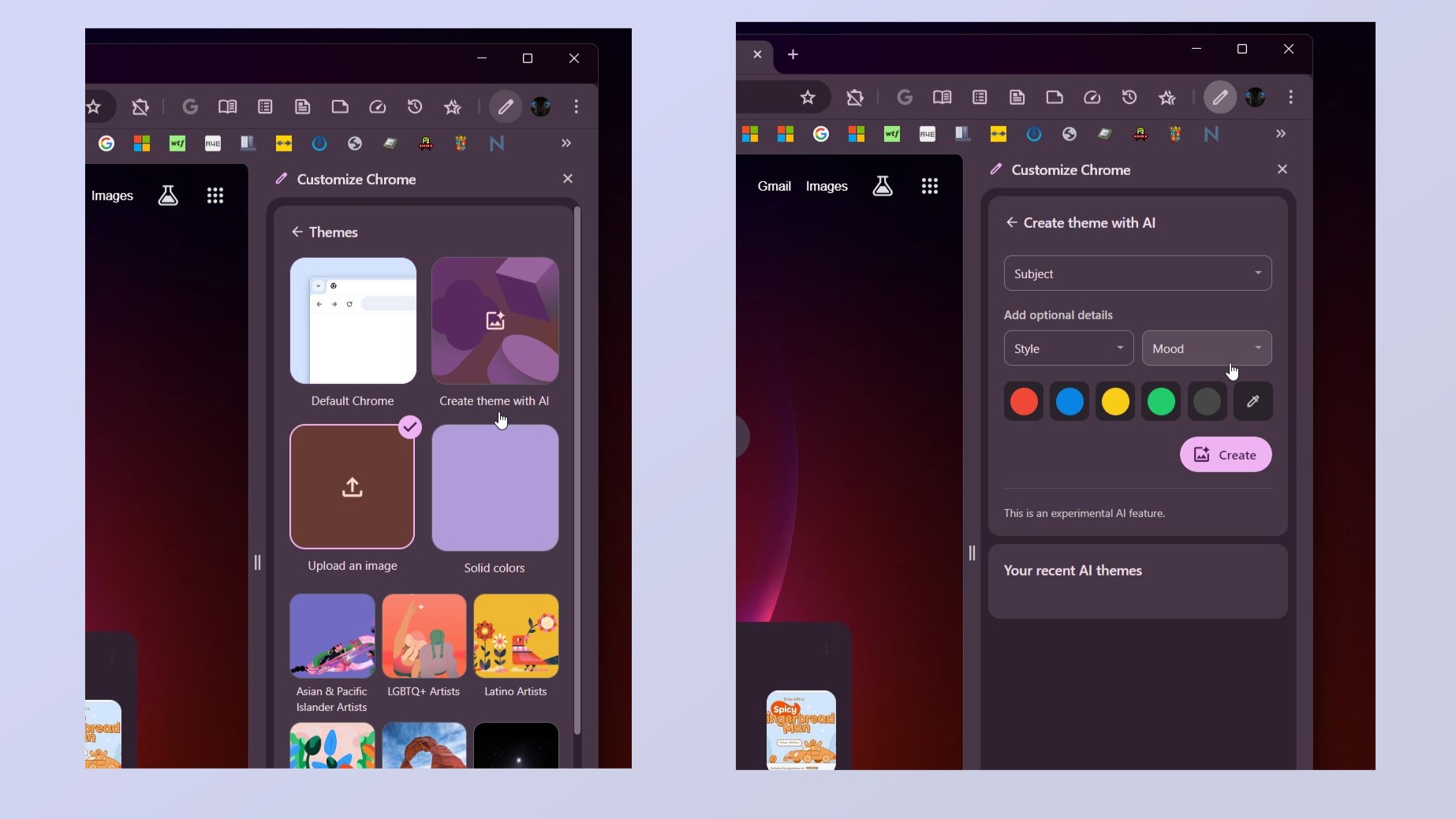
Chrome Browser Themes: Complete Customization Guide and Optimization Strategies for 2026
Chrome browser themes completely transform the visual interface of your web browsing experience by modifying the colors of your frame, tabs, and New Tab page background. Whether you prefer a sleek minimalist dark mode or an immersive a...
Chrome browser themes completely transform the visual interface of your web browsing experience by modifying the colors of your frame, tabs, and New Tab page background. Whether you prefer a sleek minimalist dark mode or an immersive artistic backdrop, selecting the right aesthetic enhancement optimizes your digital workspace and reduces eye strain during long hours of productivity.
Contents
Understanding Chrome Browser Themes and Their Core Mechanics
Chrome browser themes are lightweight packages that alter the visual presentation of the Google Chrome web browser. Unlike full extension packages that execute code in the background or inject scripts into webpages, native themes primarily modify color palettes, background graphics, and UI layouts without impacting RAM consumption or processor performance.
When you apply a theme, Chrome updates the frame color of the window, the active and inactive tab styling, and the background wallpaper of the default New Tab page. The rendering engine processes these visual assets locally, ensuring that native skin packages remain lightweight and stable.
Modern theme development utilizes manifest version 3 standards, guaranteeing that visual packages align with strict security protocols enforced by the Chrome Web Store. Developers bundle high-resolution artwork alongside structured JSON configuration files to map specific RGB color codes to individual browser interface elements, including the omnibox, bookmarks bar, and window control buttons.
Prerequisites and Compatibility for Chrome Customization
Before installing custom visual layouts, ensuring your environment meets technical compatibility criteria prevents rendering glitches or unexpected graphical artifacts.
- Browser Version: Ensure you are running an updated version of Google Chrome on Windows, macOS, Linux, or ChromeOS.
- Google Account Sync: Enabling sync across devices allows your chosen aesthetic to follow you automatically when logging into secondary workstations.
- Hardware Acceleration: Verify that hardware acceleration is enabled within your system settings to ensure smooth background rendering for animated or high-resolution imagery.
- Extension Conflicts: Disable aggressive dark-mode force-inversion extensions if they override or distort the curated color palettes of your installed aesthetic.
Step-by-Step Installation Guide for Chrome Browser Themes
Installing a custom appearance package requires only a few clicks through the official repository. Follow this workflow to securely apply your desired aesthetic:
- Open Google Chrome and navigate directly to the official Chrome Web Store.
- Select the Extensions category, then click on the Themes sub-filter in the left-hand navigation menu.
- Browse the available catalog or use the search bar to locate a specific style, color scheme, or artist collection.
- Click on your preferred option to open its dedicated landing page, reviewing user ratings and high-resolution preview screenshots.
- Click the blue Add to Chrome button located in the upper-right corner of the listing panel.
- Wait a few seconds for the package to download and apply automatically. Your browser frame and New Tab page will update instantly.
| Step | Action Required | Expected Result |
|---|---|---|
| 1 | Navigate to Chrome Web Store | Access the official repository safely |
| 2 | Filter by "Themes" | View curated visual packages instead of extensions |
| 3 | Select Desired Style | Open the comprehensive preview and review page |
| 4 | Click "Add to Chrome" | Automatically download and apply the visual assets |
Native Chrome Customization vs. Third-Party Theme Extensions
Choosing between official browser skin packages and third-party extension-based visual modifiers involves balancing aesthetic variety against resource management and security.
| Feature | Native Chrome Web Store Themes | Third-Party Extension Themes |
|---|---|---|
| Resource Impact | Negligible CPU and RAM overhead | Moderate to high resource consumption |
| Security Risk | Minimal (vetted by Google review) | Varies (requires broad site access permissions) |
| New Tab Modification | Standard curated background wallpaper | Custom widgets, clocks, and search bars |
| Update Stability | Automatically maintained across updates | Prone to breaking during major browser patches |
Advanced Customization: Building Your Own Theme
Advanced users who cannot find a pre-made design matching their exact workflow requirements can create custom visual packages using Google's official developer tools or automated third-party creator utilities.
To build a custom package manually, construct a directory containing a structured manifest file and your chosen image assets. Define your UI colors using precise hue-saturation-lightness (HSL) or RGB arrays within the JSON configuration block. This level of control allows enterprise organizations or design professionals to align browser aesthetics directly with corporate branding guidelines.
When designing custom aesthetics, pay close attention to contrast ratios between tab text and background frames. High contrast ensures that inactive tabs remain legible, preventing usability issues when managing dozens of open windows simultaneously.
Troubleshooting Common Theme Errors and Visual Glitches
While browser appearance packages rarely cause fatal crashes, users occasionally encounter minor visual bugs or synchronization failures.
- Disappearing Backgrounds: If your New Tab background reverts to solid white or black, check your search engine settings, as third-party default search extensions frequently override the New Tab page wallpaper.
- Unreadable Tab Text: If text inside tabs becomes illegible after applying a dark aesthetic, the theme may lack proper tint definitions for high-contrast modes. Reverting to the default layout temporarily isolates the issue.
- Sync Failures: If your aesthetic does not transfer to a secondary device, verify that theme synchronization is explicitly enabled within your Google Account settings dashboard.
- Performance Lag: Though rare for native packages, poorly optimized third-party visual extensions can cause memory leaks. Uninstall any unrecognized visual utility immediately.
Frequently Asked Questions About Chrome Browser Themes
Are Chrome browser themes free to download and use?
Yes, all visual packages available through the official Chrome Web Store are completely free to install and use without hidden subscription fees. Premium or paid themes do not exist within the official Google repository.
Do Chrome themes slow down my computer or browser speed?
Native themes downloaded from the official store have virtually zero impact on RAM or CPU performance because they only adjust static color properties and background images. However, heavy third-party extension-based themes can consume significant system resources.
How do I revert my browser back to the default look?
Open your Chrome Settings menu, navigate to the Appearance section, and click the Reset to default button next to the Theme option to restore the original appearance instantly.
Can I use multiple themes at the same time?
Chrome only allows one active theme to be applied at any given time. Applying a new theme automatically overwrites and replaces the previously active visual configuration.
Do themes affect how websites render on my screen?
No, themes only modify the outer chrome frame, toolbars, tabs, and the default New Tab page background. They do not alter the HTML rendering or styling of individual websites you visit.
Practical Recommendations for Optimizing Your Browsing Workspace
Selecting the right visual setup goes beyond simple aesthetics; it directly impacts your daily productivity and visual ergonomics. For intense professional work environments, choose muted, low-saturation color palettes or dark modes to minimize eye strain during evening hours. Conversely, bright, high-contrast minimalist designs work exceptionally well for creative workflows and design auditing. Review your workspace lighting conditions regularly and adjust your browser aesthetics to maintain optimal visual comfort throughout your workday.
Image Gallery