MetaTrader 4 on iPad: Complete 2026 Mobile Trading Guide
MetaTrader 4 on iPad delivers a robust, portable trading environment that brings advanced charting, algorithmic tracking, and direct broker connectivity to Apple's tablet interface. This guide explores installation protocols, interface...
MetaTrader 4 on iPad delivers a robust, portable trading environment that brings advanced charting, algorithmic tracking, and direct broker connectivity to Apple's tablet interface. This guide explores installation protocols, interface navigation, technical specifications, and optimization strategies for modern retail traders.
Contents
Mobile trading requires balancing portability with analytical precision. While desktop terminals remain the gold standard for heavy multi-monitor charting and complex Expert Advisor development, the MetaTrader 4 iPad application bridges the gap between field mobility and market execution. Utilizing Apple's tablet hardware architecture, the application scales charting indicators and order execution tools to touch-optimized layouts without sacrificing core execution speed.
Understanding the MetaTrader 4 Ecosystem on Apple iPadOS
MetaTrader 4 (MT4) operates as an institutional-grade retail trading platform developed by MetaQuotes. On iPadOS, the application is optimized for larger displays compared to its iPhone counterpart, allowing users to view multi-window layouts, expanded watchlists, and detailed technical indicators simultaneously.
The architecture relies on a client-server model. The iPad app acts as the client terminal, communicating via secure protocols with your broker's trade servers. Because MetaQuotes removed the official MT4 application from the Apple App Store for new downloads in late 2022, access paths depend on your account history and broker infrastructure. Traders who previously downloaded MT4 can reinstall it from their Apple purchase history, while many brokerages now provide proprietary iOS web-trader solutions or transition strategies toward MetaTrader 5 (MT5). However, active MT4 accounts remain fully operational on devices where the application is installed, supported by ongoing backend server maintenance.
System Prerequisites and Account Setup Requirements
Before deploying MT4 on an iPad, verify your device infrastructure and broker credentials to ensure seamless connectivity and low-latency order execution.
- Operating System Compatibility: iPadOS 12.0 or later is required for legacy installations, though optimal performance is achieved on iPadOS 16 through current 2026 releases.
- Hardware Specifications: Any modern iPad, iPad Air, iPad mini, or iPad Pro handles the rendering engine efficiently, though high-resolution ProMotion displays render multi-timeframe charts with superior visual clarity.
- Network Stability: A reliable broadband Wi-Fi connection or stable 5G cellular link is mandatory to prevent slippage caused by packet loss during volatile market events.
- Broker Account Details: You must possess active login credentials (login ID, master or investor password, and the exact live or demo server address provided by your brokerage).
Step-by-Step Installation and Server Connection Guide
Configuring your trading environment correctly prevents connection timeouts and ensures accurate quote feeds from your liquidity provider.
- Access the Application: Open the App Store on your iPad. If you have downloaded MT4 previously, tap your profile icon, navigate to Purchased, and download the application. If unavailable due to regional restrictions, consult your broker for authorized iOS web-application alternatives.
- Select Your Broker Server: Launch the application, navigate to the settings menu, and tap "New Account." Choose "Login to an existing account" and type your broker's name into the search bar.
- Input Authentication Data: Select your exact live or demo server from the populated list. Enter your account number and master password. Toggle "Save password" if using a secured, private device.
- Verify Connection: Tap "Sign In." Check the top right corner of the Quotes or Trade tab to confirm active ping latency metrics (measured in milliseconds) and live streaming green/red bars.
Interface Navigation and Charting Optimization on iPadOS
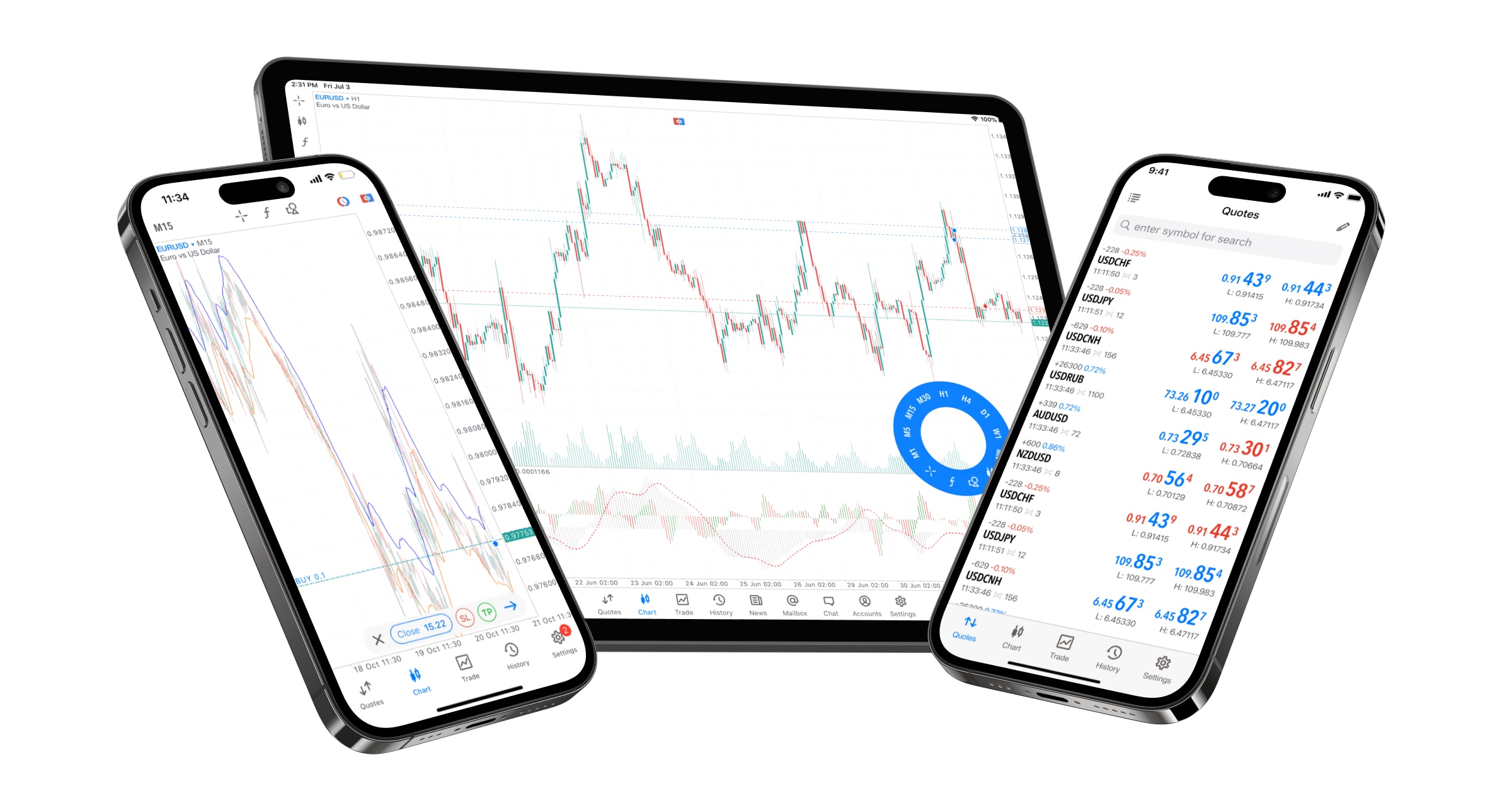
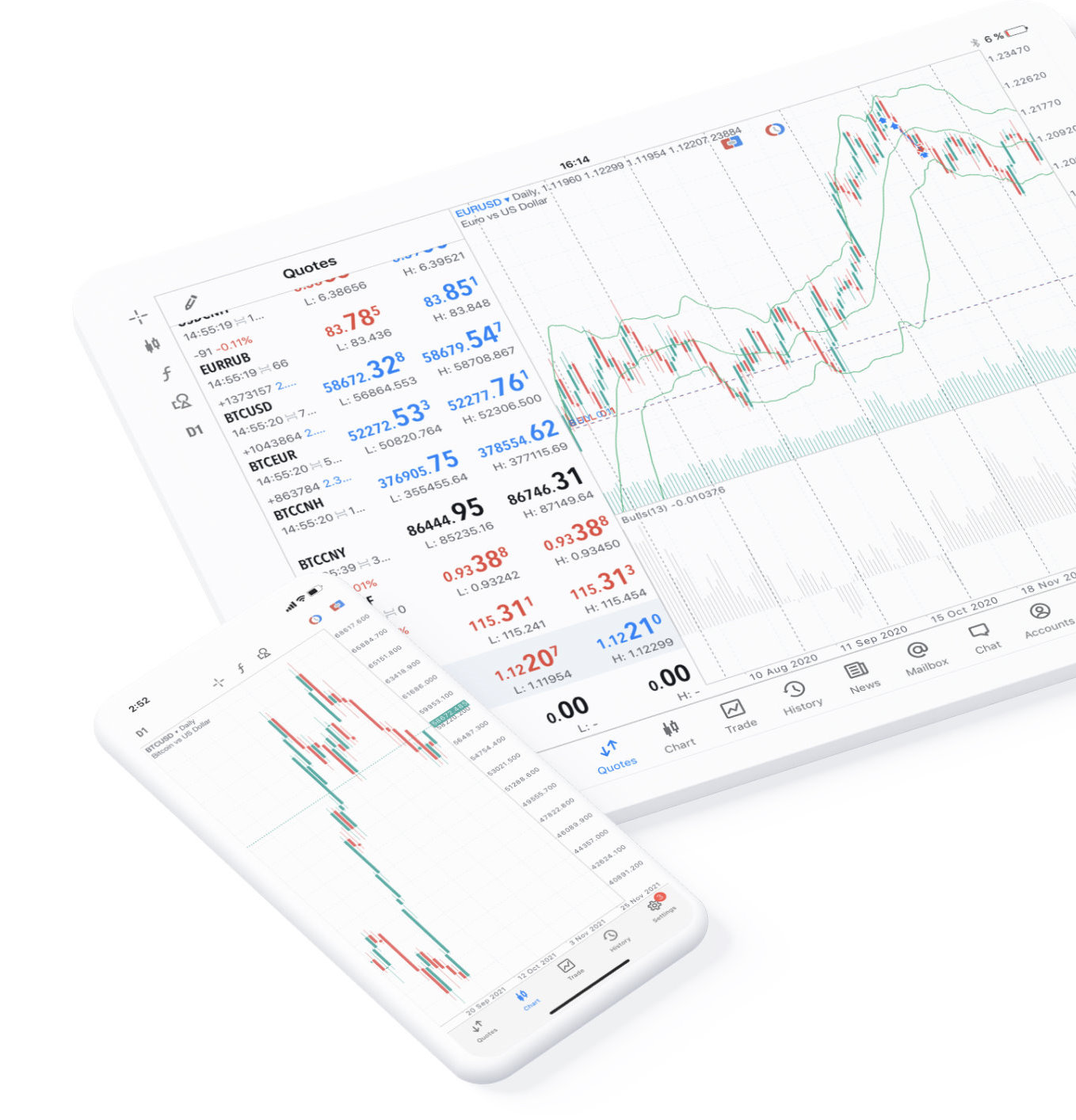
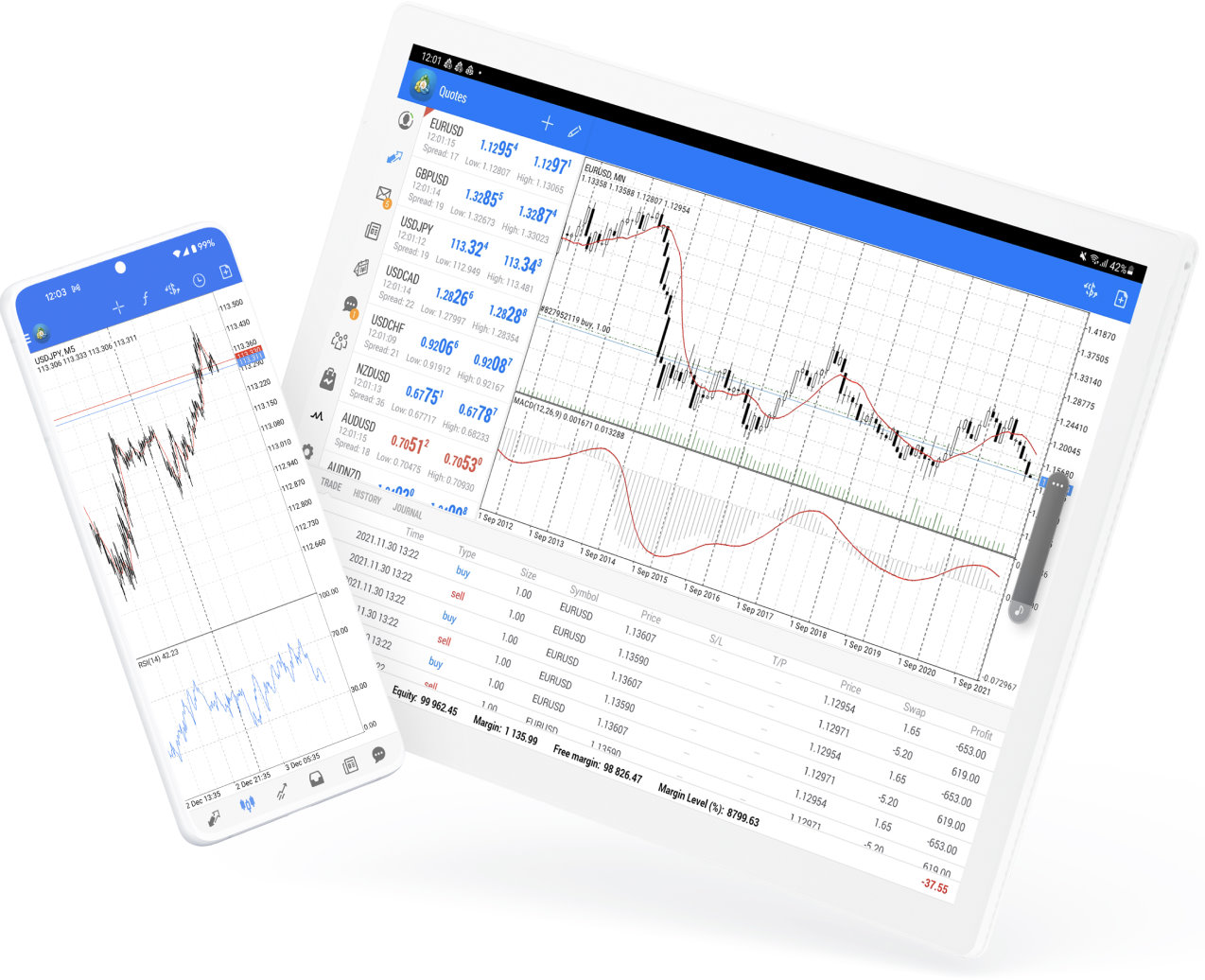
The iPad version of MT4 utilizes a split-screen and tabbed layout designed to maximize workspace efficiency. Understanding the primary navigation panels is essential for rapid execution.
Primary Navigation Tabs:
- Quotes: Real-time asset pricing & spreads
- Chart: Technical analysis & indicators
- Trade: Open positions, balance, equity
- History: Closed trades & performance logs
- Mailbox / News: Broker updates & market flashes
Advanced Charting Configuration
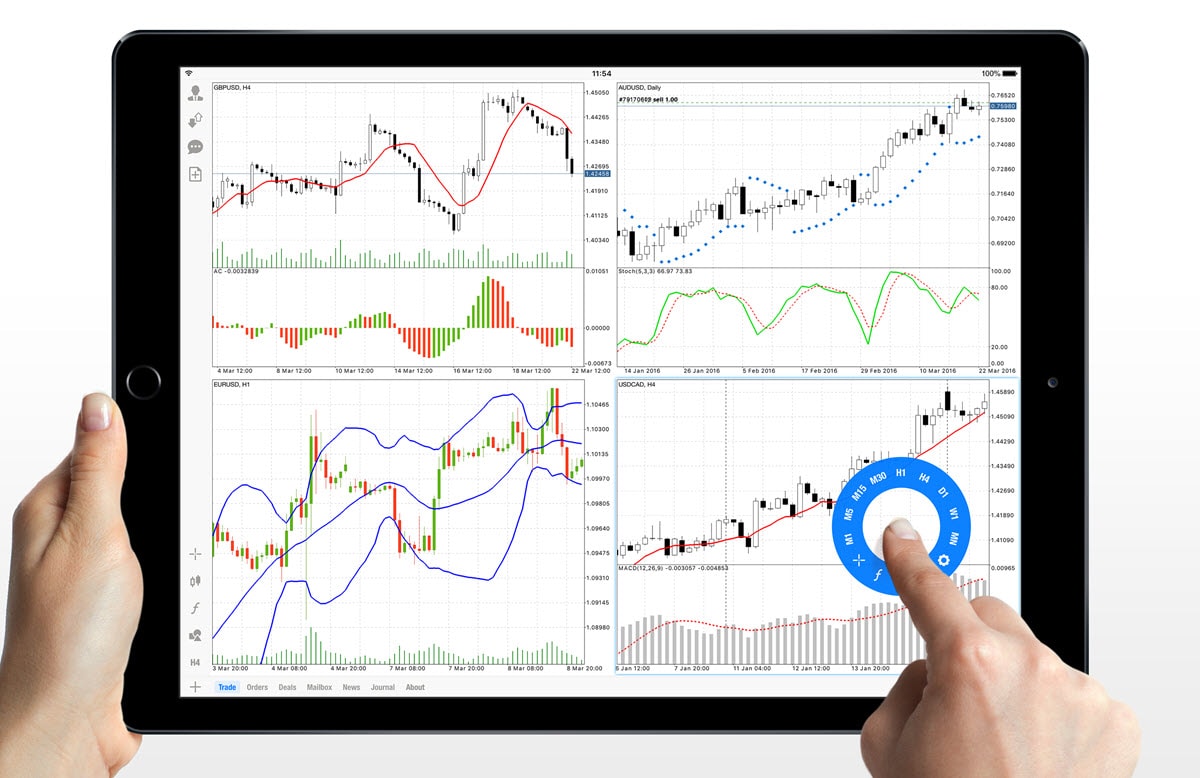
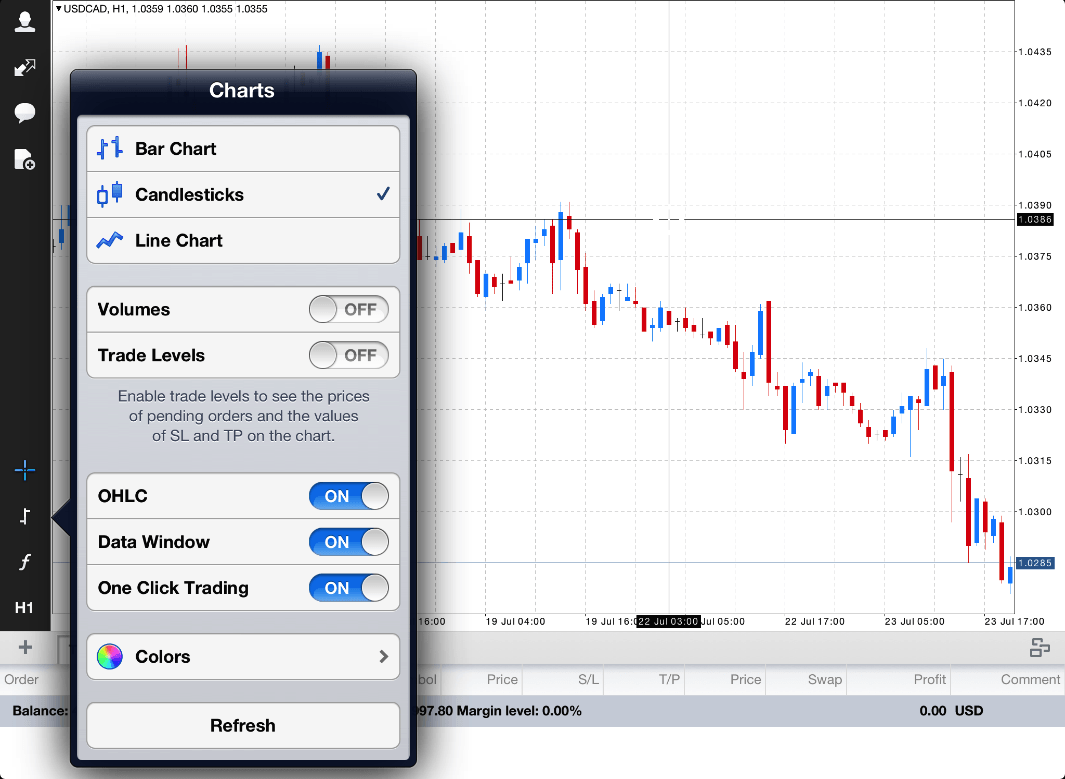
To perform effective technical analysis on an iPad, customize your workspace by tapping directly on an open chart window to reveal the radial settings menu. From here, you can switch chart types between Bar Charts, Japanese Candlesticks, and Line Charts.
Incorporate technical indicators by tapping the "f" icon at the top of the screen. MT4 iPad supports a robust subset of desktop indicators, categorized into Trend Oscillators (Moving Averages, Bollinger Bands), Volumes, and Bill Williams tools. Apply indicators with precise parameter values matching your desktop templates to maintain consistency across devices.
Order Execution Types and Risk Management Protocols
Executing trades accurately on a touchscreen requires familiarity with MT4's order window architecture. The platform supports multiple execution types designed for diverse market conditions.
- Market Execution: Orders are executed instantly at the current market price available from the liquidity provider. Use this when capturing immediate momentum breakouts.
- Pending Orders (Limit and Stop): Set Buy Limit, Sell Limit, Buy Stop, and Sell Stop orders with predefined price triggers, allowing automated entry when price reaches specified structural levels.
- Stop Loss and Take Profit Integration: Always attach risk parameters before confirming order placement. Slide the stop loss level to cap maximum allowable drawdowns per trade.
Comparative Analysis: MT4 iPad vs. Desktop Terminal
| Feature | MT4 Desktop Terminal | MT4 iPad App |
|---|---|---|
| Multi-Monitor Support | Native, highly scalable | Single screen with split-tab views |
| Expert Advisors (EAs) | Fully supported for automated trading | Not supported for local execution |
| Custom Indicators (.ex4/.mq4) | Full installation capability | Limited to built-in indicator library |
| Connectivity | Requires dedicated PC or VPS | Portable via Wi-Fi or cellular data |
| Execution Speed | Ultra-low latency via VPS hosting | Dependent on mobile network stability |
Pros and Cons of Mobile Trading on iPad
Advantages
- Portability: Monitor open positions and manage risk parameters away from a fixed desk setup.
- Optimized Screen Real Estate: The iPad's form factor provides a significantly larger workspace for charting than standard smartphones.
- Touch Interface: Intuitive pinch-to-zoom gestures make scaling timeframes fast and efficient.
Limitations
- No Local Expert Advisors: Automated algorithms (EAs) cannot execute locally on iOS devices; a remote Virtual Private Server (VPS) running the desktop version is required for automation.
- Analytical Constraints: Drawing complex trendlines or Fibonacci retracements is less precise on a touchscreen compared to a mouse-driven desktop environment.
- App Availability Restrictions: New user downloads face platform availability limitations, requiring reliance on broker-provided web wrappers or existing purchase history.
Troubleshooting Common Connection and Performance Issues
Technical glitches on mobile platforms can disrupt active trade management. Use this systematic troubleshooting matrix to resolve standard connectivity failures.
- "Invalid Account" Error: Double-check your master password and ensure you selected the exact server name (e.g., matching "BrokerName-Live02" precisely). Server suffixes matter significantly.
- "No Connection" Message: Switch between Wi-Fi and cellular data to isolate local network routing issues. If the broker's server is undergoing routine weekend maintenance, quote streams will remain offline until market open.
- Frozen Chart Data: Force-close the application by swiping up from the bottom of your iPad screen, clear the app from the recent app switcher, and relaunch.
- Delayed Execution: High ping times indicate poor server distance or network congestion. Consider connecting via a mobile Virtual Private Network (VPN) optimized for financial data routing.
Frequently Asked Questions
Can I run Expert Advisors (EAs) on MetaTrader 4 for iPad?
No, the iOS version of MetaTrader 4 does not support running local Expert Advisors or custom automated scripts. To run EAs continuously while utilizing your iPad for monitoring, you must deploy a Windows-based Virtual Private Server (VPS) running the desktop terminal.
How do I add custom indicators to MT4 on my iPad?
You cannot import external or custom .ex4 indicators into the iPad application due to iOS sandbox security restrictions. Traders are restricted to the built-in technical indicators provided natively within the MetaTrader 4 mobile application package.
Why is MetaTrader 4 missing from the Apple App Store?
MetaQuotes, the developer of MetaTrader, experienced compliance and licensing adjustments with Apple, resulting in the removal of new MT4 and MT5 downloads from the App Store. Existing users can reinstall the app via their Apple purchase history, while new users often utilize broker web-trader alternatives.
How secure is my trading data when using MT4 on an iPad?
MT4 employs industry-standard 128-bit encryption for all data transmissions between your iPad and the broker server. To maintain security, enable iPadOS biometric authentication (Face ID or Touch ID) and avoid saving master passwords on shared or public tablet devices.
Can I trade multiple broker accounts simultaneously on one iPad app?
Yes, you can store multiple broker profiles within the MT4 application settings. You can switch between different live and demo accounts instantly via the Accounts menu without having to re-enter your login credentials each time.
Conclusion and Strategic Recommendation
Deploying MetaTrader 4 on an iPad offers a powerful balance of mobility and functional technical analysis, provided its platform limitations are understood. While it should not replace a dedicated desktop setup for deep quantitative research or automated algorithmic execution, it serves as an exceptional companion device for monitoring live price action, managing open positions, and executing tactical trades on the move. Pair your iPad app with a reliable broker connection and disciplined risk management protocols to maintain complete operational control over your trading portfolio.
Image Gallery