Why Hulu Is Not Loading Videos: Causes and How to Fix Playback Errors
When Hulu refuses to load videos, the issue is typically caused by local network instability, temporary server outages, corrupted application cache, outdated software, or conflicting browser extensions. Resolving the problem usually re...
When Hulu refuses to load videos, the issue is typically caused by local network instability, temporary server outages, corrupted application cache, outdated software, or conflicting browser extensions. Resolving the problem usually requires verifying Hulu’s server status, power cycling your network hardware, clearing the app or browser cache, and disabling virtual private networks (VPNs).
Contents
Understanding Why Hulu Fails to Load Content
Video streaming relies on a continuous, uninterrupted exchange of data between Hulu’s content delivery networks (CDNs) and your media device. When a video hangs on a black screen, displays a spinning buffering wheel, or triggers a specific error code, a break has occurred in that data pipeline.
Identifying the exact bottleneck saves time and prevents unnecessary troubleshooting steps. Streaming failures generally originate from one of five main domains:
- Hulu Server Outages: Server-side disruptions, backend maintenance, or CDN failures can prevent video playback across entire regions, regardless of your local setup.
- Network Latency and Bandwidth Drops: High ping, signal interference, packet loss, or insufficient download speeds prevent the video buffer from populating fast enough to sustain playback.
- Corrupted Application Data: Temporary files, stored preferences, and cached video fragments accumulated by the Hulu app can become corrupted over time, leading to playback freezes or launch crashes.
- Device Software and DRM Conflicts: Outdated device operating systems, missing digital rights management (DRM) certificates, or unsupported High-bandwidth Digital Content Protection (HDCP) handshakes block encrypted streams.
- Third-Party Software Interference: Virtual Private Networks (VPNs), custom DNS configurations, ad blockers, and strict firewall rules frequently block Hulu’s authentication and video distribution domains.
Immediate Steps to Diagnose and Fix Hulu Loading Issues
Follow these practical troubleshooting steps in sequential order to isolate the root cause and restore playback.
- Check Hulu Server Status
- Outage Detected: Wait for Hulu Fix
- No: Proceed to step 2
- Restart App & Device
- Resolved: Complete
- No: Proceed to step 3
- Reboot Network Router
- Resolved: Complete
- No: Proceed to step 4
- Clear Cache & Update App
- Resolved: Complete
- No: Proceed to step 5
- Disable VPN & Proxies
- Resolved: Complete
1. Verify Hulu's Server and Service Status
Before modifying your local home network or device settings, confirm whether Hulu is experiencing widespread service disruptions.
- Visit independent service monitors such as Downdetector to check for sudden spikes in user outage reports.
- Check official support updates via the
@Hulu_Supportaccount on social media platforms. - Attempt to stream content on a secondary device (such as a smartphone using mobile data). If the video fails across completely separate networks, Hulu's backend infrastructure is likely experiencing an outage.
2. Perform a Complete Hardware Power Cycle
Simple soft resets often fail to clear persistent memory faults in networking hardware and streaming devices. A full cold reboot forces hardware components to flush temporary RAM and re-establish fresh handshakes.
- Turn off your TV, streaming stick, gaming console, or computer.
- Unplug the power cable from your internet router and modem.
- Wait at least 60 seconds to allow electrical charges to dissipate completely from internal capacitors.
- Plug the modem back in and wait until all diagnostic lights indicate a stable connection.
- Plug in the router, wait for Wi-Fi broadcasts to initialize, and power on your streaming device.
3. Test and Optimize Network Speed and Bandwidth
Hulu requires consistent continuous bandwidth to stream content without buffering or dropping connection. Shared home networks often suffer from hidden bandwidth starvation caused by background updates, downloads, or local congestion.
To maintain continuous video playback, your connection must meet Hulu's minimum sustained download speeds:
- Standard Definition (SD): 3.0 Mbps
- High Definition (HD 720p/1080p): 5.0 Mbps
- Hulu + Live TV Streams: 8.0 Mbps
- 4K Ultra HD Content: 16.0 Mbps
Run an online speed test on the exact device experiencing the issue. If your download speed drops below these thresholds or exhibits jitter above 30 ms, switch from a Wi-Fi connection to an Ethernet cable. If using Wi-Fi is mandatory, move the streaming device closer to the router or switch your device connection from a congested 2.4 GHz network band to a faster 5 GHz band.
4. Clear Hulu Application Cache and Stored Data
Cached files accelerate app navigation, but corrupted media chunks inside the cache can trigger perpetual loading screens or error loops.
- Android TV / Android Mobile: Open Settings > Apps > See all apps > Hulu. Select Force Stop, then tap Clear Cache followed by Clear Data.
- Amazon Fire TV / Firestick: Navigate to Settings > Applications > Manage Installed Applications > Hulu. Press Force Stop, select Clear Cache, and then select Clear Data.
- Apple TV / iOS: Apple TV does not feature an explicit cache-clearing button. To reset cache on tvOS or iOS, delete the Hulu app, restart the device, and reinstall the application from the App Store.
- Web Browsers (Chrome/Firefox/Edge/Safari): Clear site data for
hulu.comspecifically, or perform a general browser history cleanout targeting stored cookies and cached images.
5. Disable VPNs, Proxies, and Custom DNS Servers
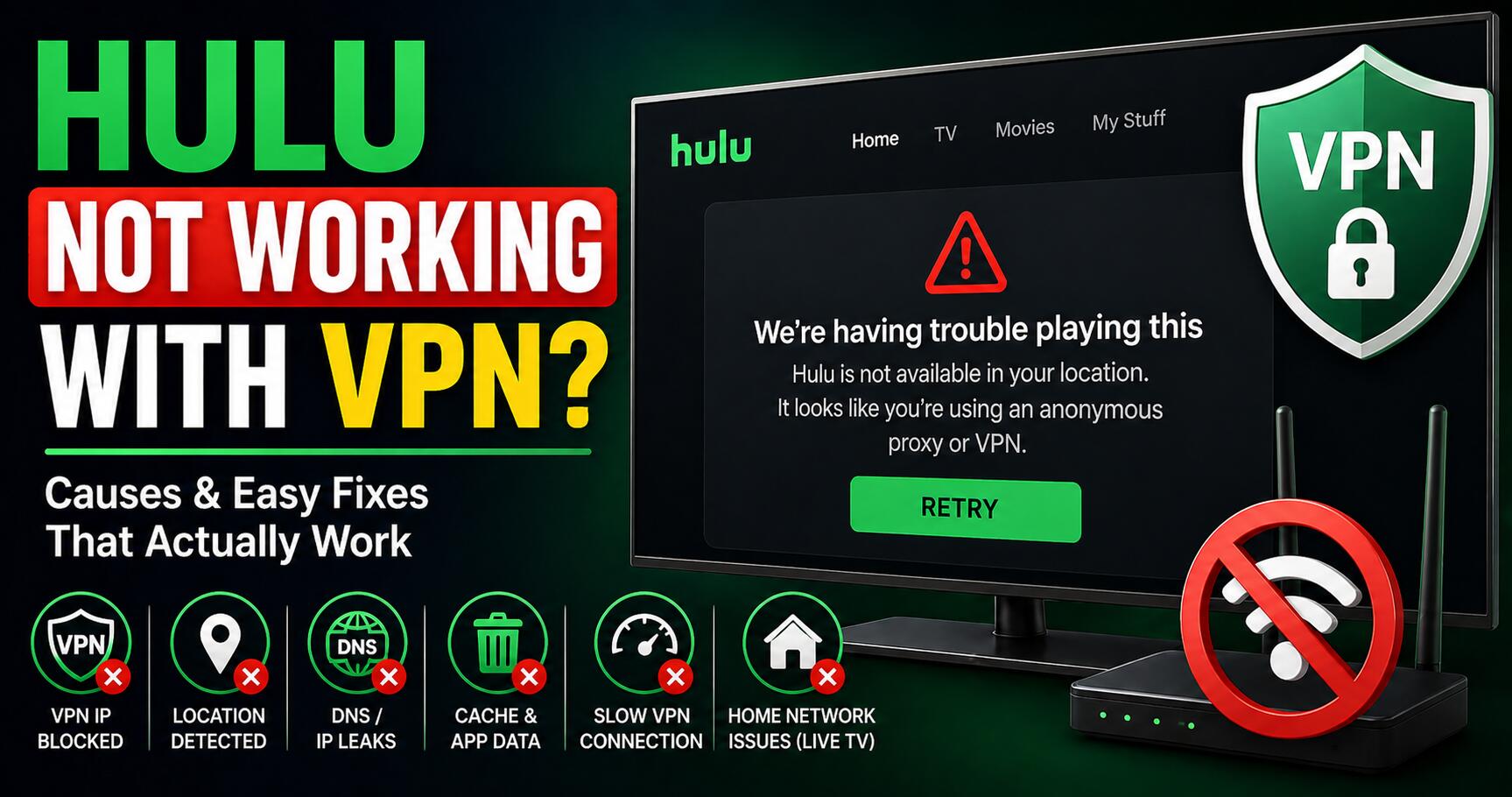
Hulu uses geographic IP tracking and automated fraud prevention systems to enforce strict licensing agreements. Active Virtual Private Networks (VPNs), anonymizing proxies, or custom Smart DNS tools mask your origin, causing Hulu's content security checks to fail.
Turn off any background VPN applications on your device or router. If you use custom DNS servers (such as AdGuard DNS or specialized pi-hole setups), temporarily restore your network DNS settings to standard ISP configuration or public resolvers like Google Public DNS (8.8.8.8 and 8.8.4.4) or Cloudflare (1.1.1.1).
Hulu Error Troubleshooting Reference Matrix
The following reference table maps specific error messages and symptoms to their primary root causes and rapid resolution steps:
| Error Code / Symptom | Primary Root Cause | Recommended Action |
|---|---|---|
| Spinning Wheel / Black Screen | Network timeout or corrupt video segment cache | Power cycle router and device; clear app cache. |
| Hulu Error RUNUNK13 | Digital Rights Management (DRM) or cache sync error | Refresh browser/app; update device firmware; clear app cache. |
| Hulu Error BYDR4 | Network timeout during playback authorization | Check local connection speed; switch from Wi-Fi to Ethernet. |
| Hulu Error P-DEV318 / P-DEV320 | Communication failure between device and Hulu servers | Update Hulu app; force restart app; verify server status. |
| HDCP Error / Protected Content | HDMI handshake failure between TV and media player | Re-seat HDMI cable; replace cable with HDMI 2.0/2.1 compliant cord. |
| Error 301 or 5003 | Unsupported location, active VPN, or proxy block | Disable all active VPNs, proxies, and custom ad-blocking DNS setups. |
Device-Specific Troubleshooting Guides
Different streaming hardware handles media rendering, memory management, and digital rights differently. Use these platform-tailored steps if general troubleshooting does not fix the issue.
| Platform | Primary Failure Mechanism | Key Resolution Action |
|---|---|---|
| Smart TVs | Low system memory (RAM) | Cold reboot (unplug wall cable) |
| Web Browsers | Extension / DRM conflicts | Disable extensions; check Widevine |
| Fire TV / Roku | Corrupted local app storage | Reinstall app; clear app data |
| Mobile Apps | Stale network authorization | Toggle Airplane Mode; reset network |
Fixing Hulu on Smart TVs (Samsung, LG, Sony, Vizio)
Smart TVs store background data aggressively to speed up app switching, which can starve the Hulu player of available system memory (RAM).
- Perform a Cold TV Boot: Holding the power button on a TV remote often puts the set into a sleep mode rather than executing a full reboot. To perform a true cold boot, unplug the TV's power cable directly from the wall socket, wait 60 seconds, and plug it back in.
- Update TV Firmware: Outdated TV system software can break compatibility with modern video encodings. Access your TV's System or Support menu and run a manual software update scan.
- Reinstall the Application: If the app still fails to load videos, uninstall Hulu from your TV app manager, turn the TV off and on, and download the app fresh from your TV's application store.
Fixing Hulu on Web Browsers (Chrome, Firefox, Edge, Safari)
Desktop web browsers rely on HTML5 players, hardware acceleration, and integrated DRM modules (such as Google Widevine or Microsoft PlayReady) to decode protected video streams.
- Disable Extensions and Ad Blockers: Privacy extensions, script blockers, and aggressive ad-blocking add-ons can block necessary telemetry domains (such as tracking scripts and ad-insertion servers required for Hulu's ad-supported tiers). Disable all extensions or open Hulu in an Incognito/Private window to test playback.
- Toggle Hardware Acceleration: Integrated graphics processors can conflict with web browser video rendering:
- In Google Chrome, go to Settings > System.
- Toggle Use graphics acceleration when available off (or on if it was previously disabled).
- Relaunch the browser and retry playback.
- Verify Protected Content Controls: Ensure your browser permits sites to play protected content. In Chrome, check Settings > Privacy and security > Site Settings > Additional content settings > Protected content IDs, and verify that sites are allowed to play protected content.
Fixing Hulu on Streaming Sticks (Roku, Amazon Fire Stick, Apple TV)
Compact media players frequently run low on storage space or overheat when processing long video streams.
- Roku Devices: Perform a system restart by navigating to Settings > System > Power (if applicable) > System restart. If videos still fail, remove the Hulu channel by highlighting its tile, pressing the Star (*) button on your remote, selecting Remove channel, restarting the Roku, and adding the channel again.
- Amazon Fire TV: Clear the Hulu app cache via Settings > Applications > Manage Installed Applications. Check your internal storage under Settings > My Fire TV > About > Storage. If available free space is below 1 GB, delete unused applications to allow adequate space for video buffering.
- Apple TV: Double-click the TV/Control Center button on your Siri Remote to bring up the App Switcher screen. Swipe up on the Hulu app card to force-close it. Re-launch the app. Ensure tvOS is updated under Settings > System > Software Updates.
Technical Specifications: HDMI, HDCP, and Display Errors
If Hulu loads its menu interface successfully but displays a blank screen or explicit error as soon as you hit play on a title, your setup may be failing High-bandwidth Digital Content Protection (HDCP) authentication.
- HDCP Handshake Protocol Failure
- Workflow: Media Player (Encrypted Signal) to HDMI Cable (Validation Failure) to TV/Monitor
- Symptom: Navigation menus load normally, but video screen turns pitch black.
- Fix: Replace legacy cables with HDMI 2.0/2.1 compliant hardware; remove HDMI splitters.
HDCP is an anti-piracy protocol enforced over physical HDMI connections. If any hardware component in your video pipeline fails to verify its HDCP compliance, the stream shuts down automatically.
To resolve HDCP playback failures:
- Bypass Switches and Receivers: Connect your media player directly to the television's HDMI port, bypassing AV receivers, HDMI splitters, audio soundbars, or pass-through capture cards.
- Inspect Physical Cables: Disconnect the HDMI cable from both ends, check the connector pins for dust or damage, and reconnect it securely.
- Verify Cable Integrity: Ensure you are using high-speed HDMI 2.0 or HDMI 2.1 compliant cables capable of passing HDCP 2.2 checks, which are required for HD and 4K media playback.
- Test Secondary Display Ports: Displays and older monitors often only support HDCP compliance on specific ports (typically labeled HDMI 1 or HDMI HDCP 2.2). Swap to an alternate HDMI input on your television.
Frequently Asked Questions
Why does the Hulu app load, but individual videos fail to play?
This symptom usually indicates that your device can connect to Hulu’s main interface servers, but fails to establish a connection to its separate video streaming delivery nodes or DRM validation services. This is commonly caused by strict firewall rules, third-party ad blockers interfering with commercial insertion scripts, corrupted local playback cache, or poor HDCP handshakes over HDMI connections.
Why is Hulu working on my mobile phone but not on my Smart TV?
When Hulu works on mobile devices but fails on a Smart TV connected to the same home network, the issue is usually limited to local hardware resources or app-specific corruption. Smart TVs often feature less available RAM and process updates less frequently than mobile operating systems. Try unplugging your Smart TV for 60 seconds to completely flush its memory, check for TV system updates, and clear the app cache.
How do I clear the Hulu app cache on a Roku device?
Roku devices do not feature a standard app cache management menu. To clear application cache on a Roku, you must remove the app entirely, restart the device to clear temporary memory residue, and reinstall the application. Highlight the Hulu tile on your Roku home screen, press the Star (*) button, select Remove channel, go to Settings > System > System restart, and then re-download Hulu from the Roku Channel Store.
Can an ad blocker cause Hulu videos to stop loading?
Yes. Hulu's ad-supported subscription tiers require ad-serving domains to communicate with your device before and during video streaming. Network-level ad blockers (such as Pi-hole or custom DNS servers) and browser extensions (like uBlock Origin or AdBlock) frequently block these ad servers. If an ad server cannot be reached, the playback engine may stall indefinitely on a black screen. Disable ad-blocking tools or add Hulu domain patterns to your whitelist.
What internet speed do I need to prevent Hulu videos from buffering?
Hulu requires a minimum download speed of 3.0 Mbps for standard definition content, 5.0 Mbps for HD 720p/1080p streaming, 8.0 Mbps for Hulu + Live TV broadcasts, and 16.0 Mbps for 4K Ultra HD resolution. For smooth performance, your connection should maintain these speeds consistently without sudden spikes in latency or packet loss.
Final Recommended Actions
If video playback failures persist after completing the standard troubleshooting protocol, execute these final steps:
- Audit Active User Sessions: Log into your account settings at
hulu.com/accounton a web browser, navigate to Manage Devices, and remove old or unrecognized hardware to clear out-of-sync session tokens. - Reset Home Network Configuration: If multiple devices fail to load Hulu videos on your local network, log into your router's administrative dashboard and update its core firmware. You can also temporarily change your router's primary DNS address to Google Public DNS (
8.8.8.8). - Contact Official Hulu Support: If troubleshooting steps do not resolve the issue and secondary networks also fail, visit the official Hulu Help Center to initiate a direct support ticket. Provide your device model, operating system build version, specific error codes, and local ISP details so customer support engineers can investigate potential account-level flags or regional routing errors.
Image Gallery