Navigating Apple Appointment Scheduling: The Complete 2026 Guide for Retail and Technical Support
Mastering Apple appointment scheduling ensures efficient access to Genius Bar technicians, retail product demonstrations, and business specialists across physical Apple Store locations. Whether you need hardware diagnostics, trade-in v...
Mastering Apple appointment scheduling ensures efficient access to Genius Bar technicians, retail product demonstrations, and business specialists across physical Apple Store locations. Whether you need hardware diagnostics, trade-in valuations, or enterprise procurement consultations, utilizing the official reservation systems prevents lengthy wait times and guarantees dedicated, one-on-one expert assistance.
Contents
Understanding the Apple Appointment Ecosystem
The Apple retail ecosystem relies heavily on a digital-first approach to manage store traffic, technical troubleshooting, and consumer onboarding. Booking an appointment in advance connects you directly with specialized staff, distinguishing between standard retail purchases and complex hardware repairs.
Apple divides its in-store appointments into several distinct service categories. Knowing which category fits your need prevents booking delays and ensures the right tools and personnel are available when you arrive.
- Genius Bar Technical Support: Dedicated hardware diagnostics, screen replacements, battery services, and warranty evaluations for iPhone, Mac, iPad, Apple Watch, and accessories.
- Shopping Sessions: Personalized product comparisons, device sizing, and purchasing guidance with a retail specialist.
- Today at Apple: Free educational workshops and creative sessions covering photography, coding, illustration, and device accessibility features.
- Business Consultations: Strategic meetings with Apple Business Essentials representatives to procure hardware, configure Mobile Device Management (MDM), and scale enterprise deployments.
Prerequisites and Preparation Before Booking
Securing an Apple appointment requires specific preparation to maximize the efficiency of your visit. Arriving with incomplete information or unbacked data can result in rescheduled sessions or delayed hardware repairs.
Before initiating the scheduling process, complete the following technical checklist to streamline your interaction with store personnel:
- Back Up Your Device: Ensure your iPhone or iPad is backed up via iCloud or a local Mac/PC. For Mac users, verify your Time Machine backup is up to date. Technicians frequently need to wipe or restore devices during troubleshooting.
- Gather Proof of Purchase: Keep original receipts, carrier financing agreements, or AppleCare+ agreement numbers accessible, particularly for hardware warranty claims or theft-and-loss verifications.
- Disable Activation Lock: For device repairs, you may be asked to turn off "Find My" to allow technicians access to internal diagnostic tools. Know your Apple ID password and associated recovery credentials.
- Bring Government-Issued Photo ID: Required for any hardware replacements, trade-in processing, or account recovery procedures.
Step-by-Step Guide to Scheduling Your Apple Store Appointment
Navigating the scheduling interface requires a structured approach across official web portals or mobile applications.
Step 1: Access the Official Scheduling Portal
Launch your preferred browser and navigate to the official Apple Support website (support.apple.com) or open the Apple Support app on an iOS device. Select the specific product or service category that matches your issue.
Step 2: Diagnose via Guided Troubleshooting
Apple's system prompts you through a series of diagnostic questions regarding your hardware or software issue. Answer these accurately; the algorithm determines whether the issue can be resolved remotely or if physical store intervention is required.
Step 3: Select Store Location and Date
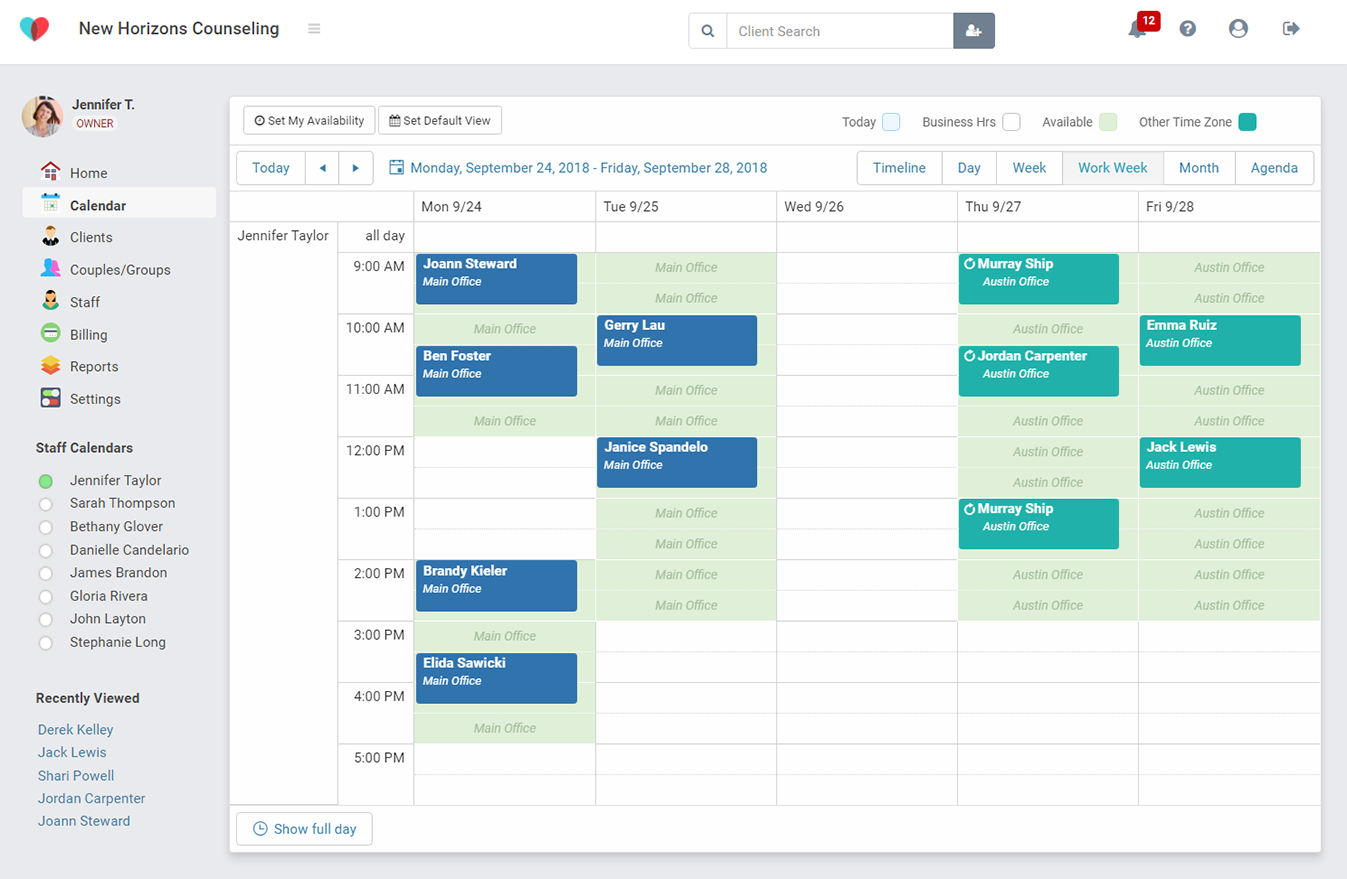
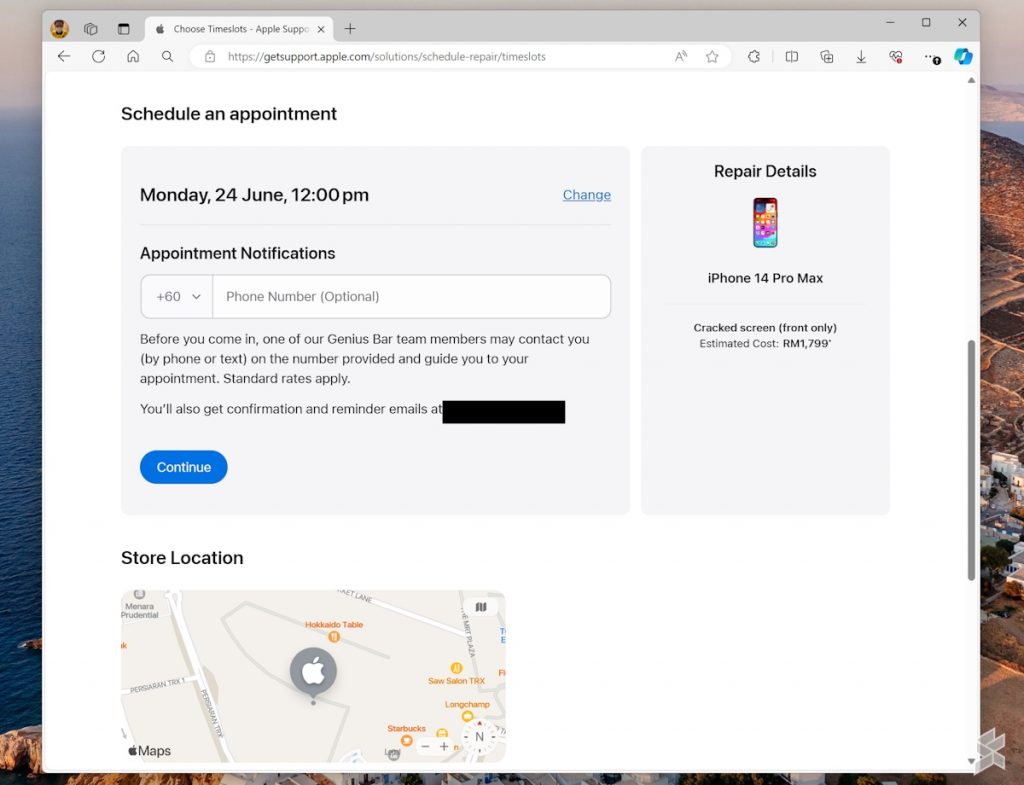
Enter your zip code or city to view nearby Apple Store retail locations. The system displays an interactive calendar showing real-time availability slots for the current week. Choose a time window that accommodates travel and potential in-store wait times.
Step 4: Confirm and Secure Reservation
Sign in using your primary Apple ID credentials to auto-populate your contact details. Review the service summary, acknowledge any estimated repair costs or diagnostic fees, and confirm the reservation. You will receive an instant confirmation email and SMS notification containing a QR code for express check-in upon arrival.
Comparison of Apple Support Channels
| Support Channel | Primary Use Case | Average Wait Time | Cost Structure | Best For |
|---|---|---|---|---|
| Genius Bar (In-Store) | Physical repairs, hardware diagnostics, battery swaps | Zero (Scheduled Slot) / Varies (Walk-in) | Free diagnostics; parts/labor vary by AppleCare+ | Complex hardware failures, physical damage, immediate replacement |
| Apple Support App | Remote chat, scheduled callbacks, self-service guides | Immediate to 5 minutes | Free | Software troubleshooting, billing inquiries, quick questions |
| Authorized Service Providers | Local hardware repairs outside direct Apple Store coverage | Varies by location | Standard Apple repair rates | Users located far from a flagship Apple retail store |
| Express Replacement Service | Mailed device replacement via AppleCare+ | 2-3 business days | Requires temporary credit card authorization hold | Users who cannot afford downtime without a primary device |
Common Scheduling Mistakes and Troubleshooting
When attempting to secure an appointment during peak retail hours—such as weekend afternoons or product launch windows—slots fill rapidly. Understanding common friction points helps secure timely assistance.
Pro-Tip for High-Demand Periods: Apple typically releases new same-day appointment slots early in the morning (around midnight to 7:00 AM local time). If online calendars show zero availability, refreshing the support portal during these early morning hours yields the highest success rate for emergency repairs.
Avoid these frequent pitfalls during the scheduling process:
- Using Unverified Third-Party Links: Only use official apple.com domains or the native Apple Support app. Fraudulent third-party booking sites often harvest Apple ID credentials or charge unauthorized fees.
- Failing to Update the Support App: Outdated versions of the iOS Support app can experience API handshake failures, preventing the store location finder from loading local inventory.
- Misidentifying the Device Model: Selecting the incorrect device model during the intake questionnaire results in inaccurate repair estimates and missing replacement parts at the Genius Bar.
Maximizing Your In-Store Experience
Once your appointment is confirmed, arriving prepared optimizes the interaction. Check in using the digital QR code sent to your mobile device or speak directly with an Apple Greeter at the entrance. Maintain open communication with the Genius technician regarding error codes, recent software updates, or physical impacts that preceded the device failure. Following their post-service recommendations ensures long-term hardware reliability.
Image Gallery