Cornell University Outlook: Complete Guide to Access, Configuration, and Management
Cornell University uses Microsoft Outlook as its core enterprise email, calendaring, and collaboration platform for students, faculty, staff, and alumni. Accessing and managing your Cornell Outlook account requires navigating specific...
Cornell University uses Microsoft Outlook as its core enterprise email, calendaring, and collaboration platform for students, faculty, staff, and alumni. Accessing and managing your Cornell Outlook account requires navigating specific institutional authentication protocols, configuration settings, and security guidelines to ensure seamless communication across desktop, mobile, and web environments.
Contents
Understanding Cornell University's Enterprise Email Architecture
Cornell University operates its messaging infrastructure through Microsoft 365, migrating away from legacy systems to provide a unified cloud-based ecosystem. This architecture integrates Outlook with Microsoft Exchange Online, Teams, OneDrive, and SharePoint, creating a centralized environment for academic and administrative collaboration.
Every active member of the Cornell community is assigned a NetID, which serves as the primary identifier for their Microsoft 365 account. The standard email address format typically follows the NetID naming convention, ending in @cornell.edu. Understanding how this infrastructure operates helps users troubleshoot authentication issues, manage mailbox storage quotas, and maintain compliance with Cornell Information Technologies (CIT) policies.
Prerequisites and Account Activation Requirements
Before configuring Outlook for Cornell University, specific prerequisites must be satisfied to ensure successful account provisioning and secure sign-in.
- Active Cornell NetID and initial password setup completed via Account Manager.
- Enrollment in Cornell's two-step login system using Duo Security for multi-factor authentication (MFA).
- Active affiliation with the university as a current student, active employee, or eligible affiliate with email privileges.
- Stable internet connection and a supported web browser or mail client version.
New incoming students and staff must complete their NetID activation and wait for the automated provisioning cycle to finish. This cycle typically establishes the Exchange mailbox within a few hours of account activation.
Step-by-Step Guide to Accessing Cornell Outlook on the Web
Accessing Outlook via a web browser provides immediate access to your mail, calendar, and contacts without requiring software installation. This method is ideal for shared workstations or quick access while traveling.
- Open a modern web browser and navigate to the official Cornell Microsoft 365 portal at outlook.office.com or visit the Cornell IT email landing page.
- Enter your full Cornell email address (NetID@cornell.edu) in the sign-in prompt and click Next.
- You will be redirected to Cornell's Central Authentication Service (CAS) or the standard Microsoft enterprise login screen bearing university branding.
- Enter your NetID password and complete the required Duo Security two-step verification prompt on your mobile device or hardware token.
- Choose whether to stay signed in depending on whether you are using a public or private computer.
Once authenticated, the web interface loads the standard Outlook layout, granting full access to your inbox, shared calendars, and cloud attachments.
Configuring Cornell Outlook on Desktop and Mobile Clients
While web access is convenient, configuring native mail clients offers offline capabilities and deeper system integration. Cornell IT officially supports Outlook for Windows, macOS, iOS, and Android.
Automatic Discovery Configuration
Modern versions of Microsoft Outlook utilize Exchange Autodiscover, which simplifies setup significantly.
- Open the Outlook application on your device.
- Select the option to add a new account and enter your
NetID@cornell.eduemail address. - The application will automatically detect Cornell's Exchange server settings.
- Authenticate through the Cornell login window and approve the Duo push notification.
Manual Server Settings
If automatic discovery fails, or if you are configuring an alternative standards-compliant client, you must input the explicit Exchange parameters.
| Configuration Parameter | Setting Value |
|---|---|
| Email Address | yourNetID@cornell.edu |
| Username / Principal Name | NetID@cornell.edu |
| Account Type | Microsoft Exchange / Office 365 |
| Incoming / Outgoing Mail Server | outlook.office365.com |
| Authentication Method | OAuth2 / Modern Authentication |
| Port Settings | Port 993 (IMAP - if applicable), Port 443 (Exchange) |
Security Protocols, Phishing Awareness, and Compliance
Cornell University handles sensitive research, academic records, and administrative data, making security a top priority for CIT. Outlook users must adhere strictly to institutional cybersecurity standards.
- Two-Step Login: Duo Security verification is mandatory for all Cornell Microsoft 365 sign-ins. Never approve unexpected Duo prompts.
- Phishing Identification: Cornell IT will never ask for your password via email. Be wary of external messages impersonating university leadership or IT support.
- Data Classification: Refrain from transmitting restricted institutional data (such as HIPAA-regulated health data or high-risk financial records) through unencrypted email channels. Use secure file transfer services provided by the university instead.
- Reporting Suspicious Messages: Use the "Report Message" button within Outlook to send potential phishing attempts directly to Cornell's security operations center.
Managing Shared Calendars and Delegation
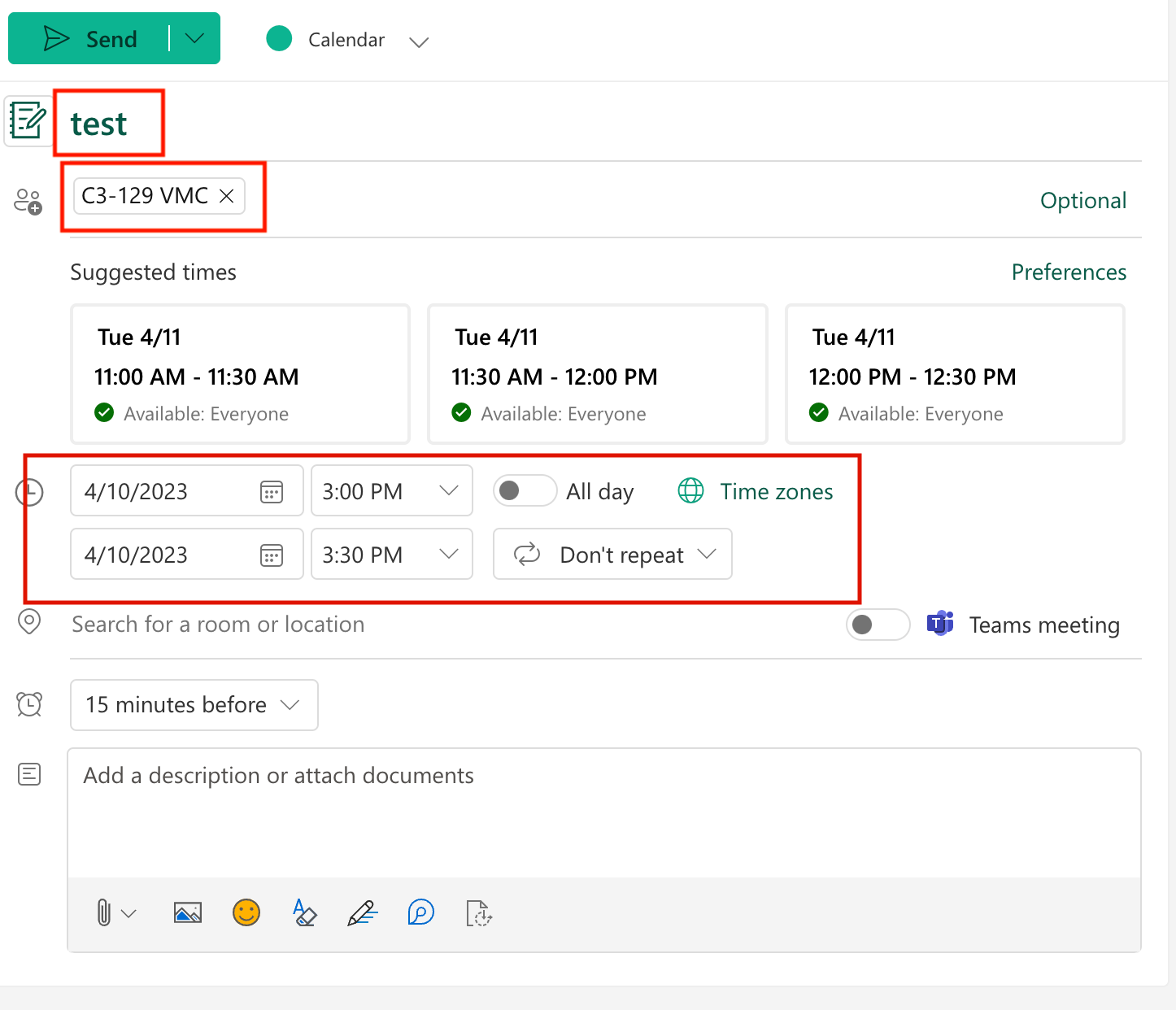
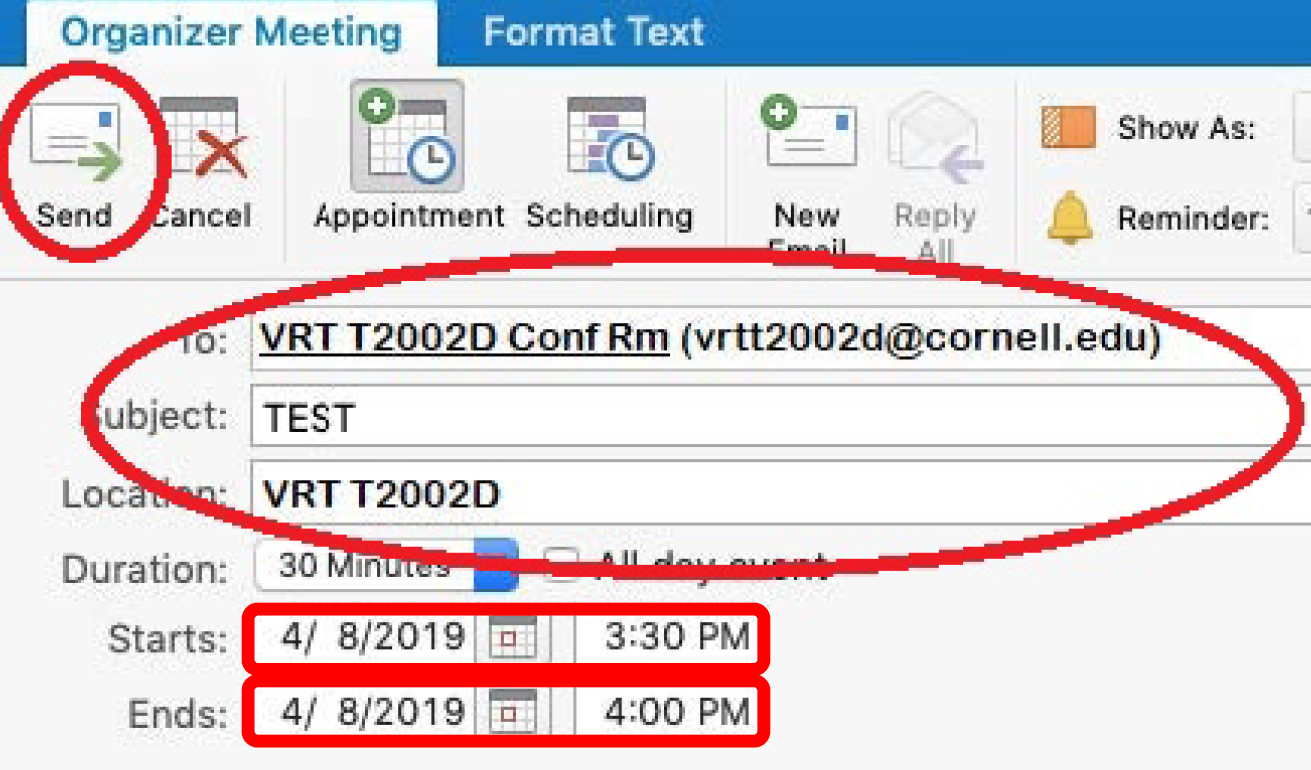
Collaborative scheduling is a cornerstone of university operations. Cornell Outlook allows users to manage multiple calendars, share availability with peers, and delegate mailbox access.
- Adding Shared Calendars: Right-click "Calendars" in Outlook, select "Add Calendar," and choose "From Directory." Search for the name of the department, conference room, or colleague who has granted you permissions.
- Setting Permissions: Navigate to Calendar properties, select the "Permissions" tab, and assign appropriate access levels (such as "Can view when I'm busy" or "Can edit") to specific NetIDs.
- Delegation: Use Account Settings to assign delegates who can send emails and manage meeting requests on your behalf, a standard practice for academic department managers and executive assistants.
Troubleshooting Common Cornell Outlook Issues
Users occasionally encounter technical hurdles related to credential caching, synchronization, or authentication timeouts. Below are effective troubleshooting methodologies.
- Authentication Loops: If your client repeatedly prompts for credentials or fails to accept your password, clear your browser cache, restart the mail client, and verify that your NetID password has not expired via the Cornell Account Manager.
- Duo Push Failures: Ensure your primary mobile device has an active internet or cellular connection. If push notifications fail, use a hardware token passcode or SMS verification code.
- Sync Errors: If folders fail to update, verify your connection status in the bottom right corner of the Outlook client. For persistent issues, remove the account profile entirely and re-add it using Modern Authentication.
- Storage Quota Exceeded: Cornell mailboxes have designated storage limits. Archive older messages or empty the Deleted Items folder to resolve delivery failures caused by a full mailbox.
Cornell IT Support and Resources
When technical issues persist beyond standard troubleshooting, the Cornell IT Service Desk provides direct assistance. Students, faculty, and staff can submit tickets, initiate live chat sessions, or visit the walk-in support center located on campus. Utilizing official Cornell IT documentation ensures your configuration remains compliant with ongoing enterprise upgrades and security patches.
Image Gallery