How to Search Tweets from a Specific Date: A Complete Guide
To search tweets from a specific date on X (formerly Twitter), type search operators directly into the search bar using the format since:YYYY-MM-DD and until:YYYY-MM-DD. For example, searching from:NASA since:2021-01-01 until:2021-12-3...
To search tweets from a specific date on X (formerly Twitter), type search operators directly into the search bar using the format since:YYYY-MM-DD and until:YYYY-MM-DD. For example, searching from:NASA since:2021-01-01 until:2021-12-31 displays posts published by NASA during 2021. You can also use the native Advanced Search web tool to set custom date ranges visually.
Contents
Finding historical posts on X can feel overwhelming given the hundreds of millions of posts published daily. Whether you are conducting academic research, gathering background information for a news report, verifying public statements, or looking for an old post you created years ago, standard timeline scrolling is inefficient. Standard profiles only load a limited number of recent posts, making manual scrolling virtually impossible for older accounts.
Understanding how to leverage search operators, built-in search filters, and external archiving tools allows you to pinpoint exact posts published on any specific day or across a defined historical timeframe.
1. Using Search Operators for Precise Date Filtering
The fastest way to search tweets from a specific date across any platform—including mobile apps and desktop browsers—is using inline search operators. Search operators are specialized text commands added to standard keywords in the search bar to instruct the database how to filter results.
The Standard Date Operator Syntax
Date filters on X rely on the ISO 8601 standard date format: YYYY-MM-DD (4-digit year, 2-digit month, 2-digit day). Using any other format, such as MM-DD-YYYY or DD/MM/YYYY, will cause the search engine to ignore the filter or return inaccurate results.
The two main date operators are:
since:YYYY-MM-DD: Displays posts published starting at 00:00:00 UTC on the specified date forward.until:YYYY-MM-DD: Displays posts published up to 23:59:59 UTC on the day before the specified date, or up to the beginning of the specified date depending on time zone boundaries.
To isolate a single specific day, set the since: operator to the target date and the until: operator to the day immediately following it.
Example: Single-Day Search
If you want to view posts published on March 15, 2022, use:
since:2022-03-15 until:2022-03-16
Example: Specific Account Date Search
To see what a specific account posted on that exact date, combine the date filters with the from: handle operator:
from:techcrunch since:2022-03-15 until:2022-03-16
Basic Command Syntax: [Keyword or Account] since:YYYY-MM-DD until:YYYY-MM-DD
Time Zone Adjustments and UTC Stamps
X indexes all posts using Coordinated Universal Time (UTC). Because local time zones differ from UTC by several hours, a post published late in the evening on May 10 in California (PDT) might be registered by X's database as occurring on May 11 under UTC.
If your date search comes up empty or misses posts from late evening or early morning, expand both the since: and until: boundaries by one calendar day to compensate for time zone offsets.
2. Using the X Advanced Search Interface
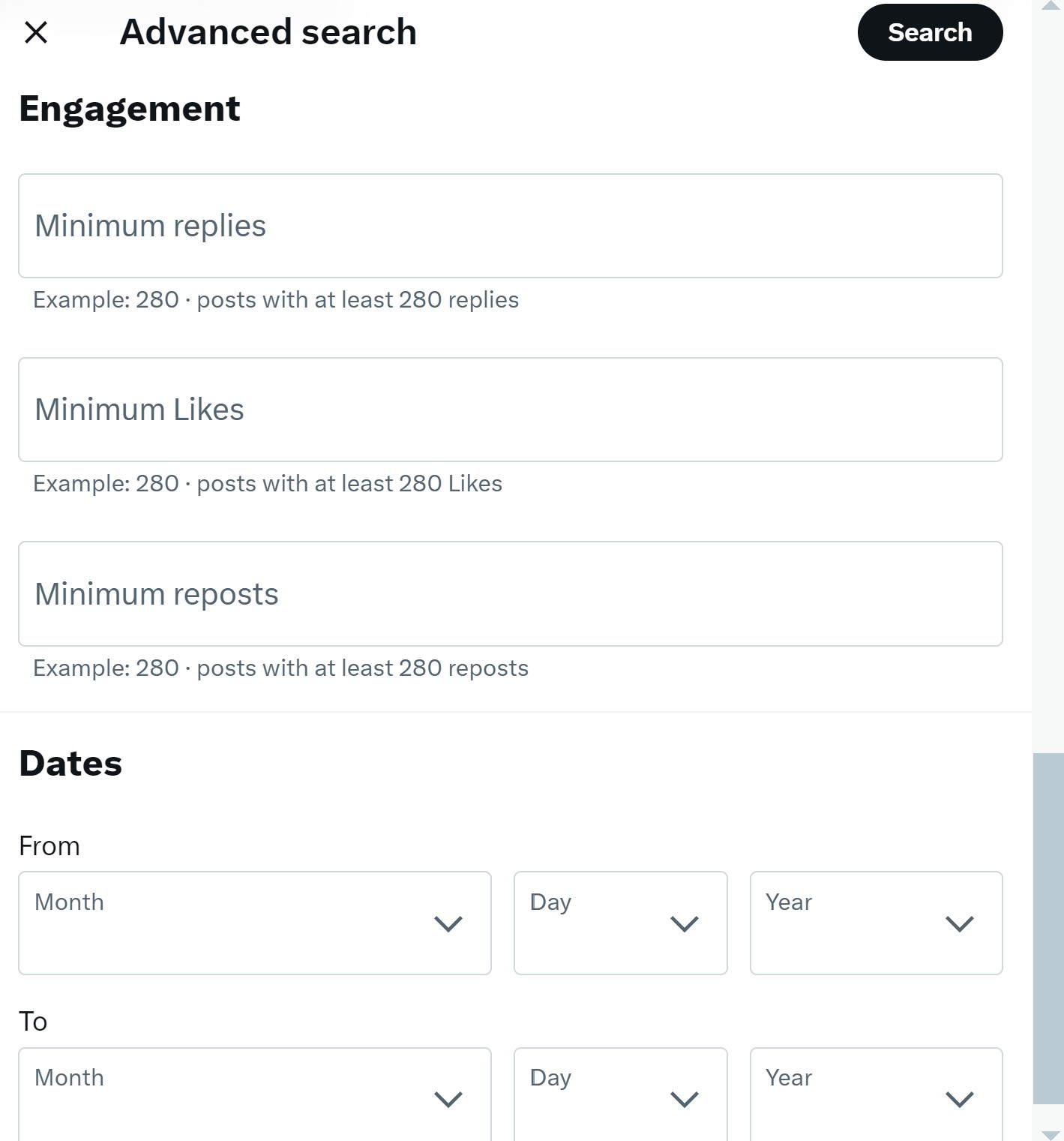
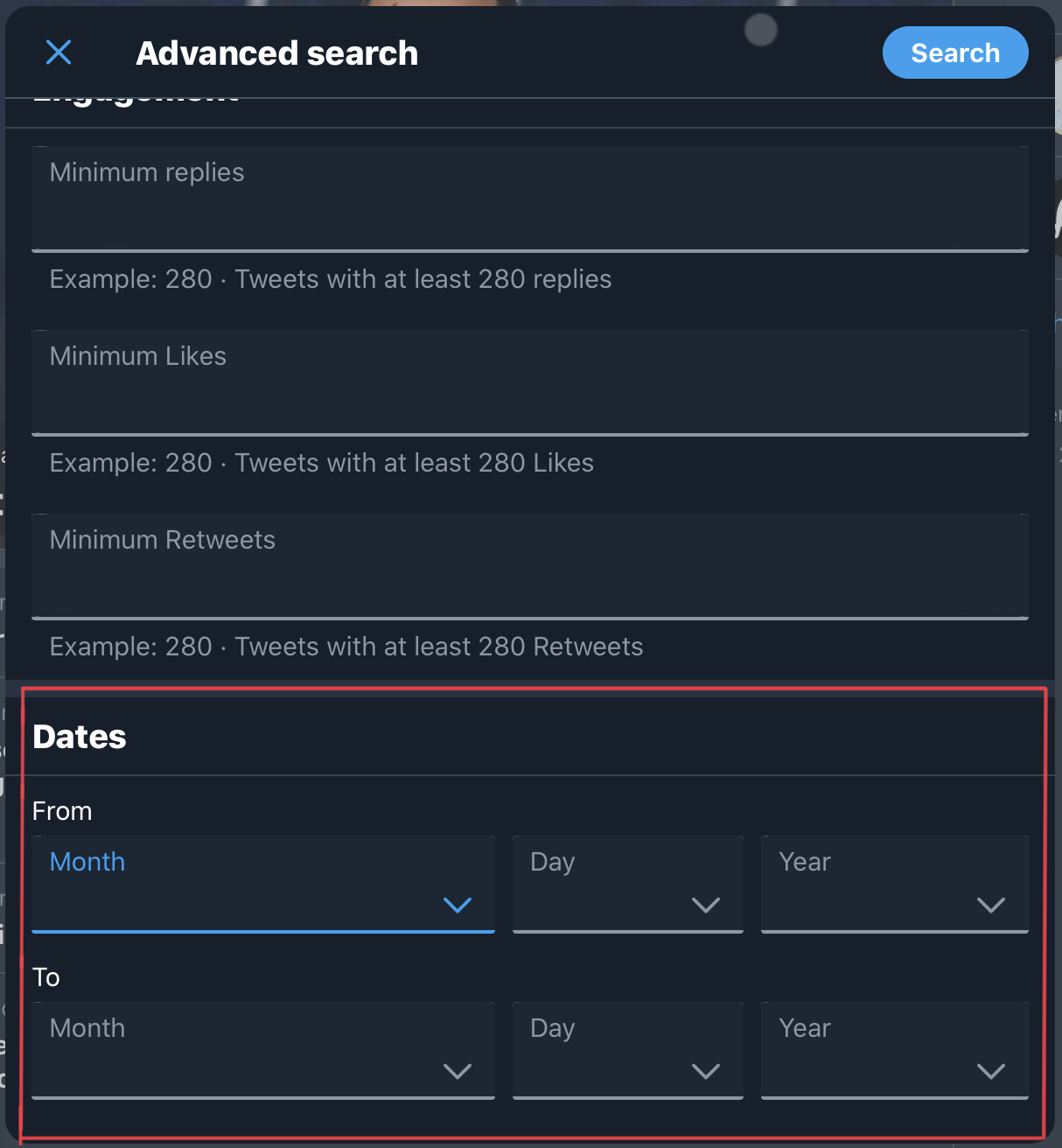
If you prefer a visual interface rather than remembering text commands, the native Advanced Search feature provides simple date pickers and text fields.
Note: The Advanced Search user interface is natively accessible through web browsers on desktop or mobile desktop mode, rather than inside the standard iOS or Android mobile application.
Navigation Flow: Open Search Bar -> Input Basic Query -> Click Three Dots (...) -> Select "Advanced search" -> Set Dates
Step-by-Step Guide to Native Advanced Search
- Navigate to the Search Bar: Open X.com in any web browser and enter a keyword, hashtag, or account name into the top-right search box, then press Enter.
- Open Advanced Search: On the search results page, look at the right-hand column (or click the three dots icon
...next to the main search bar) and select Advanced search. - Enter Words or Accounts: Scroll through the modal window to enter relevant keywords, exact phrases, hashtags, or specific accounts (
From these accounts). - Scroll to the Dates Section: Locate the Dates section at the bottom of the pop-up menu.
- Select the Date Range: Use the drop-down menus to pick the From (month, day, year) and To (month, day, year) fields.
- Execute Search: Click the black Search button in the upper-right corner of the window.
The platform automatically converts your selections into text-based search operators and displays matching historical posts.
3. Combining Date Filters with Advanced Refinements
Narrowing search results by date alone can still produce thousands of posts if the topic or account is active. To locate exact information quickly, combine date parameters with engagement, media, and location parameters.
Filtering by Popularity and Engagement
When researching major historical events, filtering out low-engagement chatter reveals the most impactful posts. You can set minimum thresholds for likes, reposts, and replies.
min_retweets:100: Filters for posts with at least 100 reposts.min_faves:500: Filters for posts with at least 500 likes.min_replies:50: Filters for posts with at least 50 comment replies.
Applied Example:
To find high-engagement posts discussing artificial intelligence from early 2023:
AI since:2023-01-01 until:2023-04-01 min_faves:250
Filtering by Media Type
If you are looking specifically for photos, videos, or news links published on a specific date, attach media modifiers to your date search:
filter:images: Restricts results to posts containing images.filter:videos: Restricts results to posts containing video uploads.filter:links: Restricts results to posts containing outbound web links or news articles.filter:native_video: Filters specifically for natively uploaded videos, excluding third-party links like YouTube.
Applied Example:
To find video news updates from an official outlet on election day 2020:
from:BBCWorld filter:videos since:2020-11-03 until:2020-11-05
4. Comparing Methods for Finding Historical Posts
Different retrieval strategies offer distinct advantages depending on whether you are searching public posts, private accounts, deleted content, or your personal archive.
| Method | Best For | Prerequisites | Pros | Limitations |
|---|---|---|---|---|
Inline Operators (since:, until:) |
Fast filtering on mobile and desktop | Knowing exact syntax structure | Works anywhere; highly customizable | Requires manual text formatting |
| Advanced Search UI | Visual setup on desktop browsers | Web browser access | User-friendly; no syntax memorization required | Not available directly in mobile apps |
| Internet Archive (Wayback Machine) | Finding deleted posts or suspended accounts | Target profile URL or post link | Can recover deleted public content | Only captures periodically snapshotted pages |
| Personal Archive Download | Viewing your own complete post history | Access to your account settings | Contains all personal history, including deleted posts | Takes 24+ hours to generate file; personal data only |
5. How to Find Deleted Tweets from a Specific Date
Standard platform searches only query active, public posts currently residing in X's active database. If an account has deleted its posts or gone private, native search operators will not display them. However, public historical posts can often be recovered using digital archiving tools.
Using the Wayback Machine
The Internet Archive's Wayback Machine crawls and saves snapshots of public web pages at specific points in time.
- Visit archive.org.
- Paste the exact URL of the target profile (e.g.,
https://x.com/username) into the search bar. - Examine the calendar display for the specific year and date you wish to inspect.
- Hover over the circled dates (indicating captured snapshots) and select a blue or green timestamp to load the cached profile view as it appeared on that calendar day.
If the page was snapshotted on that date, you can view the posts that were visible on the account's profile page at that exact moment, even if they were subsequently deleted.
Downloading Your Personal Account Archive
If you need to locate an old post from your own account history—including posts you deleted or archived—the official account export tool provides an offline, searchable file.
- Go to Settings and Privacy > Your Account.
- Select Download an archive of your data.
- Re-enter your password and complete two-factor authentication verification.
- Click Request archive.
- Once notified by email (typically within 24 to 48 hours), download the
.zippackage. - Extract the package and open
your_archive.htmlin any web browser to filter your personal historical posts by date offline.
6. Troubleshooting Date Search Problems
When historical searches yield unexpected results or return no data, technical formatting errors or account permissions are usually responsible.
Common Syntax Errors
- Incorrect Date Separators: Using forward slashes (
since:2022/01/01) or dots (since:2022.01.01) will break the query filter. Always use hyphens (YYYY-MM-DD). - Spacing Issues: Do not place spaces between the operator colon and the value. Writing
since: 2022-01-01causes the platform to search for the word "since" rather than filtering by date. Writesince:2022-01-01. - Inverted Ranges: Setting the
since:date after theuntil:date (e.g.,since:2023-05-01 until:2022-05-01) creates an impossible logical loop and yields zero results.
Visibility Restrictions and Account Settings
If the syntax is correct but results remain empty:
- Private/Protected Accounts: Search operators cannot retrieve posts from accounts set to private/protected unless you are an approved follower viewing them in standard feed contexts.
- Blocked Accounts: You cannot search posts from accounts that have blocked you or accounts that you have blocked unless you unblock them first.
- Platform Context Limits: Search results are divided into Top and Latest tabs. The default "Top" view hides smaller posts that received minimal engagement. Always switch to the Latest tab at the top of the search results screen to review every post published within your designated timeframe chronologically.
Frequently Asked Questions
Why are search operators not returning any posts from a specific date?
If search operators return no results, verify that the date format follows YYYY-MM-DD with hyphens and no spaces around the colon. Additionally, switch your search view from the "Top" tab to the "Latest" tab, as the default view hides low-engagement posts. If the account was set to private or suspended during that period, its posts will not appear in native searches.
Can you search tweets by date on the mobile app?
Yes, you can search by date on the iOS and Android mobile apps by manually typing date operators (such as since:2021-06-01 until:2021-06-30) directly into the search bar. While the graphic Advanced Search UI menu is restricted to desktop browsers, the underlying search syntax commands work identically across all mobile platforms.
How do I search my own old tweets from a specific year?
To find your own posts from a specific year, enter from:YourUsername since:YYYY-01-01 until:YYYY-12-31 into the search bar, replacing YourUsername with your personal handle and YYYY with the desired year. To inspect deleted posts or private data, request your personal data download from your account settings menu.
Is the until: search operator inclusive or exclusive?
The until: search operator functions as an exclusive boundary based on UTC timestamps. Entering until:2023-05-10 fetches posts published up until 23:59:59 UTC on May 9. To include all posts published on May 10, set your boundary parameter to until:2023-05-11.
Can I search tweets within a specific hour or minute range?
Native inline search operators only support day-level granularity using the YYYY-MM-DD format. You cannot specify precise hours or minutes using standard search syntax commands. To isolate posts from a specific hour, set your search parameters to that calendar day and sort your results chronologically under the "Latest" tab.
Next Steps and Practical Recommendations
To perform efficient date-based searches on X:
- Memorize Key Operators: Use
from:username,since:YYYY-MM-DD, anduntil:YYYY-MM-DDfor daily searches without navigating menus. - Adjust for Boundaries: Expand your target date range by one day on both ends to prevent time zone offsets from excluding relevant posts.
- Switch Views: Always select the Latest tab on search results pages to view all historical matches chronologically, preventing algorithm filters from hiding lower-engagement posts.
- Preserve Findings: If you are conducting research or journalistic investigation, screenshot or save web archive links immediately, as public posts can be deleted or set to private by account owners at any time.
Image Gallery