7 Common Windows 7 Errors Explained: Troubleshooting and Fixes for Legacy Systems
Windows 7 errors are typically resolved by addressing outdated system files, resolving driver conflicts, or updating security protocols to meet modern standards. While the operating system reached its official end-of-life in 2020, comm...
Windows 7 errors are typically resolved by addressing outdated system files, resolving driver conflicts, or updating security protocols to meet modern standards. While the operating system reached its official end-of-life in 2020, common issues like the 80072EFE update error or the "Blue Screen of Death" can be fixed through manual patch installation and system configuration.
Contents
As of 2026, Windows 7 remains a fixture in specific industrial environments, legacy software testing, and enthusiast setups. However, using an operating system that is more than 15 years old presents unique challenges. The gap between legacy architecture and modern web protocols has widened, leading to specific errors that did not exist during the OS's mainstream lifecycle. Understanding these seven critical errors is essential for anyone maintaining a Windows 7 machine today.
1. Windows Update Error 80072EFE (Connection Interruption)
One of the most frequent hurdles for a fresh Windows 7 installation in 2026 is the 80072EFE error. When users attempt to check for updates, the process fails almost immediately. This is not a failure of the local internet connection, but a fundamental mismatch in encryption protocols.
Originally, Windows 7 used the SHA-1 hashing algorithm for signing updates. Over the last decade, the industry transitioned to SHA-2 due to security vulnerabilities in SHA-1. Microsoft eventually updated its update servers to require SHA-2, but an unpatched Windows 7 "out-of-the-box" does not know how to handle these modern signatures. Consequently, the update client cannot establish a secure handshake with the server.
To resolve this, you must manually download and install KB3138612 (the Windows Update Client update) and KB4474419 (the SHA-2 code signing support update). Without these specific patches, the system will remain in a permanent loop of connection failures, unable to pull even the final security updates released in 2020 or the subsequent Extended Security Updates (ESU).
2. The Stop 0x0000007B Error (Inaccessible Boot Device)
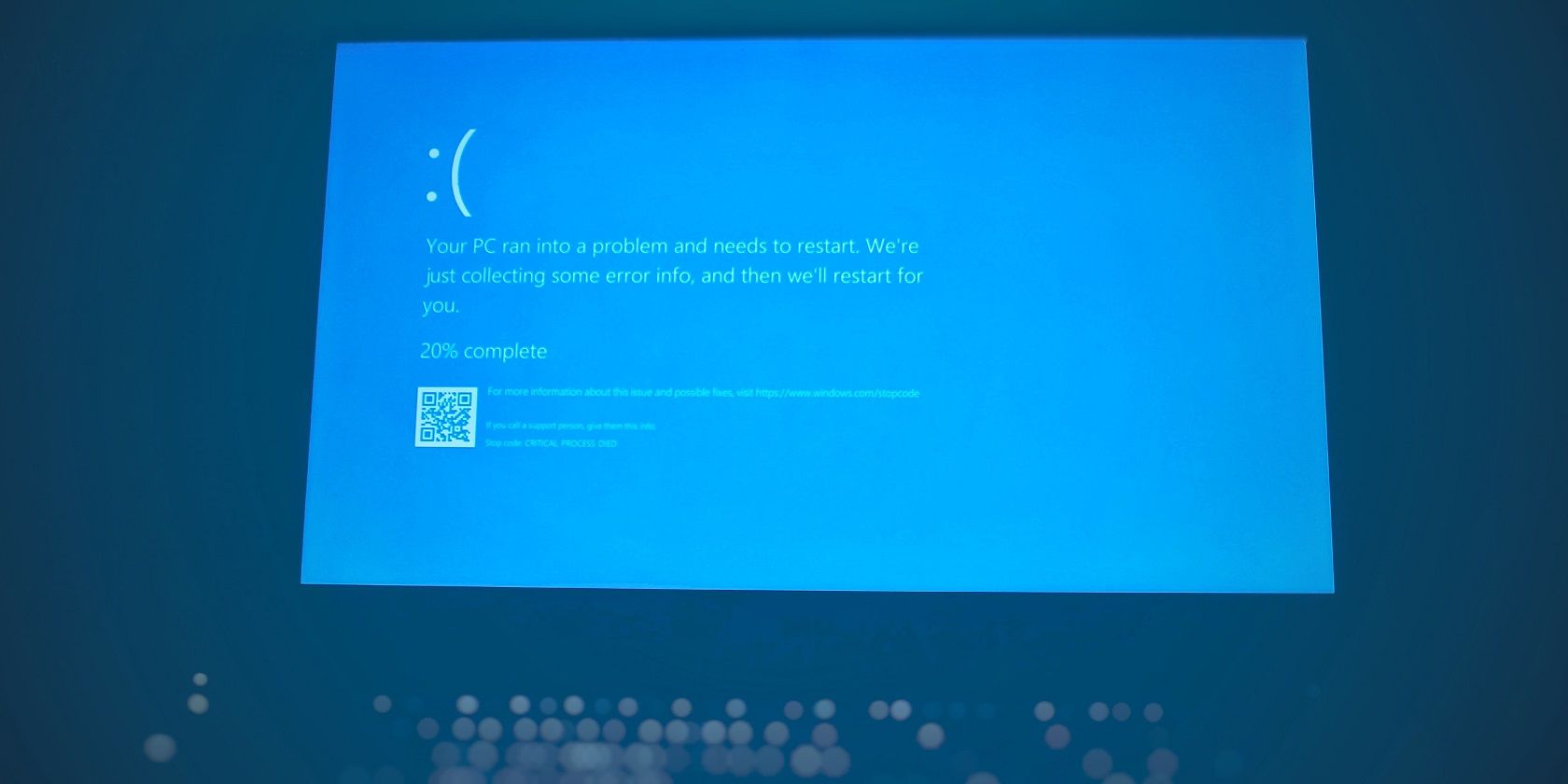
The Stop 0x7B error is a classic "Blue Screen of Death" (BSOD) that typically occurs during the boot sequence. This error indicates that the Windows kernel has lost communication with the storage device containing the system files.
In the context of 2026 hardware, this often happens when attempting to run Windows 7 on modern motherboards. Windows 7 was designed in an era where IDE and early AHCI (Advanced Host Controller Interface) standards were dominant. Modern systems often use NVMe (Non-Volatile Memory express) storage. Because Windows 7 does not have native NVMe drivers in its installation media, the system crashes the moment it tries to hand over control from the BIOS to the OS.
Another common cause is switching the SATA mode in the BIOS from IDE to AHCI after the OS has been installed. Windows 7 loads the driver for the specific controller it detected during setup. If that controller mode changes, the driver fails to initialize. To fix this without a reinstall, you must enter the Registry Editor via a recovery disk and change the "Start" value of the msahci service to 0.
3. "Windows is Not Genuine" (Error 0x80070005)
Even with a legitimate license key, many users encounter the "Windows is not genuine" black wallpaper and watermark. This is often accompanied by error 0x80070005, which technically means "Access Denied."
This error usually stems from the Windows Activation Technologies (WAT) files becoming corrupted or losing the necessary permissions to verify the license against the local hardware ID. In many cases, third-party security software or aggressive "system cleaners" accidentally modify the permissions of the HKEY_LOCAL_MACHINE\SOFTWARE\Microsoft\Windows NT\CurrentVersion\SoftwareProtectionPlatform registry key.
When the licensing service cannot read this key, it defaults to a non-genuine state. Resolving this typically requires using a tool like SubInACL to reset registry permissions or using the command-line utility slmgr.vbs -rearm to reset the activation timers. It is a reminder that Windows 7's activation system is sensitive to any changes in the underlying security permissions of the system hive.
4. Bootmgr is Missing
The "BOOTMGR is missing" error occurs before the operating system even begins to load. It indicates that the BIOS/UEFI found the hard drive, but could not find the small piece of software responsible for starting the Windows boot sequence.
This is rarely a software "bug" and is almost always a result of:
- Incorrect Boot Order: The computer is trying to boot from a non-bootable USB drive or a secondary data drive.
- Partition Issues: The "Active" flag on the system partition has been moved or cleared.
- MBR Corruption: The Master Boot Record has been overwritten or damaged.
To fix this, you must use a Windows 7 recovery environment (PE). Running the commands bootrec /fixmbr, bootrec /fixboot, and bootrec /rebuildbcd via the Command Prompt will rewrite the necessary boot files to the drive. In 2026, this is a common issue when migrating Windows 7 virtual machines between different hypervisors like VMware or Proxmox.
5. Runtime Error: Visual C++ Redistributable Mismatch
Many modern applications that still support Windows 7 require specific versions of the Microsoft Visual C++ Redistributable. When these are missing or corrupted, the user sees a "Runtime Error" popup, often citing a specific .dll file like msvcp140.dll.
The complexity here is that Windows 7 does not automatically update these libraries through standard channels anymore. Furthermore, many software installers assume the system is fully updated with the Universal C Runtime (CRT), which was a late-stage update for Windows 7 (KB2999226).
If an application fails with a runtime error, the solution is almost always to install the "All-in-One" Visual C++ Redistributable packages. These packages include every version from 2005 through 2022. Because Windows 7 lacks a built-in package manager like modern versions of Windows, these must be tracked down manually to ensure software compatibility.
6. Error 0x80070005 in Windows Update
While we discussed 0x80070005 in relation to activation, it is also a notorious Windows Update error. In this context, it specifically means that the update installer lacks the permissions to write to the C:\Windows\SoftwareDistribution folder.
This folder is the staging area where Windows downloads and prepares updates. Over years of use, the file permissions can become "tangled," or the local Cryptographic Services may fail to initialize. This prevents the system from verifying the integrity of the downloaded update files.
The standard "Deep Clean" for this error involves stopping the Windows Update service (wuauserv), renaming the SoftwareDistribution folder to SoftwareDistribution.old, and restarting the service. This forces Windows 7 to recreate the folder structure and re-download the metadata, effectively bypassing the permission lock.
7. The "Class Not Registered" Explorer Error
This error is particularly frustrating because it can happen when doing something as simple as clicking a folder or opening a JPEG. "Class Not Registered" refers to the COM (Component Object Model) components that Windows uses to associate file types with specific programs or shell extensions.
In Windows 7, this usually happens because a DLL responsible for a Windows Explorer function has become unregistered. This often follows the uninstallation of an old program that "shared" a system DLL and erroneously removed the registry registration for that DLL upon exit.
The most common culprit is ExplorerFrame.dll. To fix it, users must manually re-register the DLL using the Command Prompt: regsvr32 ExplorerFrame.dll. This restores the link between the operating system's shell and the underlying code required to display the user interface.
Comparison of Common Windows 7 Errors
| Error Code/Name | Primary Symptom | Root Cause | Fix Complexity |
|---|---|---|---|
| 80072EFE | Update check fails | SHA-1 vs SHA-2 Mismatch | Medium (Manual Patching) |
| 0x0000007B | BSOD at Boot | Storage Driver Conflict | High (Registry/BIOS) |
| Not Genuine | Black Desktop | Registry Permissions | Medium (CMD / slmgr) |
| BOOTMGR Missing | Total Boot Failure | MBR/BCD Corruption | Low (Recovery Media) |
| 0x80070005 | Access Denied | File/Registry Locks | Medium (Folder Reset) |
| Runtime Error | App won't start | Missing C++ Libraries | Low (Install Redist) |
| Class Not Registered | Explorer Glitches | Unregistered DLLs | Low (regsvr32) |
Frequently Asked Questions
Is it safe to fix these errors and keep using Windows 7 in 2026?
Functionally, yes, these errors can be fixed to make the system operational. However, from a security standpoint, it is highly discouraged for any machine connected to the internet. Since security patches ceased in early 2023 (even for ESU customers), the OS is vulnerable to numerous unpatched exploits. If you must use it, ensure it is isolated behind a robust hardware firewall or kept offline.
Why do I get "Unsupported Hardware" errors on a new PC?
Microsoft implemented a "processor generation check" that blocks Windows 7 updates on Intel 7th Gen (Kaby Lake) and AMD Ryzen processors or newer. In 2026, almost any modern CPU will trigger this. To bypass it, users often utilize a community-made tool called wufuc, which disables the hardware check and allows the Windows Update service to function normally.
Can I still download the official patches for these errors?
The Microsoft Update Catalog remains the best source for manual .msu patch files. Even though Windows 7 is legacy, Microsoft has historically kept the Catalog active for old versions. You will need to know the specific KB (Knowledge Base) numbers, such as KB3138612, to find them.
How do I fix DLL errors without downloading files from "DLL sites"?
Never download individual DLL files from third-party websites, as they are often bundled with malware. The correct way to fix a missing DLL in Windows 7 is to run the System File Checker. Open Command Prompt as Administrator and type sfc /scannow. This compares your system files against a cached "known good" version and replaces corrupted ones automatically.
Why won't my browser work after fixing Windows 7 errors?
Many modern websites require TLS 1.2 or 1.3 for security. Windows 7 has limited native support for these. Even if you fix the OS errors, the built-in Internet Explorer 11 will fail to load most 2026 websites. You must use a modern, third-party browser that still maintains a legacy Windows 7 fork, such as specific versions of Firefox or Chrome-based browsers like Supermium.
Final Recommendation
If you are managing a Windows 7 system in 2026, the most effective strategy is proactive patching. Before connecting the machine to a network, manually install the SHA-2 support patches and the final 2020 Quality Rollup. This prevents the majority of update and connection errors. For persistent hardware-related "Blue Screens," always verify that your storage controller mode in the BIOS matches the drivers installed within the image. If the system is used for critical tasks, consider migrating it to a Virtual Machine (VM) environment, which abstracts the hardware and eliminates many of the driver-related errors discussed here.
Image Gallery