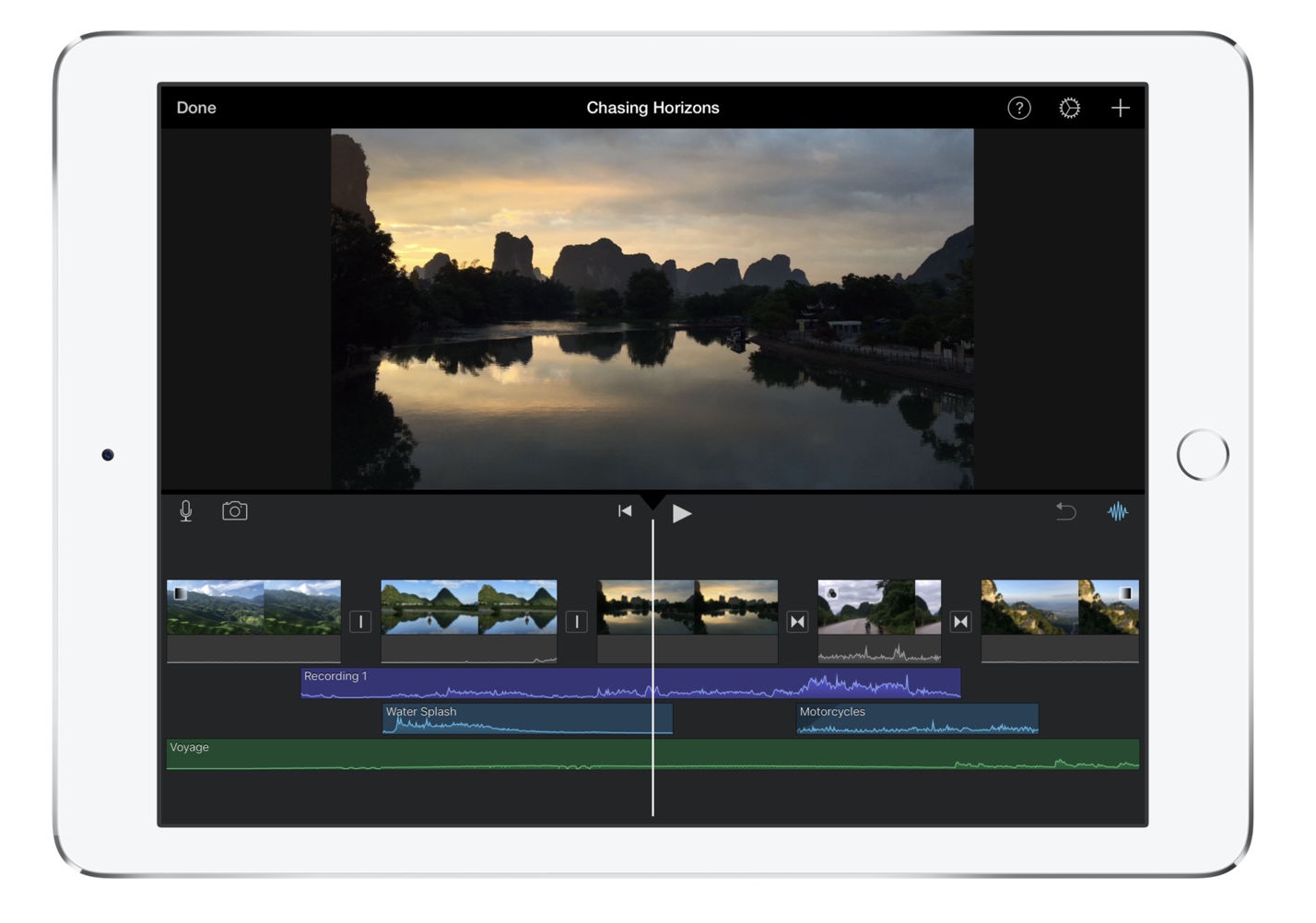
Video Editor iPhone Free: Best Professional Tools for 2026 Mobile Production
Finding a professional-grade video editor for your iPhone that is truly free requires navigating a market saturated with "freemium" models that often lock high-resolution exports or advanced features behind steep paywalls. For creators...
Finding a professional-grade video editor for your iPhone that is truly free requires navigating a market saturated with "freemium" models that often lock high-resolution exports or advanced features behind steep paywalls. For creators in 2026, the best free options are those that provide robust, non-linear editing capabilities, multi-track support, and high-bitrate export options without forcing a subscription for basic functionality.
Contents
Understanding the Landscape of Free iOS Video Editing in 2026
Mobile video production has evolved significantly as iPhone hardware—specifically the A-series chips and the Neural Engine—now handles intensive rendering tasks that once required dedicated desktop workstations. When selecting a free video editor for your iPhone, it is essential to distinguish between "free-to-install" and "fully functional free software."
Many applications available on the App Store follow a tiered delivery model. In 2026, the industry standard for a "free" tool is defined by the absence of mandatory subscription requirements to access core features like multi-track timeline editing, 4K export support at 60fps, and standard transition libraries. Before committing to a workflow, always verify whether the application adds a watermark to your finished export, as this is the primary indicator of a true free-tier versus a trial version.
Technical Requirements for High-Performance Mobile Editing
To ensure a smooth editing experience on your iPhone, your device must meet the minimum hardware thresholds for 2026 software standards. Modern editing suites utilize Metal API and hardware-accelerated encoding/decoding.
- Processor: Apple A14 Bionic or newer is highly recommended for real-time 4K playback.
- Storage: At least 20GB of free space is necessary to handle temporary cache files generated during the rendering process.
- Operating System: iOS 17 or later is required to support the latest advancements in file management and background rendering processes.
- RAM: While iOS manages memory automatically, 6GB of RAM (found in iPhone 14 Pro and newer) significantly reduces app crashes when working with complex multi-layer sequences.
Top-Tier Free Video Editing Suites for iPhone
The following applications have been vetted for their performance, lack of aggressive watermarking, and feature accessibility in the 2026 ecosystem.
| App Name | Multi-Track Editing | 4K Export | Watermark Free | Best For |
|---|---|---|---|---|
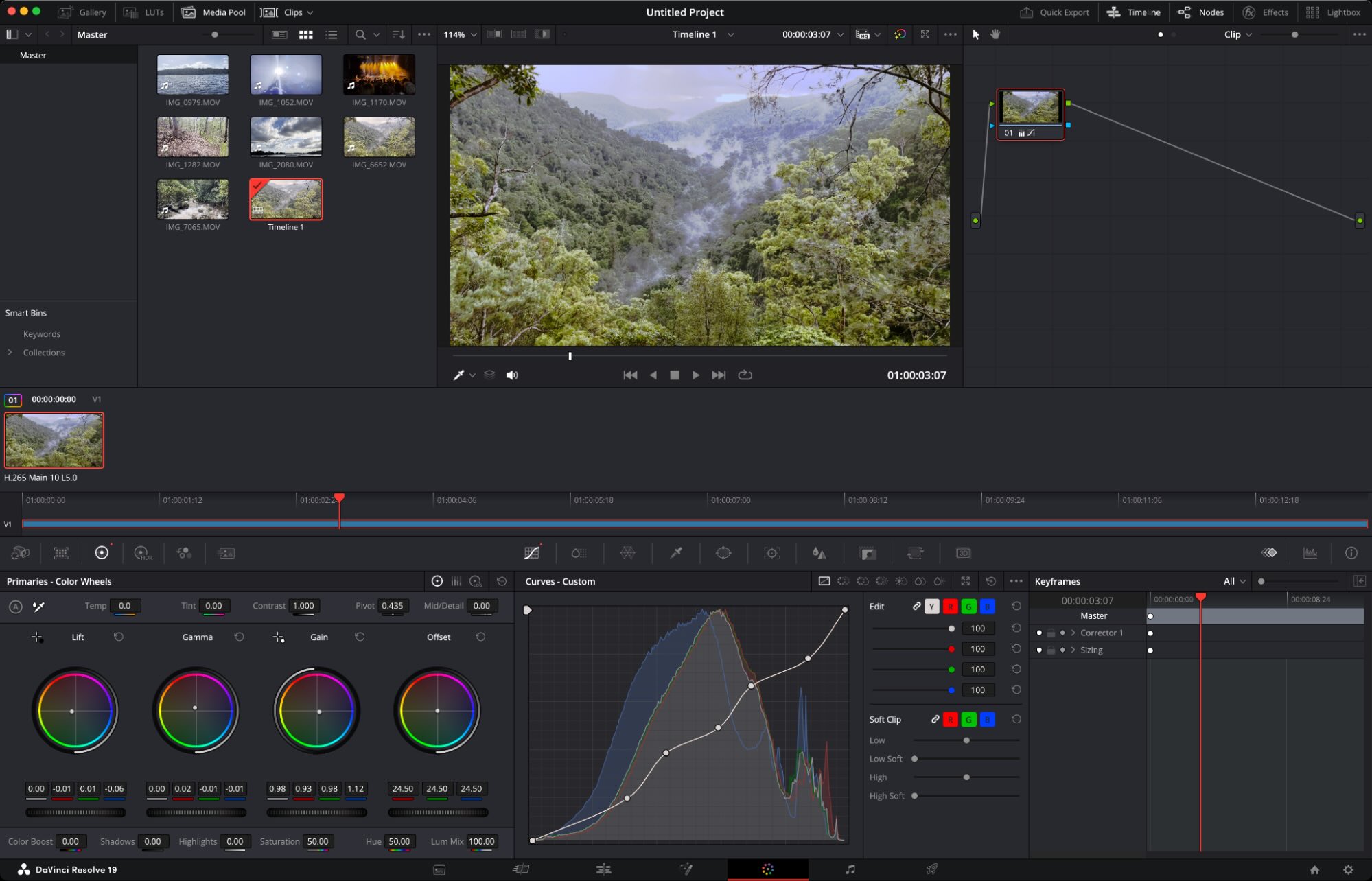
| DaVinci Resolve (iPad/iPhone) | Yes | Yes | Yes (Core features) | Professional Color Grading |
| CapCut | Yes | Yes | Optional Removal | Social Media Content |
| VN Video Editor | Yes | Yes | Yes | Intuitive Storytelling |
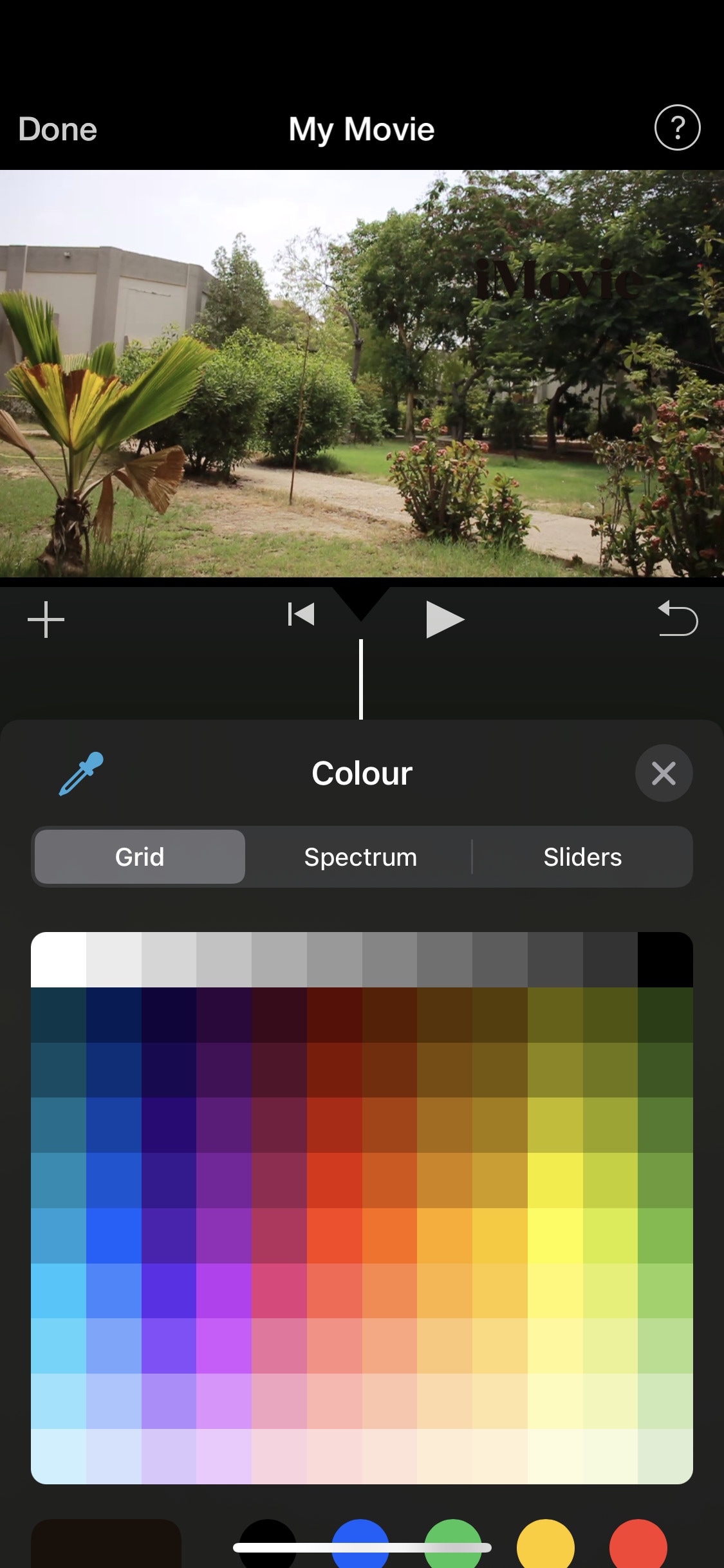
| Apple iMovie | Yes | Yes | Yes | Seamless Integration |
DaVinci Resolve for iOS: The Professional Choice
Blackmagic Design’s mobile port of its flagship desktop software represents the most sophisticated tool available. It allows for industry-standard color correction and node-based compositing. While some advanced AI features require a one-time purchase, the fundamental editing suite is powerful enough for professional broadcast-ready production without a subscription.
CapCut: The Social Media Standard
CapCut remains the most popular tool for short-form content. In 2026, its library of automated captions, trending audio sync, and AI-driven background removal makes it the fastest way to produce high-engagement videos. Users can remove the concluding watermark manually in the project settings, allowing for a clean export.
VN Video Editor: The Precision Tool
VN (VlogNow) offers a desktop-like timeline experience on mobile. It is highly favored by mobile videographers who prefer manual control over keyframes, curve speed ramping, and precise audio mixing. Its lack of forced advertisements and watermark-free exports at high bitrates makes it a perennial favorite for serious creators.
Efficient Workflow for Mobile Video Production
Achieving professional results requires a structured approach to mobile project management. Following this process minimizes the technical limitations of a handheld device.
- Project Organization: Utilize the Files app on iOS to categorize raw footage into subfolders. Avoid keeping all files in the Camera Roll, as this complicates metadata management.
- Asset Importation: Import assets directly into the editor’s local library rather than editing via the cloud to avoid latency issues caused by intermittent internet connectivity.
- Timeline Management: Sequence your clips by "B-Roll" and "A-Roll" separately. Keep the primary audio track as your anchor and layer sound effects and music underneath.
- Color Grading: Perform all color adjustments after the primary edit is complete. Avoid applying heavy LUTs during the rough cut, as this consumes significant processing power and can cause the application to lag.
- Export Settings: Always select the H.265 (HEVC) codec to maintain high visual fidelity with lower file sizes. For social media, target a bitrate of 15–20 Mbps for 4K content to satisfy platform compression algorithms.
Troubleshooting Common Mobile Editing Hurdles
Even with optimized hardware, users frequently encounter specific technical barriers. Addressing these quickly ensures your project remains on schedule.
Memory Management Strategies
When your editing application warns of low disk space, clear the application cache specifically rather than deleting your project files. Most professional editors, such as DaVinci Resolve, have a dedicated 'Clear Cache' button in the settings menu that removes generated proxy files and render files that are no longer linked to an active timeline.
Managing Overheating Issues
Rendering complex projects puts significant load on the iPhone's SoC. If the device becomes hot, performance throttling will occur. Perform your final renders in a cool environment, avoid using a thick case that traps heat, and ensure your device is not simultaneously charging, as this adds thermal load.
Frequently Asked Questions
Does Apple iMovie offer enough control for 2026 professional projects? iMovie is an excellent entry-level tool for basic cuts, titles, and transitions. While it is fully free, it lacks advanced keyframe manipulation, extensive color grading tools, and multi-track audio mixing found in third-party professional applications.
Is there a truly free video editor that does not contain advertisements? Yes, both Apple iMovie and the base version of DaVinci Resolve for iOS contain no third-party advertisements. VN Video Editor also provides a high-quality ad-free experience, provided you do not download assets from their premium library.
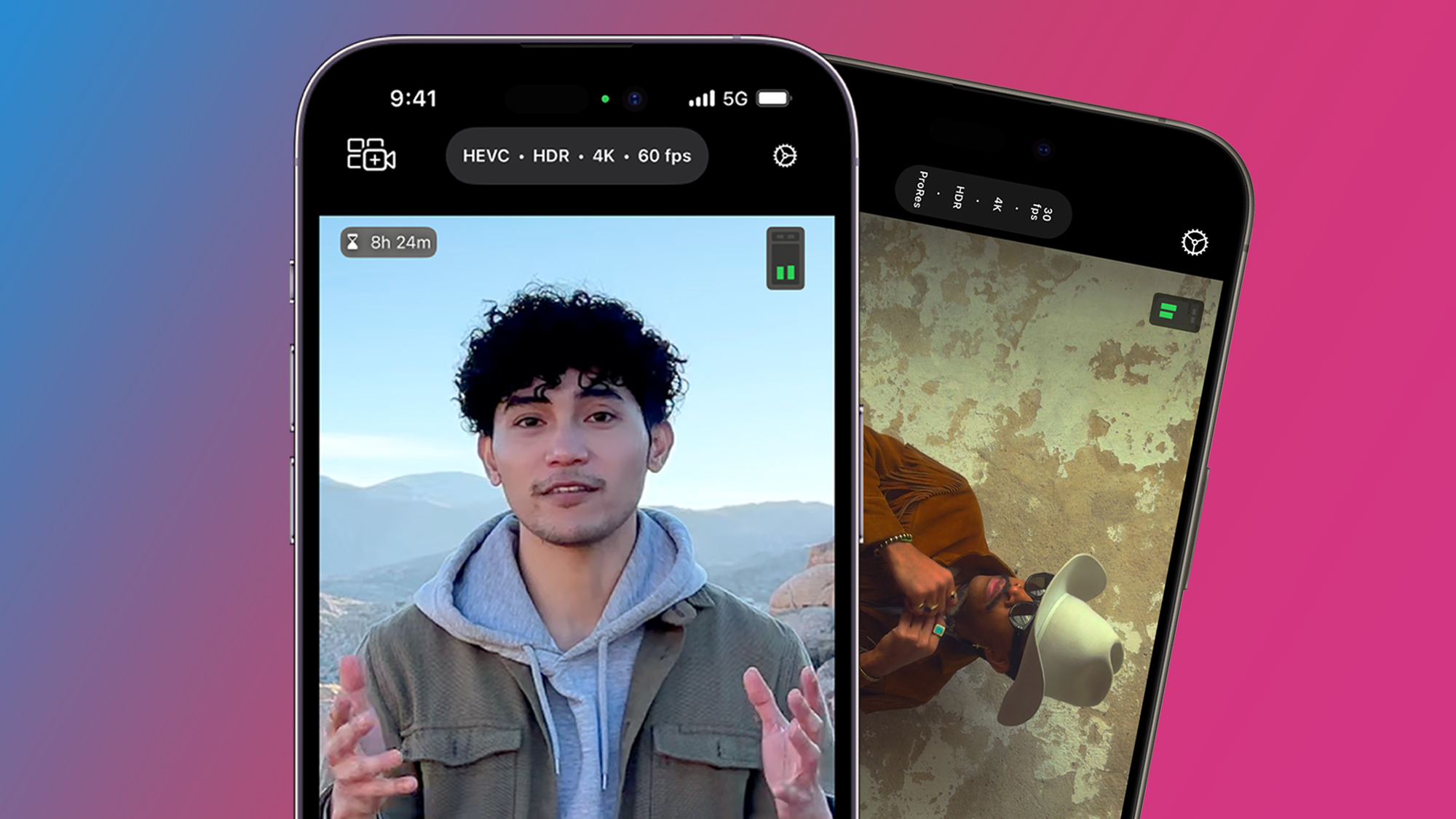
Can I export 4K 60fps video on a free app? Yes, most top-tier free apps support 4K 60fps, provided your iPhone hardware is capable of recording and processing that specific frame rate and resolution. Ensure you enable "High Efficiency" mode in your iPhone camera settings to optimize compatibility.
What is the best way to handle large file sizes on an iPhone? Use an external SSD connected via the USB-C port (on iPhone 15 and 16 models) to offload raw footage. Many professional apps allow you to work directly from an external drive, preventing your internal storage from filling up.
Why does my video look blurry after exporting? This is often caused by a low export bitrate or improper resolution settings. Always match your project export settings to the resolution of your source footage. Avoid exporting at 1080p if your source material is 4K, as the downsampling process can introduce aliasing if not handled by a high-quality encoder.
Optimize Your Workflow Today
To elevate your production, start by auditing your current storage capacity and installing one of the recommended editors above. For those seeking maximum professional control, DaVinci Resolve is the industry standard for 2026. For those prioritizing speed and trending effects, CapCut remains the most efficient choice. Always prioritize your device’s thermal health and utilize external storage to ensure a fluid, uninterrupted editing experience.
Image Gallery