How to See Liked Videos on Instagram: Simple Steps
To see liked videos on Instagram, open the mobile app and navigate to your Profile. Tap the three-line menu (hamburger icon) in the top right corner, select Your activity, and then tap Interactions. Choose Likes to view a chronological...
To see liked videos on Instagram, open the mobile app and navigate to your Profile. Tap the three-line menu (hamburger icon) in the top right corner, select Your activity, and then tap Interactions. Choose Likes to view a chronological grid of every video, Reel, and photo you have interacted with.
Contents
Navigating Instagram's interface can sometimes feel like a moving target. As the platform evolves into 2026, the user interface (UI) continues to prioritize "Your Activity" as the central hub for all personal data and interaction history. Understanding how to access this history is not just about nostalgia or finding a lost recipe; it is a vital part of managing your digital footprint and fine-tuning the algorithm that dictates your feed.
Whether you are looking for a funny Reel you liked yesterday or a tutorial from months ago, the process is streamlined once you know where the "Interactions" menu is hidden. This guide provides a comprehensive walkthrough for mobile and desktop users, along with advanced tips for managing your liked content.
Why Instagram Moved Liked Content to "Your Activity"
In earlier versions of Instagram, liked posts were buried deep within the "Account" section of the Settings menu. However, as privacy regulations expanded and users demanded more transparency regarding their data, Instagram consolidated all user-generated actions into the Your Activity dashboard.
This dashboard serves several purposes:
- Transparency: It allows users to see exactly what data the app is tracking regarding their interests.
- Efficiency: It provides a single location to manage likes, comments, tags, and search history.
- Algorithm Control: By reviewing and occasionally "unliking" content, users can manually influence the type of content Instagram’s AI suggests in the Explore and Reels tabs.
By 2026, this section has become the primary tool for digital well-being on the platform, allowing users to see how much time they spend on the app and what specific content triggers their engagement.
How to See Liked Videos on the Instagram App (iOS and Android)
The mobile experience remains the primary way users interact with Instagram. Regardless of whether you are using an iPhone or an Android device, the steps to find your liked videos are identical.
Step 1: Access Your Profile
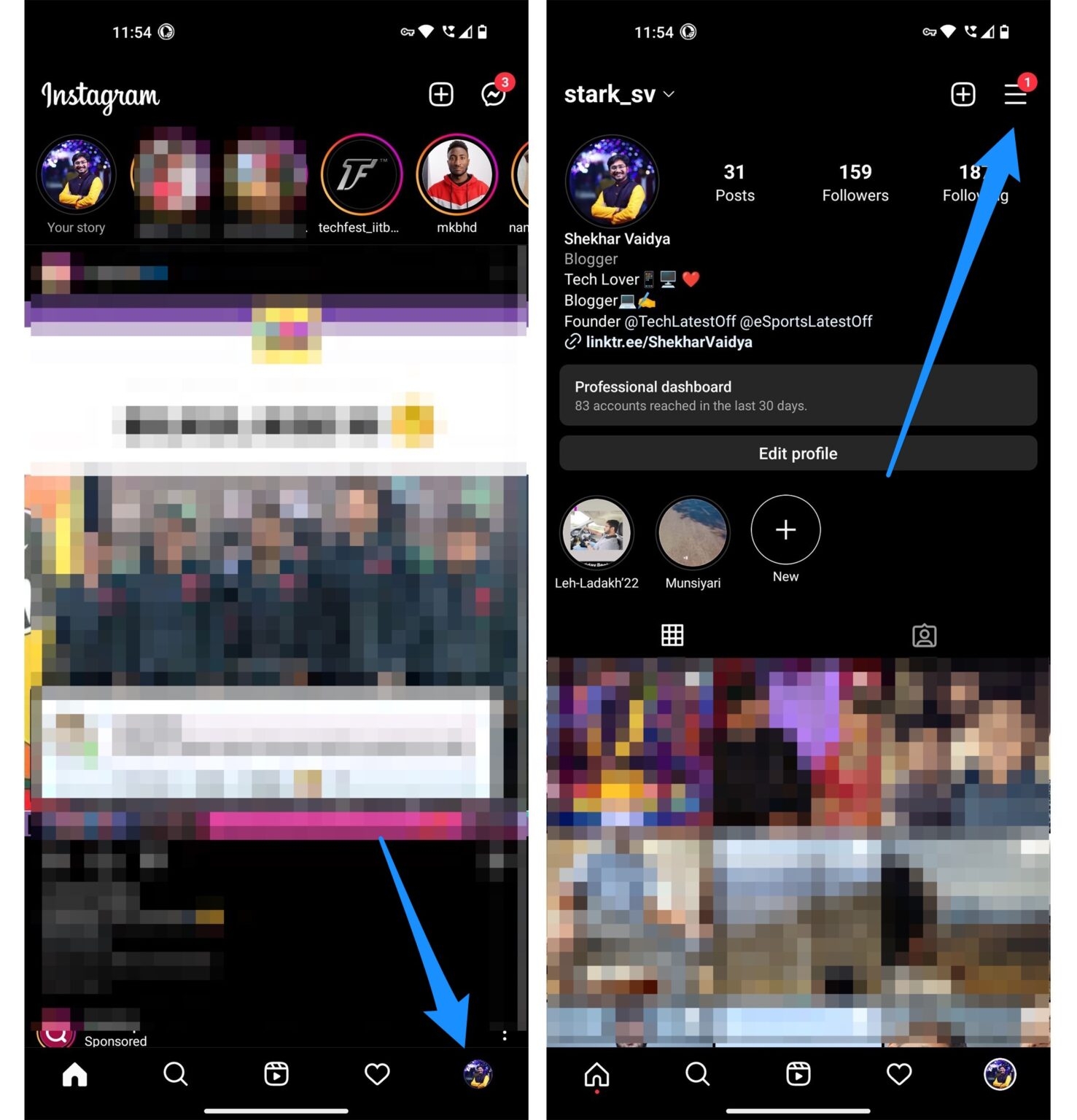
Open the Instagram app and ensure you are logged into the correct account. Tap your profile picture or the person icon located in the bottom right corner of the navigation bar. This takes you to your main profile grid.
Step 2: Open the Menu
In the top right corner of your profile page, you will see the three horizontal lines, often referred to as the "hamburger menu." Tap this to open the primary navigation settings.
Step 3: Navigate to "Your Activity"
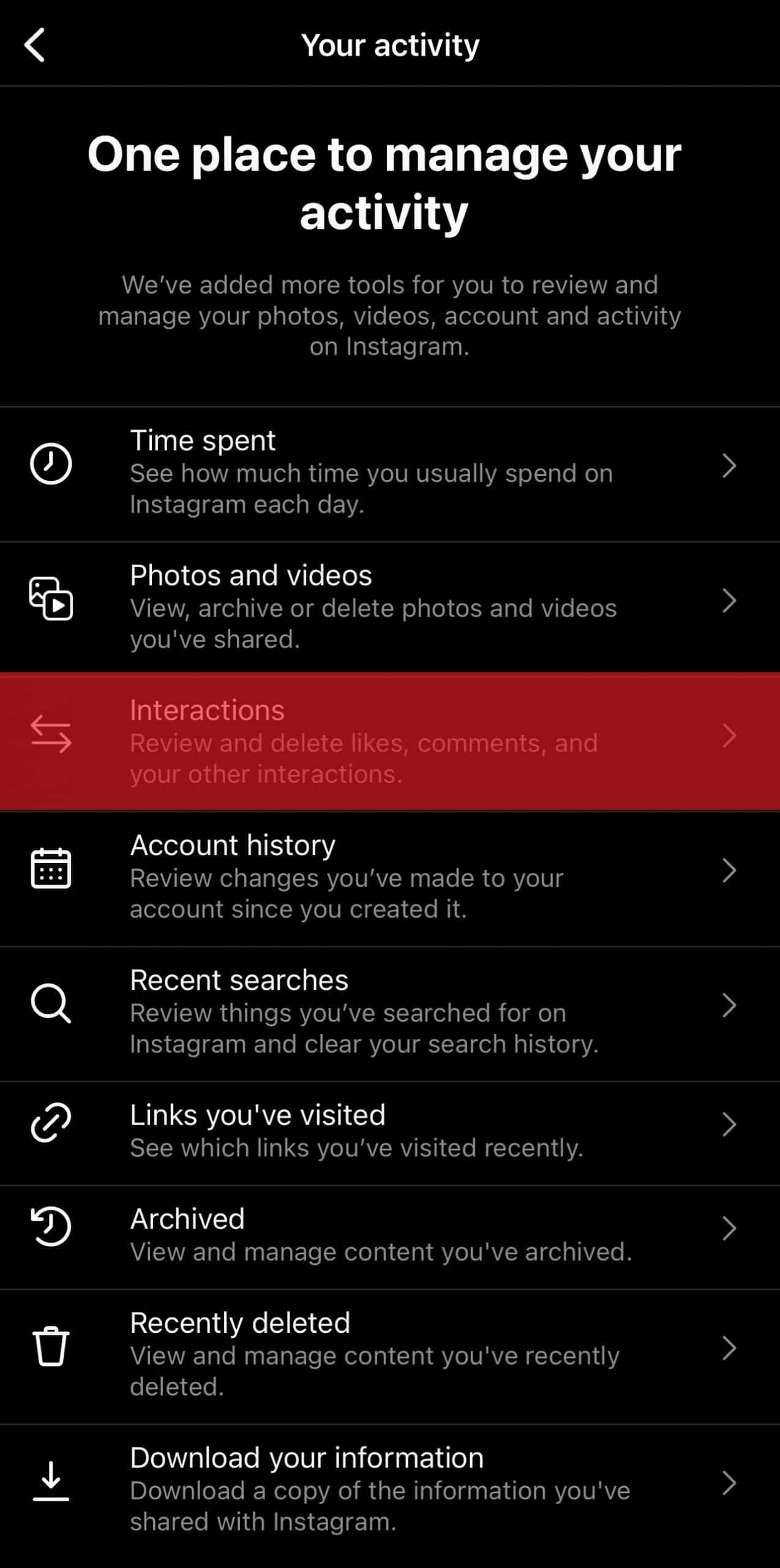
In the menu that appears, look for the section labeled Your activity. This section is marked with a clock icon. This is the nerve center for your interactions, including time spent, deleted content, and, most importantly, likes.
Step 4: Select "Interactions"
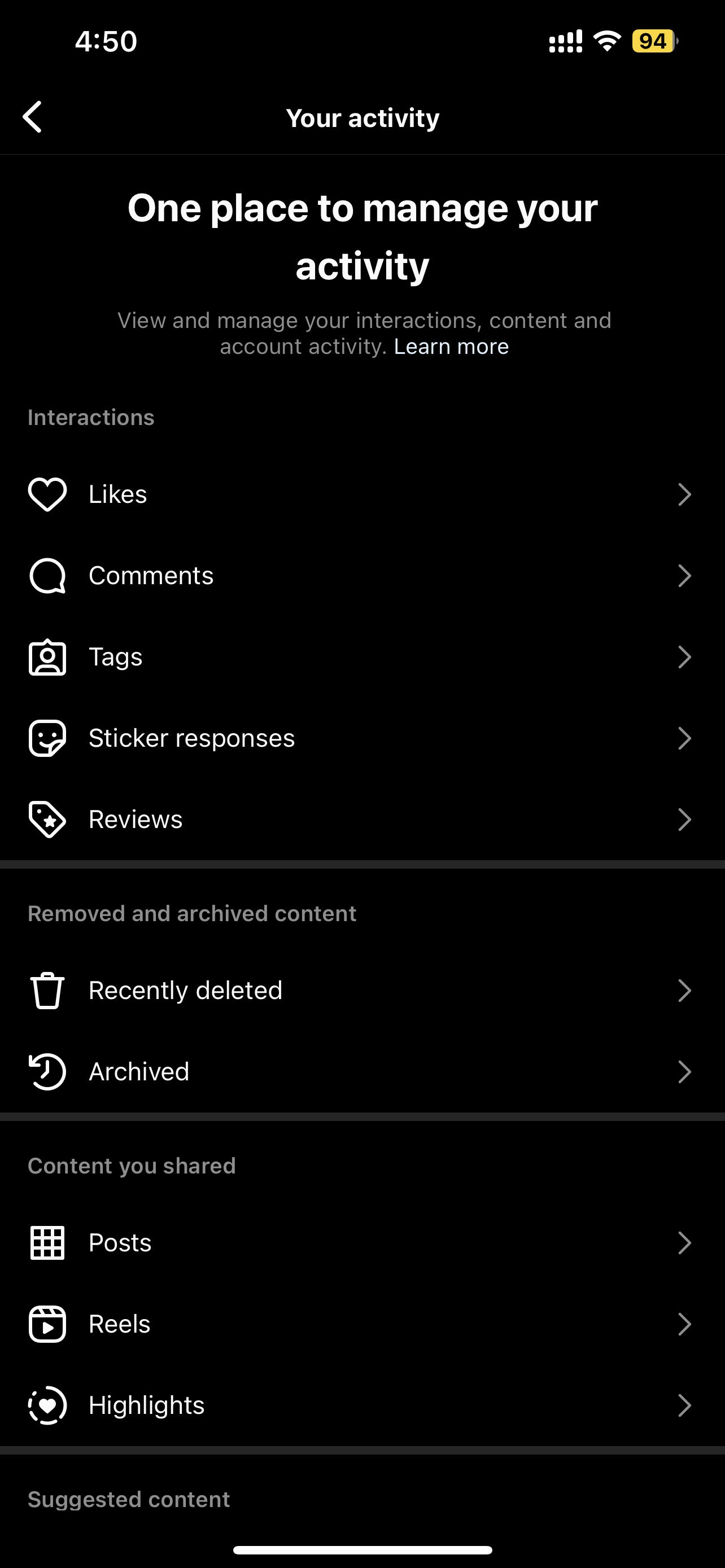
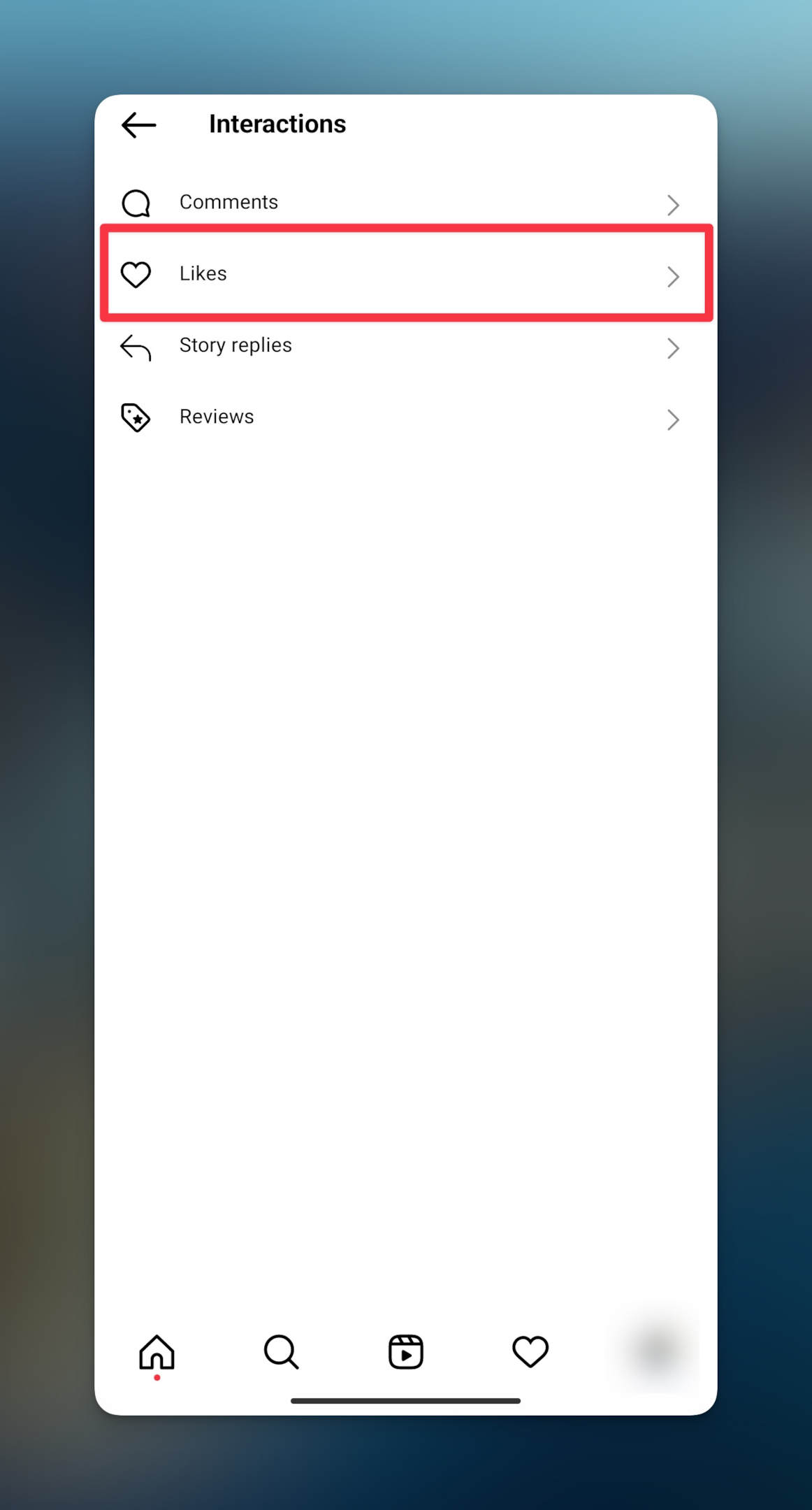
Within the "Your activity" menu, you will see several options such as "Time spent," "Photos and videos," and "Account history." Tap on Interactions. This sub-menu houses your likes, comments, tags, sticker responses, and reviews.
Step 5: View Your Likes
Tap on Likes. You will now see a grid of all the content you have liked. By default, this grid includes:
- Standard feed videos.
- Instagram Reels.
- Static photos and carousels.
In 2026, Instagram’s interface allows you to view these in a continuous scroll. To specifically find a video, you may need to look for the "Play" icon overlay on the thumbnails, which distinguishes Reels and videos from static images.
Viewing Liked Videos on Instagram Desktop (Web Version)
While Instagram started as a mobile-only platform, the desktop version has seen significant upgrades. Many users prefer the web interface for managing large amounts of data or cleaning up their interaction history.
- Log In: Go to Instagram.com on your preferred browser.
- More Menu: On the left-hand side navigation bar, click the More icon (three horizontal lines) located at the bottom.
- Your Activity: From the pop-up menu, select Your activity.
- Interactions: On the left sidebar of the "Your Activity" page, click on Interactions.
- Likes: Click on Likes to view your history in a larger grid format.
The desktop version is particularly useful because it allows for a broader view of your history, making it easier to spot specific video thumbnails without the cramped feel of a mobile screen.
Advanced Management: Filtering and Sorting Liked Videos
Finding a video you liked three months ago by scrolling manually can be tedious. Instagram has integrated robust sorting and filtering tools within the Likes menu to help users find specific content faster.
Sorting by Date
At the top of the Likes screen, you will see a "Sort & filter" option. You can choose to view your likes from:
- Newest to oldest: The default setting.
- Oldest to newest: Excellent for finding videos from the early days of your account.
Filtering by Author
If you remember who posted the video but cannot find the specific post, you can filter by Author. This allows you to type in a username and see only the posts from that specific creator that you have liked.
Filtering by Date Range
You can set a Start date and End date. This is incredibly helpful if you remember liking a video during a specific event, holiday, or time of year.
Bulk Unliking
If you are looking to "clean" your algorithm, you can tap Select at the top right of the Likes screen. Tap multiple videos or photos, and then tap Unlike at the bottom. This sends a signal to the Instagram algorithm to stop prioritizing similar content in your feed.
Comparison of Features: Mobile vs. Desktop (2026)
| Feature | Mobile App (iOS/Android) | Desktop/Web Version |
|---|---|---|
| Access Path | Profile > Menu > Your Activity | More > Your Activity |
| Sorting Options | Newest/Oldest | Newest/Oldest |
| Filtering by Author | Supported | Supported |
| Date Range Filter | Supported | Supported |
| Bulk "Unlike" | Supported | Supported |
| Reels Playback | Full-screen within menu | Opens in new view |
Troubleshooting Common Issues
Even with simple steps, technology can occasionally falter. Here are the most common reasons you might not be able to see your liked videos.
The Video was Deleted or Archived
If a creator deletes a video or moves it to their archive, it will automatically disappear from your "Likes" history. You cannot recover these videos unless the creator makes them public again.
Account Deactivation
If the person who posted the video deactivates their account or if their account is banned by Instagram for policy violations, their content will vanish from your interactions list.
Cache and App Versioning
If the "Your Activity" menu appears blank or crashes, it is often due to an outdated app version. In 2026, Instagram requires frequent security updates. Ensure you are running the latest version from the App Store or Google Play Store. Clearing your app cache in your phone settings can also resolve display glitches.
Privacy Settings and Blocks
If a user has blocked you since you liked their video, that video will no longer appear in your history. Similarly, if they switched their account to "Private" and you no longer follow them, the content may be hidden from your likes grid.
The Difference Between "Liked" and "Saved"
A common point of confusion for Instagram users is the difference between liking a video and saving it.
- Liked Videos: These are interactions. Liking a video tells the creator you enjoyed it and tells the algorithm to show you similar content. This list is found under "Your Activity."
- Saved Videos: These are bookmarks. Saving a video (using the ribbon icon) is a way to organize content into "Collections" for later viewing. These are found under Profile > Menu > Saved.
If you frequently find yourself looking for old videos, it is highly recommended to use the Save feature and organize them into folders (e.g., "Recipes," "Workouts," "Travel") rather than relying on your "Likes" history, which can become cluttered very quickly.
Frequently Asked Questions
Can other people see the videos I have liked?
By default, Instagram does not provide a public "Likes" tab on your profile like TikTok does. However, if a friend follows the same creator as you, they may see "Liked by [Your Username]" under a specific post in their feed. Your full list of liked videos in the "Your Activity" menu is private and visible only to you.
Is there a limit to how many liked videos I can see?
Instagram stores your entire like history, but the app may only load a certain number of posts at a time to save data. If you are looking for very old likes (from several years ago), use the "Sort by Oldest" filter to force the app to retrieve that older data from the server.
Why did my liked videos disappear after I updated the app?
Major updates sometimes reorganize the menu. If "Your Activity" isn't where you remember it, use the search bar within the Settings menu and type "Likes." This will take you directly to the correct interaction screen.
Can I see who liked my Reels?
Yes, but that is found in a different section. To see who liked your own videos, go to your Reel, tap the three dots, and select "View Insights" or tap the like count at the bottom of the video.
How do I unlike all videos at once?
There is no "Unlike All" button for security and anti-spam reasons. However, you can use the "Select" tool in the Likes menu to highlight up to 100 posts at a time and unlike them in bulk.
Practical Recommendation
To maintain a healthy relationship with the Instagram algorithm, periodically review your Likes in the Your Activity section. If your "Explore" page is filled with content you no longer enjoy, it is usually because your "Likes" history is heavily weighted toward that topic. By unliking older videos that no longer interest you, you can effectively "reset" your feed and discover new types of content. For videos you truly want to keep forever, always use the Save function to ensure they are categorized and easy to find without scrolling through thousands of interactions.
Image Gallery