Using Your iPhone as a Credit Card: Complete Technical and Setup Guide for 2026
Transforming your iPhone into a credit card relies on Apple Pay and the Apple Wallet app, turning your device into a secure payment instrument accepted at millions of retail locations worldwide. This comprehensive guide covers device c...
Transforming your iPhone into a credit card relies on Apple Pay and the Apple Wallet app, turning your device into a secure payment instrument accepted at millions of retail locations worldwide. This comprehensive guide covers device compatibility, security architecture, step-by-step setup instructions, troubleshooting methods, and comparative payment options available in 2026.
Contents
Understanding Apple Wallet and Contactless Payment Technology
The mechanism that allows an iPhone to function as a credit card depends on a combination of hardware components and software protocols embedded within iOS. At the core of this system is Near Field Communication (NFC), a short-range wireless technology that enables data transmission between your iPhone and a compatible payment terminal. When you bring your phone close to a point-of-sale (POS) terminal, the secure hardware chip initiates a handshake protocol to execute the transaction.
Unlike physical cards that broadcast permanent account numbers, Apple Pay utilizes a hardware-isolated component known as the Secure Element. This certified chip stores your encrypted payment information completely isolated from the main operating system and iCloud. When you add a credit or debit card, Apple does not store the actual card numbers on your device or Apple servers. Instead, it assigns a unique Device Account Number (DAN), encrypts it, and stores it securely.
Furthermore, every single transaction requires a dynamic, one-time security code—often referred to as a cryptogram—tied to your specific transaction. This ensures that even if a terminal is compromised, intercepting parties receive only a single-use token that cannot be replayed or used for unauthorized purchases elsewhere. Biometric authentication via Face ID or Touch ID provides an additional security gate, ensuring that transactions can only be authorized by the verified device owner.
Prerequisites and Device Compatibility Requirements
Before attempting to configure your iPhone as a payment card, verify that your hardware and software meet the baseline technical requirements mandated by financial institutions and Apple.
- Supported Hardware: Any iPhone model equipped with Face ID or Touch ID (iPhone 6 and later, excluding the original iPhone SE, which lacks NFC-based payment functionality).
- Operating System: iOS updated to the latest supported version to ensure compatibility with modern banking security protocols.
- Apple Account Requirements: An active Apple ID signed into iCloud with two-factor authentication enabled.
- Issuer Support: A credit or debit card issued by a participating bank or financial network (such as Visa, Mastercard, American Express, or Discover).
| iPhone Model Generation | Face ID / Touch ID | Secure Element Support | Apple Pay Compatibility Status |
|---|---|---|---|
| iPhone 16 Series (2024) | Face ID | Gen-3 Secure Element | Fully Supported |
| iPhone 15 Series (2023) | Face ID | Gen-3 Secure Element | Fully Supported |
| iPhone 14 Series (2022) | Face ID | Standard Secure Element | Fully Supported |
| iPhone SE (2nd & 3rd Gen) | Touch ID | Standard Secure Element | Fully Supported |
| iPhone 8 and Older | Touch ID | Legacy Secure Element | Supported (Varies by iOS updates) |
Step-by-Step Configuration Guide: Adding Your Credit Card
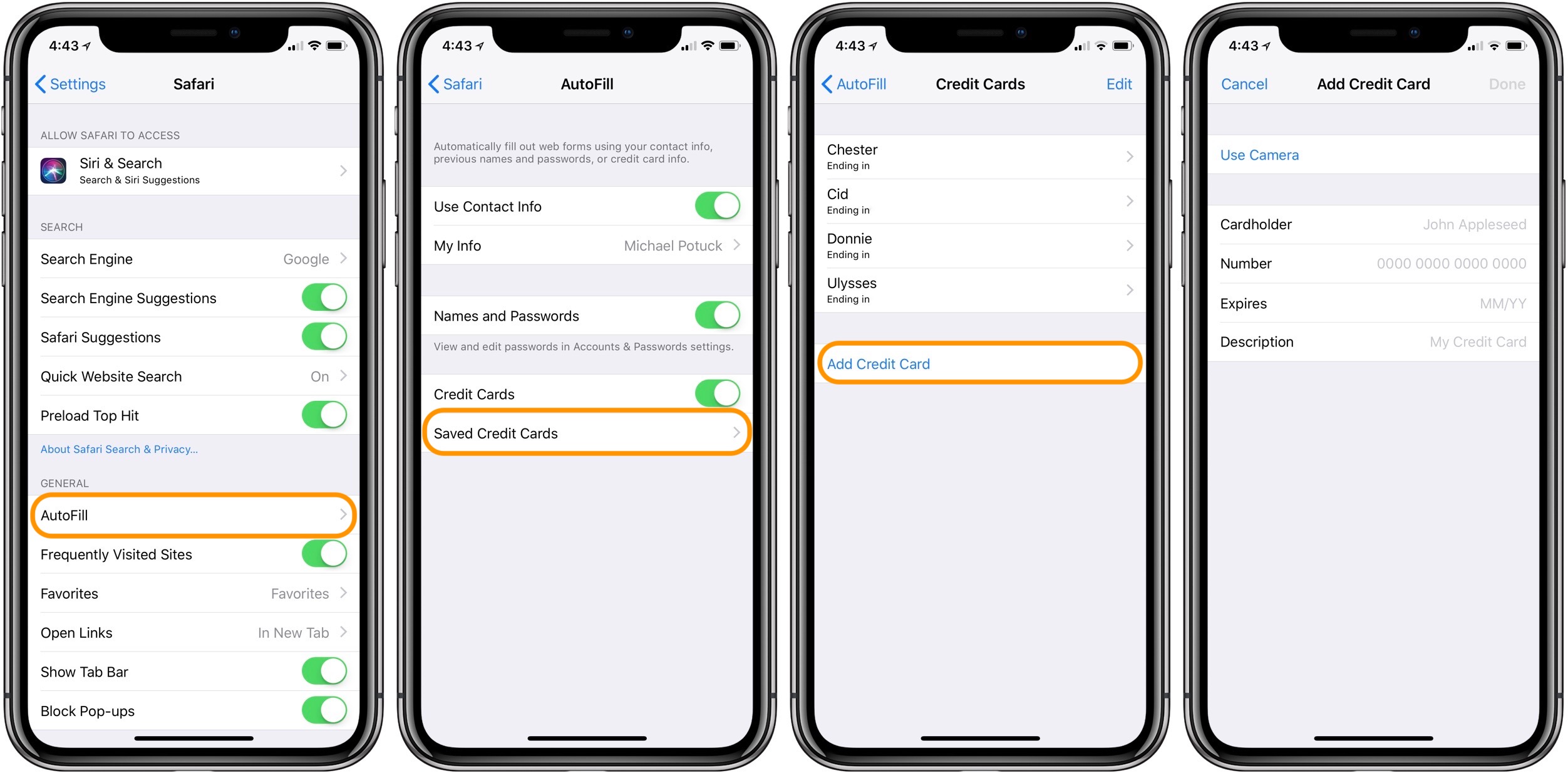
Adding a credit card to your iPhone requires a direct connection to your issuing bank to authenticate your identity and provision the Secure Element. Follow this sequential workflow to set up your digital wallet:
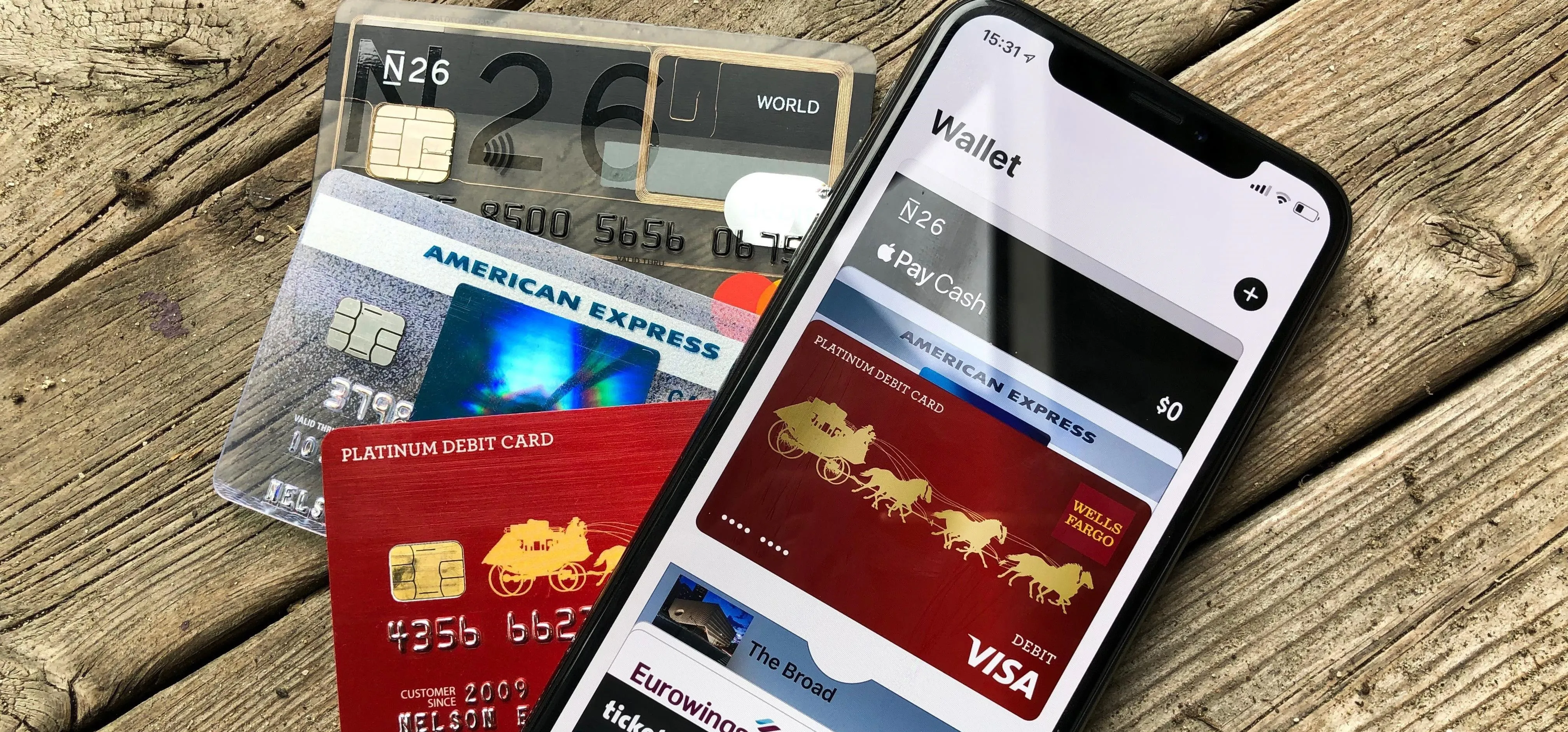
- Launch Apple Wallet: Locate and open the Wallet app pre-installed on your iPhone home screen.
- Initiate Card Addition: Tap the plus (+) icon located in the upper-right corner of the screen to add a new payment card.
- Select Card Type: Choose "Debit or Credit Card" from the list of available account types, then tap "Continue."
- Scan Your Physical Card: Position your physical credit card within the camera frame so the viewfinder captures the card number automatically. Alternatively, enter the card details manually if the camera cannot read the embossed or printed text.
- Verify Expiry and CVV: Confirm that the expiration date and the three- or four-digit security code (CVV) are accurate.
- Accept Terms and Conditions: Review the issuer's terms of service and tap "Agree."
- Complete Identity Verification: Select an authentication method provided by your bank—such as receiving a one-time SMS verification code, an email link, or calling customer service—and enter the confirmation code when prompted.
Once verified, a confirmation screen will appear indicating that your card is ready for use. You can now designate this card as your default payment method or leave it as a secondary option.
Executing Transactions at Point-of-Sale Terminals
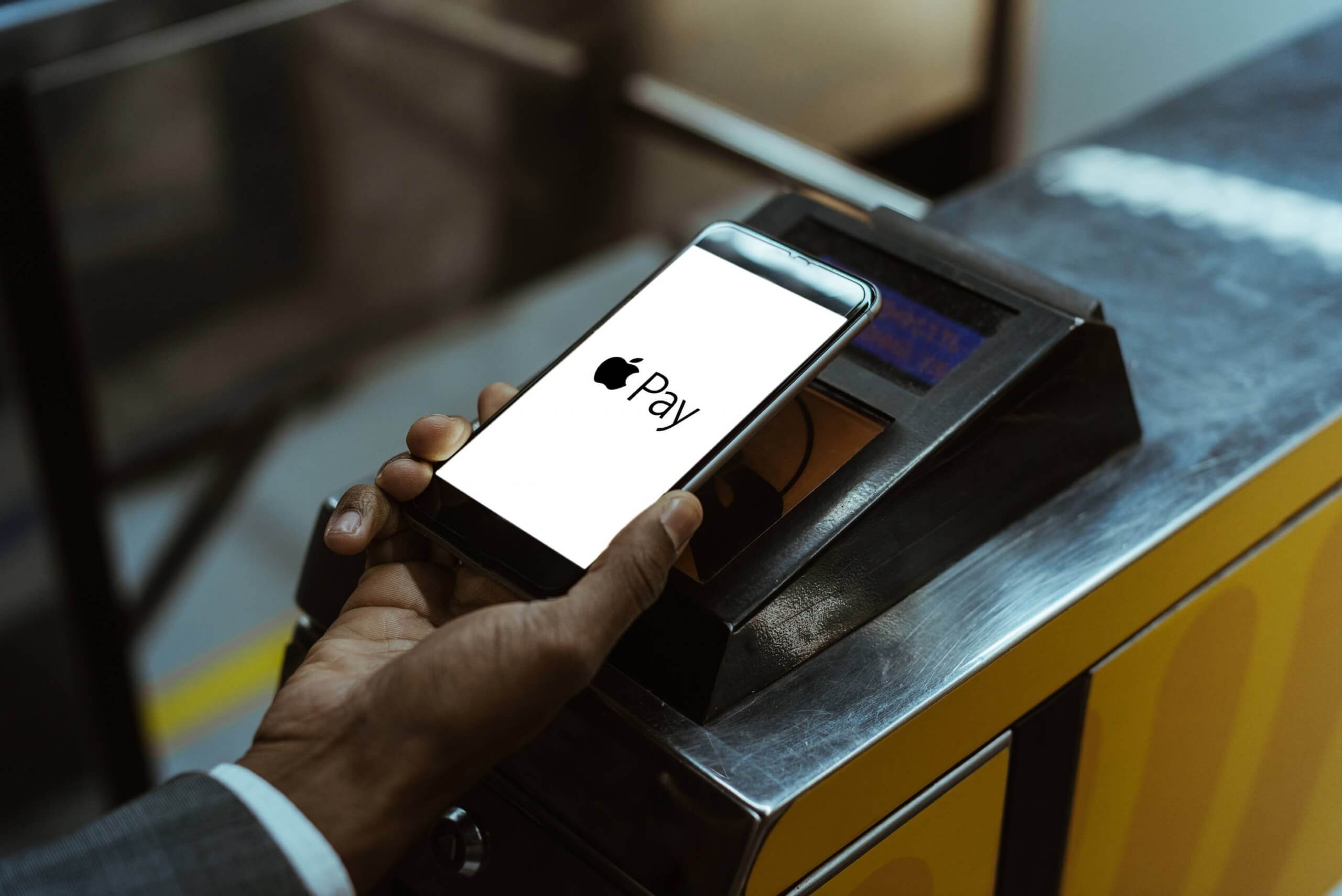
Using your configured iPhone to pay at retail locations, public transit turnstiles, and supported vending machines is an intuitive process. Look for the contactless payment symbol or the Apple Pay logo on the payment terminal before initiating the transaction.
In-Store Purchases with Face ID
- Double-click the side button on your iPhone.
- Glance at your screen to authenticate your identity using Face ID, or enter your device passcode if prompted.
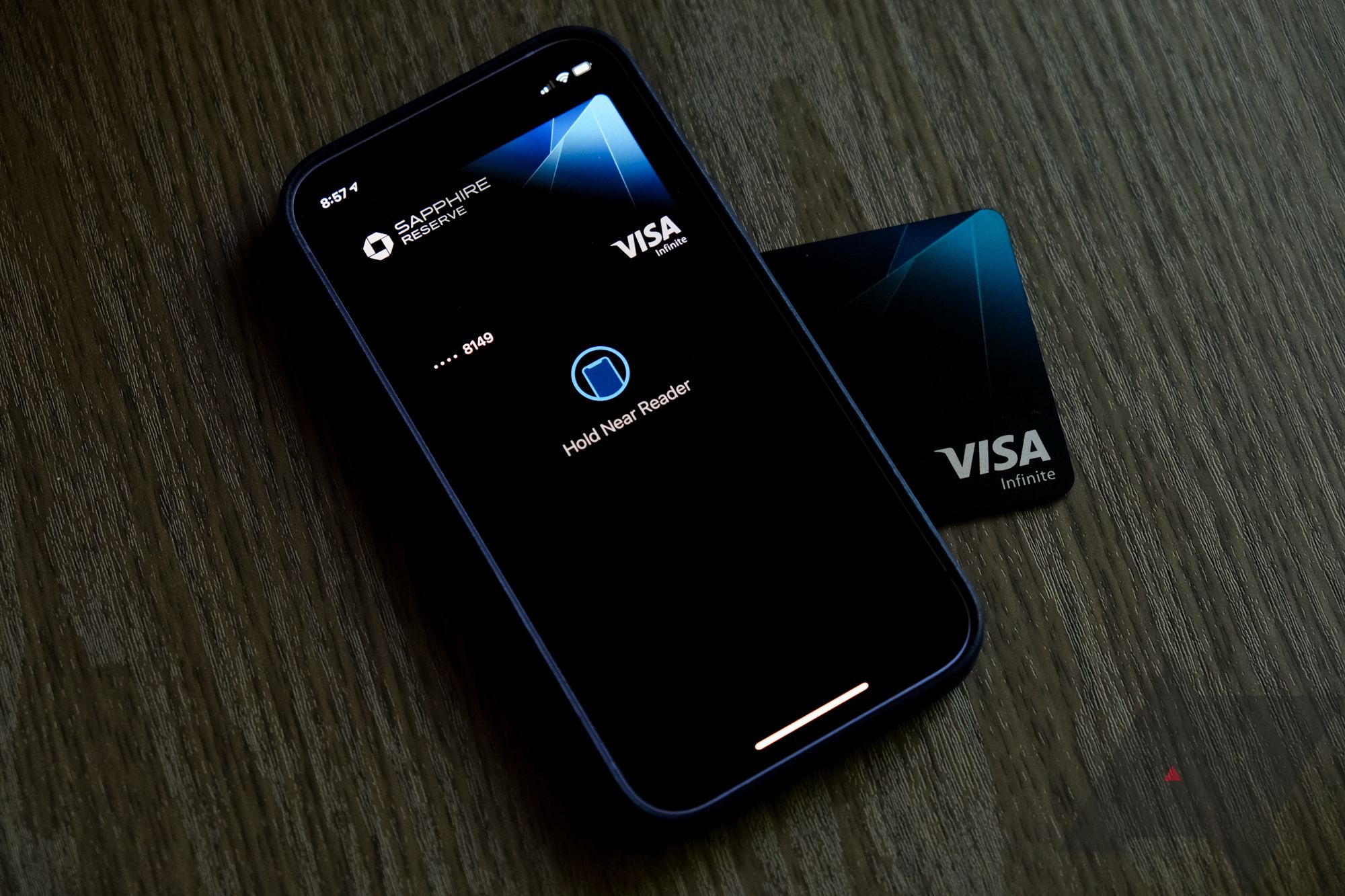
- Hold the top of your iPhone near the contactless reader until a checkmark appears on the screen alongside a subtle vibration and confirmation tone.
In-Store Purchases with Touch ID
- Rest your finger on the Touch ID sensor without pressing the home button, keeping your iPhone locked.
- Hold the top of your iPhone near the reader until the checkmark and confirmation appear.
Pros, Cons, and Security Comparison
Evaluating the integration of mobile payment methods requires balancing operational convenience against hardware dependencies and privacy considerations.
Advantages
- Enhanced Security: Tokenization ensures merchant terminals never capture your actual credit card number.
- Biometric Protection: Unauthorized users cannot complete transactions without your face or fingerprint.
- Physical Reduction: Eliminates the need to carry a bulky physical wallet containing multiple cards.
- Instant Provisioning: New replacement cards or digital-first accounts can be added instantly without waiting for mail delivery.
Disadvantages
- Hardware Dependency: Dead batteries or hardware malfunctions render the digital payment method temporarily unusable.
- Terminal Availability: While globally widespread, certain merchants or regional areas still rely exclusively on magnetic stripe or chip-and-PIN infrastructure.
- Digital Limitations: Certain localized transactions, such as manual imprint vouchers or specific automated fuel dispensers, may experience compatibility hurdles.
| Feature / Metric | Physical Credit Card | iPhone (Apple Pay) |
|---|---|---|
| Primary Account Number Exposure | Vulnerable to skimming and visual theft | Never exposed to merchant (Tokenized) |
| Authentication Method | Signature or static 4-digit PIN | Biometric (Face ID / Touch ID) |
| Loss or Theft Recovery | Requires cancelling card and waiting for replacement | Remotely lockable instantly via iCloud |
| Acceptance Rate | Universal where card rails exist | Universal where contactless NFC exists |
Troubleshooting Common Setup and Payment Failures
Even with robust technology, users occasionally encounter friction during card provisioning or retail transactions. Applying targeted diagnostic steps resolves the vast majority of operational issues.
Card Verification Failure Cause: The issuing bank's security algorithm has flagged the automated provisioning request for manual review. Remedy: Contact your bank's customer support hotline directly to verify your identity and manually approve the digital tokenization of your card.
Terminal Declines Transaction Cause: The NFC chip failed to establish a secure handshake with the point-of-sale reader, or the default card has insufficient funds. Remedy: Ensure your iPhone is positioned within one to two inches of the contactless symbol. If the error persists, open the Wallet app, manually select an alternative credit card, and re-attempt the tap.
Apple Pay Not Responding to Double-Click Cause: The shortcut setting for side-button invocation may be disabled in iOS system settings. Remedy: Navigate to Settings > Wallet & Apple Pay, and ensure that "Double-Click Side Button" is toggled to the on position.
Frequently Asked Questions
Can I use my iPhone as a credit card without an internet connection?
Yes, basic contactless transactions via NFC do not require an active cellular or Wi-Fi connection. The secure element generates dynamic security cryptograms locally on the device hardware, allowing you to complete purchases offline. However, your bank may require periodic background synchronization to update token limits.
What happens if my iPhone is lost or stolen?
Your payment cards remain secure because transactions cannot be authorized without your Face ID, Touch ID, or device passcode. If your device is misplaced, you can log into iCloud.com/find using any web browser to instantly place your iPhone in Lost Mode, which temporarily suspends all Apple Pay functionality without permanently cancelling your underlying bank accounts.
Are there any transaction fees for using my iPhone instead of a physical card?
No, using Apple Pay on your iPhone does not incur any additional transaction fees from Apple or your card issuer. Merchants process Apple Pay transactions identically to standard tap-to-pay physical card transactions under identical interchange fee rules.
Can I add business credit cards and store loyalty cards to my Apple Wallet?
Yes, Apple Wallet supports a wide range of eligible business credit and debit cards, provided the issuing financial institution participates in the network. Additionally, you can store digital loyalty cards, boarding passes, event tickets, and state-issued identification documents in the same interface.
Why is my specific bank not showing up when I try to add a card?
Card issuance compatibility depends entirely on whether your specific financial institution has established integration agreements with Apple Pay. If your bank is absent from the supported list, you must use an alternative card or contact your bank to request future integration.
Practical Recommendations
Transitioning your financial management to an iPhone-centric model offers unmatched convenience and multi-layered security. Begin by provisioning your primary, high-reward credit card into the Apple Wallet app, followed by a backup debit or secondary credit card to ensure redundancy. Always maintain your device operating system at the latest security patch level and verify that Find My iPhone is enabled to guarantee complete asset protection.
Image Gallery