Understanding the WMM Wi-Fi Standard: How Wi-Fi Multimedia Manages Network Priority
Wi-Fi Multimedia (WMM) is a Wi-Fi Alliance certification based on the IEEE 802.11e standard that brings Quality of Service (QoS) features to wireless networks. It categorizes network traffic into four distinct access priorities—Voice,...
Wi-Fi Multimedia (WMM) is a Wi-Fi Alliance certification based on the IEEE 802.11e standard that brings Quality of Service (QoS) features to wireless networks. It categorizes network traffic into four distinct access priorities—Voice, Video, Best Effort, and Background—ensuring time-sensitive data like calls and video streams receive priority transmission over delay-tolerant tasks.
Contents
What Is the WMM Wi-Fi Standard?
The WMM (Wi-Fi Multimedia) standard is a subset of the IEEE 802.11e specification designed to manage network bandwidth and minimize latency across wireless local area networks (WLANs). Introduced by the Wi-Fi Alliance, WMM replaces the legacy, first-come-first-served transmission method of early wireless networks with a prioritized traffic management architecture.
Before WMM was standardized, Wi-Fi networks treated all data packets equally. A large background file download, an automated cloud backup, a web page load, and a real-time Voice over IP (VoIP) call competed identically for airtime. In congested network environments, this equal treatment created packet queue delays, jitter, and dropped frames, rendering real-time applications unstable.
WMM solves this fundamental issue by introducing wireless Quality of Service (QoS) directly at the Media Access Control (MAC) layer. By inspecting packet headers and tagging incoming data, WMM-enabled access points (APs) and client devices dynamically reserve immediate channel access for time-critical traffic while queuing non-urgent traffic for execution during idle transmission windows.
- Incoming Wireless Traffic
- WMM Traffic Classification (Layer 2 MAC)
- AC_VO: Voice (Highest Priority)
- AC_VI: Video (High Priority)
- AC_BE: Best Effort (Normal)
- AC_BK: Background (Lowest)
The Four WMM Access Categories
To organize network traffic, WMM establishes four Access Categories (AC). Each category corresponds to specific types of network applications and utilizes distinct channel contention parameters to dictate how quickly a device can transmit data over the shared radio spectrum.
- Priority Tier 1 (Highest): AC_VO (Voice): Lowest Latency & Jitter
- Priority Tier 2: AC_VI (Video): High Throughput & Priority
- Priority Tier 3: AC_BE (Best Effort): Standard Web Traffic
- Priority Tier 4 (Lowest): AC_BK (Background): Large Transfers & Downloads
1. Voice (AC_VO)
The AC_VO category receives the absolute highest priority on the wireless network. It is optimized for low-latency, real-time voice communications, such as VoIP calls, Wi-Fi calling, and the audio portion of interactive video conferences. Voice packets are small and frequent; WMM prioritizes them to prevent latency spikes and buffer underruns, keeping voice streams clear and artifact-free.
2. Video (AC_VI)
The AC_VI category is tailored for interactive and multi-stream video traffic. This includes video conferencing streams, live video broadcasts, cloud gaming streams, and high-definition video playback. Video traffic requires both high throughput and low latency. AC_VI provides shorter back-off timers than standard data traffic, preventing frame dropping and buffering during high-bandwidth streaming.
3. Best Effort (AC_BE)
The AC_BE category handles standard internet traffic from traditional applications. Web browsing, email transmission, social media feeds, and non-critical client-server traffic fall under Best Effort. It serves as the baseline for standard network operations. If no voice or video packets are waiting in the transmission queue, Best Effort traffic consumes the available airtime without degradation.
4. Background (AC_BK)
The AC_BK category receives the lowest transmission priority. It is designed for high-volume, delay-insensitive applications such as file synchronization, system updates, automated database backups, printer queues, and Peer-to-Peer (P2P) transfers. Background traffic yields airtime to all other Access Categories, ensuring large file downloads do not saturate the wireless channel or cause lag for interactive users.
Technical Comparison of WMM Access Categories
The table below outlines how WMM prioritizes different types of network traffic based on its technical profile and default parameters under the Enhanced Distributed Channel Access (EDCA) algorithm defined in IEEE 802.11e.
| Access Category (AC) | 802.1D User Priority (UP) | Primary Traffic Examples | Latency Tolerance | Channel Contention Priority | Relative Airtime Preference |
|---|---|---|---|---|---|
| AC_VO (Voice) | 6, 7 | VoIP, Wi-Fi Calling, Push-to-Talk, Conference Audio | Extremely Low (< 20 ms) | Highest (Shortest Contention Window) | Expedited Immediate Access |
| AC_VI (Video) | 4, 5 | HD Streaming, Cloud Gaming, Video Conferencing | Low (< 50 ms) | High (Reduced Contention Window) | High Priority Queue |
| AC_BE (Best Effort) | 0, 3 | Web Browsing, HTTP/HTTPS, Email, General Apps | Moderate (< 200 ms) | Medium (Standard Contention Window) | Normal Queue |
| AC_BK (Background) | 1, 2 | OS Updates, Cloud Backups, FTP, BitTorrent, Printing | High (Insensitive) | Lowest (Longest Contention Window) | Deferred Access |
Why WMM Is Mandatory for High-Speed Wi-Fi
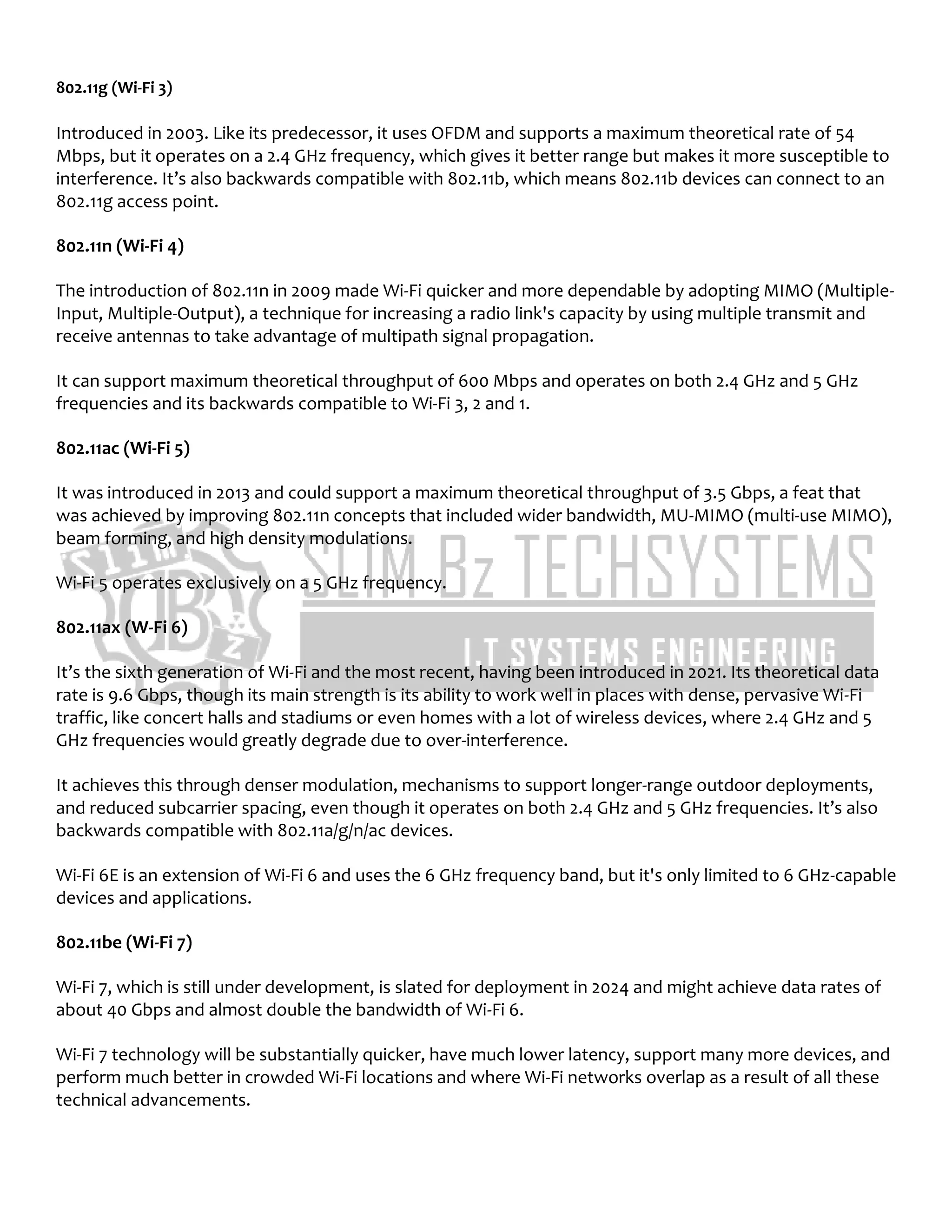
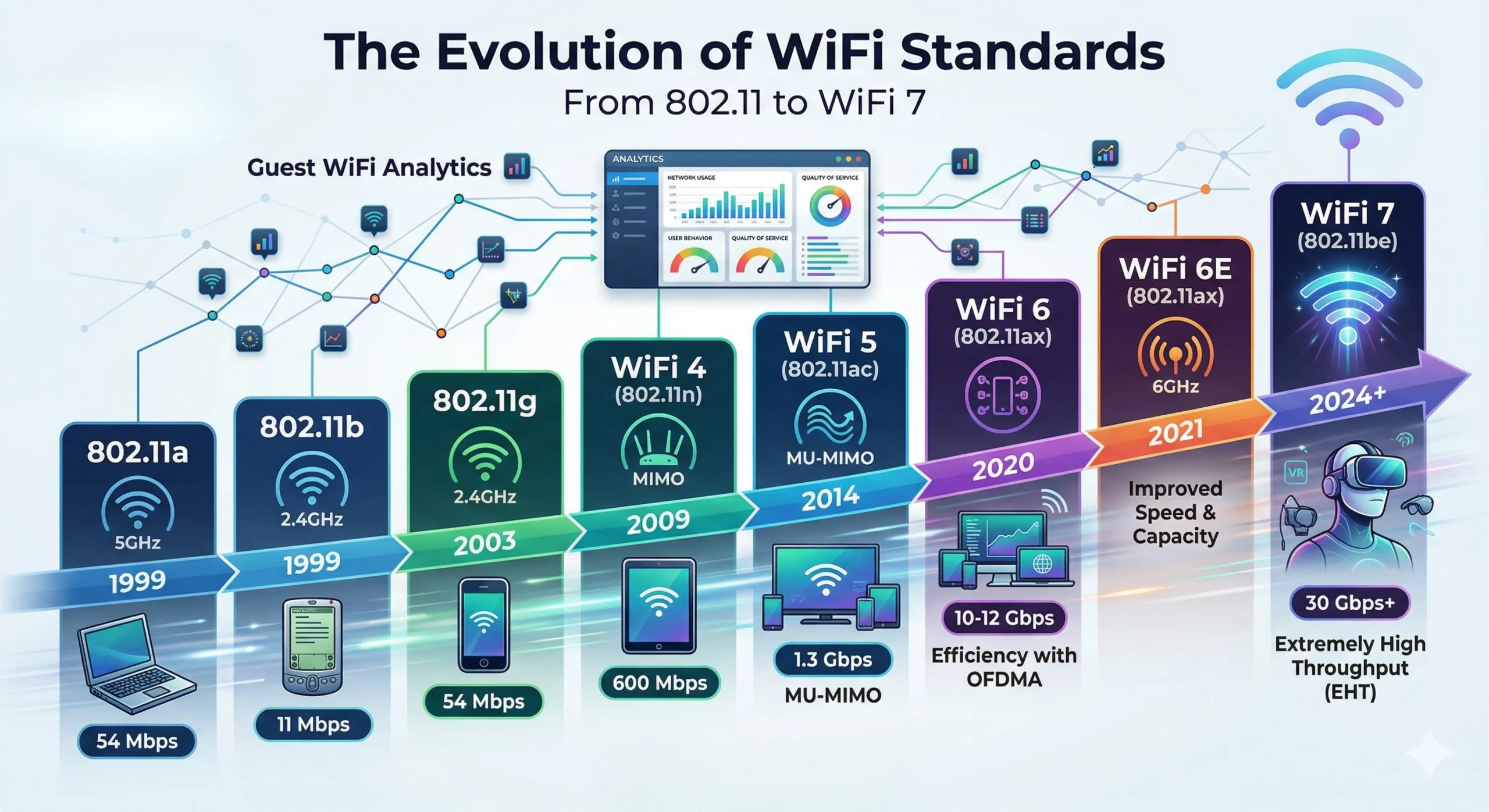
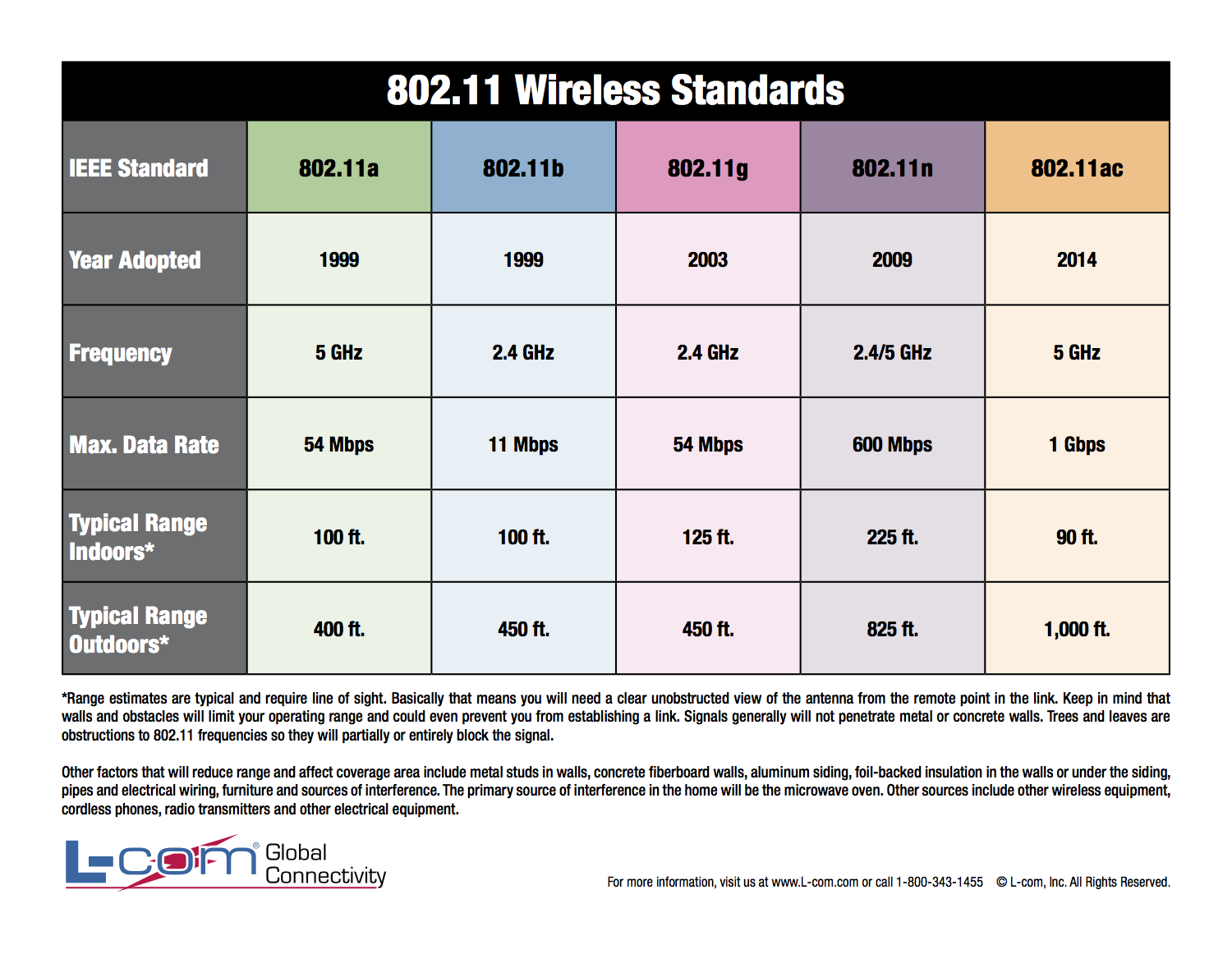
A critical, often misunderstood aspect of modern networking is that WMM is mandatory for high-throughput Wi-Fi standards. Beginning with IEEE 802.11n and continuing through IEEE 802.11ac (Wi-Fi 5), IEEE 802.11ax (Wi-Fi 6/6E), and IEEE 802.11be (Wi-Fi 7), the Wi-Fi Alliance specification explicitly requires WMM to be enabled on both the router/access point and the client device.
The 54 Mbps Speed Cap Penalty
If WMM is manually disabled in a wireless router's configuration interface, the router immediately drops modern aggregation mechanisms (such as A-MPDU and A-MSDU). As a direct result, the network fallback mechanism kicks in:
- Theoretical Maximum Link Rate: Capped at legacy IEEE 802.11g rates of 54 Mbps.
- Real-world Throughput: Drops even further, typically ranging between 20 Mbps and 30 Mbps.
- Features Disabled: Packet aggregation, MIMO spatial streams, beamforming optimization, and multi-gigabit throughput across 2.4 GHz, 5 GHz, and 6 GHz bands.
This limitation is enforced by standard certification rules to ensure that high-throughput packet aggregation does not bypass channel access rules, which could otherwise collapse network performance for other users.
- WMM Enablement Status
- WMM ENABLED:
- 802.11n / ac / ax / be
- Full Speed & Aggregation
- Multi-Gigabit Speeds
- WMM DISABLED:
- Fallback to Legacy 802.11g
- Speed Limit: 54 Mbps Max
- Aggregations & MIMO Disabled
- WMM ENABLED:
Technical Architecture: How EDCA and WMM Power Save Work
WMM functions through two core technical mechanisms: Enhanced Distributed Channel Access (EDCA) for traffic prioritization and WMM Power Save (U-APSD) for device energy efficiency.
Enhanced Distributed Channel Access (EDCA)
Legacy 802.11 networks used the Distributed Coordination Function (DCF), where every device waited a random amount of time before attempting to transmit. EDCA replaces DCF by assigning different contention parameters to each of the four Access Categories:
- Arbitration Inter-Frame Space (AIFS): The duration a device must wait after the channel becomes clear before starting its timer. Voice (AC_VO) has a much smaller AIFS than Background (AC_BK).
- Contention Window (CWmin / CWmax): The range used to generate a random back-off time if the medium is busy. Higher-priority queues use smaller contention windows, meaning they consistently win the race to transmit data first.
- Transmit Opportunity (TXOP): The maximum duration a client can continuously send data once it gains channel access. AC_VI and AC_VO receive bounded TXOP duration limits, enabling them to burst packet bursts without waiting for renegotiation.
WMM Power Save (Unscheduled Automatic Power Save Delivery / U-APSD)
Battery-powered client devices like smartphones, wearables, and laptops consume significant energy keeping their wireless radios active. WMM Power Save (based on U-APSD) improves efficiency by allowing client radios to enter a low-power sleep state without missing critical incoming data.
Instead of waiting for scheduled access point beacon frames, a client device using WMM Power Save wakes up its radio, transmits a priority uplink frame (such as a voice packet), and simultaneously signals the access point to release queued downlink frames. The client immediately receives its data and returns to sleep, extending battery life significantly during voice over Wi-Fi calls or background push notifications.
WMM vs. Router QoS: Key Differences
It is common to confuse WMM with broader router-based Quality of Service (QoS) features. While both manage network performance, they operate at different layers of the OSI model and serve distinct tasks.
| Feature | Primary Focus |
|---|---|
| WMM (Layer 2 - MAC) | Radio Airtime Prioritization (Wi-Fi Channel) |
| Router QoS (Layer 3/4) | Bandwidth Management & WAN Queue Allocation |
Layer 2 vs. Layer 3 Operation
- WMM operates at Layer 2 (Data Link Layer): It exclusively manages traffic priority across the wireless air medium between client devices and the access point. It dictates which radio frame gets transmitted over the RF channel first.
- Router QoS operates at Layer 3 (Network) and Layer 4 (Transport): Standard router QoS (such as Smart Queue Management / SQM, CAKE, or FQ-CoDel) manages internet bandwidth allocation across the WAN interface (cable/fiber connection). It prioritizes IP addresses, TCP/UDP ports, and application protocols before packets ever reach the Wi-Fi radio.
For an optimal networking environment, WMM and Layer 3 QoS work together. Layer 3 QoS prevents your internet connection from suffering bufferbloat at the modem, while WMM prevents packet collision and latency jitter over the Wi-Fi airwaves.
Troubleshooting WMM: When to Enable or Adjust Settings
In modern wireless enterprise and residential environments, WMM should remain enabled by default. However, specific performance bottlenecks or configuration conflicts may require administrative attention.
1. Unexpected Low Wi-Fi Speeds
If a gigabit internet connection or Wi-Fi 6/7 client device experiences speeds locked below 54 Mbps, verify the router's wireless settings:
- Confirm that WMM (or WMM-QoS) is set to Enabled in the router's advanced wireless setup tab.
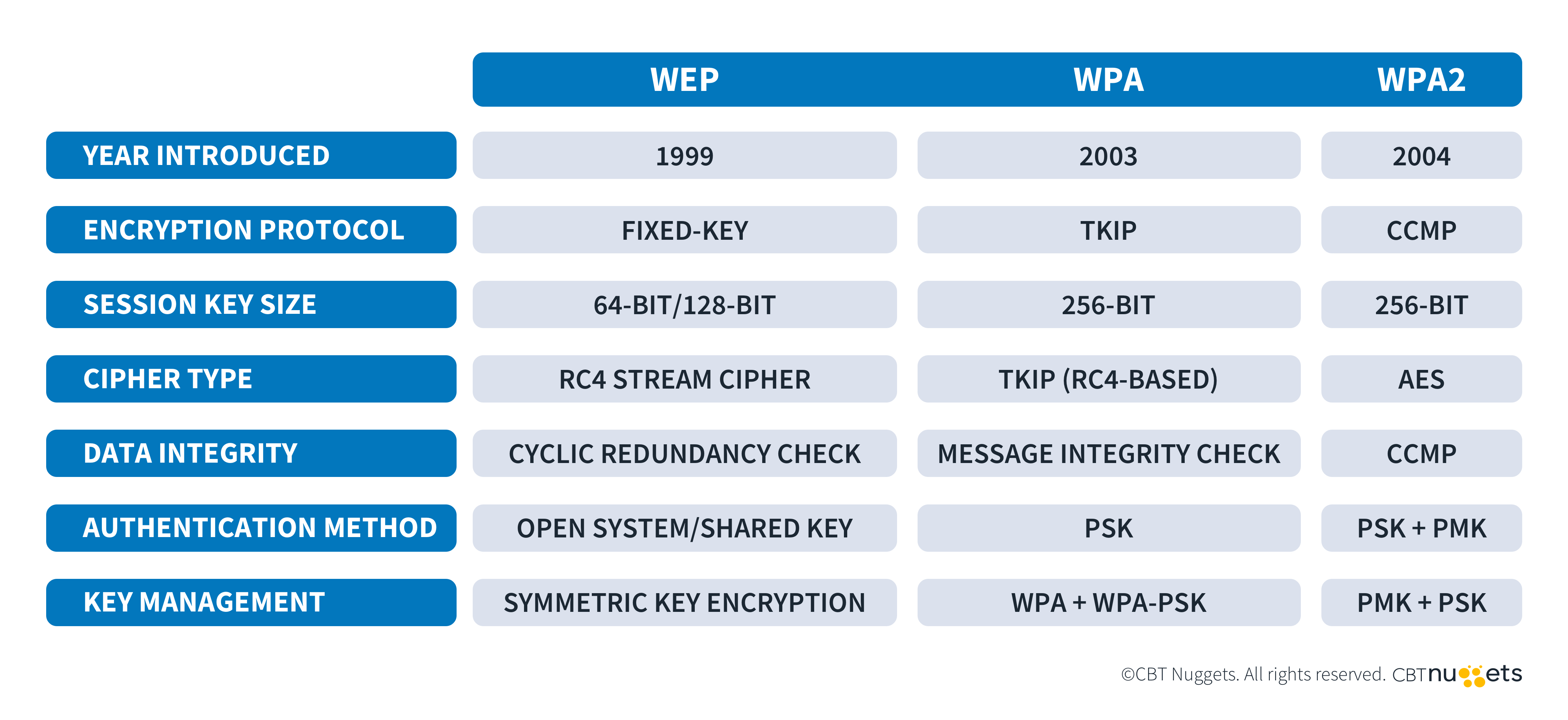
- Ensure legacy wireless security protocols like WEP or WPA-TKIP are disabled. Modern Wi-Fi standards require WPA2-AES (CCMP) or WPA3 alongside WMM to unlock full link rates.
2. DSCP-to-WMM Mapping Conflicts
In enterprise deployment environments, voice and video application traffic may be tagged with Layer 3 Differentiated Services Code Point (DSCP) values. Access points must correctly map these Layer 3 DSCP tags to Layer 2 WMM Access Categories (802.1D User Priorities).
- If VoIP calls lag on enterprise Wi-Fi, verify that the network switch and wireless LAN controller (WLC) have active DSCP-to-WMM mapping tables. Incorrect mapping can inadvertently send voice traffic to the AC_BE (Best Effort) queue.
3. Client Driver Compatibility
Occasionally, older client Wi-Fi adapters or outdated operating system network drivers misinterpret WMM power-save signals, leading to intermittent disconnects or sleep-state latency spikes.
- Solution: Update the wireless client adapter driver via the vendor's site or disable U-APSD / WMM Power Save in the network adapter's advanced device manager properties while keeping core WMM enabled on the router.
Frequently Asked Questions
Does enabling WMM increase overall Wi-Fi speed?
Enabling WMM does not increase the raw physical radio bandwidth of your router, but it is required to unlock modern Wi-Fi speeds (802.11n through Wi-Fi 7). Without WMM enabled, routers restrict connection speeds to a legacy maximum rate of 54 Mbps. Furthermore, WMM improves perceived speed by reducing delay and jitter for interactive applications.
Should I ever turn WMM off?
No, turning off WMM is not recommended for modern networks. Disabling WMM severely degrades network speed on all modern devices, breaks Wi-Fi Alliance compliance, and disables high-speed spatial streams and frame aggregation.
How does WMM affect gaming latency?
WMM significantly improves gaming latency when configured correctly. Modern games mark interactive UDP multiplayer packets so that routers categorize them into high-priority access categories (such as AC_VI or AC_VO). This prevents large downloads on other devices from delaying time-critical gaming packets over the air.
What is the difference between WMM and U-APSD?
WMM is the core quality-of-service standard that prioritizes data traffic into four Access Categories. U-APSD (Unscheduled Automatic Power Save Delivery), also marketed as WMM Power Save, is an optional energy-management feature within the WMM standard that helps battery-powered devices conserve energy during active audio/video sessions.
Is WMM compatible with all Wi-Fi devices?
Yes, WMM has been a mandatory component of Wi-Fi certification since the IEEE 802.11n era. Virtually all smartphones, tablets, laptops, smart TVs, and IoT devices manufactured within the last decade fully support and rely on the WMM standard.
Summary and Next Steps
The WMM Wi-Fi standard is a foundational component of modern wireless networking. By classifying traffic into Voice, Video, Best Effort, and Background categories, WMM ensures low-latency delivery for real-time communications while maintaining network fairness. Crucially, keeping WMM enabled is mandatory to achieve high-throughput wireless speeds beyond 54 Mbps on modern 802.11n, Wi-Fi 5, Wi-Fi 6/6E, and Wi-Fi 7 networks.
Recommended Next Actions:
- Check Router Settings: Access your wireless access point or router administration portal and confirm that WMM / Wi-Fi Multimedia is explicitly enabled.
- Review Security Modes: Pair WMM with WPA2-AES or WPA3 encryption; avoid legacy WEP or TKIP modes that enforce bandwidth caps.
- Combine with Layer 3 QoS: For heavy multi-user households or congested enterprise links, enable router-level QoS (such as SQM) alongside WMM to optimize both your WAN internet pipe and local wireless airtime.
Image Gallery