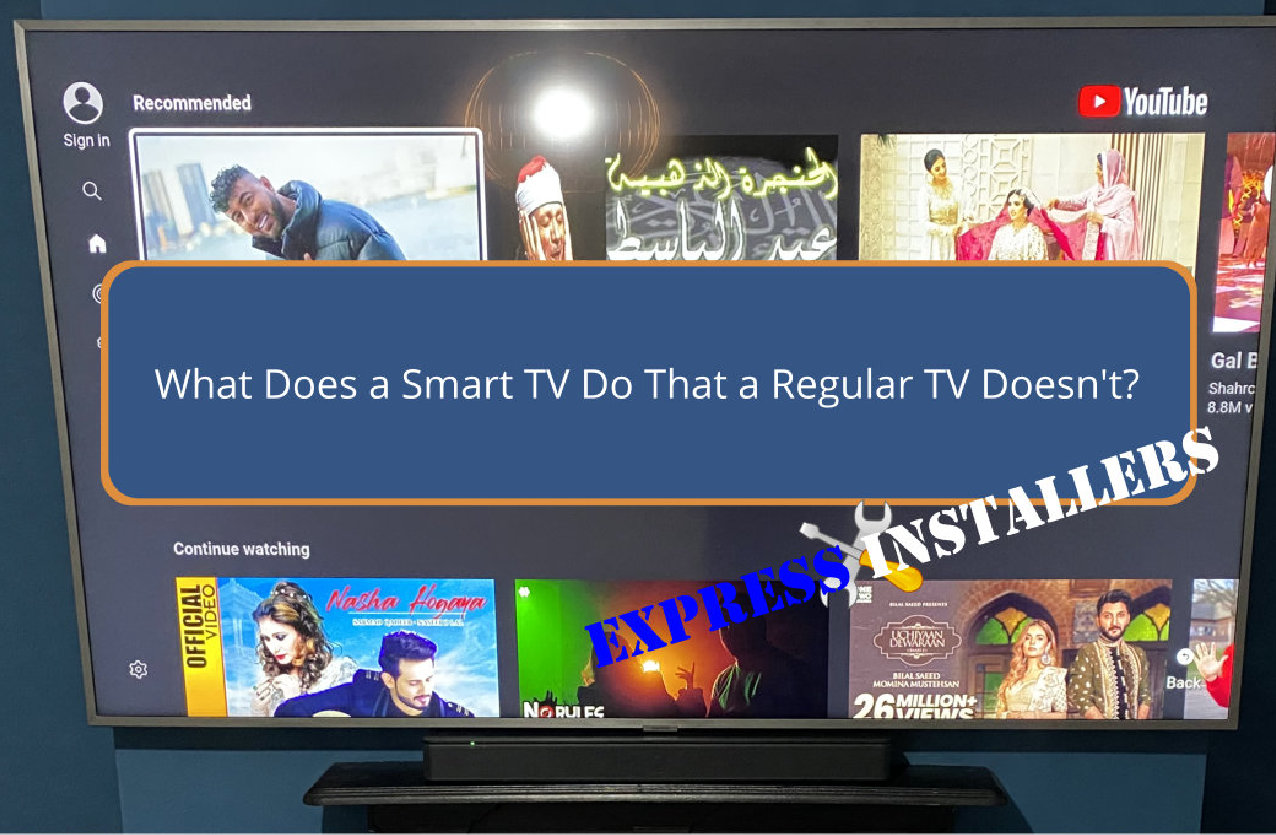
How to Get Regular TV on a Smart TV
Getting regular TV on a smart TV involves connecting traditional broadcast signals, cable feeds, or live television streaming services to your modern display. Because smart TVs lack built-in coaxial tuners or rely entirely on internet...
Getting regular TV on a smart TV involves connecting traditional broadcast signals, cable feeds, or live television streaming services to your modern display. Because smart TVs lack built-in coaxial tuners or rely entirely on internet connectivity, viewers must utilize digital antennas, streaming apps, or hybrid boxes to access live local channels and cable networks.
Contents
Transitioning from a traditional television setup to a modern smart TV often brings a surprising realization: many contemporary displays no longer feature a standard coaxial cable input or a built-in digital tuner for over-the-air broadcasts. While smart TVs excel at streaming on-demand content through internet applications, millions of viewers still want access to local news, weather alerts, live sports, and scheduled network programming—what is commonly referred to as "regular TV."
Understanding how to bridge the gap between legacy broadcast signals and internet-connected displays requires evaluating several distinct hardware and software options. Whether you want to cut the cord entirely and rely on free airwaves or integrate a traditional subscription service, several methods exist to restore live television functionality to your smart living room setup.
Understanding Your Smart TV and Live Television Signals
A smart TV is fundamentally a computer monitor running an operating system like Google TV, Roku OS, Amazon Fire TV, webOS, or Tizen, paired with internal processing hardware and internet connectivity. Unlike older cathode-ray tube (CRT) or early flat-screen televisions, many modern smart displays prioritize thin profiles and internet streaming over physical hardware ports.
To get regular TV on your smart TV, you must first determine what "regular TV" means for your household. Broadly speaking, this falls into three distinct categories:
- Over-The-Air (OTA) Broadcasts: Free local network channels (such as ABC, CBS, NBC, Fox, and PBS) transmitted via radio waves from local broadcast towers.
- Traditional Cable or Satellite Boxes: Subscription television delivered via a set-top box provided by a local provider.
- Live TV Streaming Services (Virtual MVPDs): Cable-like channel lineups delivered entirely over your home internet connection without requiring a physical box.
Method 1: Using a Digital Antenna for Free Over-the-Air TV
If your goal is to watch local broadcast television without paying a monthly subscription fee, an over-the-air digital antenna remains the most cost-effective solution.
Checking Signal Availability
Before purchasing hardware, you should verify which broadcast towers are near your location and which channels are available. Independent resources like the Federal Communications Commission's (FCC) DTV Reception Maps tool or RabbitEars.info allow you to enter your ZIP code or precise coordinates to see a forecast of available signals, signal strength, and broadcast tower directions.
Hardware Requirements and Installation Steps
To connect an antenna to a smart TV, verify whether your specific television model includes a built-in digital tuner (ATSC tuner).
- If your TV has an antenna port (Coaxial input labeled "ANT/CBL"): Screw the coaxial cable from your digital antenna directly into the back of the television.
- If your TV lacks a coaxial port: You will need to purchase an external digital-to-analog converter box or a network-connected tuner (such as an HDHomeRun) that translates radio frequency signals into HDMI or Wi-Fi data streams.
Once physically connected, follow these steps to configure your channels:
- Turn on your smart TV and navigate to the Settings menu.
- Select Broadcasting, Tuner Setup, or Channels.
- Choose Auto Scan or Channel Search to allow the television to scan the airwaves for digital channels.
- Once the scan completes, use your remote control's channel guide or number pad to navigate through available local stations.
Method 2: Connecting a Traditional Cable or Satellite Box via HDMI
If you maintain a subscription with a traditional cable or satellite provider (such as Comcast Xfinity, Charter Spectrum, DirecTV, or Dish Network), you can easily integrate their physical set-top box with your smart TV.
Step-by-Step Connection Guide
- Locate an HDMI Port: Identify an available High-Definition Multimedia Interface (HDMI) port on the side or back of your smart TV.
- Connect the HDMI Cable: Plug one end of a certified HDMI cable into your cable box and the other end into the corresponding HDMI port on the television.
- Power On Both Devices: Turn on both the smart TV and the cable box.
- Select the Correct Input: Use your smart TV remote to press the Input or Source button, then select the HDMI port you used (e.g., HDMI 1, HDMI 2).
- Program Your Remotes: Modern smart TV platforms often feature universal remote setup wizards that allow you to control your cable box using your TV remote, or vice-versa.
Method 3: Using Live TV Streaming Services (Cord-Cutting)
For households that prefer not to run physical cables or mount antennas, live TV streaming services—often called Virtual Multichannel Video Programming Distributors (vMVPDs)—offer a direct path to regular TV over your internet connection.
These services deliver traditional cable networks, live sports, and local affiliate stations through dedicated apps available directly in your smart TV’s application store. Popular options include YouTube TV, Hulu + Live TV, Sling TV, and FuboTV.
Comparison of Live TV Streaming Options
| Service | Approximate Monthly Cost | Local Channels Included? | Cloud DVR Included? | Simultaneous Streams |
|---|---|---|---|---|
| YouTube TV | High | Yes (Major networks in most areas) | Unlimited | 3 |
| Hulu + Live TV | High | Yes | Unlimited | 2 (Unlimited add-on available) |
| Sling TV | Moderate | Limited (Select markets, mostly Fox/NBC) | 50 Hours | 1 to 4 (Depending on plan) |
| FuboTV | High | Yes | 1000 Hours | 10 (Home network) |
Free Ad-Supported Streaming TV (FAST) Channels
If you want regular TV without paying any subscription fee and without installing an antenna, most modern smart TVs come with built-in Free Ad-Supported Streaming TV services. Platforms like The Roku Channel, Samsung TV Plus, LG Channels, Pluto TV, and Tubi feature hundreds of virtual channels that mimic traditional scheduled programming, ranging from 24/7 news broadcasts to classic television reruns.
Troubleshooting Common Issues
When attempting to bring regular television signals to a smart TV, you may encounter technical hurdles. Below are solutions to the most frequent problems:
- No Channels Found During Antenna Scan: Ensure your antenna is placed near a window or exterior wall, away from large electronic appliances that cause electromagnetic interference. Re-run the channel scan after repositioning the antenna.
- No Signal on HDMI Input: Verify that the cable box is powered on and that the television is set to the exact HDMI port number corresponding to the physical connection. Try replacing the HDMI cable if the handshake fails.
- Buffering on Live Streaming Apps: Live television streams require stable broadband internet connections. A minimum download speed of 25 Mbps is typically recommended for a single high-definition live stream. Consider connecting your smart TV via an Ethernet cable rather than Wi-Fi for improved stability.
Frequently Asked Questions
Can I plug a coaxial cable directly into a smart TV?
It depends entirely on the specific model. Many modern smart TVs include a coaxial RF input (labeled "Antenna/Cable In") and a built-in ATSC digital tuner, allowing you to connect an antenna or unencrypted cable directly. However, ultra-thin displays or monitors marketed as smart TVs frequently omit physical coaxial inputs, requiring an external tuner box or adapter.
Do I need internet access to watch regular TV on a smart TV?
If you are using an over-the-air digital antenna connected to a smart TV with a built-in tuner, you do not need an internet connection to watch local broadcast channels. However, internet access is mandatory if you plan to use live TV streaming apps, free ad-supported streaming channels, or smart platform features.
How do I get local channels without paying for cable?
You can access local broadcast channels without a cable subscription by installing an over-the-air digital antenna or by subscribing to a live TV streaming service such as YouTube TV, Hulu + Live TV, or FuboTV, which license local affiliate stations in most major media markets.
Can I use my cable provider's app instead of a box?
Many major cable and satellite providers offer dedicated smart TV apps (such as the Xfinity Stream app or Spectrum app) compatible with platforms like Roku, Amazon Fire TV, and Apple TV. These applications allow you to access your regular channel lineup over the internet without renting an additional physical set-top box, though availability varies by provider.
Summary and Recommended Next Action
Getting regular TV on a smart TV is entirely achievable, whether you prefer the zero-cost approach of an over-the-air antenna, the traditional familiarity of a cable set-top box via HDMI, or the modern flexibility of a live TV streaming application.
To determine your best path forward, check your smart TV's physical ports on the back panel. If you see a coaxial port, consider testing an affordable digital antenna for free local broadcasts. If your TV is strictly digital and internet-dependent, explore live TV streaming trials to find a channel lineup that matches your viewing habits.
Image Gallery