How to Create and Manage a Guest Account in Windows 10: The Definitive 2026 Guide
To enable guest access on Windows 10, you must create a local user account without a password because the built-in "Guest" account toggle was removed by Microsoft in earlier builds. By using the Command Prompt or Local Users and Groups...
To enable guest access on Windows 10, you must create a local user account without a password because the built-in "Guest" account toggle was removed by Microsoft in earlier builds. By using the Command Prompt or Local Users and Groups manager, you can establish a restricted environment that protects your private files while allowing temporary users to browse the web or run specific applications.
Contents
In 2026, as Windows 10 remains a critical legacy operating system for millions of workstations under Extended Security Updates (ESU), maintaining secure, multi-user environments is more important than ever. While the operating system has matured, the confusion regarding the "missing" Guest account persists because the legacy "Guest" toggle in the Settings app no longer functions as it did in earlier iterations of Windows.
Understanding the Evolution of Guest Access in Windows 10
Historically, Windows offered a one-click Guest account feature. However, Microsoft deprecated this functionality due to security vulnerabilities and profile corruption issues. A true Guest account in the modern Windows environment is defined by its membership in the "Guests" user group rather than just its name. This membership triggers specific system behaviors: files created during the session are typically stored in temporary locations, and the user is barred from making any system-wide changes, installing software, or accessing other users' data.
In the current 2026 landscape, administrators often need to provide restricted access for kiosks, shared family computers, or specialized hardware interfaces. Because Windows 10 is in its final lifecycle phase, stability and security hardening are the primary reasons to utilize the manual methods described below rather than third-party "guest mode" software which may no longer receive compatibility updates.
Method 1: Creating a Guest Account via Command Prompt (Recommended)
This is the most reliable method for all versions of Windows 10, including Home, Pro, and Enterprise. It bypasses the limitations of the simplified Settings menu.
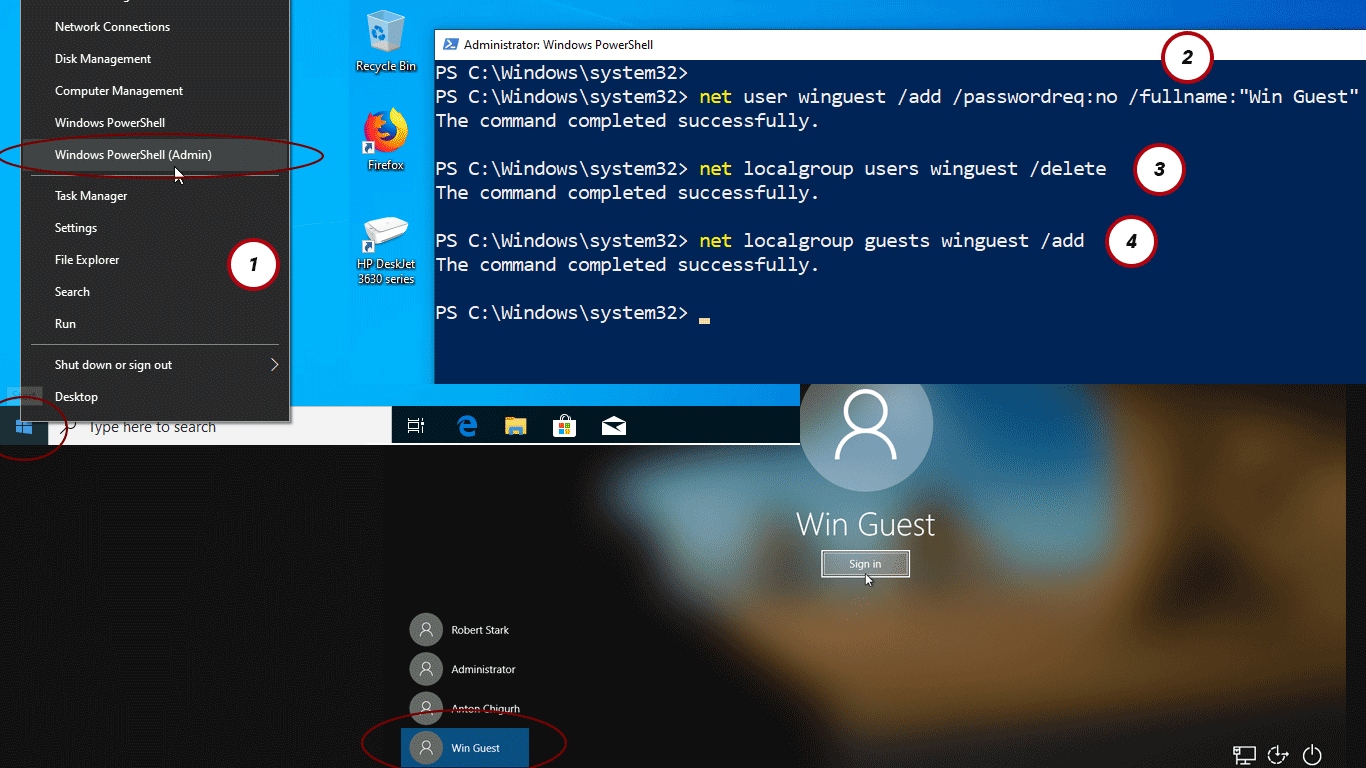
- Open the Start menu, type "cmd", right-click on Command Prompt, and select "Run as Administrator."
- Create the new account by typing the following command and pressing Enter:
net user Visitor /add /active:yes. Note: You cannot use the name "Guest" because it is a reserved system name. - Since a guest should not have a password, clear the password requirement by typing:
net user Visitor *. When prompted for a password, press Enter twice to leave it blank. - Remove the account from the standard "Users" group to strip it of basic privileges:
net localgroup Users Visitor /delete. - Add the account to the restricted "Guests" group:
net localgroup Guests Visitor /add.
Once these steps are complete, the "Visitor" account will appear on your login screen. It will operate with the lowest possible privilege level, ensuring the guest cannot see your personal folders or alter system settings.
Method 2: Using Local Users and Groups (Windows 10 Pro & Enterprise)
For users running professional or enterprise editions in 2026, the Management Console provides a more granular interface for managing these accounts.
- Press
Windows Key + R, typelusrmgr.msc, and press Enter. - Click on the "Users" folder in the left pane.
- Right-click in the center pane and select "New User."
- Name the account (e.g., "Temporary_Guest") and uncheck "User must change password at next logon." Check "Password never expires" and "User cannot change password." Click Create.
- Double-click the newly created user, go to the "Member Of" tab, select "Users," and click Remove.
- Click "Add," type "Guests," click "Check Names," and then click OK.
This method is preferred for corporate environments where auditing and specific group memberships are monitored by IT departments. It ensures that the account adheres strictly to the Guests group policy objects (GPOs) defined on the local machine.
Comparison of Windows 10 User Account Types
The following table outlines the functional differences between account types as they stand in 2026, specifically regarding system security and data persistence.
| Feature | Administrator | Standard User | Manual Guest Account |
|---|---|---|---|
| Install Software | Full Access | Requires Admin PIN | Blocked |
| Change System Settings | Full Access | Limited | Highly Restricted |
| Access Other User Files | Yes | No | No |
| Registry Editing | Full Access | Read-Only (Local) | Blocked |
| Password Requirement | Mandatory | Mandatory | Optional/None |
| Persistence | Permanent | Permanent | Can be set to Temporary |
| Network Visibility | Visible | Visible | Restricted/Hidden |
Security Best Practices for Guest Access in 2026
Even with a restricted Guest account, there are additional steps an administrator should take to ensure the "Visitor" does not accidentally or intentionally compromise the system.
Disable Hardware Access Within the Group Policy Editor (for Pro/Enterprise users), you can further restrict the Guests group from accessing USB removable drives or the Microsoft Store. This prevents the physical introduction of malware via flash drives.
Privacy and Data Sanitization Windows 10 does not automatically delete the profile of a manual guest account upon logout. To mimic the "classic" guest behavior, you must manually delete the contents of
C:\Users\Visitorperiodically or use a mandatory profile script.
Network Isolation Ensure that "File and Printer Sharing" is disabled for the Public network profile. Since most guest accounts operate on the assumption that the user is an outsider, they should not be able to "see" other devices on your local home or office network.
Troubleshooting Common Guest Account Issues
The Account Does Not Appear on the Sign-in Screen
This usually occurs if the account is disabled or if a specific Group Policy is hiding local accounts. Ensure you ran the command net user Visitor /active:yes. If it still doesn't appear, check the Registry under HKEY_LOCAL_MACHINE\SOFTWARE\Microsoft\Windows NT\CurrentVersion\Winlogon\SpecialAccounts\UserList and ensure your guest account is not set to 0.
"The User Profile Service failed the sign-in"
This is a common error in 2026 for legacy Windows 10 installations that have undergone multiple feature updates. It usually means the Default User profile template is corrupted. To fix this, you may need to copy the NTUSER.DAT file from a working user account (from a clean install or another PC) to the C:\Users\Default hidden folder.
Guest Can Still Access Certain Drives
By default, Windows gives the "Everyone" or "Users" group "Read" permissions to the root of non-OS drives (like a secondary D: drive). To prevent this, right-click the drive, go to Properties > Security, and ensure the "Guests" group is explicitly denied access or simply not included in the list of allowed entities.
Advanced Customization: Mandatory User Profiles
If you want the guest account to reset to a clean state every time the user logs out—a feature highly desired for public-facing Windows 10 machines in 2026—you must convert the account to use a "Mandatory Profile."
- Log into the Guest account once to create the profile folders, then log out and log back in as an Administrator.
- Navigate to
C:\Users\Visitor(you will need to enable "Show hidden files"). - Find the file named
NTUSER.DATand rename it toNTUSER.MAN. - The ".man" extension tells Windows to treat the profile as read-only. Any changes made by the guest (wallpaper changes, browser history, saved files) will be discarded when they sign out.
Why Use Windows 10 Guest Accounts in 2026?
As Windows 10 nears its final stages of support, many organizations use it for specific legacy applications that do not run well on Windows 11 or 12. Using a Guest account provides a "sandbox" feel without the overhead of a virtual machine. It is a cost-effective way to maintain security on older hardware that may not support TPM 2.0 or other modern hardware-based security features.
By strictly adhering to the "Guests" group membership, you leverage the built-in Windows Integrity Levels. Guest accounts run at a "Low Integrity" level, which prevents them from writing to sensitive areas of the disk or registry even if a vulnerability is found in a web browser or application used by the guest.
Frequently Asked Questions
Can I rename the built-in account named "Guest"?
Microsoft recommends against this. The built-in account named "Guest" is a security principal with a specific SID (Security Identifier). It is better to leave it disabled and create a new account (e.g., "Visitor") and add that new account to the Guests group.
Does a guest account need a Microsoft Account?
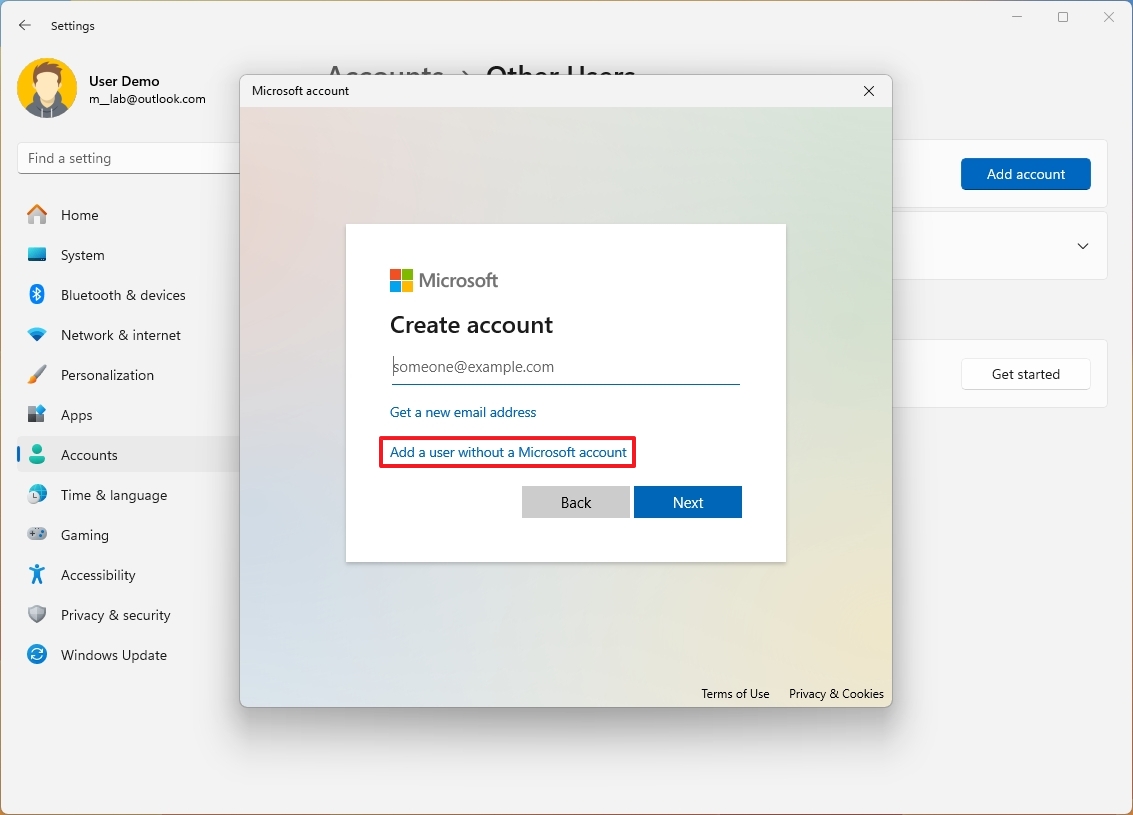
No. One of the primary benefits of the manual guest account method is that it is a "Local Account." It does not require an email address, phone number, or internet connection to set up or use, which is ideal for privacy.
Will the guest account be deleted after the session?
Not by default. Unlike "Guest Mode" on some other operating systems, Windows 10 local accounts persist. You must use the NTUSER.MAN trick mentioned above or manually delete the account via net user Visitor /delete when it is no longer needed.
Can a guest account run apps from the Microsoft Store?
Only if the apps were installed for "All Users" by an administrator. Guests generally cannot access the Store to download new apps because they lack the permissions to write to the WindowsApps folder or associate the account with a Microsoft Store billing profile.
Is the Guest account safe from ransomware?
While the Guest account has restricted write permissions, it is not 100% immune. A guest account can still execute code. However, the damage would be limited to the guest's own temporary folders and any public folders you have not secured. Your primary administrator files remain protected by NTFS permissions.
By following these professional standards, you ensure that your Windows 10 environment remains both functional and secure in 2026. Whether for a quick visitor or a permanent kiosk, the manual creation of a restricted local account remains the gold standard for guest access.
Image Gallery