How to Make an Apple Store Appointment: Step-by-Step Genius Bar Booking Guide
To make an appointment at an Apple Store, open the official Apple Support app on an iOS device or visit support.apple.com in any web browser. Select your specific device and service issue, choose an Apple Store or Authorized Service Pr...
To make an appointment at an Apple Store, open the official Apple Support app on an iOS device or visit support.apple.com in any web browser. Select your specific device and service issue, choose an Apple Store or Authorized Service Provider location, pick an available time slot up to seven days in advance, and confirm your contact details to reserve your session.
Contents
Navigating Apple Store Service Categories and Booking Types
Scheduling an appointment at an official Apple Retail Store requires selecting the correct service channel. Apple categorizes store visits to match customer needs with certified technicians or retail specialists. Selecting the wrong service type can lead to extended wait times or turn-away at the door if staff resources are allocated to different departments.
NOTE: DO NOT WRITE CODE BLOCKS OR ASCII DIAGRAMS IN OUTPUT
(Self-Correction during drafting: Rely purely on standard text formatting and tables, strictly avoiding ASCII art and code blocks.)
Genius Bar Hardware Repair
The Genius Bar is dedicated to diagnosing and repairing physical hardware failures across Apple products. This includes iPhone cracked screens, degraded batteries, logic board failures, Mac thermal issues, iPad display distortions, and Apple Watch sensor malfunctions. Hardware appointments allocate time for a technician to run localized hardware diagnostics, evaluate warranty or AppleCare+ coverage, and present repair options.
Software Support and Troubleshooting
Software appointments handle operating system crashes, failed firmware updates, Apple ID lockout situations, data migration bottlenecks, and backup restoration failures. While software technicians may work at the Genius Bar counter, booking specifically for software ensures your technician is prepared for software-level troubleshooting rather than hardware teardowns.
Personal Shopping Consultations
Shopping appointments connect you with an Apple Specialist for dedicated sales assistance. If you are evaluating a new Mac configuration, setting up a corporate trade-in, or exploring device cross-compatibility, booking a shopping appointment ensures an assigned specialist assists you without public retail floor delays.
Business Team Meetings
Designed for small-to-medium business owners and enterprise IT administrators, Business appointments provide direct access to the store's dedicated Business Team. These sessions cover volume purchasing, Apple Business Manager enrollment, customized device deployment strategies, and tax-exempt organization support.
Essential Prerequisites Before Your Service Appointment
Arriving unprepared at an Apple Store can cause technicians to turn your device away or require full device erasures without a backup. Completing critical device setup steps before arriving guarantees your appointment runs smoothly.
Data Protection Disclaimer Apple Retail Specialists and Genius Bar technicians are not responsible for data loss during repair procedures. Standard diagnostic protocols, component replacements, and main logic board servicing frequently require total device erasures or system restores.
Complete a Comprehensive Data Backup
Before handing any iPhone, iPad, or Mac over for service, create a complete backup.
- iCloud Backup: Go to Settings > [Your Name] > iCloud > iCloud Backup, and tap Back Up Now. Ensure your network connection remains stable until the process finishes.
- Mac Backups: Connect an external storage drive and execute a manual Time Machine snapshot, or back up critical directories to a secure cloud repository.
Disable Find My and Activation Lock
Apple technicians cannot run standardized hardware diagnostic suites or initiate component replacements while Find My (and its underlying Activation Lock) remains active. This measure prevents unauthorized servicing of lost or stolen hardware.
- Open Settings on your iOS or iPadOS device.
- Tap your Apple ID banner at the top.
- Select Find My, then tap Find My iPhone (or iPad).
- Toggle the feature Off and enter your Apple ID password to confirm.
Important Delay Warning for Stolen Device Protection Devices running modern iOS versions with Stolen Device Protection enabled may trigger a mandatory one-hour security delay when turning off Find My away from familiar locations (like your home or office). Turn off Find My while still at your home or work location prior to traveling to the Apple Store to avoid missing your scheduled appointment window.
Prepare Documentation and Physical Accessories
Bring a government-issued photo ID that matches the reservation name. If your repair falls under consumer law claims, third-party insurance policies, or specific corporate purchase orders, bring physical or digital receipts. For charging port failures or accessory issues, bring the specific power adapter and cable you use to help isolate hardware faults.
Official Channels to Reserve an Apple Store Timeslot
Apple provides multiple direct portals to book reservations without resorting to third-party scheduling platforms.
REMINDER: NO LINK PLACEHOLDERS, NO DUMMY URLS
Method 1: The Apple Support App (Recommended for Mobile)
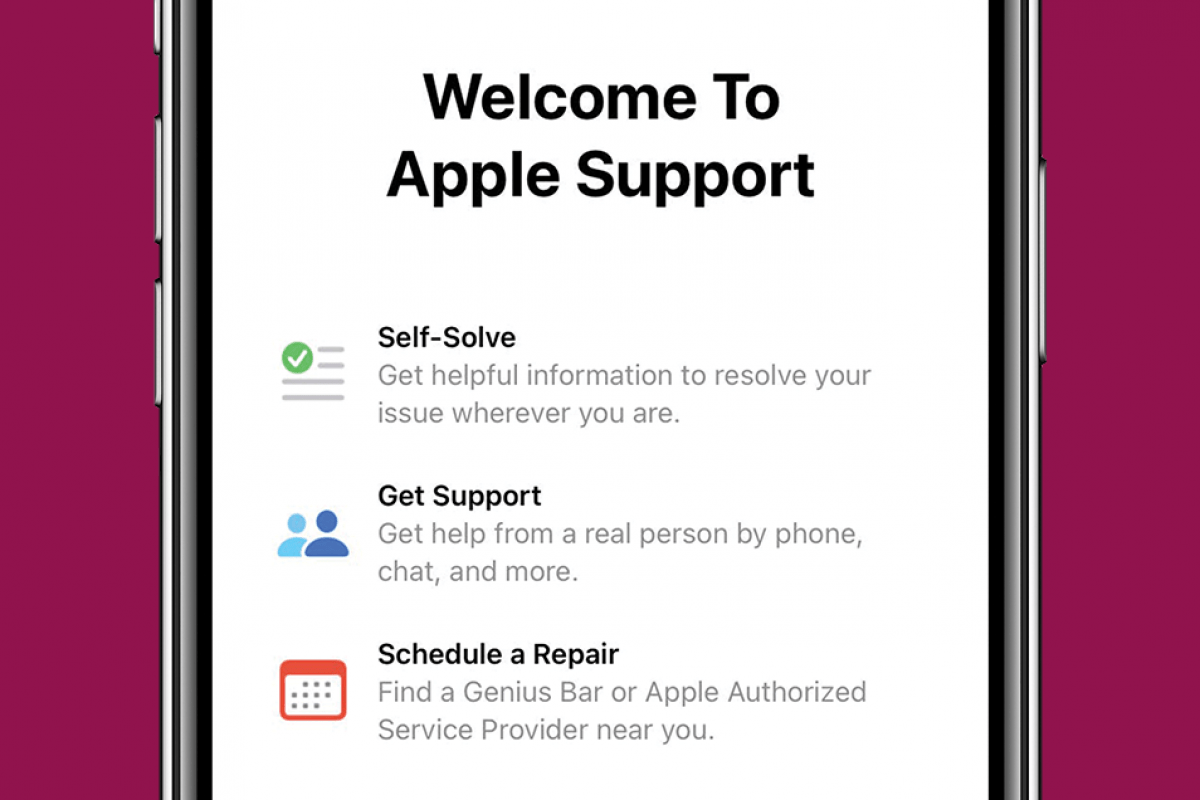
The Apple Support app is the fastest, most integrated method for reserving a Genius Bar appointment. Downloadable from the App Store on iPhone or iPad, the application automatically pulls serial numbers and warranty statuses for all hardware registered to your active Apple ID account.
The app presents hardware-tailored symptom trees, runs automated background diagnostics prior to arrival, and leverages your device's GPS to display real-time appointment availability across surrounding Apple Retail Stores and Apple Authorized Service Providers.
Method 2: The Official Apple Support Web Portal
For desktop users or devices that do not power on, reservation management is handled through the official Apple Support web portal. Navigating to the support section of Apple's primary domain allows users to select a specific product category, describe symptoms, and access localized store schedules.
The web portal displays live schedule windows up to seven calendar days in advance. It offers built-in filtration to compare availability between official Apple Store locations and authorized third-party service vendors.
Method 3: Telephone Support Reservations
Calling 1-800-MY-APPLE (1-800-692-7753) connects you to an automated system capable of directing you to an AppleCare advisor. Phone specialists can book Genius Bar appointments on your behalf, verify live store inventory for repair parts, or arrange mail-in repair services if local store reservations are fully booked.
Step-by-Step Guide: Booking a Genius Bar Appointment
Follow this technical workflow to secure a repair reservation using Apple’s digital support ecosystem.
- Access the Support Portal: Open the Apple Support app on your iOS device or navigate to the support section of Apple's official website in your web browser.
- Authenticate Your Apple Account: Sign in using the primary Apple ID associated with the hardware requiring repair. This populates your registered device list automatically.
- Select the Hardware Entity: Pick the specific hardware unit (e.g., MacBook Pro 16-inch, iPhone 15 Pro, Apple Watch Ultra) from your list of linked devices. If servicing an unlisted device, select the broad product family icon and manually enter the 12-character alphanumeric serial number.
- Define the Technical Symptom: Navigate through the diagnostic menu to classify the issue. Choose primary categories such as Repairs & Physical Damage, Battery & Charging, or System Performance, then select the precise sub-issue (e.g., Screen is cracked, Battery health degraded).
- Choose the Repair Service Path: When prompted with resolution paths—such as bring-in repair, mail-in repair, or phone support—select Bring in for Repair.
- Locate Nearby Stores: Enter your ZIP code, city name, or allow location services to search for service centers. The interface will generate a chronological list of nearby Apple Stores alongside certified third-party providers.
- Select Date and Time Slot: Click on your preferred Apple Store location to expand its available calendar. Select a specific day and available time window.
- Finalize and Confirm: Review the reservation details, ensure the contact phone number and email address are correct, and click Confirm. Save the confirmation email or add the digital reservation pass directly to your Apple Wallet.
Appointment Booking Options & Service Comparison
Understanding how service methods, response times, and requirements vary across appointment types helps you plan your service visit effectively.
| Appointment Category | Booking Advance Window | Mandatory Device Prep | Average Session Duration | Standby / Walk-In Success Rate |
|---|---|---|---|---|
| Genius Bar (Hardware Repair) | 1 to 7 Days | Full Backup, Disable Find My, Charge Battery >20% | 15 to 30 Minutes (Diagnostic phase) | Low (Subject to cancellations) |
| Software Support | 1 to 7 Days | Apple ID credentials ready, Backup completed | 20 to 45 Minutes | Moderate |
| Personal Shopping | 1 to 14 Days | List of purchase/trade-in requirements | 30 to 60 Minutes | High (During off-peak hours) |
| Business Team Consultation | 1 to 14 Days | Business registration details, Procurement specs | 45 to 90 Minutes | Low (Requires dedicated staff) |
| Authorized Service Provider (AASP) | 1 to 7 Days | Full Backup, Disable Find My, Valid Photo ID | 15 to 30 Minutes | Moderate to High |
Managing, Rescheduling, and Canceling Existing Appointments
Unexpected schedule shifts require updating your store reservation to ensure technicians can serve other customers.
How to Modify a Reservation
Upon successful reservation, Apple issues a unique confirmation code via email and SMS. This confirmation contains a direct link to manage your booking.
- Via Email: Open the confirmation email from Apple Support, click Reschedule or Cancel, and select a new operational time slot.
- Via Apple Support App: Tap your Account Profile icon in the upper right corner of the Support app, navigate to Recent Activity, select the upcoming reservation, and alter the schedule.
Grace Periods and Late Arrival Protocols
Apple Retail Stores enforce a standard 10-to-15-minute grace period for appointment check-ins. If you arrive within this window, notify the greeter at the front entrance to register your presence.
If you arrive more than 15 minutes past your scheduled reservation time, the automated queue management system automatically cancels your assigned slot and moves your request to the unreserved standby queue.
Troubleshooting Fully Booked Schedules and Emergency Options
During peak retail seasons or product launch windows, local Apple Store appointment calendars can fill up entirely. If no reservations are open, use these alternative service routes.
Capitalizing on Morning Cancellations
Apple's automated schedule clearing updates overnight. System-wide cancellations and rescheduled appointments typically release back into the public reservation pool between 6:00 AM and 8:00 AM local store time. Refreshing the Apple Support app during these early morning hours frequently reveals same-day repair slots.
Utilizing Apple Authorized Service Providers (AASPs)
If an official Apple Retail Store has no open slots, look for an Apple Authorized Service Provider (AASP). Certified partners—such as Best Buy Geek Squad, Micro Center, or specialized independent service centers—use genuine Apple parts, official diagnostic tools, and calibrated repair machinery. Repairs conducted through an AASP maintain your existing hardware warranty and AppleCare+ coverage limits.
Mail-In Service Options
For non-urgent repairs where traveling to a physical store is impractical, select the Mail-in Repair option within the support portal. Apple ships a pre-paid, protective packing box directly to your location. Once packaged and handed to the courier, your hardware is routed to a centralized Apple Repair Center, serviced, and returned to your doorstep within 3 to 5 business days.
Leveraging Express Replacement Service
Customers with an active AppleCare+ plan on eligible devices (such as iPhone, iPad, or Apple Watch) can request Express Replacement Service. Rather than waiting for a store repair slot or service center turnaround, Apple ships a replacement device immediately before you send your damaged device back. A temporary credit card authorization hold is applied until the damaged hardware arrives at Apple's warehouse.
Frequently Asked Questions
Can you walk into an Apple Store for repair without an appointment?
Yes, walk-ins are permitted, but service is not guaranteed. Walk-in customers are placed on a real-time standby list, and wait times can range from 30 minutes to several hours depending on technician availability and cancellations.
Is a Genius Bar appointment free of charge?
Yes, scheduling an appointment and receiving an initial hands-on hardware or software diagnostic at the Genius Bar is completely free. Out-of-warranty hardware replacement parts and labor fees are presented for approval before any paid work begins.
How far in advance can you schedule an Apple Store appointment?
Genius Bar repair appointments can be scheduled up to 7 calendar days in advance. Personal shopping and Business Team consultations can often be scheduled up to 14 days ahead through the Apple Store app.
What items should you bring to your Apple Store appointment?
Bring the device needing service, a valid government-issued photo ID, your Apple ID credentials, and any peripheral accessories related to the issue. If your device is covered under an enterprise policy or third-party insurance, bring proof of purchase or policy documentation.
What should you do if Find My cannot be turned off because the display is broken?
If a screen is unresponsive or completely black, log into iCloud.com on another device or computer. Navigate to Find Devices, select the broken device from the All Devices drop-down menu, choose Erase Device, and then click Remove from Account.
Optimizing Your In-Store Repair Experience
Preparing your hardware before stepping into an Apple Store saves time and ensures an efficient service visit. Always verify that your backup is complete, Find My is toggled off, and your software is updated to the latest stable release if operating system errors are occurring. If local retail store schedules are fully booked, checking certified Authorized Service Provider calendars through the official Apple Support app provides an equivalent level of hardware support using genuine Apple components.
Image Gallery