Broward Charter Clever: Complete 2026 Single Sign-On and Access Guide
Navigating the educational technology landscape in Broward County Public Schools requires understanding the Clever Single Sign-On (SSO) portal, which acts as the centralized gateway for students and teachers to access digital curriculu...
Navigating the educational technology landscape in Broward County Public Schools requires understanding the Clever Single Sign-On (SSO) portal, which acts as the centralized gateway for students and teachers to access digital curriculum tools, learning management systems, and district applications.
Contents
Understanding the Broward County Public Schools Clever Integration
The Broward County Public Schools (BCPS) district utilizes the Clever platform to streamline access to digital learning tools. Instead of requiring students to remember dozens of different usernames and passwords for platforms like Canvas, i-Ready, Newsela, and McGraw Hill, Clever consolidates everything behind a single secure login page.
For the 2026 academic term, district infrastructure relies heavily on automated roster synchronization. This means student schedules and teacher assignments are pulled directly from the Student Information System (SIS) into Clever every night. Consequently, if a student is officially registered for a specific course in BCPS, the corresponding digital textbook or software license automatically appears on their Clever dashboard the following morning.
Core Architecture of the District SSO Portal
Clever functions as an Identity Provider (IdP) intermediary. When a user attempts to log in, the platform authenticates their credentials against the district's secure directory services.
- Active Directory Synchronization: Student and staff credentials are tied directly to their official district network accounts.
- Badge and QR Code Support: Younger students in elementary grades utilize Clever Badges, which are physical printed QR codes allowing instant camera-based login without typing.
- Multi-Factor Authentication (MFA): District staff and high-security accounts must pair their Clever login with district-mandated multi-factor authentication protocols.
Prerequisites and System Requirements for Seamless Access
Before attempting to log into the Broward Clever portal, users must ensure their hardware, network, and browser configurations meet district specifications. Technical friction points are the leading cause of login failures across BCPS schools and home networks.
Recommended Hardware and Browser Configurations
While Clever is designed to be platform-agnostic, optimal performance is achieved using specific environments maintained by the BCPS Information and Technology Department.
- Operating Systems: Windows 10/11, macOS Sonoma or later, ChromeOS (standard on district Chromebooks), iOS 15+, and Android 10+.
- Web Browsers: Google Chrome is the officially supported browser for all BCPS digital platforms. Mozilla Firefox and Microsoft Edge are secondary supported options, while Safari may require adjustments to cross-site tracking settings.
- Network Requirements: Standard school network firewalls whitelist Clever endpoints automatically. Home users must ensure their local network does not block secure WebSockets or standard HTTPS traffic on port 443.
Step-by-Step Login Guide for Students and Staff
Accessing the portal requires following a specific sequence based on whether the user is logging in from a school-issued device or a personal computer at home.
- Navigate to the official district access point or go directly to the branded login portal at Clever BCPS Portal.
- Click the blue Log in with Active Directory button for standard student and staff accounts, or select the Badges option if using a QR code.
- Enter your official BCPS student email address (typically formatted as studentnumber@my.browardschools.com) or staff username.
- Input your network password. This is the same password used to log into school desktop computers or the Canvas Learning Management System.
- Complete any secondary verification prompts if logging in from an external network or administrative account.
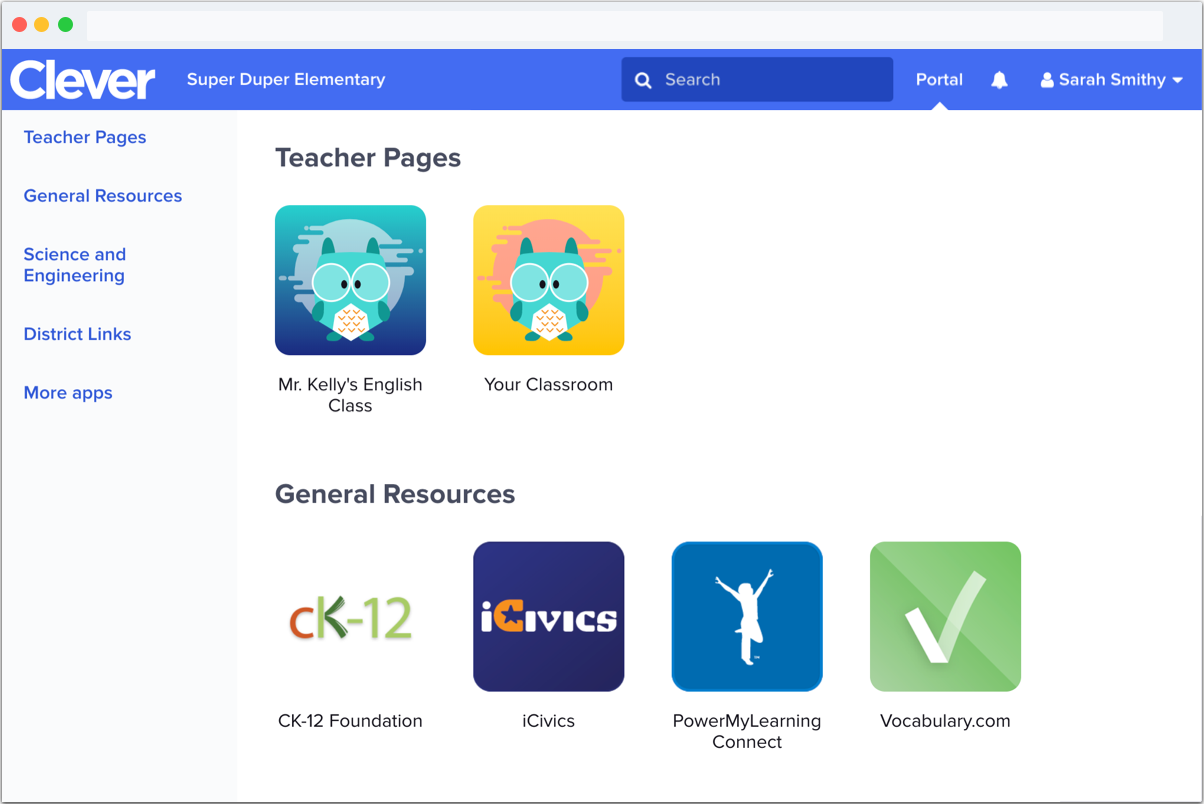
- Once authenticated, review the personalized dashboard to launch the required instructional application.
Security Advisory: Never save your district password on shared public computers or unsecured personal devices. Always click the user icon in the top right corner of the dashboard to log out completely when finished.
Comparative Analysis of BCPS Access Methods
Different user roles within the Broward County Public Schools ecosystem experience varying authentication pathways. The following matrix outlines the primary access methods, required credentials, and security features for each group.
| User Role | Primary Login Method | Credential Requirements | Security & Authentication Level |
|---|---|---|---|
| Elementary Students (Grades K-2) | Clever Badge (QR Code) | Printed Physical Badge | Camera-scanned immediate token authentication |
| Intermediate/High School Students | Active Directory SSO | Student ID & Network Password | Standard district domain authentication |
| Instructional Staff (Teachers) | Active Directory / MFA | Employee Number & Network Password | Enhanced security with district MFA protocols |
| School Administrators | SSO with Elevated Privileges | Administrative Credentials | Multi-factor authentication with restricted IP logging |
| Parents / Guardians | External Portal Integration | Registered Focus / Canvas Parent ID | Monitored parental observer permissions |
Troubleshooting Common Broward Clever Login Failures
Users frequently encounter specific error states when trying to access digital resources through the portal. Understanding these errors allows for rapid resolution without requiring immediate IT support tickets.
Invalid Credentials Error
If the system rejects your username and password combination, verify that you are using your complete student email address rather than just your student identification number. If the password has recently expired, students and staff must update it through the official BCPS Self-Service Password Reset portal before Clever will accept the new credentials.
Blank Screen or Infinite Loading Loop
When the dashboard fails to load past the initial white screen, browser cache corruption is usually the culprit.
- Clear your browser cache and cookies entirely for all time ranges.
- Disable aggressive third-party ad-blockers or privacy extensions that block tracking pixels required by single sign-on scripts.
- Switch to an Incognito or Private Browsing window to test if a browser extension is interfering with the session token.
Missing Applications on the Dashboard
If a specific textbook or software program is missing from your portal view, it indicates that the application has not been assigned to your active course schedule in the district database. Contact your school's designated Media Specialist or Guidance Counselor to verify that your course registration is accurately reflected in the district's primary database.
Frequently Asked Questions Regarding Broward Clever
What should I do if my child loses their Clever Badge?
Contact your child's teacher or school media specialist immediately. They can generate and print a replacement QR code badge instantly from the administrative portal while invalidating the lost badge for security.
Can parents access the Clever portal directly?
Parents do not have independent student Clever accounts. Instead, parental monitoring of student progress, grades, and attendance is handled through the official BCPS Canvas Parent Portal or the Focus Parent System.
Why does my application say "Access Denied" when I click an icon inside Clever?
This usually means your account lacks an active digital license for that specific third-party vendor, or your user role does not match the vendor's access criteria. Notify your school's technology liaison to check software license allocations.
How do I reset a forgotten student network password?
Students can reset their passwords using the Broward Student Self-Service Password Reset tool available on the main district website, or by visiting their school's media center for assisted resetting.
Is the Clever portal accessible outside of school hours?
Yes, the portal is web-based and fully accessible 24 hours a day, 7 days a week, from any internet-connected device anywhere in the world.
Summary and Next Steps
Mastering the Broward Clever portal ensures uninterrupted access to essential educational resources throughout the academic year. By keeping your network credentials secure, utilizing the correct browser environment, and knowing who to contact for roster updates, you can eliminate technical barriers to learning. For ongoing technical support or district-wide announcements, consult the official Broward County Public Schools Technology Services page.
Image Gallery