How to Clean a Virus Off Your iPhone: A 2026 Technical Guide
If you believe your iPhone has a virus, it is important to understand that Apple’s iOS architecture utilizes a "sandboxing" security model, making traditional malware infections virtually impossible. Most perceived "viruses" are actual...
If you believe your iPhone has a virus, it is important to understand that Apple’s iOS architecture utilizes a "sandboxing" security model, making traditional malware infections virtually impossible. Most perceived "viruses" are actually malicious calendar invites, persistent browser redirects, or intrusive pop-up advertisements generated by misconfigured website settings rather than actual system-level malware.
Contents
Understanding the iOS Security Architecture
The iPhone operating system is built on a foundation of strict process isolation. Every app runs within its own secure, restricted environment, preventing it from accessing data from other apps or modifying system files. This architecture, known as sandboxing, is the primary reason why standard anti-virus software is not required or even functional on iOS.
Unlike desktop operating systems, where malicious software can install rootkits or background processes, an iPhone app cannot interact with the underlying OS kernel. When you experience "virus-like" behavior—such as being redirected to suspicious websites or receiving constant notifications—you are almost certainly dealing with a browser-based exploit or a compromised account sync rather than a software-based infection.
Clearing Malicious Calendar Events and Spam
The most common "virus" complaint involves spam calendar invitations that flood your lock screen with notifications. These are not viruses; they are calendar subscriptions that you may have accidentally authorized by clicking a deceptive link on a website.
- Open the Settings app on your iPhone.
- Scroll down and tap on Calendar.
- Tap on Accounts.
- Look for an account labeled Subscribed Calendars. If you do not recognize the calendar, tap it.
- Select Delete Account to immediately stop the spam notifications.
If you are using an older version of iOS, you may need to open the Calendar app, tap Calendars at the bottom of the screen, and tap the Info (i) icon next to the suspicious calendar to delete it.
Addressing Browser-Based Redirects and Pop-Ups
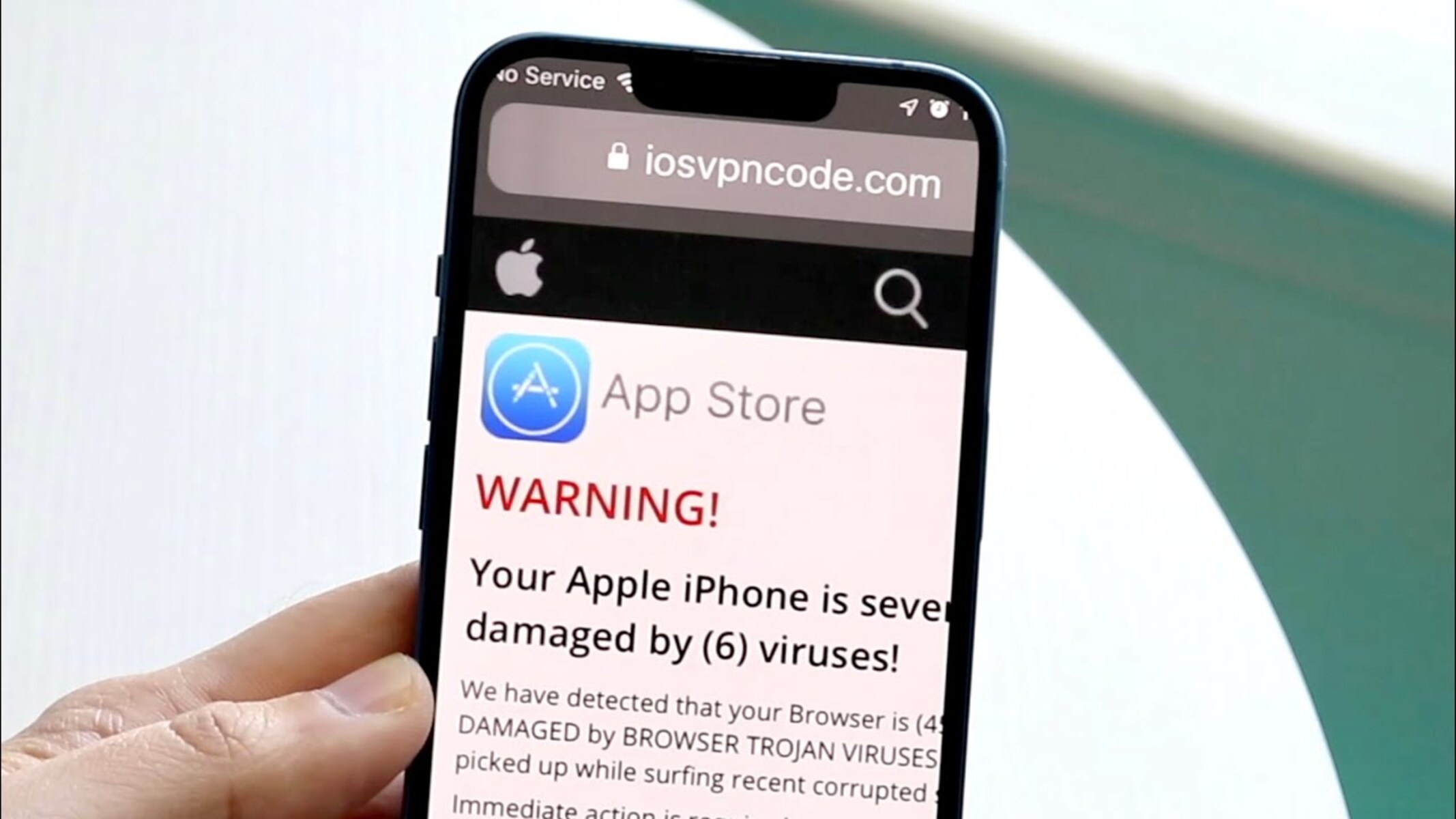
If your browser is constantly redirecting you to scam sites or displaying "Your iPhone is hacked" warnings, the issue is stored in your browser's cache and website data. These sites use manipulative scripts to trick users into downloading unwanted software or giving away personal information.
- Navigate to Settings.
- Locate Safari in the app list.
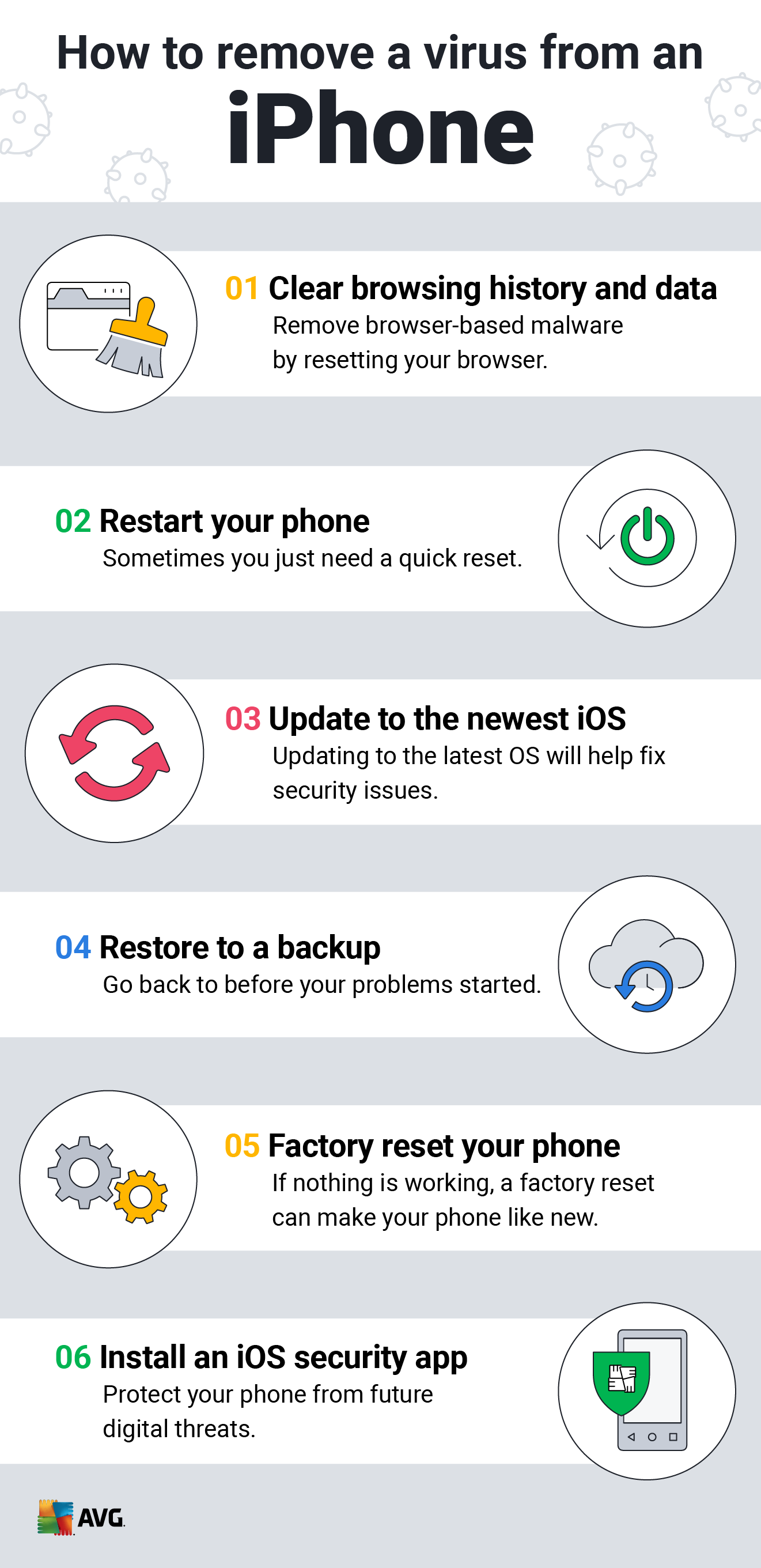
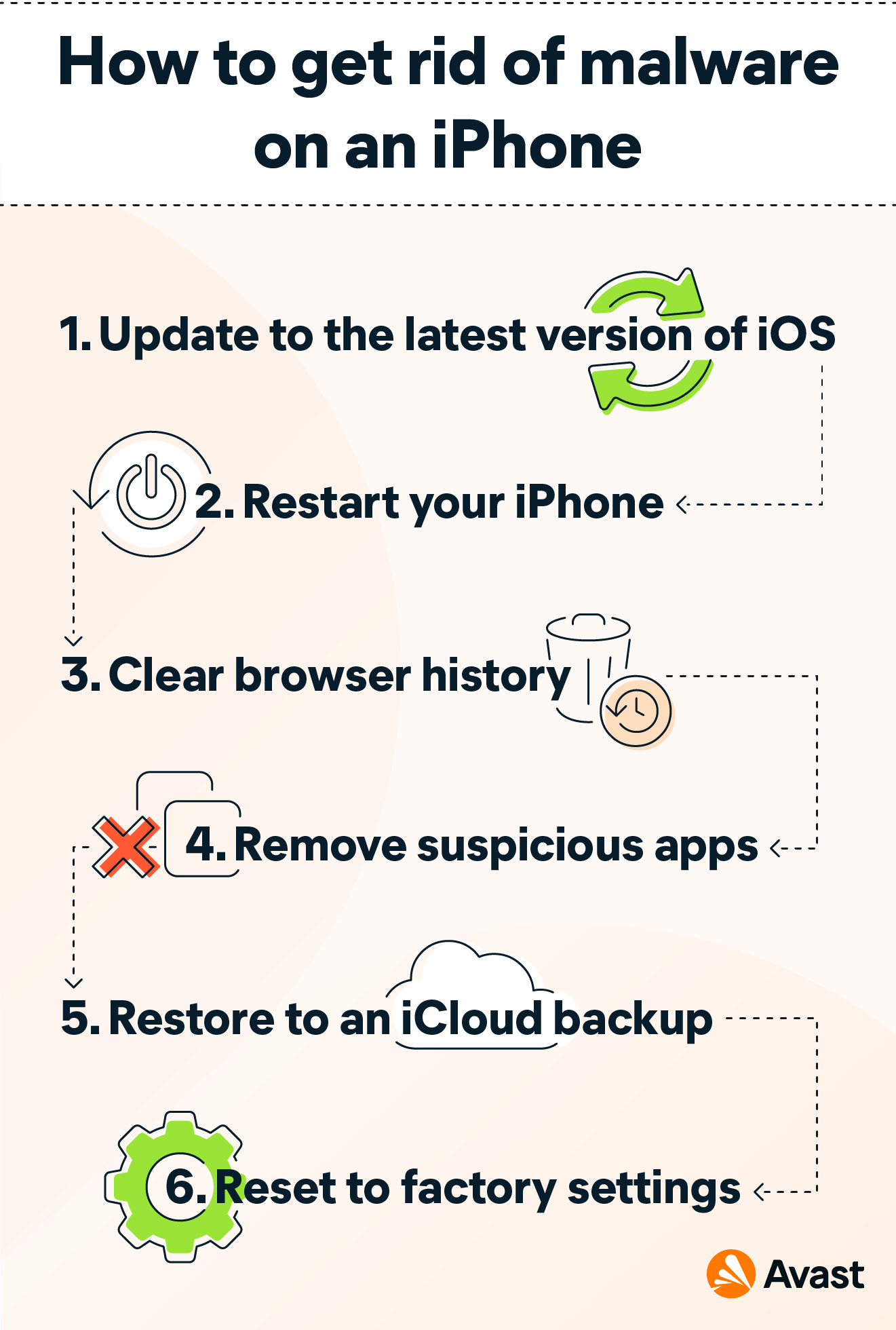
- Scroll to the bottom and tap Clear History and Website Data.
- Confirm by tapping Clear History and Data.
By clearing the cache, you force the browser to discard the session tokens and stored site data that were driving the malicious redirects. To prevent future occurrences, ensure that "Block Pop-ups" and "Fraudulent Website Warning" are toggled to the ON position within the Safari settings menu.
Evaluating Potential Security Threats: Symptoms vs. Reality
It is critical to distinguish between actual security compromises and typical user-interface annoyances. Use the following table to identify the cause of your concerns.
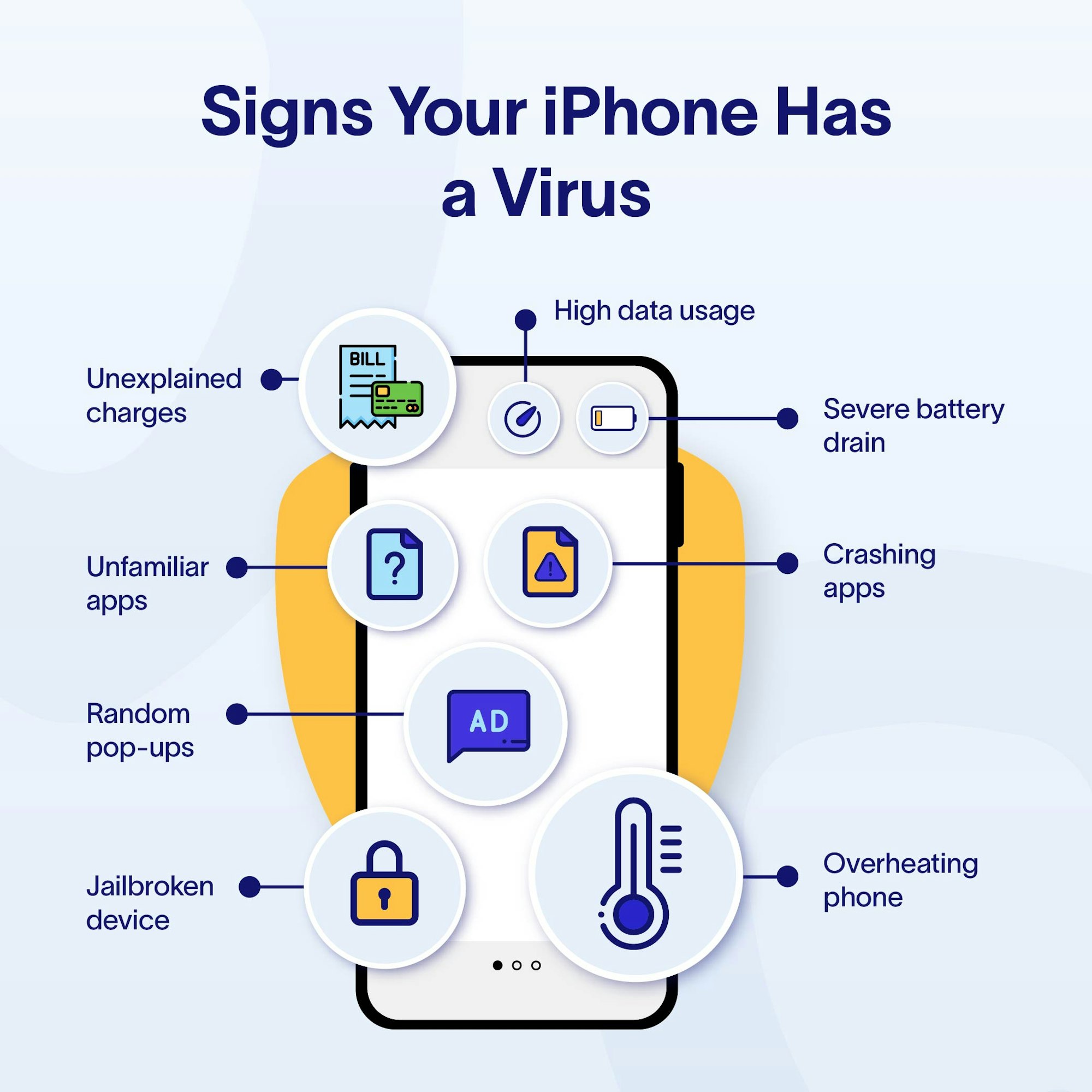
| Symptom | Probable Cause | Corrective Action |
|---|---|---|
| Calendar notifications for "wins" | Subscribed malicious calendar | Delete Subscribed Calendars in Settings |
| Constant Safari pop-ups | Corrupt browser cache | Clear Safari History and Website Data |
| Excessive battery drain | Background activity/Apps | Check Battery usage in Settings; update apps |
| Strange apps on Home Screen | Accidental download | Long-press app icon and select Remove App |
| Unauthorized charges | Compromised Apple ID | Contact Apple Support immediately |
Managing Compromised Apple ID Accounts
If you notice unauthorized purchases, sent messages you did not write, or changes to your account information, your Apple ID—not your phone—may be compromised. In 2026, Apple’s Security Recommendations within the Settings app provide a real-time dashboard of your account security status.
To secure your account:
- Go to Settings and tap your name at the top.
- Select Sign-In & Security.
- Enable Two-Factor Authentication (2FA) if it is not already active.
- Review your "Trusted Phone Numbers" and ensure no unrecognized numbers are listed.
- If you suspect your password has been leaked, change it immediately and choose a strong, unique alphanumeric passphrase.
When to Perform a Factory Reset
Performing a full factory reset is the "nuclear option" and is rarely necessary for iOS. However, if your phone continues to exhibit erratic behavior after you have cleared your browser data and removed suspicious profiles, a clean slate can restore peace of mind.
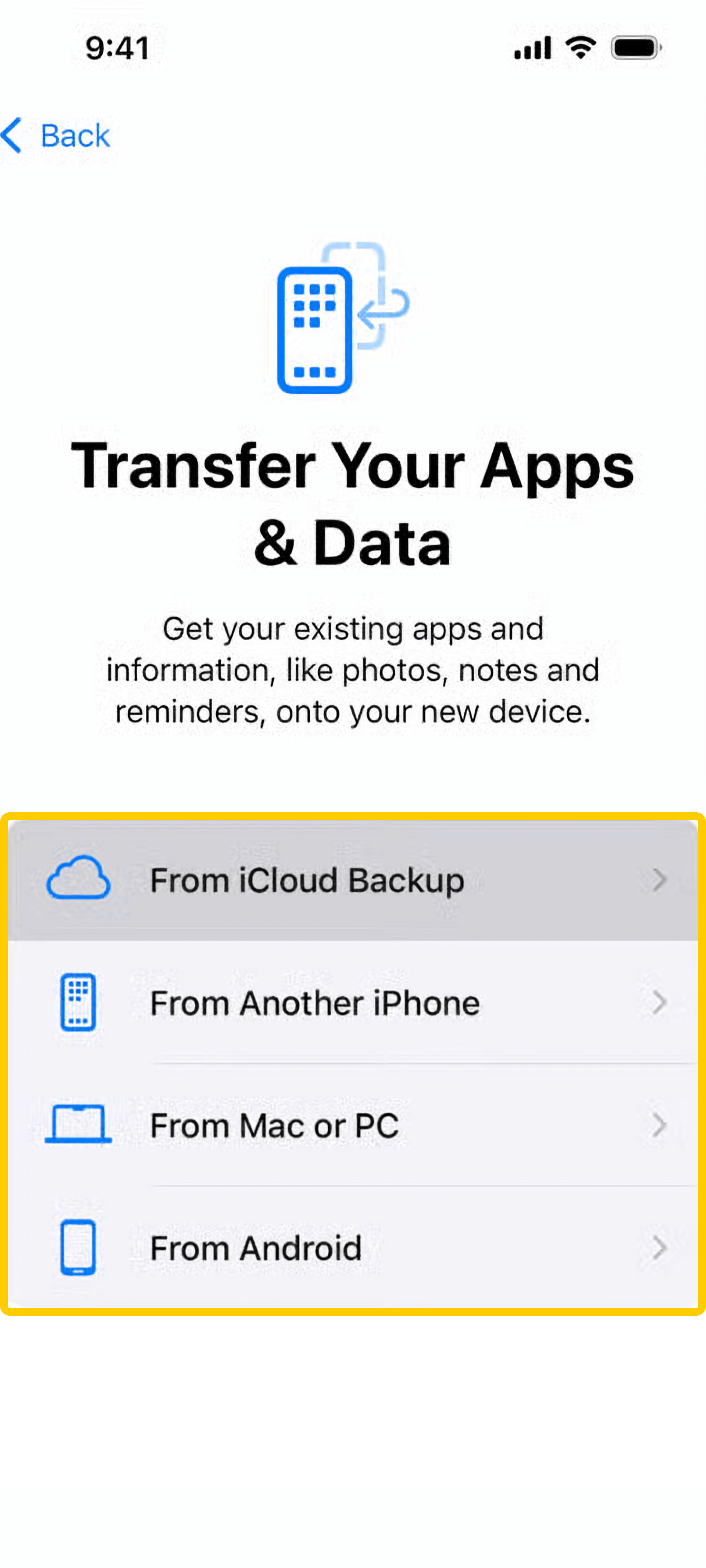
Before resetting, perform an encrypted backup to your Mac or PC using Finder or iTunes, or use iCloud. Once backed up:
- Go to Settings > General.
- Scroll to Transfer or Reset iPhone.
- Select Erase All Content and Settings.
This process will wipe every bit of data from the device and reinstall the iOS firmware, ensuring that any persistent settings or misconfigurations are permanently removed.
Frequently Asked Questions
Can I install anti-virus software on my iPhone?
No. Because of the way iOS is designed, apps cannot scan other apps or the system files. Any app claiming to be an "Anti-Virus" for iPhone is simply a marketing tool that provides basic features like private browsing or Wi-Fi scanning; it cannot remove viruses because the OS prevents it from accessing other processes.
Did a website download a virus to my iPhone?
It is technically impossible for a website to download an executable virus onto your iPhone due to the sandbox restrictions of iOS. Websites can only store small snippets of data known as cookies or cache, which can cause annoying behavior, but they cannot execute code to harm your device's core system.
Why do I keep seeing pop-ups that say my iPhone is infected?
These are known as "scareware" ads. They are designed to frighten you into clicking a link or downloading a suspicious app. These are strictly marketing tactics used by unethical advertisers. Simply close the browser tab and clear your history; do not click any links within these pop-ups.
Is my iPhone compromised if it is overheating?
Usually, no. Overheating is typically caused by high-intensity tasks like gaming, video streaming, or charging in high-temperature environments. If the phone is hot while sitting idle, check for apps stuck in an update loop or excessive background refresh settings in Settings > General > Background App Refresh.
How do I check for malicious configuration profiles?
Some malicious actors attempt to install "Configuration Profiles" to monitor device traffic. Go to Settings > General > VPN & Device Management. If you see any profiles listed that you did not intentionally install (e.g., from your workplace), delete them immediately.
Proactive Security Recommendations
Maintain your device security by following these 2026 industry best practices:
- Update Regularly: Always install the latest iOS version, as these updates contain critical security patches that resolve vulnerabilities.
- Use Only the App Store: Avoid "sideloading" apps unless you have a specific, trusted business requirement to do so.
- Limit Permissions: Regularly review which apps have access to your Camera, Microphone, and Location by navigating to Settings > Privacy & Security.
- Enable Advanced Data Protection: For maximum privacy, enable this in your iCloud settings to ensure end-to-end encryption for your backups.
If you have followed these steps and still suspect your device is compromised, visit the official Apple Support website or visit your local Apple Store for a hardware diagnostic check. Authorized technicians have access to proprietary tools that can identify if the hardware itself has been tampered with or if a specialized exploit is present.
Image Gallery