Navigating Google Family Link, the Apple App Store, and Free Parental Control Constraints in 2026
Google Family Link is a free parental control service designed for Android and iOS devices, but configuring it alongside the Apple App Store on a child's iPhone or iPad introduces unique ecosystem limitations. While Family Link itself...
Google Family Link is a free parental control service designed for Android and iOS devices, but configuring it alongside the Apple App Store on a child's iPhone or iPad introduces unique ecosystem limitations. While Family Link itself costs nothing to download and use, managing app approvals, screen time, and content filters across cross-platform environments requires a clear understanding of how Google and Apple operating systems interact.
Contents
Understanding the Cross-Platform Dynamics of Google Family Link on Apple Devices
Deploying Google Family Link on iOS devices involves navigating the distinct architectural differences between Google's Android ecosystem and Apple's closed iOS environment. Family Link operates as a profile and application-level management tool on iPhones and iPads, whereas on Android devices, it functions at the operating system root level. This fundamental difference shapes what parents can and cannot control when their children use Apple hardware.
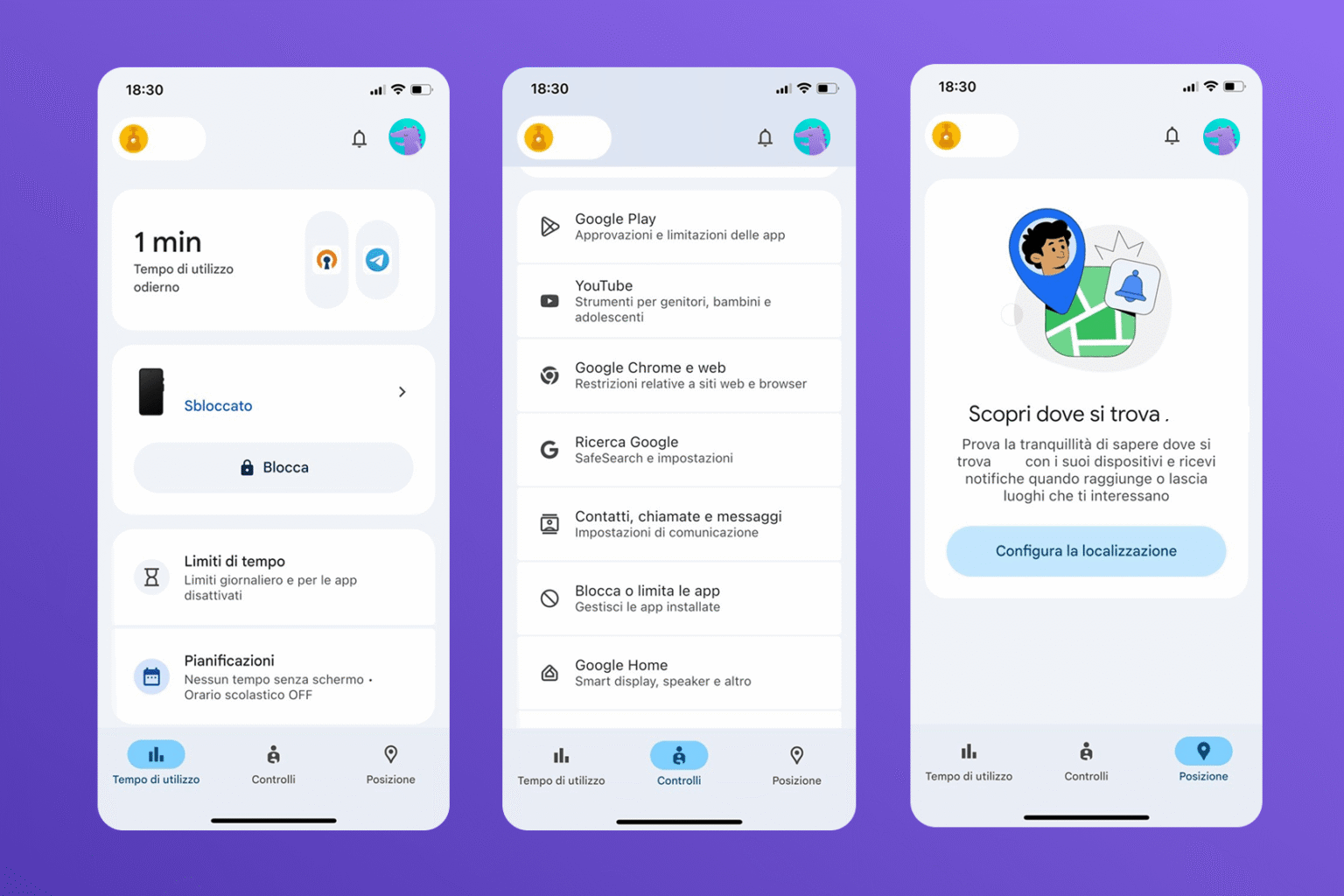
When installed on an iOS device, the Google Family Link app for parents allows guardians to manage Google account settings, monitor web browsing via Chrome, track location, and restrict content within Google-specific applications like YouTube. However, because Apple restricts third-party software from altering core iOS system parameters, Family Link cannot natively block the Apple App Store, remove pre-installed iOS applications, or manage screen time for native Apple apps like Safari or FaceTime.
Ecosystem Security Architecture Apple's iOS security framework isolates applications from one another and from the operating system core. Consequently, cross-platform parental control tools must rely on iOS configuration profiles or companion apps rather than deep system hooks, which creates distinct administrative boundaries that parents must manage manually or supplement with native tools.
Core Features and Limitations of Using Google Family Link on iOS
Evaluating the capabilities of Google Family Link when paired with the Apple App Store requires a precise breakdown of supported controls versus platform restrictions. While the service remains entirely free, its utility on iOS is supplementary rather than comprehensive.
The table below outlines the management capabilities of Google Family Link when operating on iOS devices compared to Android environments:
| Feature Category | Capability on iOS Devices | Capability on Android Devices |
|---|---|---|
| App Store Management | Cannot block or restrict Apple App Store downloads directly; requires iOS Screen Time. | Full control over Google Play Store downloads, purchases, and app approvals. |
| Screen Time Limits | Limited to Google app usage and web browsing inside managed browsers. | Full device-wide daily limits and mandatory device bedtimes. |
| Content Filtering | Filters Google Chrome and Google Search results; limited effect on Safari. | System-wide web filtering across browsers and applications. |
| Location Tracking | Real-time GPS tracking via the Google account and Family Link app. | Real-time GPS tracking integrated with system services. |
| App Permissions | Cannot modify camera, microphone, or storage permissions for iOS apps. | Full approval or denial of individual app permissions at install and runtime. |
Step-by-Step Guide to Setting Up Google Family Link on an iPhone or iPad
Implementing Google Family Link on a child's iOS device requires configuration on both the parent's device and the child's Apple hardware. Because the service relies heavily on Google accounts, setting up the infrastructure correctly ensures baseline visibility into web activity and location.
- Prepare the Google Accounts: Ensure the parent has an active Google account configured with Family Link set up as the parental account. Create a dedicated Google account for the child via the Family Link setup wizard if one does not already exist.
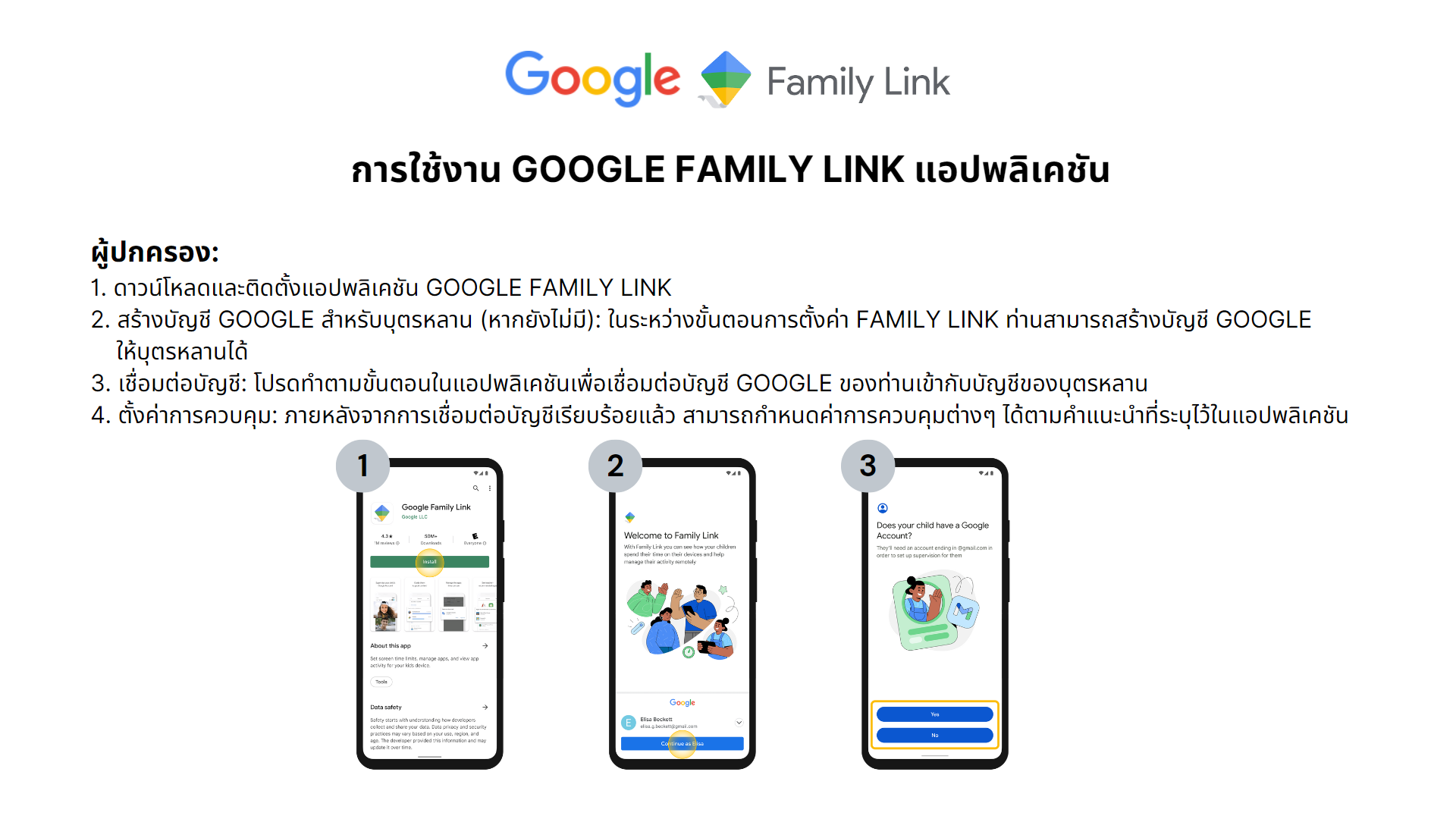
- Install Family Link on the Parent Device: Download and install the Google Family Link app from the Apple App Store or Google Play Store onto the parent's smartphone, then log in using the parent credentials.
- Configure the Child's Device: On the child's iPhone or iPad, download the Google Family Link app from the Apple App Store. Log in using the child's managed Google account.
- Install Companion Google Apps: Download essential managed applications such as Google Chrome and YouTube on the child's iOS device to ensure web filtering and content restrictions take effect within those specific platforms.
- Grant Required Permissions: Follow the on-screen prompts on the iOS device to allow location access, notification permissions, and profile configurations necessary for the Family Link app to report status back to the parent.
Enforcing Comprehensive Restrictions Using Native Apple Tools Alongside Family Link
Because Google Family Link cannot restrict the Apple App Store or manage native iOS features independently, parents must utilize Apple's built-in Screen Time feature in tandem with Family Link to achieve robust device management. Apple Screen Time is also free and provides the missing administrative layers required on iOS hardware.
To secure the Apple App Store and native device functions, configure Apple Screen Time directly on the child's device using a dedicated passcode known only to the parents:
- Locking App Store Purchases: Navigate to Settings, select Screen Time, tap Content & Privacy Restrictions, and set iTunes & App Store Purchases to "Don't Allow" for installing and deleting apps.
- Restricting Built-In Apps: Within Content & Privacy Restrictions, select Allowed Apps to disable access to Safari, FaceTime, Camera, or Siri if those features should be blocked.
- Setting Content Ratings: Adjust Allowed Store Content parameters to restrict movies, TV shows, and apps based on regional age ratings.
- Preventing Account Changes: Lock down Account Changes and Passcode Changes within the Screen Time menu to prevent the child from bypassing restrictions by altering iCloud settings.
Pros and Cons of Relying on Free Parental Control Tools
Utilizing free solutions like Google Family Link and Apple Screen Time presents distinct financial and operational advantages, alongside notable trade-offs in convenience and feature depth.
Advantages
- Zero Financial Cost: Both tools are completely free, eliminating subscription fees associated with third-party parental control suites.
- Ecosystem Integration: Native integration with Google accounts and iOS settings ensures high stability and prevents third-party app crashes or security vulnerabilities.
- Cross-Platform Flexibility: Ideal for households where parents use Android devices while children use Apple hardware, or vice versa.
Disadvantages
- Fragmented Management: Requires parents to check two separate dashboards (Google Family Link and Apple Screen Time) to fully manage a single device.
- No Centralized App Block: Google Family Link cannot prevent a child from downloading free apps from the Apple App Store without Apple Screen Time configuration.
- Ecosystem Loopholes: Tech-savvy children may find workarounds if the integration between Google services and Apple operating systems is not meticulously configured.
Troubleshooting Common Configuration Issues
When deploying Google Family Link alongside the Apple App Store, users frequently encounter specific synchronization and permission hurdles. Addressing these proactively prevents administrative frustration.
- Location Tracking Inaccuracies: If the child's iOS device fails to report location accurately, ensure that Location Services are set to "Always Allow" for Google services within the iOS Privacy settings, and check that background app refresh is enabled.
- Web Filtering Bypasses: If children manage to browse unrestricted content, verify that they are using Google Chrome exclusively and that Apple's Safari browser has been restricted or disabled via Apple Screen Time.
- Sign-in Loop Errors: If the child's Google account repeatedly prompts for re-authentication on iOS, remove the account from the iOS Settings app under Mail > Accounts, restart the device, and re-add the account through the Family Link application.
Frequently Asked Questions
Can Google Family Link block apps downloaded from the Apple App Store?
No, Google Family Link cannot block or approve downloads from the Apple App Store on iOS devices. Parents must use Apple's native Screen Time feature to restrict app installations and purchases on iPhones and iPads.
Is Google Family Link completely free to use?
Yes, Google Family Link is a 100% free service provided by Google with no hidden subscription tiers, in-app purchases, or premium paywalls for its core parental control and location-tracking features.
How do I restrict web browsing on an iPhone using Family Link?
Google Family Link can filter web content and block explicit websites inside the Google Chrome browser on iOS. However, to restrict Safari or block general web access across the entire device, you must configure content filters within Apple Screen Time.
Can I manage screen time limits for Apple native apps through Family Link?
No, Google Family Link cannot set daily time limits or bedtimes for native iOS applications or the iPad/iPhone operating system as a whole. Screen time limits managed via Family Link apply only to supported Google applications.
What is the best way to combine Google Family Link and Apple tools?
The most effective strategy is to use Apple Screen Time to lock down the Apple App Store, native device settings, and Safari, while using Google Family Link to manage Google account safety, YouTube content, Chrome browsing, and real-time GPS location tracking.
Image Gallery