Best Project Management Apps for iPad in 2026
Finding the best project management apps for iPad in 2026 requires looking beyond desktop-scaled interfaces to find tools optimized for touch navigation, Apple Pencil annotation, Split View multitasking, and robust offline synchronizat...
Finding the best project management apps for iPad in 2026 requires looking beyond desktop-scaled interfaces to find tools optimized for touch navigation, Apple Pencil annotation, Split View multitasking, and robust offline synchronization. Whether you are managing complex enterprise portfolios or agile software development sprints, the modern iPad ecosystem supports fully featured applications that rival traditional desktop software while offering mobile flexibility.
Contents
Evaluating Project Management Software for iPadOS Capabilities
The paradigm of mobile project management has shifted significantly. Early tablet applications served merely as passive viewing portals for desktop dashboards. Today, top-tier platforms leverage the full performance capacity of Apple silicon chips (such as the M-series processors found in recent iPad Pro and iPad Air models) to handle massive task hierarchies, real-time collaboration, and dense data visualizations locally.
When assessing an iPad-native application, performance metrics extend beyond basic app stability. A truly professional solution must integrate deeply with iPadOS features:
- Multitasking Integration: Seamless support for Slide Over and Split View allows project managers to reference specification documents while updating Kanban boards.
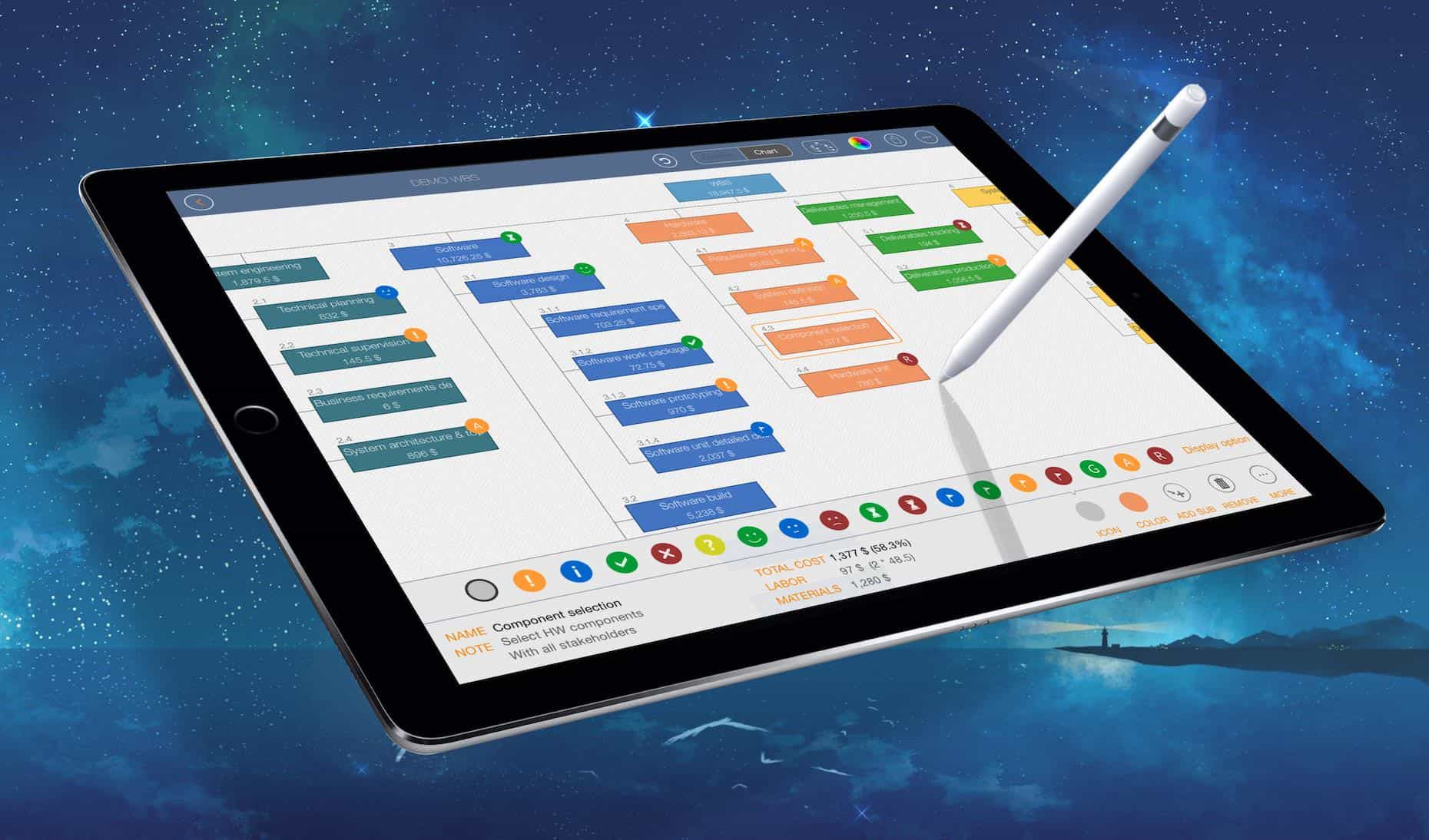
- Apple Pencil Support: Native handwritten note-taking, sketching wireframes, and annotating timeline charts directly within task cards enhance creative workflows.
- External Display Support: Stage Manager compatibility enables full-screen projection of Gantt charts and resource utilization graphs during client presentations or team standups.
- Offline-First Architecture: Local caching ensures uninterrupted work during transit, with background synchronization resolving conflicts efficiently upon reconnection.
Core Feature Matrix for Tablet-Optimized Workspaces
Comparing project management solutions on iPad requires analyzing how effectively user interfaces translate from mouse-driven architectures to touch and gesture controls. The following comparison highlights the leading options available on iPadOS, focusing on interface adaptability, offline reliability, and specialized features.
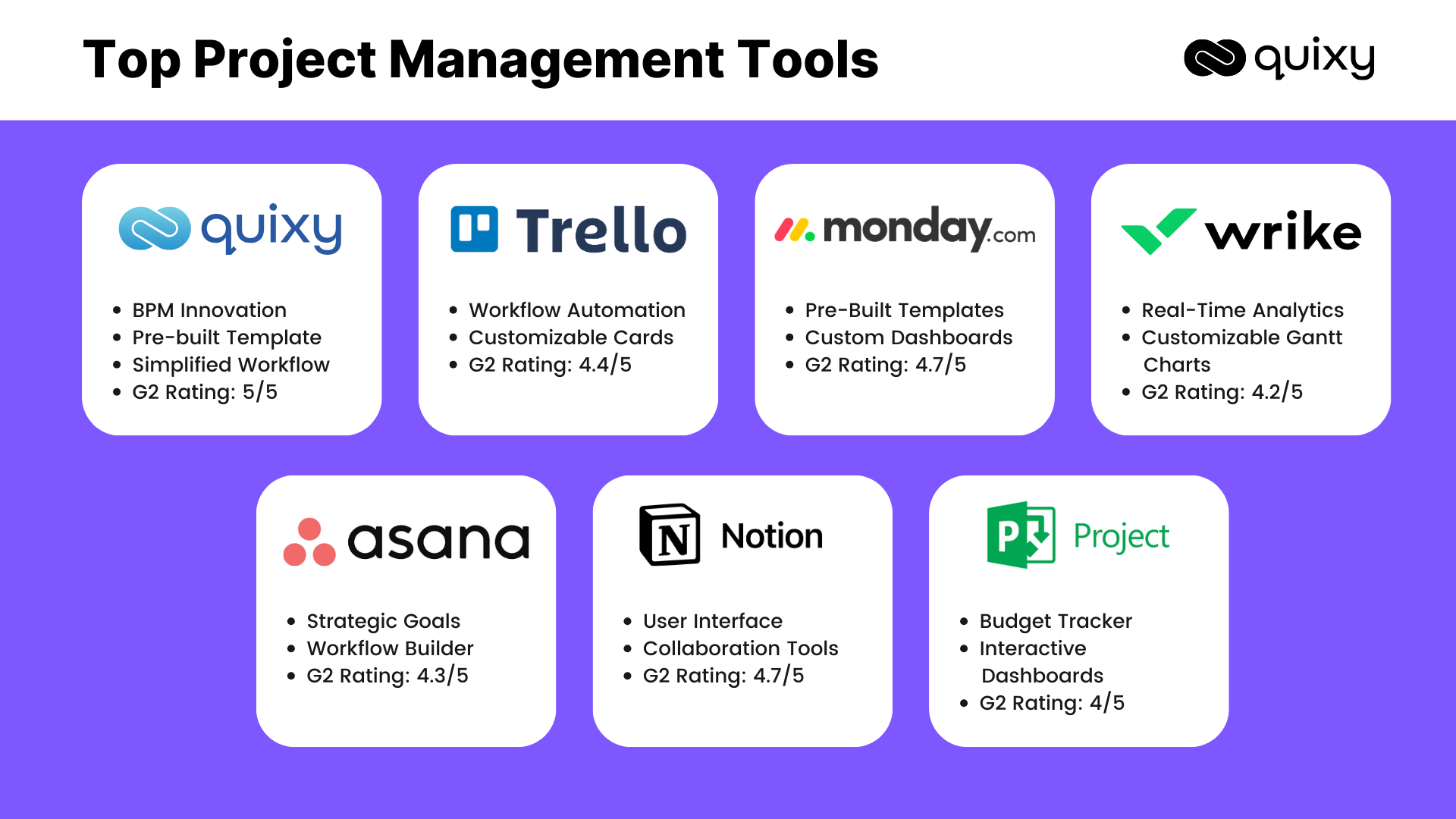
| Application | Primary Strengths | Apple Pencil Integration | Offline Capabilities | Best Suited For |
|---|---|---|---|---|
| Asana | Robust task dependencies, timeline views, cross-functional goal tracking. | Moderate (Annotation and attachment markup) | Partial (View cached tasks, limited offline editing) | Cross-functional enterprise teams and marketing agencies. |
| Monday.com | Highly customizable dashboards, visual workflow automation, flexible board views. | Basic (File attachments and standard markup) | Partial (View boards, restricted automation execution) | Operations teams and visual workflow builders. |
| ClickUp | Extreme feature density, docs, whiteboards, native time tracking. | Advanced (Dedicated native Whiteboard drawing tools) | Good (Offline mode for synced tasks and documents) | Power users and tech startups requiring all-in-one workspaces. |
| Trello | Intuitive Kanban methodology, fast card movement, minimal learning curve. | Basic (Standard iOS markup for card attachments) | Good (Full local board access and offline card creation) | Agile teams, personal productivity, and content planners. |
| OmniFocus | GTD (Getting Things Done) methodology, deep perspective customization, Apple ecosystem native. | Advanced (Quick capture, handwritten note processing) | Excellent (Full local database storage and synchronization) | Solopreneurs, executives, and GTD methodology purotists. |
Detailed Breakdown of Top iPad Project Management Apps
Asana: Enterprise Alignment on the Go
Asana remains a dominant force for enterprise-grade resource allocation. On the iPad, the application utilizes a structured sidebar navigation system that mimics its desktop counterpart while scaling touch targets appropriately.
The Timeline view on iPadOS allows project managers to drag and drop dependent tasks across dates using simple finger gestures or an Apple Pencil. While Asana's interface can feel dense on smaller iPad screens (such as the standard 10.9-inch iPad), it shines on the expansive canvas of the 12.9-inch or 13-inch iPad Pro. Collaboration features, including inline commenting, @mentions, and approval workflows, function without noticeable latency.
Monday.com: Visual Customization and Dashboards
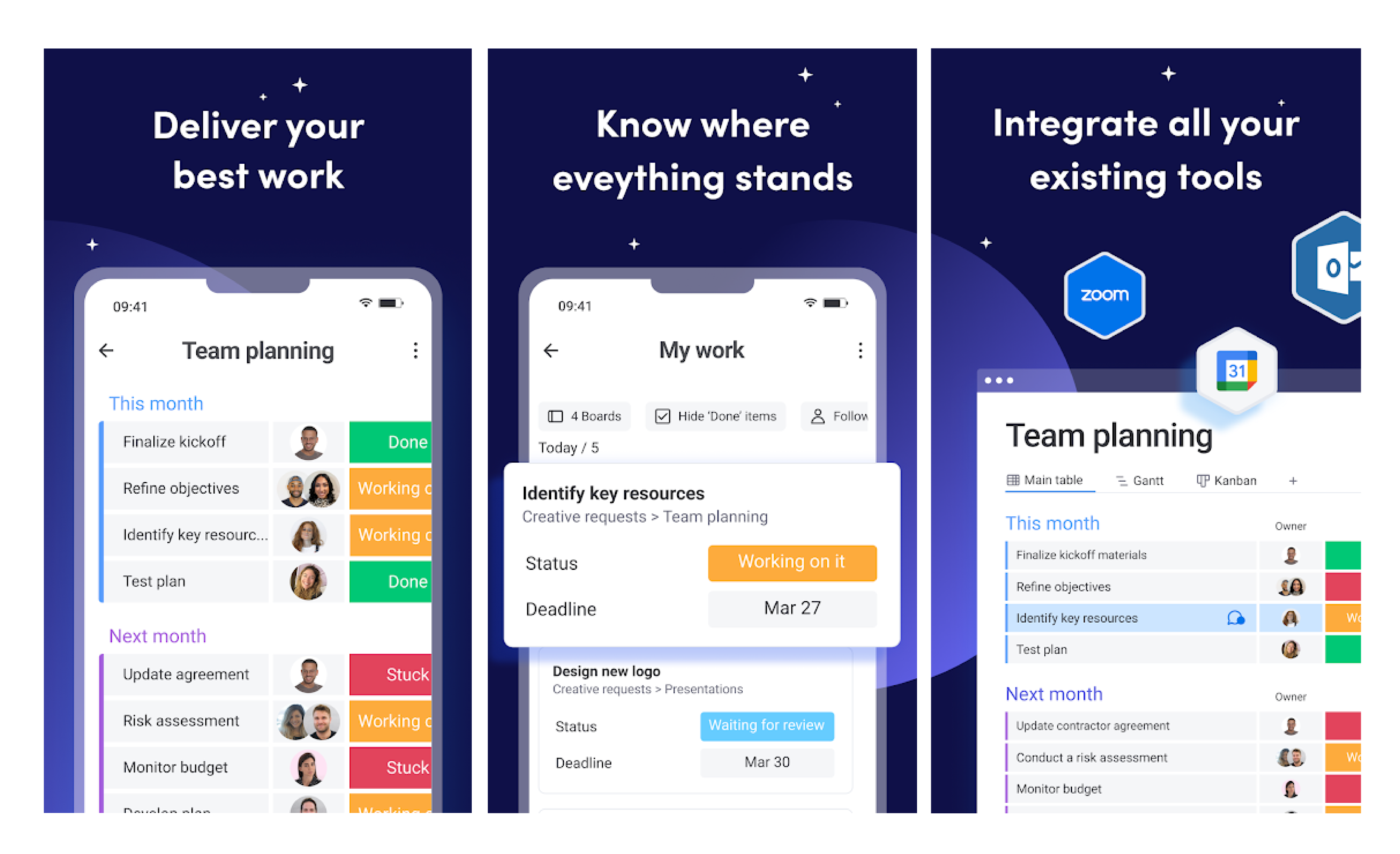
Monday.com excels in visual project tracking through its color-coded status columns, timeline widgets, and workload views. The iPad app adapts these complex grids into touch-friendly modules where expanding a task opens a comprehensive detail pane rather than navigating away from the main board.
A standout feature for iPad users is the dashboard widget system, which allows stakeholders to monitor budget burn rates, project statuses, and milestone completions at a glance during mobile meetings. Although automation building is best performed on desktop, executing existing automated workflows from an iPad is seamless.
ClickUp: The Power User's Ecosystem
ClickUp positions itself as one app to replace them all, packing document editing, whiteboarding, goal tracking, and traditional task management into a single platform. On iPadOS, ClickUp delivers an astonishingly complete feature set, though this depth comes with a steeper learning curve and higher RAM requirements.
The native Whiteboard feature transforms the iPad into an interactive brainstorming surface, allowing teams to sketch concepts, link them directly to tasks, and assign action items instantly using an Apple Pencil. Document collaboration matches desktop functionality, making it viable for remote writers and product managers drafting PRDs (Product Requirement Documents) on the move.
Trello: Simplicity and Speed
For teams relying on Kanban boards, Trello offers the most frictionless mobile experience. Dragging cards across lists, assigning labels, and attaching photos taken directly from the iPad's camera are executed with zero friction.
Trello's strength on iPad lies in its speed and low battery consumption. It strips away the enterprise bloat found in broader platforms, making it ideal for creative freelancers, content creators, and agile teams who prioritize straightforward task progression over complex multi-tier dependencies.
OmniFocus: The Gold Standard for Apple-Centric Productivity
Built exclusively for the Apple ecosystem, OmniFocus leverages advanced iPadOS technologies like Siri Shortcuts, widgets, and AppleScript integration. It is designed specifically for power users implementing David Allen's Getting Things Done (GTD) framework.
OmniFocus organizes projects through hierarchical folders, tags, estimated durations, and custom perspectives. Its local-first database architecture means it operates at lightning speed regardless of internet connectivity, synchronizing modifications reliably via end-to-end encrypted servers when a connection is restored.
Selecting the Right Tool for Your Workflow
Choosing the optimal project management application depends heavily on your team's methodology and your specific hardware configuration.
Strategic Selection Advice: Match the software to your operational framework rather than chasing feature counts. If your team operates on strict agile sprints with frequent dashboard reporting, platforms like Monday.com or Asana provide the necessary structure. If your workflow relies on deep, uninterrupted solo execution combined with strict personal task capture, dedicated ecosystem apps like OmniFocus deliver superior long-term efficiency.
Furthermore, consider your hardware setup. If you regularly use an external Magic Keyboard and trackpad with your iPad, cursor-optimized apps like ClickUp and Asana will feel indistinguishable from a MacBook environment. If you operate primarily in tablet mode with an Apple Pencil in hand, apps emphasizing touch gestures and native sketching tools (such as ClickUp's whiteboard integration) will yield better productivity returns.
Frequently Asked Questions
Can iPad project management apps completely replace a laptop or desktop?
For many project managers, task creators, and creative directors, modern iPad apps can handle day-to-day operations entirely. However, complex administrative setups, bulk user permission management, and advanced macro/automation configurations are still executed more efficiently on desktop operating systems.
Do these iPad apps require a constant internet connection?
Most cloud-based platforms like Asana, Monday.com, and ClickUp require connectivity for real-time collaboration but offer varying degrees of offline caching. Local-first applications like OmniFocus store the entire database on the iPad, allowing full functionality offline with background synchronization occurring later.
How does Apple Pencil integration improve mobile project management?
Apple Pencil support enables rapid task capture through Scribble (converting handwriting to typed text), precise timeline adjustments in Gantt charts, and direct annotation on design mockups or whiteboards attached to project cards, reducing reliance on physical notebooks.
Are mobile tablet apps included in standard desktop software subscriptions?
Yes. Major Software-as-a-Service (SaaS) providers generally include full access to their iOS and iPadOS companion applications as part of standard tier subscriptions, though certain enterprise security features or storage limits may apply based on your organizational plan.
What is the ideal iPad screen size for running heavy project management software?
While applications run on all supported iPad models, devices with larger displays—such as the 11-inch and 13-inch iPad Pro or iPad Air—provide the necessary screen real estate for Split View multitasking, complex Gantt charts, and detailed multi-column boards without feeling cramped.
Maximizing Your iPad Workspace
Deploying a project management workflow on iPadOS requires intentional workspace configuration. Pair your chosen software with system-level features like Quick Notes (invoked via Apple Pencil corner gestures) to capture stray action items instantly. Utilize native iPadOS widgets on your home screen to maintain visibility over imminent deadlines and daily priority lists without needing to launch individual applications. By combining the right software architecture with touch-optimized hardware habits, your tablet transforms from a secondary consumption device into a primary engine of professional productivity.
Image Gallery