Managing Your Xbox Wishlist: The Complete Digital Guide for 2026
The Xbox wishlist system allows players to curate, track, and purchase video games, downloadable content, and entertainment media across console, mobile, and web platforms like xbox.com. By synchronizing directly with your Microsoft ac...
The Xbox wishlist system allows players to curate, track, and purchase video games, downloadable content, and entertainment media across console, mobile, and web platforms like xbox.com. By synchronizing directly with your Microsoft account, the wishlist streamlines digital library management, automates price drop notifications, and integrates with the Microsoft Rewards program for optimal gaming value.
Contents
Understanding the Xbox Ecosystem and Digital Wishlists
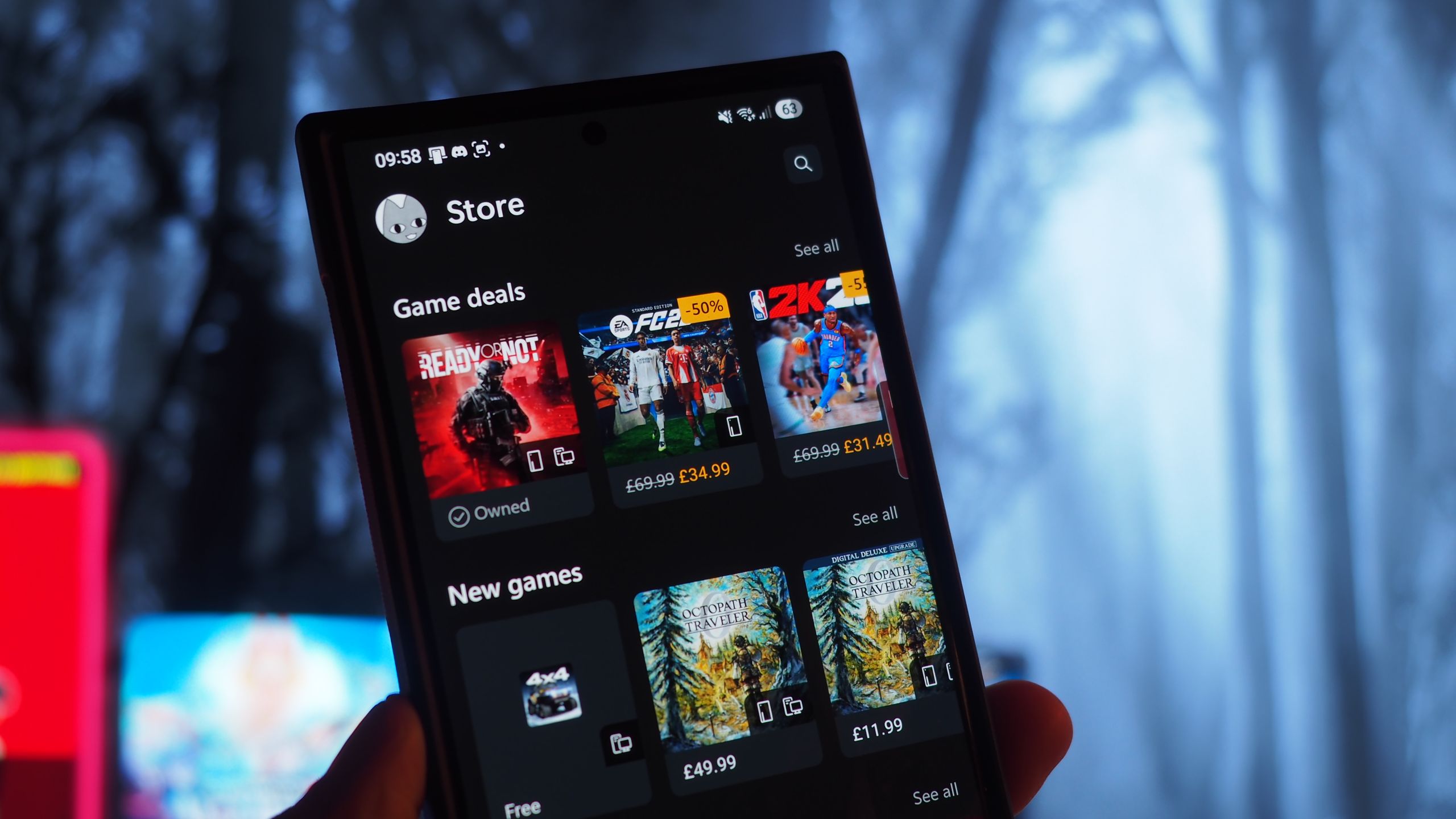
Digital game distribution has largely superseded physical media, making wishlist features critical tools for modern gamers. The Xbox digital storefront, accessible via console dashboard, mobile applications, and web browsers like xbox.com, relies on unified cloud architecture to keep your personal catalog updated across every device.
When you add an item to your wishlist on xbox.com, the database records the unique Content ID (Title ID) associated with that digital asset. This ensures that whether the item receives a standard publisher discount, joins the Xbox Game Pass library, or transitions to a Games with Gold offering, your account history accurately reflects its status.
Maintaining an organized wishlist serves several operational purposes for digital-first players:
- Price Tracking: Automated alerts notify you via email or dashboard notification when a wishlisted item goes on sale.
- Budget Planning: Grouping prospective purchases helps you evaluate upcoming releases against your entertainment budget for the year.
- Gift Coordination: Sharing your profile allows family and friends to view your preferences for gifting scenarios.
- Release Date Monitoring: Pre-order tracking ensures you secure pre-load privileges for major AAA launches the moment they become available.
Accessing and Navigating the Xbox Wishlist Interface
Navigating to your wishlist on xbox.com requires a straightforward process tied to your primary Microsoft account credentials. Because Microsoft unifies your Xbox profile with your Windows and Office security settings, logging into the official storefront grants immediate access to your saved items.
To locate and view your wishlist on a web browser, execute the following workflow:
- Navigate to the official xbox.com web portal using any modern web browser.
- Click the Sign In button located in the top-right corner of the webpage.
- Enter your Microsoft account email address, phone number, or Skype ID, followed by your password or passkey authentication method.
- Once authenticated, click on your user profile icon or avatar to open the account drop-down menu.
- Select My Wishlist from the available options to load your saved games and media items.
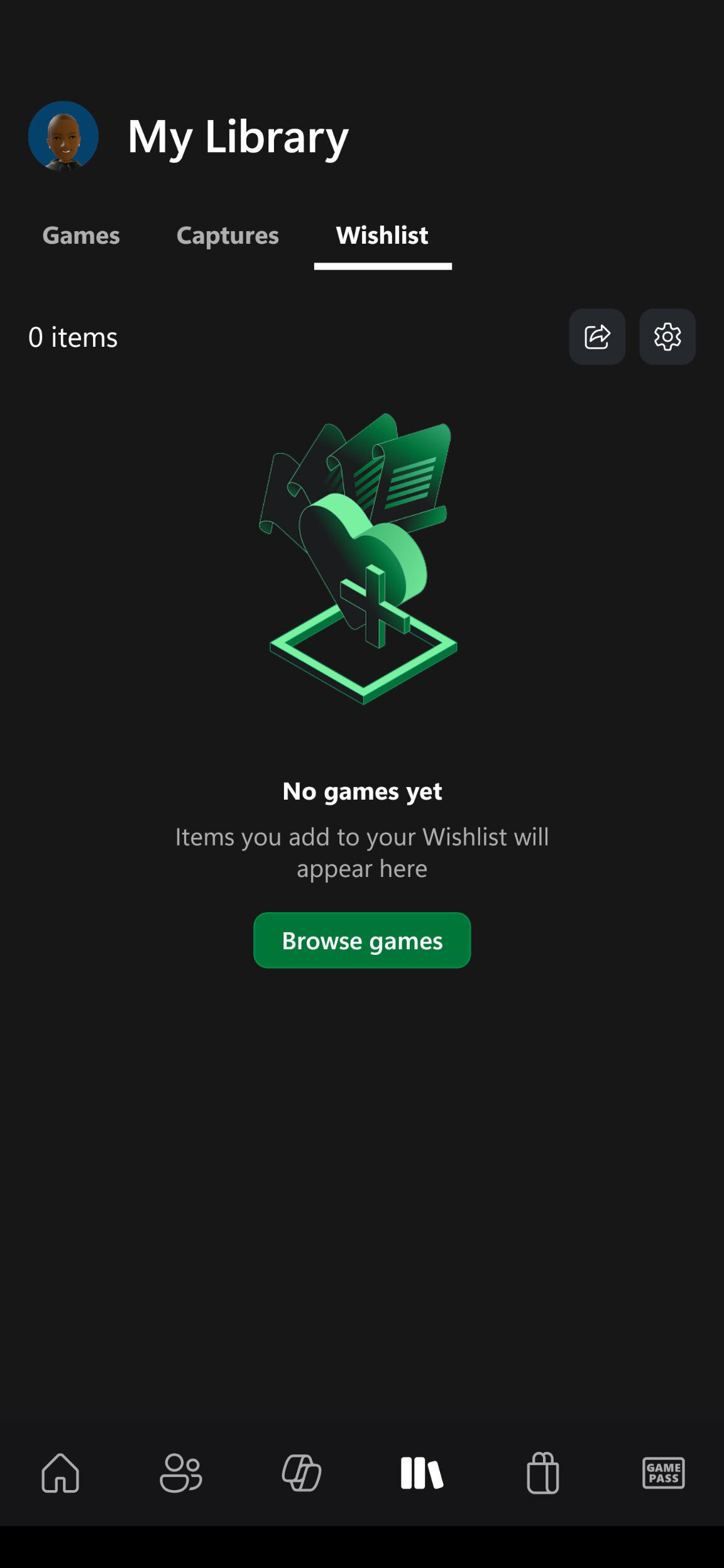
Within this dashboard, items are typically displayed with their current pricing, release status, and platform compatibility tags. You can sort these items by price, release date, or alphabetical order to manage large collections efficiently.
Adding, Removing, and Organizing Wishlist Items
Curating your wishlist effectively prevents clutter and ensures you only track items relevant to your current gaming interests. As the Xbox catalog expands with thousands of backwards-compatible titles, indie releases, and massive franchise expansions, keeping your list lean is essential.
Adding New Content
When browsing games on xbox.com, every game details page features a dedicated bookmark or heart icon labeled Add to Wishlist. Clicking this icon instantly appends the title to your cloud-synced database. You can perform this action while logged into the Microsoft Store app on Windows or directly from your Xbox Series X|S or Xbox One dashboard, as the backend infrastructure updates in real time.
Removing Unwanted Items
Over time, games may transition to subscription services like Xbox Game Pass Ultimate, or you may simply lose interest in a title. To remove an item:
- Navigate to your wishlist via xbox.com.
- Locate the specific game or add-on card.
- Click the remove or trash icon associated with that listing to purge it from your profile immediately.
Strategic Benefits: Price Drops and Notifications
One of the most valuable aspects of maintaining an active Xbox wishlist is the automated price-tracking mechanism. Digital storefronts feature weekly publisher sales, Spotlight sales, and massive seasonal events like the Xbox Ultimate Game Sale.
When an item on your wishlist is discounted, the system triggers alerts based on your notification preferences:
- Console Dashboard: A dedicated tile appears in your notifications or store tab.
- Mobile App: The Xbox mobile application sends push notifications directly to your smartphone if enabled.
- Email: Microsoft dispatches promotional summaries highlighting price reductions for items in your saved catalog.
Configuring these notification channels correctly ensures you never miss a historical low price on major titles. Navigate to your Microsoft account notification settings to toggle email alerts for promotional offers and wishlist updates.
Comparing Xbox Store Management Methods
Managing your digital library can be accomplished through multiple touchpoints. The table below compares the primary methods for interacting with your Xbox wishlist, highlighting their distinct advantages and technical constraints.
| Management Method | Primary Device | Real-Time Sync | Notification Support | Offline Functionality |
|---|---|---|---|---|
| Xbox.com Web Portal | PC / Mac / Mobile Browser | Instant (Cloud-Based) | Email & Web Alerts | Requires Active Internet |
| Xbox Console Dashboard | Xbox Series X | S / Xbox One | Instant (Cloud-Based) | Console Dashboard Alerts |
| Xbox Mobile App | iOS / Android Smartphones | Instant (Cloud-Based) | Push Notifications | Limited Cached Viewing |
| Windows Xbox App | Windows 10 / 11 PC | Instant (Cloud-Based) | Desktop & Email Alerts | Limited Cached Viewing |
Common Troubleshooting and Support Scenarios
Users occasionally encounter synchronization errors or missing items within their digital profiles. Understanding how to resolve these minor glitches ensures uninterrupted wishlist management.
Items Not Syncing Across Devices
If a game added via xbox.com does not appear on your physical console, the issue is typically related to authentication delays or regional store discrepancies.
- Verify that you are signed into the exact same Microsoft account on both your browser and your console.
- Perform a hard reset on your Xbox console by holding the power button for 10 seconds to clear the local store cache.
- Check that your regional store setting matches your physical location, as certain titles are region-locked and will not display on foreign storefronts.
Missing Purchase Options or Pricing Errors
Occasionally, pre-order items or newly announced bundles may lack a purchase button or display incorrect pricing data. This usually occurs when publishers update metadata ahead of an official launch. Wait a few hours for the store backend to normalize, or clear your browser cookies and cache if accessing via xbox.com.
Frequently Asked Questions
Can I share my Xbox wishlist with friends or family members?
While there is no direct public link generator for a wishlist on xbox.com, friends can view your public Xbox profile and associated game lists if your privacy settings allow it. You can adjust these parameters within your Xbox online safety and privacy settings on your profile dashboard.
Do items stay on my wishlist indefinitely?
Yes, items remain on your wishlist until you manually remove them, or until Microsoft or the publisher removes the title from the digital storefront entirely due to licensing expiration. If a game is delisted, it will typically show as unavailable or be automatically pruned from your active list.
Will putting a game on my wishlist notify me when it comes to Xbox Game Pass?
Microsoft does not always send a direct push notification specifically for Game Pass additions based solely on your wishlist, but the system frequently highlights when a wishlisted game becomes available through subscription services on your console dashboard and the mobile app.
Is there a maximum limit to how many items I can add to my wishlist?
Yes, Microsoft enforces a technical storage cap on individual wishlists to maintain database efficiency. While the exact numerical threshold can fluctuate with system updates, it typically accommodates dozens to over a hundred titles simultaneously. If you hit a cap error, simply prune older or completed items from your list.
Can I purchase items directly from my wishlist on xbox.com?
Yes, you can click the buy button next to any item within your wishlist on xbox.com to initiate a secure checkout transaction using your linked credit card, PayPal account, or Microsoft account balance.
Maintain an organized digital footprint across the Xbox ecosystem by routinely reviewing your wishlist on xbox.com, capitalizing on automated price drop alerts, and keeping your payment methods secure for upcoming digital releases.
Image Gallery