The Roku Channel: Complete Guide to Streaming, Supported Devices, and Features
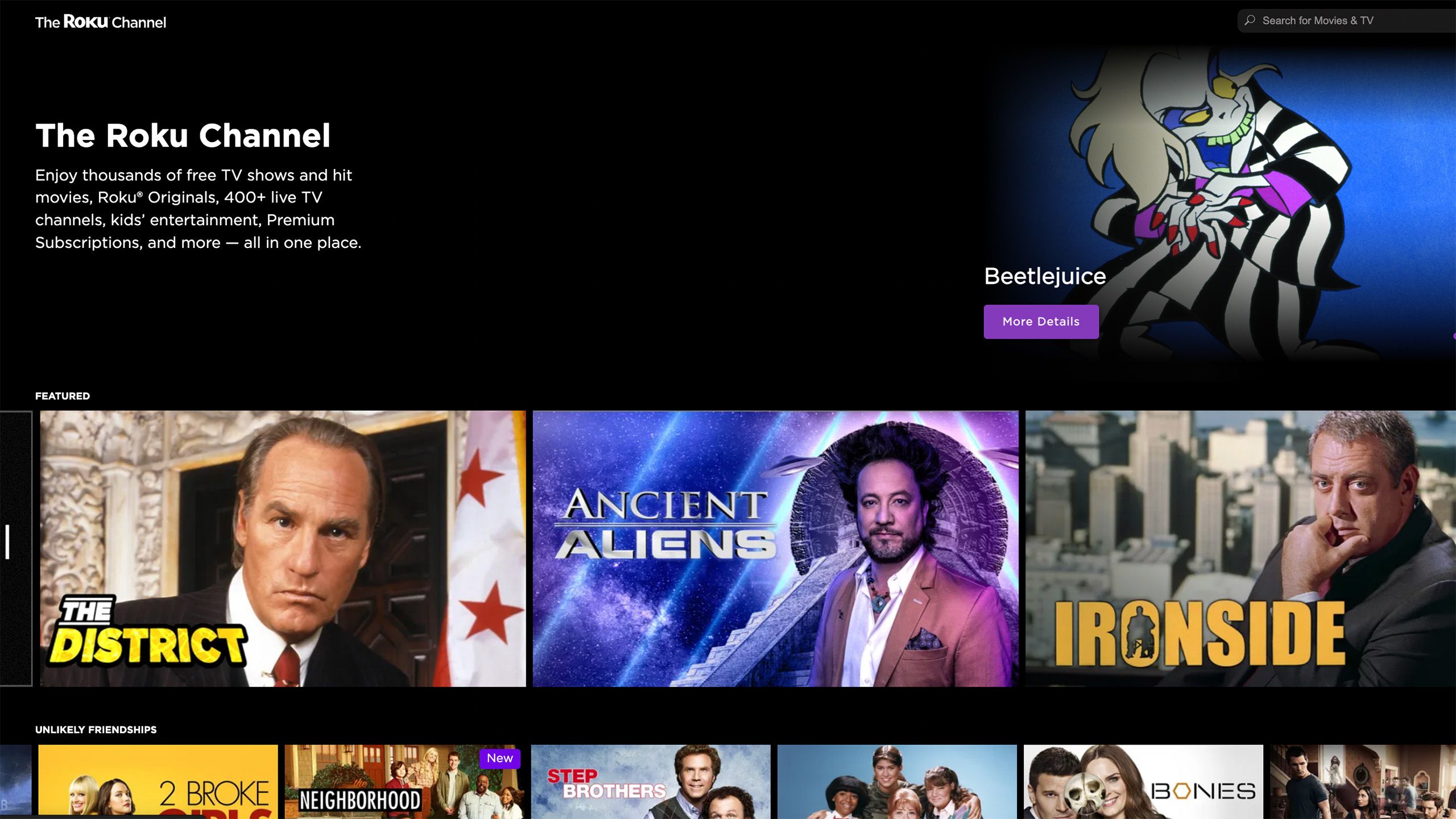
The Roku Channel is a free, ad-supported streaming television (FAST) service offered by Roku, Inc. It provides instant access to thousands of on-demand movies, television series, live linear channels, news programs, and exclusive Roku...
The Roku Channel is a free, ad-supported streaming television (FAST) service offered by Roku, Inc. It provides instant access to thousands of on-demand movies, television series, live linear channels, news programs, and exclusive Roku Originals. Available across Roku hardware, web browsers, mobile devices, and select third-party smart platforms, it requires no paid subscription for its core content library.
Contents
What Is The Roku Channel and How Does It Work?
Launched initially as a dedicated app for Roku streaming players and Roku TVs, The Roku Channel has grown into a major multi-platform streaming ecosystem. It operates primarily on an ad-supported video on-demand (AVOD) and free ad-supported streaming TV (FAST) business model. Viewers watch video content interrupted by periodic, brief commercial breaks, eliminating the need for monthly membership fees or credit card sign-ups to access the free catalog.
In addition to free, ad-supported programming, the platform serves as an aggregator for premium subscription services. Users can subscribe to individual third-party paid networks—such as STARZ, Paramount+, MGM+, and AMC+—directly within the channel's unified interface. This centralized approach enables viewers to consolidate billing, search across multiple providers in one menu, and manage recurring subscriptions through a single Roku account.
The service's content library changes continuously due to licensing agreements with major media studios, including Paramount, Sony Pictures, Warner Bros. Discovery, and Lionsgate. While licensed titles rotate periodically, the service maintains permanent core programming through its proprietary line of content, branded as Roku Originals.
Supported Devices and Compatibility
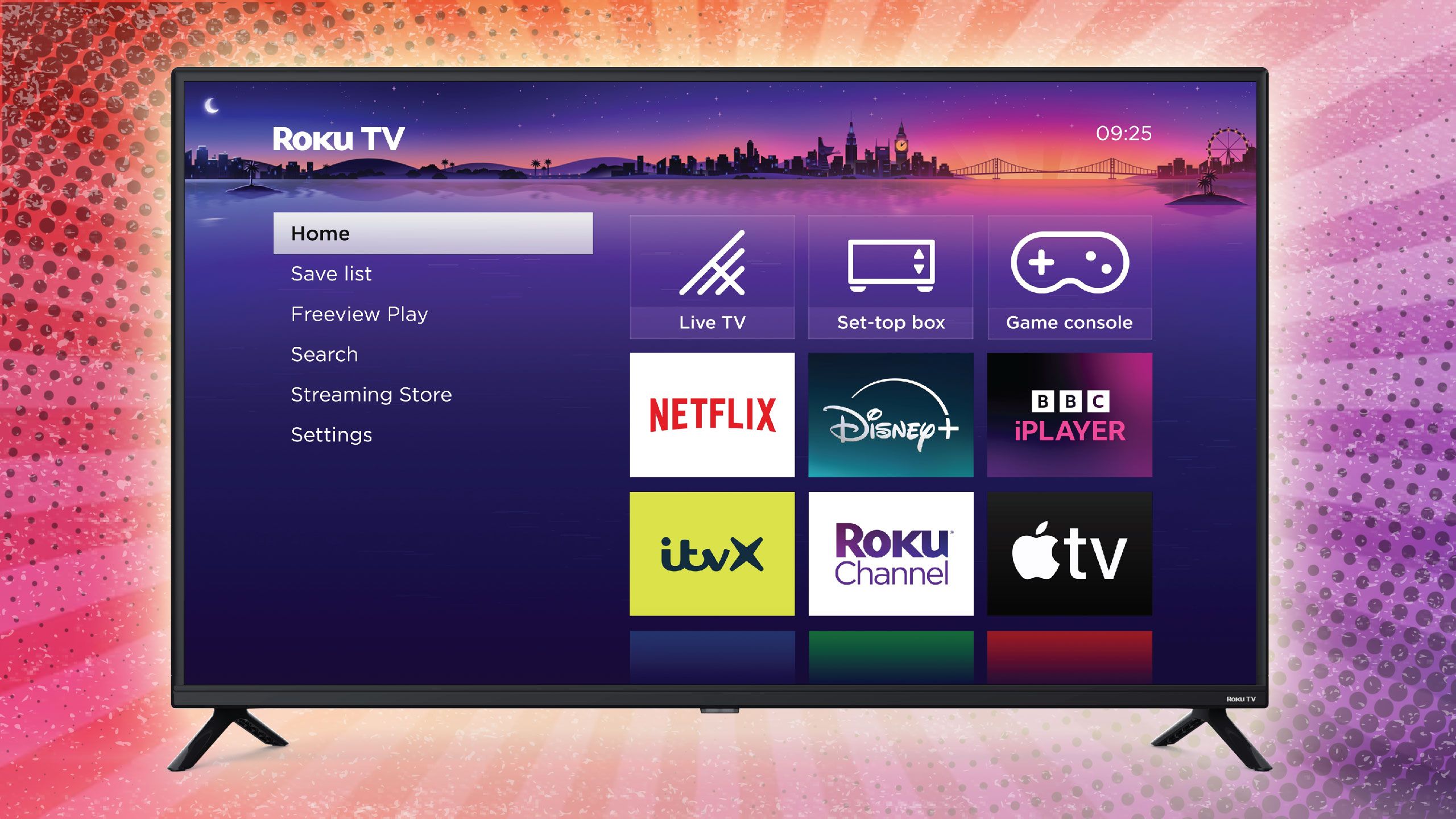
Although named after Roku’s proprietary hardware line, access to The Roku Channel is not restricted to Roku devices. Roku has extended the application to major mobile platforms, web browsers, and rival television platforms to maximize user reach.
1. Roku Hardware Ecosystem
- Roku Streaming Players: All modern Roku Express, Streaming Stick, Ultra, and Streambar devices.
- Roku TVs: Smart televisions manufactured with integrated Roku OS (such as models built by TCL, Hisense, Sharp, and Roku Select/Plus Series).
2. Web Browsers
- Desktop and Laptop Access: Viewers can stream directly without installing software by navigating to therokuchannel.com on Google Chrome, Mozilla Firefox, Microsoft Edge, or Apple Safari.
3. Mobile Devices
- iOS and iPadOS: Integrated within the official Roku app available on the Apple App Store.
- Android: Integrated within the official Roku app on the Google Play Store.
4. Third-Party Smart TVs and Streaming Media Players
- Samsung Smart TVs: Select models running Tizen OS (generally 2018 and newer).
- Amazon Fire TV: Streaming sticks, cubes, and Fire TV Edition smart televisions via the Amazon Appstore.
- Google TV / Android TV: Devices running official Android TV platform software.
Key Content Categories and Features
The platform categorizes its programming to help users discover free and premium content across several distinct hubs.
- THE ROKU CHANNEL
- Free On-Demand
- Live Linear FAST Channels
- Roku Originals
- Premium Add-ons
Free Movies and On-Demand TV Series
The on-demand catalog includes thousands of Hollywood feature films, classic television sitcoms, dramas, reality shows, and documentaries. Titles are organized by genres (Action, Comedy, Horror, Romance), specialized themes (e.g., "Family Night," "Award Winners"), and popularity metrics.
Live TV Channel Guide
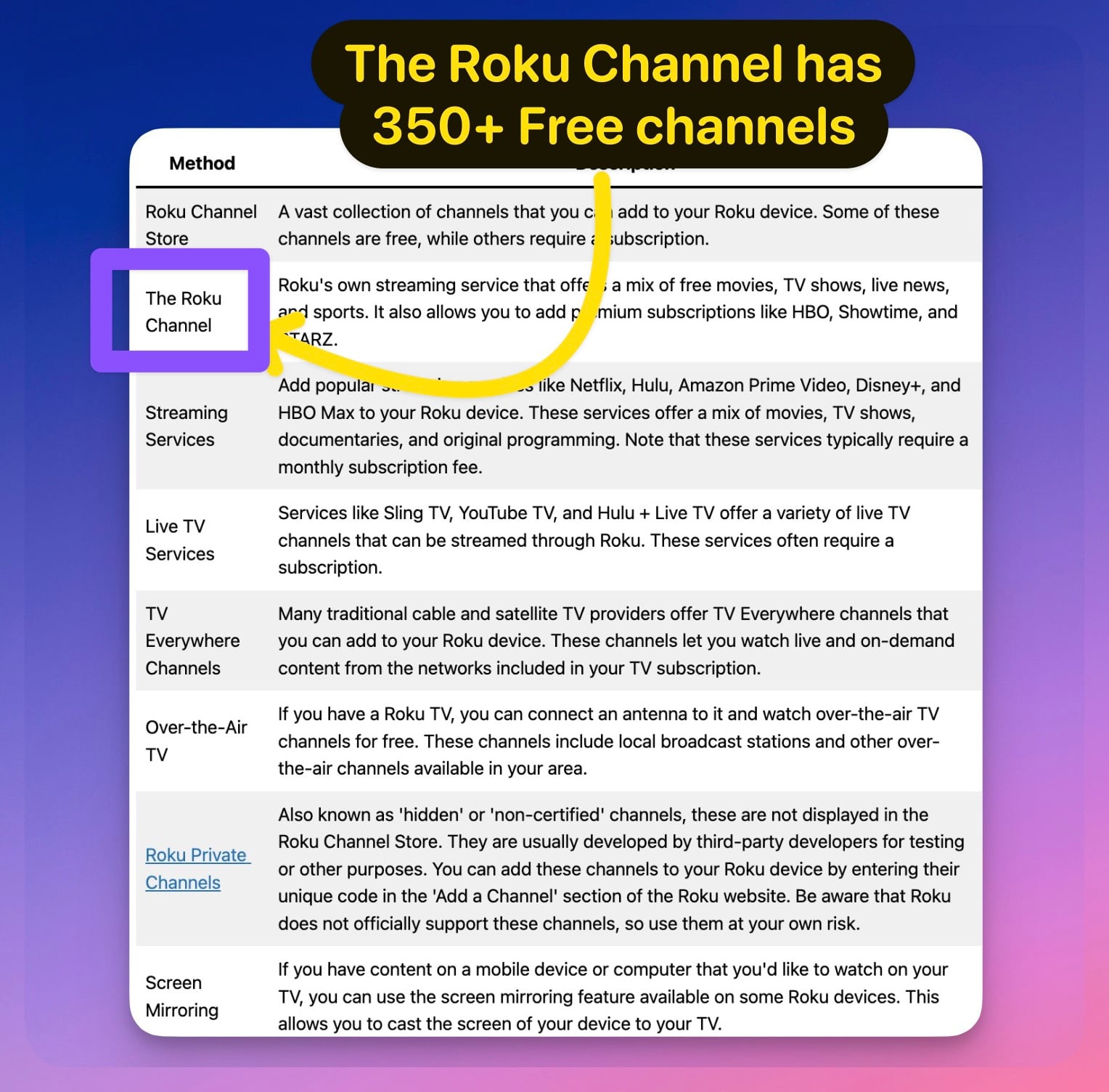
The Roku Channel includes an integrated Electronic Program Guide (EPG) that provides grid-style access to hundreds of linear FAST channels. These channels run 24/7 scheduled programming covering:
- Live News: Local and national news coverage from ABC News Live, NBC News NOW, LiveNOW from FOX, and Reuters.
- Sports: Highlights, studio analysis, and live niche competitions from Stadium, PGA TOUR, and FanDuel TV.
- Genre and IP Channels: Single-series channels running non-stop marathons (e.g., dedicated channels for crime dramas, classic games, or reality television).
Roku Originals
Following Roku’s acquisition of the Quibi content library and investment in exclusive productions, Roku Originals represents the service’s exclusive lineup. This includes original series, documentaries, unscripted reality programs, and feature films (such as WEIRD: The Al Yankovic Story and The Great American Baking Show).
Kids & Family Hub
A dedicated section within the application isolates children's entertainment, featuring animated series, educational programming, and family-friendly movies. Parents can enforce age-appropriate viewing restrictions via Roku account setting controls.
Integrated Premium Subscriptions
Viewers can purchase paid channel add-ons without opening separate third-party apps. Premium subscriptions share the same user interface, playback controls, and universal search function, simplifying content discovery across both free and paid channels.
How to Set Up and Access The Roku Channel
Accessing the platform varies depending on the device hardware you choose.
- Select Target Device
- Roku Hardware: Pre-installed
- Non-Roku Hardware: Download Roku App / Visit Website
- Create / Sign into Account
- Start Free Streaming
Step 1: Account Creation
While basic free web streaming sometimes allows guest access, creating a free Roku account is recommended across all platforms. A Roku account saves your viewing history, syncs your "Save List" (watchlist) across devices, and stores payment methods securely if you choose to purchase Premium Subscriptions.
Step 2: Device Installation
- On a Roku Device or Roku TV: The channel is usually pre-installed on the Home Screen. If missing, navigate to Streaming Store > Search, type "The Roku Channel," and select Add Channel.
- On Amazon Fire TV / Android TV: Open the app store on your television device, search for "The Roku Channel," download the official app, and launch it.
- On Mobile (iOS/Android): Download the general "Roku" application. Open the app and tap the dedicated "The Roku Channel" tab at the bottom navigation bar.
- On Web Browsers: Visit
therokuchannel.comdirectly and click Sign In at the top right corner.
Step 3: Navigation and Settings
- Using the Live TV Guide: Press the Left directional arrow on your remote while watching a live linear program, or select Live TV from the side menu to view the full EPG schedule grid.
- Adding Titles to Watchlist: Select any on-demand title detail page and choose + Save to store the title in your personal row on the home screen.
Service Comparison: The Roku Channel vs. Major FAST Platforms
To evaluate how The Roku Channel fits into a cord-cutter's streaming stack, it helps to compare its core feature set against competing free ad-supported television platforms.
| Feature / Metric | The Roku Channel | Pluto TV | Tubi | YouTube (Free Movies) |
|---|---|---|---|---|
| Primary Business Model | AVOD / FAST + Premium Subscriptions | AVOD / FAST | AVOD | AVOD |
| Account Required? | Optional for web; Recommended for apps | No | No (Optional) | Yes (Google Account) |
| Live Linear Grid (EPG) | Yes (300+ Channels) | Yes (250+ Channels) | Yes (300+ Channels) | Limited / Varies |
| Exclusive Content | Yes (Roku Originals) | Limited (Paramount library) | Yes (Tubi Originals) | No |
| Premium Subscriptions | Yes (STARZ, Paramount+, etc.) | No | No | Yes (Primetime Channels) |
| Max Resolution | 1080p Full HD / 4K (Select titles) | 1080p Full HD | 1080p Full HD | 1080p Full HD / 4K |
| Third-Party TV Apps | Fire TV, Samsung, Android TV | Broad multi-platform | Broad multi-platform | Broad multi-platform |
Technical Performance and Troubleshooting
While The Roku Channel delivers stable playback on standard broadband connections, network, device, or account issues can occasionally cause interruptions.
Minimum Bandwidth Requirements
- Standard Definition (SD): Minimum 3.0 Mbps download speed.
- High Definition (HD 720p/1080p): Minimum 5.0 Mbps download speed.
- 4K Ultra HD: Minimum 25.0 Mbps download speed (applies to select 4K Roku Originals and premium network add-ons).
Resolving Video Buffering and Freezing
- Check System Network Connection: On a Roku device, navigate to Settings > Network > Check Connection to verify signal strength and download bandwidth.
- Restart the Streaming Device: Power-cycling clears temporary cache files. On Roku OS, go to Settings > System > Power (if applicable) > System Restart.
- Clear App Cache (Non-Roku Devices): On Android TV or Fire TV, navigate to device settings, select Applications, locate The Roku Channel, and choose Clear Cache.
Addressing Audio-Video Sync Issues
If dialogue does not match actor lip movements:
- Access the streaming options menu during video playback by pressing the Star button (*) on your Roku remote.
- Verify that Volume Modes (such as "Leveling" or "Night Mode") are disabled, as legacy audio post-processing can sometimes introduce latency on external soundbars.
- Ensure your TV's digital audio output settings (PCM, Dolby Digital, or Auto) align with your audio receiver or soundbar specifications.
Managing Premium Subscriptions and Billing
Subscriptions added inside The Roku Channel do not synchronize automatically with standalone third-party app accounts. For example, subscribing to STARZ inside The Roku Channel allows access only through the Roku Channel interface, not through the standalone STARZ mobile application.
To manage or cancel paid channels:
- Log into your account at my.roku.com.
- Select Manage Your Subscriptions.
- Locate the channel and select Turn off auto-renew before the next billing cycle date.
Practical Recommendation for Cord-Cutters
For users looking to minimize monthly entertainment expenses, platform adoption depends on device setup and viewing habits:
- If you own a Roku Streaming Stick or Roku TV: Use The Roku Channel as your primary launcher for free content. The seamless hardware integration, default channel placement, and integrated electronic program guide make it the most convenient FAST option on the platform.
- If you use Fire TV, Google TV, or Web Browsers: Treat The Roku Channel as a supplementary platform alongside Tubi and Pluto TV. Install the standalone app primarily to access exclusive Roku Originals and free studio movies that may not be licensing on rival FAST platforms simultaneously.
- If you prefer centralized billing: Consider purchasing premium add-on channels directly within the service to manage multiple streaming subscriptions under a single Roku account login.
Frequently Asked Questions
Do I need a Roku hardware device to watch The Roku Channel?
No. While the service was originally exclusive to Roku hardware, it is now accessible via web browsers at therokuchannel.com, iOS and Android smartphones via the official Roku mobile app, Amazon Fire TV devices, Google TV/Android TV hardware, and select Samsung Smart TVs.
Is core content on The Roku Channel completely free?
Yes. All on-demand movies, television shows, news programs, and live linear channels in the main catalog are free to watch. The platform funds this content through short commercial advertisements played during video stream playback.
Can I remove ads from free movies on The Roku Channel?
No. There is no paid tier or ad-free upgrade option for the standard free catalog or Roku Originals. Ads are permanently integrated into the service model. However, paid Premium Subscriptions (such as STARZ or Paramount+) follow their respective network ad rules.
Why does a movie on my watchlist suddenly disappear?
Content licensing agreements between Roku and film distributors are established for fixed time periods. When a licensing window expires, the title is removed from the catalog. Titles frequently rotate in and out of the service on the first day of each month.
How do I restrict adult content for children?
You can establish a Personal Identification Number (PIN) through your main Roku account settings at my.roku.com. Under the PIN Preference menu, require a PIN for making purchases or filtering content ratings across the Kids & Family section.
Image Gallery