How to Recover a Rhino File: A Comprehensive Guide to Data Restoration
To recover a Rhino file, your first step should be to check the Autosave folder located in your Rhino Options under the "Files" tab. If the file was saved previously, look for a companion file with the .3dm.bak extension in the origina...
To recover a Rhino file, your first step should be to check the Autosave folder located in your Rhino Options under the "Files" tab. If the file was saved previously, look for a companion file with the .3dm.bak extension in the original project folder and rename it to .3dm. For crashed sessions, Rhino typically prompts a recovery window upon restarting the application.
Contents
Losing hours of intricate 3D modeling work due to a software crash, power outage, or accidental deletion can be devastating for architects and designers. Rhino (Rhinoceros 3D) includes several built-in redundancies designed to prevent permanent data loss, but accessing these files requires knowing exactly where the software hides its temporary data. As of 2026, while the software has become more stable, the fundamental methods of file recovery remain centered on local cache management, backup file renaming, and command-line rescue tools.
Understanding Rhino’s File Redundancy System
Before attempting recovery, it is essential to understand the three distinct types of files Rhino creates to protect your work. Each serves a different purpose and is triggered by different user actions.
1. The Standard .3dm File
This is your working file. It contains all geometry, layers, materials, and plugin data. When this file becomes "corrupted," it usually means the file header is damaged or the write process was interrupted (common when saving to a network drive or cloud service that is syncing simultaneously).
2. The Backup File (.3dm.bak)
Every time you manually save a file that has been saved at least once before, Rhino creates a backup. It takes the previous version of your file and changes the extension to .3dm.bak. This ensures that if your current save fails, you still have the version from the last time you hit "Save."
3. The Autosave File (.3dm)
Rhino automatically saves a temporary version of your work at specific intervals (default is every 20 minutes). These files are typically stored in a hidden system folder. Crucially, if Rhino is closed normally, the autosave file is automatically deleted. It only persists if the software crashes or the process is terminated unexpectedly.
Method 1: Recovering from the Autosave Folder
The most common way to recover unsaved work after a crash is through the Autosave function. Because these files are stored in a temporary directory, they do not appear in your "Recent Files" list.
Locating the Autosave Path on Windows
On Windows systems, the default path is often buried within the AppData folder. To find your specific path:
- Open a new Rhino session.
- Go to Tools > Options.
- Select the Files tab on the left sidebar.
- Look for the Autosave section. The file path will be listed there.
- Copy this path into your Windows File Explorer.
Common default path: C:\Users\[YourName]\AppData\Local\McNeel\Rhinoceros\8.0\AutoSave (The version number may vary).
Locating the Autosave Path on macOS
For Mac users, Rhino utilizes the system’s standard autosave behaviors, but you can find specific Rhino temp files here:
- Open Finder.
- Hold the Option key and click Go > Library in the top menu bar.
- Navigate to
Application Support > McNeel > Rhinoceros > [Version] > Autosave.
Pro Tip: If you find a file in this folder, copy it to your Desktop before opening it. Opening it directly from the Autosave folder can sometimes lead to the file being overwritten by the new session’s autosave logic.
Method 2: Renaming the Backup (.bak) File
If your main .3dm file is corrupted or you made a mistake and saved over it, the .3dm.bak file is your best recovery option. This file represents the state of your project the second to last time you saved.
- Navigate to the folder where your original project was stored.
- Look for a file named
YourFileName.3dm.bak. If you do not see the.bakextension, go to your folder view settings and enable "File name extensions." - Right-click the file and select Rename.
- Delete the
.bakpart of the extension so the file ends strictly in.3dm. - Windows will warn you that changing the extension might make the file unstable. Click Yes.
- Open the file in Rhino.
Method 3: Using the "Rescue3dmFile" Command
Sometimes a Rhino file will refuse to open because a specific object or a block definition within the file is corrupted. In these instances, the standard "Open" command will fail. Rhino provides a specialized command for these "unopenable" files.
- Open a fresh, empty Rhino session.
- Type
Rescue3dmFilein the command line and press Enter. - A file browser will appear. Select the corrupted
.3dmfile. - Rhino will attempt to read the file bit-by-bit, skipping over damaged data sectors.
- If successful, Rhino will recover the geometry and layers into the current session.
This method is particularly effective when a file crash is caused by a third-party plugin’s data or a specific complex mesh that exceeded memory limits during the save process.
Method 4: Windows File History and macOS Time Machine
If the internal Rhino recovery methods fail, you must turn to operating system-level backups. Both Windows 10/11 and macOS 14/15/16 have built-in versioning systems that are often active by default.
Windows File History
If you have "File History" enabled (found in Settings > Update & Security > Backup):
- Right-click the folder where your Rhino file was located.
- Select Restore previous versions.
- A list of dates and times will appear. Select a version from before the file was lost or corrupted and click Restore.
macOS Time Machine
- Open the folder where the file resided.
- Click the Time Machine icon in the Menu Bar and select "Enter Time Machine."
- Use the timeline on the right to scroll back to a point when the file was healthy.
- Select the file and click Restore.
Comparison of Recovery Methods
The following table summarizes which method to use based on the specific scenario of data loss.
| Scenario | Primary Recovery Method | Success Rate | Data Loss Risk |
|---|---|---|---|
| Software Crash | Autosave Folder | High | Minimal (back to last interval) |
| Corrupted File Header | Rescue3dmFile Command |
Moderate | High (may lose specific objects) |
| Accidental Overwrite | Rename .3dm.bak |
Very High | Loss of work since last save |
| Accidental Deletion | Recycle Bin / Time Machine | High | None (if backup exists) |
| Drive Failure | Data Recovery Software | Low | Significant |
| Cloud Sync Conflict | Cloud Version History | High | Minimal |
Preventing Future Data Loss in Rhino
The best recovery strategy is a robust prevention setup. In 2026, with high-resolution models and complex Grasshopper scripts, the default settings are often insufficient for professional workflows.
Optimize Autosave Settings
Don't rely on the 20-minute default. Go to Options > Files and reduce the "Autosave every X minutes" to 5 or 10 minutes. Additionally, ensure that "Save render meshes" is unchecked in your autosave settings if you are working with large files; this makes the autosave process much faster and less likely to cause the "hanging" sensation during work.
Avoid Saving Directly to Cloud Folders
While OneDrive, Dropbox, and Google Drive are convenient, saving a large .3dm file directly into a syncing folder can cause "File Access Denied" errors. Rhino tries to write the file while the cloud service tries to upload it, leading to corruption. It is safer to work on a local folder and use a script or dedicated backup software to copy the files to the cloud upon closing Rhino.
Use the "Incremental Save" Feature
Instead of hitting Ctrl+S, use the IncrementalSave command (or assign it to a button). This saves your file and adds a numbered suffix (e.g., Project_001.3dm, Project_002.3dm). This creates a chronological history of your work, making it impossible to lose more than a few minutes of progress.
Troubleshooting Common Recovery Issues
"The file is currently in use"
If you receive this error while trying to recover a file, it usually means a "lock file" (.rhl) exists in the folder. Rhino creates these to prevent two people from opening the same file on a network. If Rhino has crashed, the .rhl file might remain. Delete the .rhl file manually to gain access to the .3dm file.
"Unexpected end of file"
This is a classic sign of an interrupted save. If Rescue3dmFile cannot fix this, your only options are the .bak file or a system-level backup (Time Machine/File History).
Missing Textures or Linked Blocks
When recovering an autosaved file, Rhino may lose the paths to external textures or linked blocks. Use the ReplaceBlock command or the Bitmaps panel to re-path these assets once the geometry is recovered.
FAQs
Where does Rhino save recovery files if it doesn't crash?
Rhino deletes the autosave file upon a successful, clean exit. If you closed the program voluntarily and clicked "No" to saving changes, the autosave file is permanently purged from the temp folder to save disk space. In this specific case, you must look for an OS-level backup like Windows File History.
Can I recover a Rhino file that was never saved even once?
Yes, but only if the Autosave triggered at least once. If you started a "New" file and worked for 30 minutes without ever naming the file or hitting save, Rhino creates a file named Autosave.3dm (or a similar generic name) in the Autosave directory. Check that folder immediately before starting any new sessions.
Why is my .bak file missing?
The .bak file is only created if the "Create backup files when saving" option is enabled in Options > Files. If this was disabled to save disk space, Rhino will simply overwrite the original file every time you save, leaving you with no safety net.
Can third-party data recovery software help?
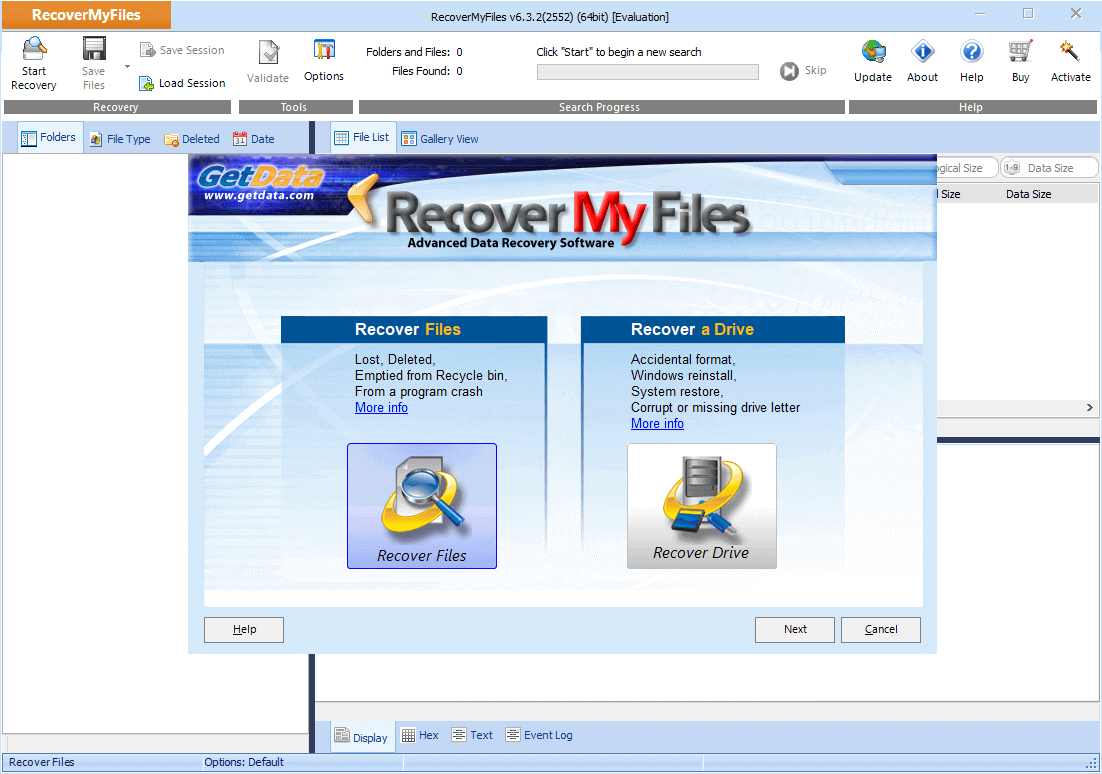
If the file was deleted and the Recycle Bin was emptied, software like Disk Drill or PhotoRec can sometimes find the raw data on the hard drive. However, because .3dm files are complex and often large, they are prone to being "fragmented," which makes automated recovery through these tools difficult and often results in a file that still shows as corrupted.
Does Rhino 8 or 9 have a different recovery system?
The core architecture remains similar, but newer versions have improved the "Recovery Dashboard" that appears after a crash. This dashboard now provides a preview of the autosaved file's timestamp and size, allowing you to choose between the autosave or the last manual save more easily.
Final Recommendation
If you are currently facing a lost file, stop writing new data to your hard drive immediately. Every minute you use the computer increases the risk that the system will overwrite the disk sectors where your temporary Rhino data was stored. Navigate directly to your Autosave path as defined in Rhino’s Options. If the folder is empty, immediately check for a .3dm.bak file in your project directory. For those working in professional environments, the single most effective way to prevent this in the future is to integrate the IncrementalSave command into your daily habit, ensuring that a "corrupted save" never results in more than ten minutes of lost effort.
Image Gallery