How to Enter a New Line in Google Forms
To enter a new line in Google Forms, simply press the Enter key while typing within a "Paragraph" question type or any "Description" field. For form titles and section headers, line breaks are automatically supported using the Enter ke...
To enter a new line in Google Forms, simply press the Enter key while typing within a "Paragraph" question type or any "Description" field. For form titles and section headers, line breaks are automatically supported using the Enter key. Note that "Short Answer" fields do not support manual line breaks.
Contents
Google Forms remains one of the most versatile tools in the Google Workspace ecosystem for data collection, feedback, and event registration. As of 2026, while the interface has become more streamlined, the fundamental logic regarding text formatting—specifically how to manage line breaks—depends entirely on the field type you select. Understanding these distinctions is crucial for creating professional-looking forms that are easy for respondents to read and complete.
Understanding Text Field Limitations and Capabilities
Before attempting to format your form, it is important to distinguish between the different input types available. Google Forms categorizes text input into several distinct buckets, each with its own rules regarding carriage returns and line breaks.
The Paragraph Question Type
The Paragraph question type is specifically designed for long-form text. It is the primary field where respondents can enter multiple lines of text. When a respondent presses the Enter key on their keyboard (or the Return key on mobile), the cursor moves to a new line, creating a clear visual separation between blocks of text. This is ideal for open-ended feedback, essay responses, or detailed descriptions.
The Short Answer Question Type
In contrast, the Short Answer question type is restricted to a single line of text. If a respondent attempts to press Enter in a Short Answer field, the form will either do nothing or, in some browser configurations, attempt to submit the form. As a form creator, if you anticipate that a respondent might need to provide a list or multi-line response, you must select "Paragraph" during the form design phase.
Description and Title Fields
Google Forms allows you to add descriptions to the form itself, to individual sections, and to specific questions. These description fields are highly flexible. You can use the Enter key to create line breaks for better readability, allowing you to present instructions in bulleted lists or separate paragraphs.
Step-by-Step: Adding Line Breaks as a Form Creator
Creating a structured layout involves more than just asking questions; it requires clear instruction. Here is how to implement line breaks across different areas of your form.
1. In the Form Header and Section Titles
When you are at the top of your form or at the start of a new section:
- Click into the Form Title or Section Title field.
- Type your text.
- Press Enter to move to the next line.
- Continue typing your subtitle or additional branding information.
2. In Question Descriptions
Descriptions are essential for providing context without cluttering the question text itself.
- Select a question to edit it.
- Click the three-dot "More" menu in the bottom right corner of the question block.
- Select Description.
- A new text area appears below the question. Here, you can type multiple lines of text, using Enter to separate points. This is particularly useful for explaining complex grading scales or privacy notices.
3. In the Confirmation Message
One of the most common places users want line breaks is the message respondents see after hitting "Submit."
- Go to the Settings tab at the top of your Google Form.
- Expand the Presentation section.
- Locate the Confirmation message setting and click Edit.
- Type your thank-you message. You can use the Enter key here to create spacing between your "Thank you" and further instructions, such as links to other resources or contact information.
Comparison of Field Types and Line Break Support
The following table summarizes where line breaks are supported within the Google Forms editor as of 2026.
| Field / Area | Supports Line Breaks? | Primary Method | Best Use Case |
|---|---|---|---|
| Form Title | Yes | Enter Key | Branding and main headings |
| Section Header | Yes | Enter Key | Categorizing long forms |
| Question Text | No | N/A | Keep questions concise |
| Description Field | Yes | Enter Key | Instructions and disclaimers |
| Short Answer | No | N/A | Names, emails, one-word answers |
| Paragraph Answer | Yes | Enter Key | Feedback, stories, lists |
| Confirmation Message | Yes | Enter Key | Post-submission instructions |
How Respondents Enter New Lines
When a respondent is filling out your form, their ability to enter a new line is determined by the Question Type you chose during the design phase. If you have selected a "Paragraph" question, the respondent simply uses the standard Enter/Return key on their device.
On mobile devices (Android and iOS), the "Return" or "Next" key on the virtual keyboard will behave differently depending on the field. In a Paragraph field, it will reliably create a new line. In a Short Answer field, it will often move the focus to the next question in the form, which can be frustrating for users who intended to type more information. Therefore, user experience (UX) best practices dictate that any field requiring more than five or six words should be set as a Paragraph field.
Advanced Techniques: Google Apps Script and Formatting
For enterprise-level users or those managing high volumes of data, sometimes manual entry isn't enough. You may need to insert line breaks programmatically using Google Apps Script.
When using the FormApp service in Google Apps Script to generate forms or update confirmation messages, you can insert line breaks using the standard newline character: \n.
Example snippet for a confirmation message:
var form = FormApp.getActiveForm(); form.setConfirmationMessage('Thank you for your response.\n\nWe will contact you within 24 hours.\nRegards, The Team');
This script forces the confirmation message to display across three lines, ensuring a clean and professional presentation that might be harder to format manually in a cramped settings text box.
Troubleshooting Common Line Break Issues
Despite the simplicity of pressing "Enter," users occasionally encounter issues where formatting does not appear as expected.
Line Breaks Disappearing in Google Sheets
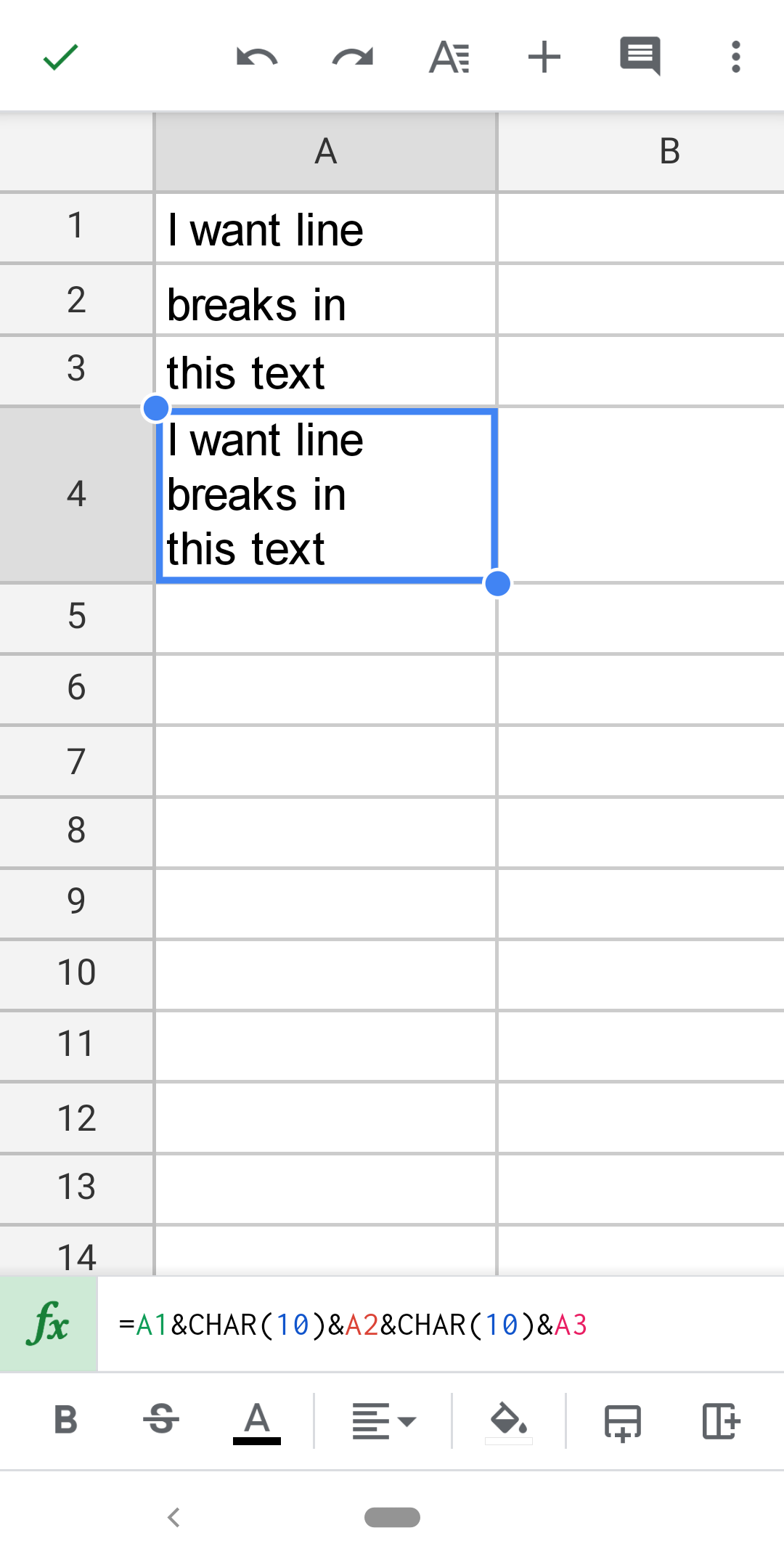
When you link your Google Form to a Google Sheet to collect responses, the line breaks are preserved, but they may not be immediately visible. If a respondent enters a multi-line paragraph, Google Sheets might display it as one long string of text in the cell. To fix this:
- Select the column containing the paragraph responses.
- Click the Text wrapping icon in the toolbar.
- Select Wrap. The cell will expand vertically, and the line breaks entered by the respondent will become visible.
Issues with Copy-Pasting Text
If you copy text from a word processor (like Microsoft Word or Google Docs) into a Google Form description, formatting characters can sometimes conflict. If your line breaks disappear after pasting, try "Pasting without formatting" (Ctrl+Shift+V or Cmd+Shift+V) and then manually re-inserting the line breaks using the Enter key within the Form editor.
Character Limits and Hidden Formatting
While Google Forms does not have an explicit, low character limit for Paragraph fields (they can hold thousands of characters), extremely long blocks of text without line breaks can become difficult for the Google Forms internal validation to process on older browsers. Always encourage respondents to use line breaks to improve the legibility of their data.
Frequently Asked Questions
Can I use HTML tags for line breaks in Google Forms?
No, Google Forms does not support HTML tags like or
in question titles or descriptions. If you type these tags, they will appear as plain text to the respondent. Use the Enter key for visual spacing. As of 2026, rich text features (bold, italics, and lists) are available via the formatting toolbar, which has largely replaced the need for manual workarounds.
Why doesn't the Enter key work in my question text?
The actual "Question" field is designed to be a single, concise string of text. To add detailed instructions or multi-line text related to a question, you should enable the Description field by clicking the three dots in the corner of the question block. The Description field fully supports the Enter key for line breaks.
Is there a way to force a new line in a Short Answer field?
Technically, no. The Short Answer field is defined in the form's underlying code as a single-line input. If your data requires line breaks, you must switch the question type to "Paragraph." If you have already collected data, you can change the question type at any time without losing existing responses, though it will only affect future entries.
How do line breaks affect data export to CSV?
When you export Google Forms data as a CSV file, line breaks are typically preserved as \n or carriage return characters. However, some basic CSV viewers (like Notepad) might not render these correctly, showing the text on a single line or with strange symbols. Opening the CSV in a professional spreadsheet tool like Excel or Google Sheets will generally resolve this.
Can I add line breaks between multiple-choice options?
You cannot add a manual line break within a single multiple-choice option. Each option is treated as a distinct entity. If an option is very long, it will automatically wrap to the next line based on the width of the respondent's screen, but you cannot force a break at a specific word.
Practical Recommendation
To ensure your form is readable and professional, always use the Paragraph question type for any input longer than a few words. Utilize the Description fields for instructions, using the Enter key to create whitespace between different points. This not only makes your form more accessible but also ensures that the data you collect in Google Sheets is properly structured and easier to analyze later.
Image Gallery