How to Swap eSIM Between Phones: The Complete 2026 Guide to Seamless Transfer
To swap an eSIM between phones, use the built-in eSIM Quick Transfer feature on iOS or the eSIM Transfer Tool on Android while both devices are nearby and connected to Wi-Fi. For cross-platform swaps between iPhone and Android, you mus...
To swap an eSIM between phones, use the built-in eSIM Quick Transfer feature on iOS or the eSIM Transfer Tool on Android while both devices are nearby and connected to Wi-Fi. For cross-platform swaps between iPhone and Android, you must typically regenerate a unique QR code via your carrier’s official app or web portal to provision the new hardware.
Contents
The transition to eSIM (embedded SIM) technology has fundamentally changed how we manage mobile identities. As of 2026, most flagship and mid-range smartphones have moved away from physical SIM slots entirely, making the digital "swap" a critical skill for any user upgrading their hardware or switching devices. Unlike a physical card that you simply pop out with a tool, an eSIM is a software-based profile stored on a dedicated chip (the eUICC). Swapping this profile requires secure communication between your device's operating system and the carrier’s Entitlement Server.
Essential Prerequisites for a Successful eSIM Swap
Before attempting to move your cellular plan, you must ensure your environment and hardware meet specific technical criteria. Failure to verify these can result in a "stuck" profile where the service is deactivated on the old phone but fails to initialize on the new one.
- Carrier Compatibility: Confirm your provider supports "eSIM Quick Transfer" or "Device-to-Device Discovery." Major carriers like Verizon, T-Mobile, and AT&T have fully integrated these protocols into the OS level by 2026.
- Network Stability: Both phones must be connected to a stable Wi-Fi network. The transfer process involves downloading a multi-megabyte cryptographic profile that cannot be interrupted.
- OS Updates: Ensure both devices are running the latest version of their respective operating systems (e.g., iOS 19+ or Android 16+). Security patches often contain updated SM-DP+ (Subscription Management Data Preparation) addresses necessary for modern transfers.
- Device Unlocking: The destination phone must be "carrier unlocked" if you are moving a profile from a different provider, or it must be locked to the same provider as the original eSIM.
- Bluetooth and Location: For proximity-based transfers, both Bluetooth and Location Services should be enabled to allow the devices to "handshake" securely.
Swapping eSIM Between Two iPhones (iOS to iOS)
Apple has refined the eSIM Quick Transfer process to be nearly instantaneous. In 2026, this remains the most user-friendly method for moving a cellular plan.
- Initiate on the New iPhone: Go to Settings > Cellular > Add eSIM.
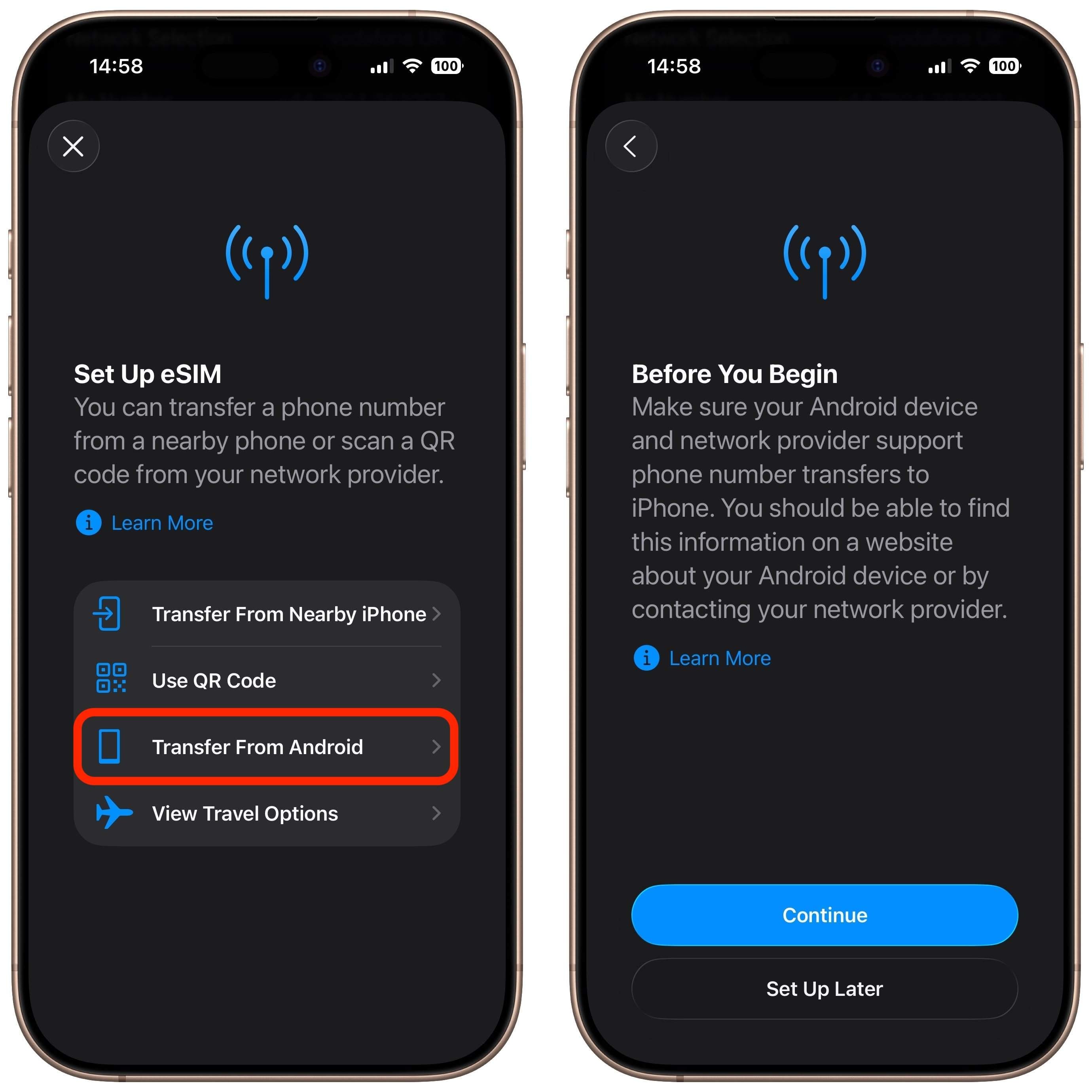
- Select Transfer Method: Choose "Transfer from Nearby iPhone." Ensure your old iPhone is unlocked, nearby, and has Bluetooth turned on.
- Verification: A notification will appear on the old iPhone asking to confirm the transfer. You may be required to enter a verification code displayed on the new device.
- Wait for Activation: The new iPhone will display "Activating" while it contacts the carrier's server. Once the signal bars appear on the new phone, the eSIM on the old phone will automatically deactivate and delete itself.
Technical Insight on iOS Security
During an iOS-to-iOS transfer, the devices use a secure peer-to-peer connection to pass the EID (Embedded Identity Document) and the carrier's provisioning URL. This ensures that the cryptographic keys governing your phone number never touch the public internet in an unencrypted state. If your carrier requires an additional layer of security, you may receive a SMS-based One-Time Password (OTP) before the final handshake is completed.
Swapping eSIM Between Two Android Devices
Android's eSIM transfer ecosystem has become highly standardized across manufacturers like Samsung, Google, and Motorola. The "eSIM Transfer Tool" integrated into the Android setup wizard is the primary vehicle for this swap.
- Start Setup on the New Device: During the initial setup or via Settings > Network & Internet > SIMs > Add SIM.
- Discovery: Select "Transfer a SIM from another device."
- Scan and Authenticate: You will be prompted to scan a QR code that appears on the old Android device or follow an on-screen prompt if both phones are signed into the same Google Account.
- Carrier Approval: The device will communicate with the carrier's SM-DP+ server to re-bind the ICCID (Integrated Circuit Card Identifier) to the new device's EID.
- Finalize: Once the "Service Active" message appears, restart the new device to ensure all IMS (IP Multimedia Subsystem) settings are correctly applied for VoLTE and 5G services.
Cross-Platform Transfers: iPhone to Android and Vice Versa
While OS-specific transfers are seamless, swapping an eSIM between an iPhone and an Android device (or vice versa) often requires manual intervention because the two operating systems do not share a common proximity transfer protocol.
To facilitate a cross-platform swap, you must follow the "Carrier Portal Method":
- Access Carrier App: Log into your carrier's mobile app (e.g., My Verizon, T-Life, or AT&T Gateway) on your new device.
- Request Replacement eSIM: Navigate to "Device Settings" or "Manage My Line" and select "Replace eSIM" or "Swap to This Device."
- Provide EID: You will likely need to enter the EID of the new phone. This can be found in Settings > About Phone.
- Scan the New QR Code: The carrier will generate a unique, one-time-use QR code. Scan this with the new phone's camera through the "Add eSIM" menu.
- Manual Cleanup: Unlike automatic transfers, you may need to manually delete the old eSIM profile from the original phone once the new one is active.
Comparison of eSIM Transfer Methods (2026 Standards)
The following table outlines the efficiency and requirements for different transfer scenarios based on 2026 industry benchmarks.
| Transfer Scenario | Primary Method | Estimated Time | Success Rate | Carrier Intervention |
|---|---|---|---|---|
| iPhone to iPhone | iOS Quick Transfer | 2–3 Minutes | 98% | Automatic / Low |
| Android to Android | Android Transfer Tool | 3–5 Minutes | 95% | Automatic / Low |
| iPhone to Android | Carrier QR / App | 5–10 Minutes | 85% | Required / High |
| Android to iPhone | Carrier QR / App | 5–10 Minutes | 85% | Required / High |
| iSIM Integration | Cloud Sync | < 1 Minute | 99% | Seamless |
Troubleshooting Common eSIM Swap Failures
Even with 2026 technology, "provisioning errors" can occur. Here is how to resolve the most frequent issues:
- "eSIM Not Supported" or "Transfer Failed" Error: This often happens if the carrier's Entitlement Server is undergoing maintenance or if there is a mismatch in the device's EID database. Try toggling Airplane Mode on and off, or perform a "Reset Network Settings" on the new device.
- No Service After Successful Transfer: If the phone shows signal bars but data doesn't work, the APN (Access Point Name) settings may not have updated. Most modern phones fetch this automatically, but you may need to go to Cellular Data Options and select "Reset to Default."
- The "Double Active" Glitch: In rare cases, both phones might appear to have service for a few minutes. Do not attempt to use both. Power off the old phone immediately to prevent a "split-brain" routing issue on the carrier's network, which can lead to missed calls and text messages.
- QR Code Already Used: eSIM QR codes are typically single-use. If your transfer fails halfway through, you cannot reuse the same code. You must contact your carrier to generate a fresh "Activation Token."
Security Considerations During a Swap
Swapping an eSIM is a high-security event. Fraudsters often use "SIM Swapping" to gain access to two-factor authentication (2FA) codes. Because of this, carriers in 2026 have implemented several safeguards:
- Cooling-Off Periods: Some carriers may restrict high-value transactions (like bank transfers) for 24 hours after an eSIM swap is detected.
- Physical Biometric Verification: When using a carrier app to swap an eSIM, you may be prompted for a FaceID or Fingerprint scan to verify that the person requesting the transfer is the account holder.
- Notification Alerts: You will receive an email and a push notification on all devices linked to your account when an eSIM transfer is initiated. If you did not authorize the swap, contact the carrier’s fraud department immediately.
Expert Recommendation for Travelers
If you are using a local travel eSIM (e.g., from Airalo or Holafly), these are almost never transferable between phones. Unlike a carrier-grade postpaid eSIM, travel eSIMs are usually bound to the specific EID of the device they were first downloaded on. If you upgrade your phone during a trip, you will likely need to purchase a new travel data plan for the new hardware.
The Future of the Swap: iSIM and Beyond
Looking forward through 2026, we are seeing the rise of iSIM (Integrated SIM). While eSIM uses a separate chip, iSIM is integrated directly into the phone's main processor (SoC). The swapping process for iSIM remains identical to eSIM from a user perspective, but it offers even faster activation times and better power efficiency. The protocols discussed in this guide—SM-DP+ and OS-level Quick Transfer—remain the gold standard for iSIM management.
Frequently Asked Questions
How many times can I swap my eSIM between phones? Most carriers do not have a hard limit on how many times you can move your service. However, some automated systems may flag your account for fraud if you perform more than three swaps in a 24-hour period. If this happens, a manual override from a customer service representative is required.
Will I lose my contacts or photos when I swap an eSIM? No. The eSIM swap only moves your cellular service, phone number, and data plan. It does not transfer any local data like contacts, photos, or apps. You should use a cloud backup service (like iCloud or Google One) to move your personal content.
Can I have the same eSIM active on two phones at the same time? Generally, no. Standard consumer cellular plans are designed for one active device per number. If you need your number on two devices, you must use a "Multi-device" plan or "Number Share" service (often used for Apple Watches or tablets), which creates a secondary linked eSIM.
Do I need to delete the eSIM from my old phone before starting the swap? No, and you should specifically avoid doing this. Most modern transfer processes require the old eSIM to be active so it can "hand off" the credentials to the new device. Only delete the old profile AFTER you have confirmed that the new phone is making calls and receiving data successfully.
What if I am swapping a phone that is broken or won't turn on? If the original phone is non-functional, proximity-based transfer will not work. You must use a second device (like a laptop or tablet) to log into your carrier’s website and request a "Device Swap." They will then provide a QR code to be scanned by your new, functional phone.
Is there a fee for swapping an eSIM? In 2026, most major carriers have eliminated "Activation Fees" for digital eSIM swaps performed by the user through the app or OS. However, if you visit a physical retail store and ask a representative to perform the swap for you, some carriers may still charge a small "Support Fee" or "Sim Assistance Fee."
Conclusion
Swapping an eSIM between phones is a straightforward process when staying within the same ecosystem (iOS to iOS or Android to Android). By leveraging proximity-based transfer tools, you can move your entire cellular identity in under five minutes. For those moving across platforms, the carrier’s official mobile app remains the most reliable bridge. Always ensure you are on a stable Wi-Fi connection and keep your old device active until the new one is fully provisioned to ensure a seamless transition without service interruption.
Image Gallery